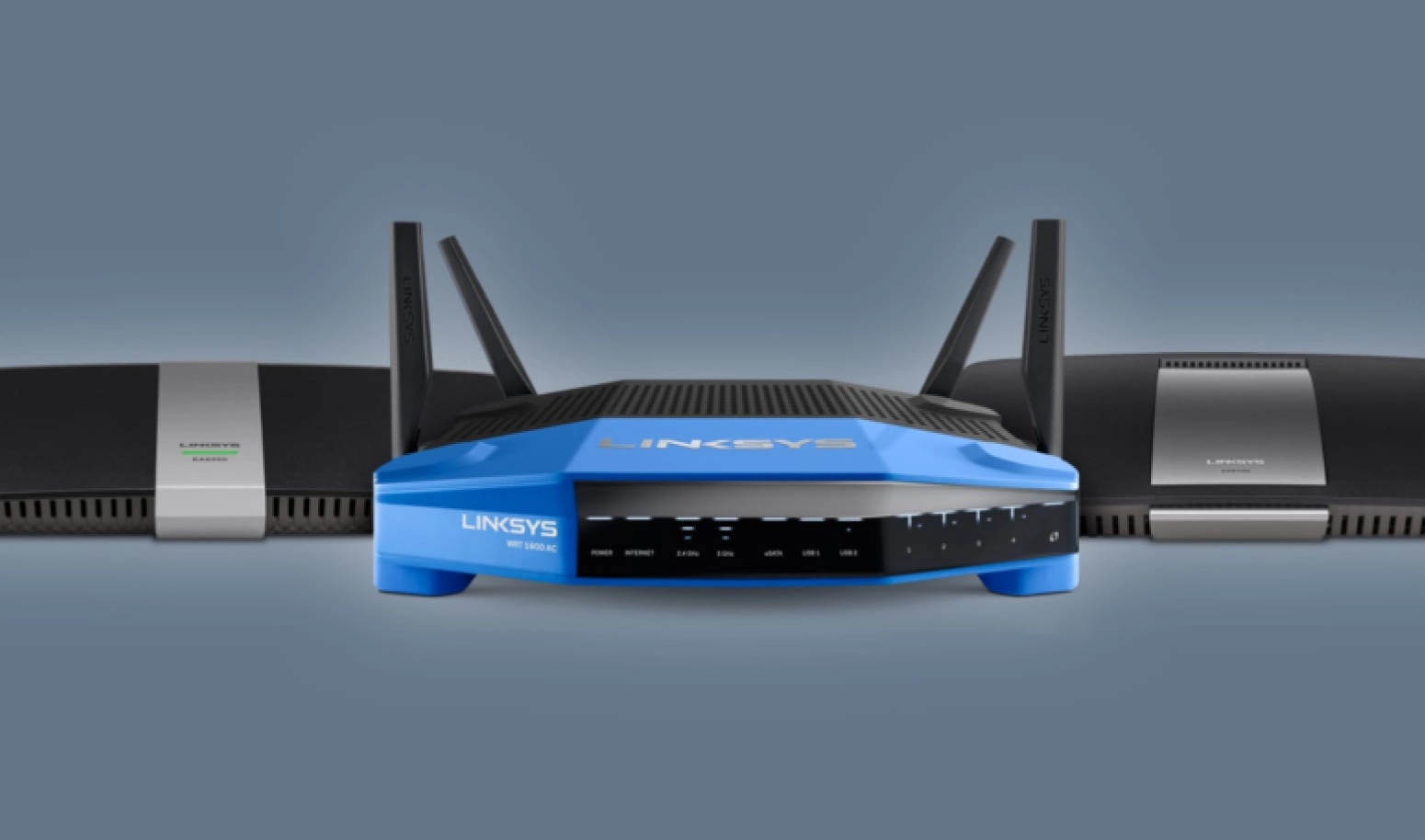
To connect a Linksys wireless router, first connect your modem to the router's yellow Internet port using an Ethernet cable, then plug in the router's power adapter and turn it on.
Before you connect your Linksys wireless router
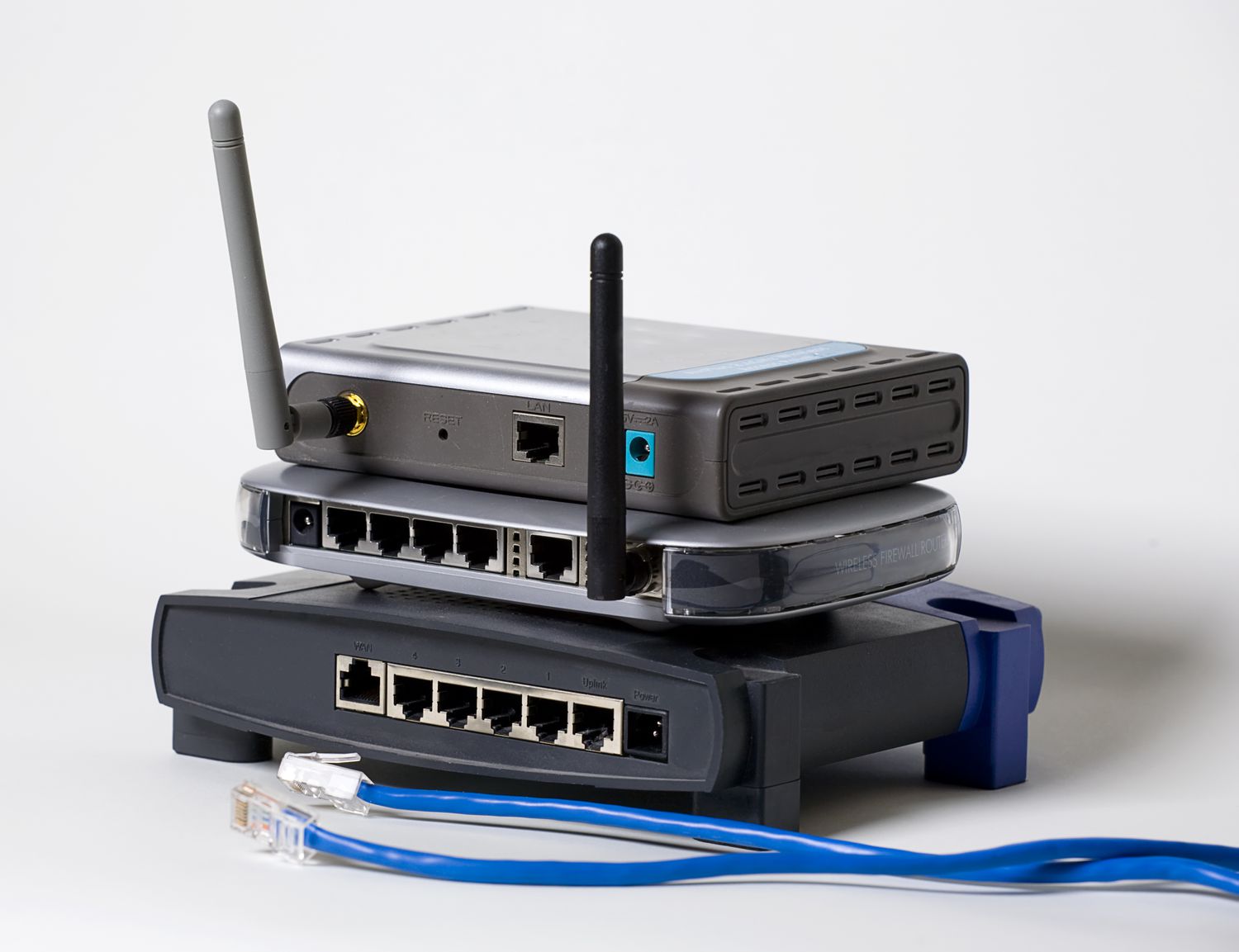
Unbox your Linksys router and confirm that the power adapter and an Ethernet cable are included. Identify the yellow Internet port (WAN) and the blue Ethernet (LAN) ports on the back of the router. Locate the default Wi‑Fi network name (SSID) and password printed on the label at the bottom of the router; you will need these to connect a device for setup. The critical first step is to power‑cycle your modem: turn it off, wait for it to fully power down, then turn it back on and wait for it to fully restart before proceeding.
Connect the router to the modem and power on
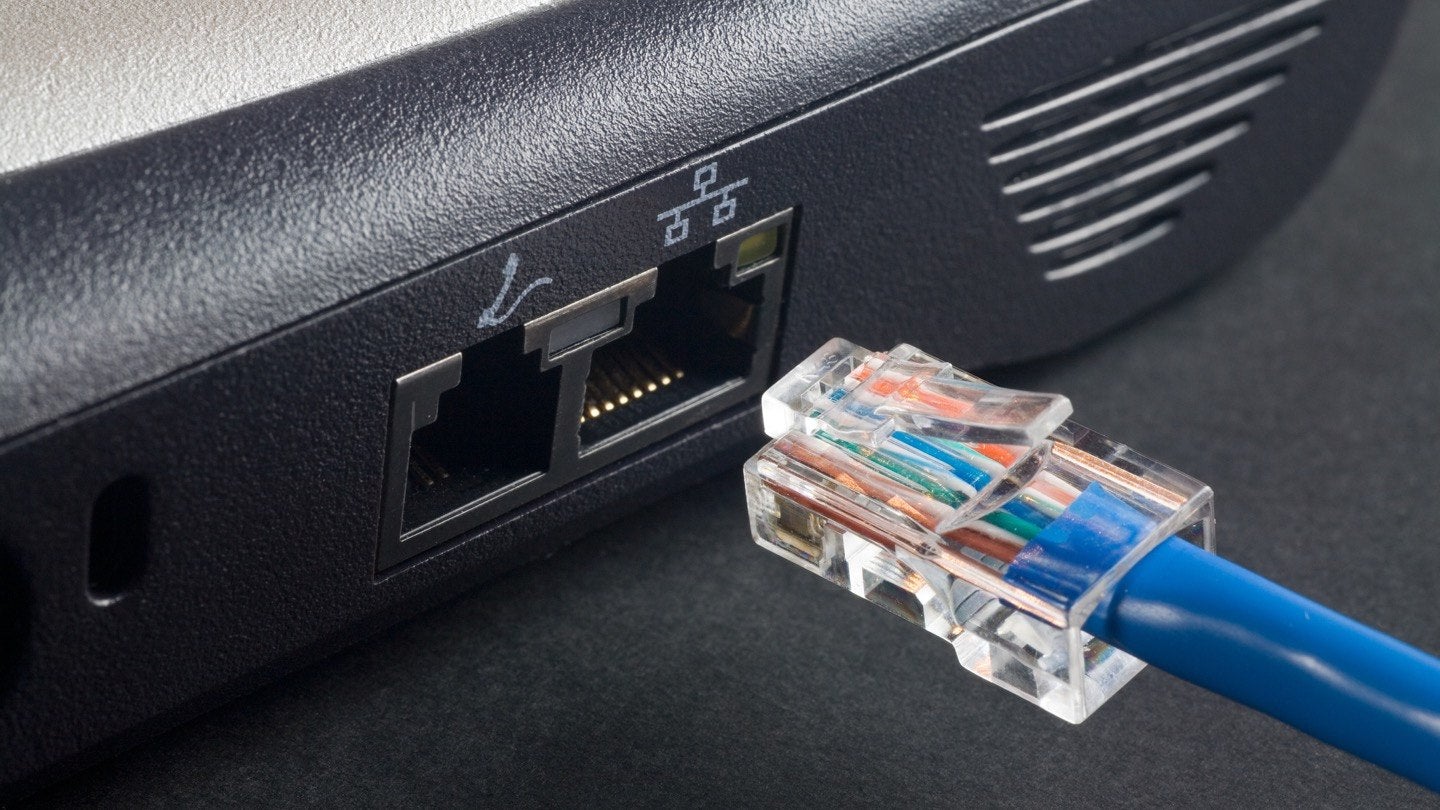
Use the Ethernet cable to connect your modem to the yellow Internet port on the Linksys router. Plug the router's power adapter into an electrical outlet and connect it to the router's power input. Turn on the router. Wait for your modem to fully restart before moving to the next step.
Connect a computer to the router for setup
You can connect a computer or mobile device to the router using one of two methods:
- Connect via Wi‑Fi using the default network name and password found on the router's label. You may need to select the appropriate encryption type, such as WPA or WPA2, when first connecting to the default Wi‑Fi.
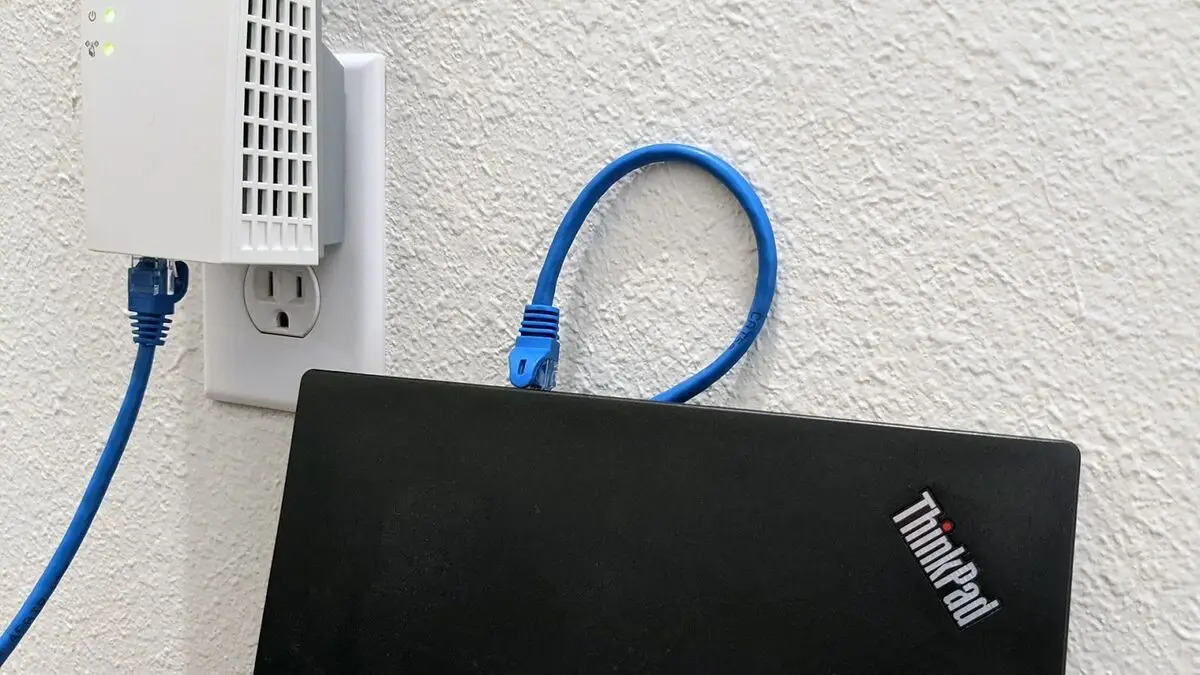
- Connect a computer directly to any of the blue Ethernet (LAN) ports on the router using an Ethernet cable.
A desktop browser is required to run the built-in browser-based setup wizard. For Linksys Smart WiFi Routers, initial setup via the Linksys app is no longer supported; a web browser must be used.
Run the web‑based setup wizard
Open a web browser on the connected device and navigate to http://myrouter.local or http://192.168.1.1. The default IP address may also be 192.168.0.1 for some models. On the page that appears, click "I have read and accept the License Terms for using this software" and then click "Next" to start the setup wizard.
Personalize your Wi‑Fi network and admin password
During the wizard, create a new local administrator password for your router. (If you bypass the setup wizard, the default password is "admin".) Customize your new Wi‑Fi names (SSIDs) and passwords for both the 2.4 GHz and 5 GHz bands. You can choose to use the same name and password for both bands if you prefer.
Reconnect your devices to the new Wi‑Fi
After applying the new settings, reconnect your computer or mobile device to your newly configured Wi‑Fi network using the new network name and password. This step is essential for setting up wireless connections on all your devices. After configuring settings, you should restart your router to apply the changes. The number of devices you can connect simultaneously varies by router model; check your router's specifications for its capacity.
Troubleshooting
If the router's Internet light does not turn solid blue, access the router's web interface, go to "Connectivity > Internet Settings," and configure the connection type (Automatic Configuration, DHCP, PPPoE, or Static IP) as provided by your Internet Service Provider (ISP).
How to reset your Linksys router to factory settings
If you need to restart the setup process, press and hold the Reset button on the router until the power light starts flashing. This restores the router to its factory default settings, including the default Wi‑Fi credentials and admin password.
Frequently Asked Questions
What do I do if I cannot access the router's setup page?
Make sure your computer is connected to the router (either via Wi‑Fi using the default credentials or via an Ethernet cable to a blue LAN port). Verify that you are typing the address exactly as shown: http://myrouter.local or http://192.168.1.1. If the page still does not load, temporarily disable any VPN or proxy software and try again.
Can I use the Linksys app to set up my router?
You must use a desktop browser and the web-based setup wizard to complete the initial configuration.
What should I do if I forget my new administrator password?
If you forget the local administrator password you created during setup, you will need to reset the router to factory settings by pressing and holding the Reset button until the power light starts flashing. After the reset, you can run the setup wizard again and create a new password.
How do I know which connection type to choose in Internet Settings?
Your Internet Service Provider (ISP) determines the correct connection type. Common types include Automatic Configuration, DHCP (most common for cable and fiber), PPPoE (often used for DSL), and Static IP (if your ISP assigns a fixed IP address). Contact your ISP if you are unsure which type to select.
Related reading: How To Set Up My Verizon Wireless Router and How To Pair Two Wireless Routers.