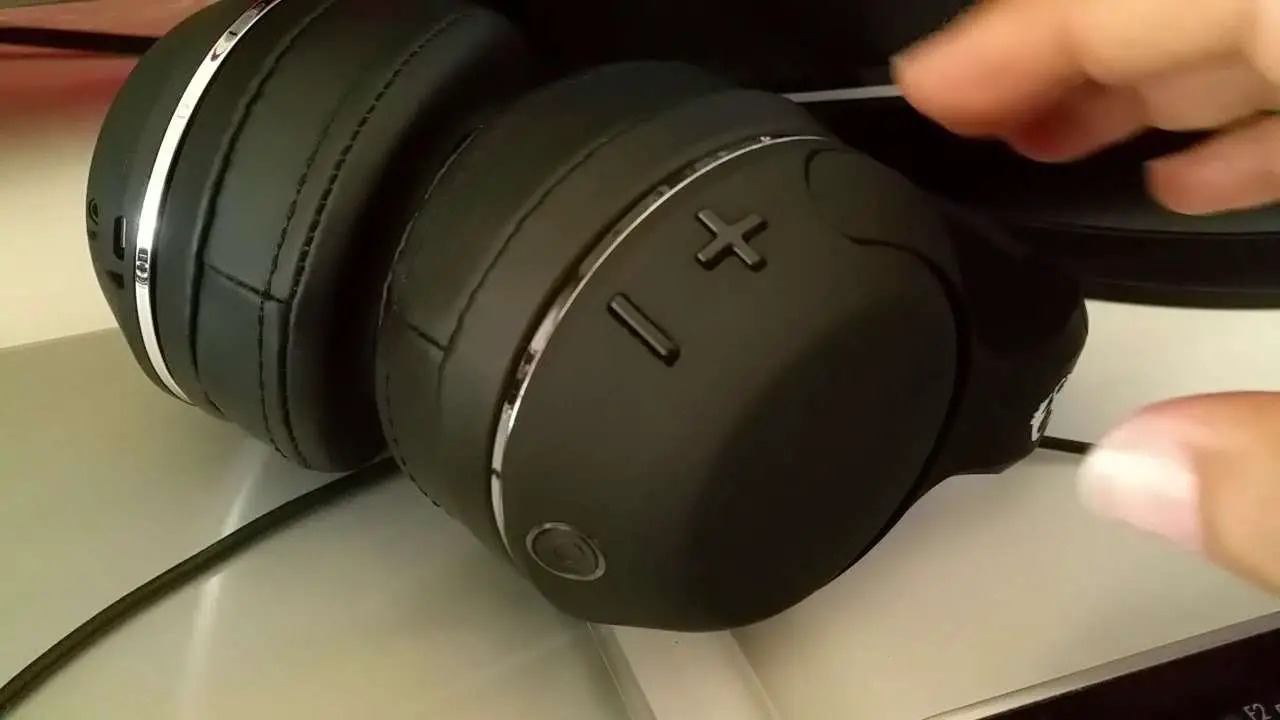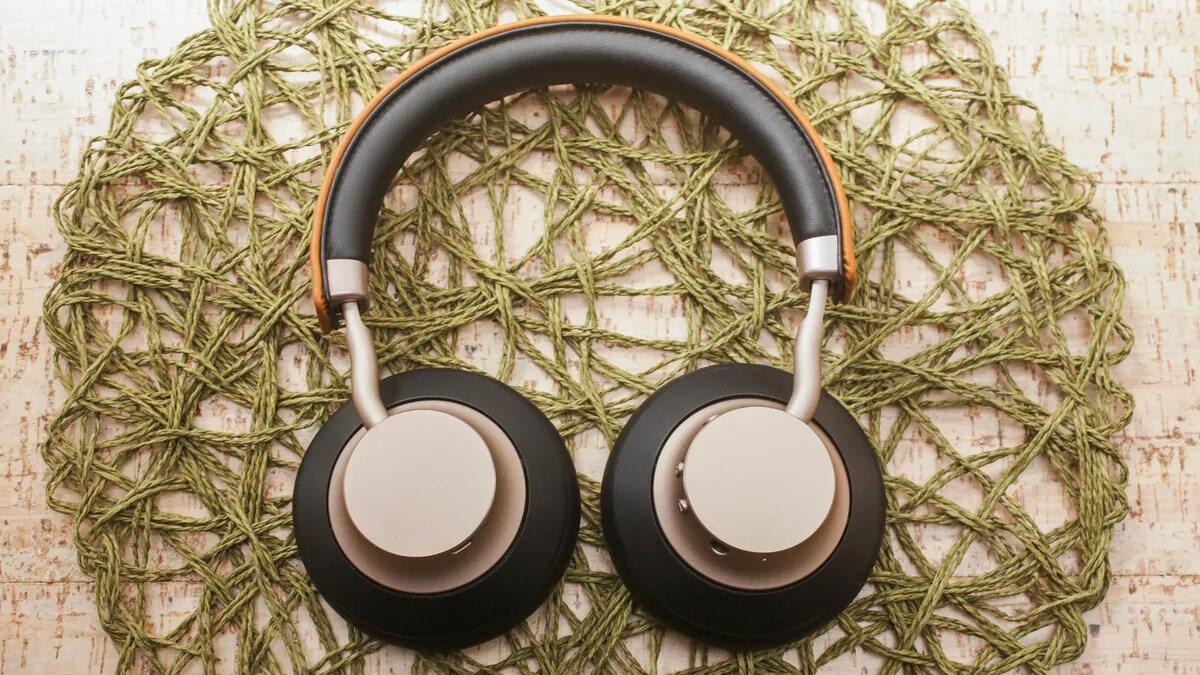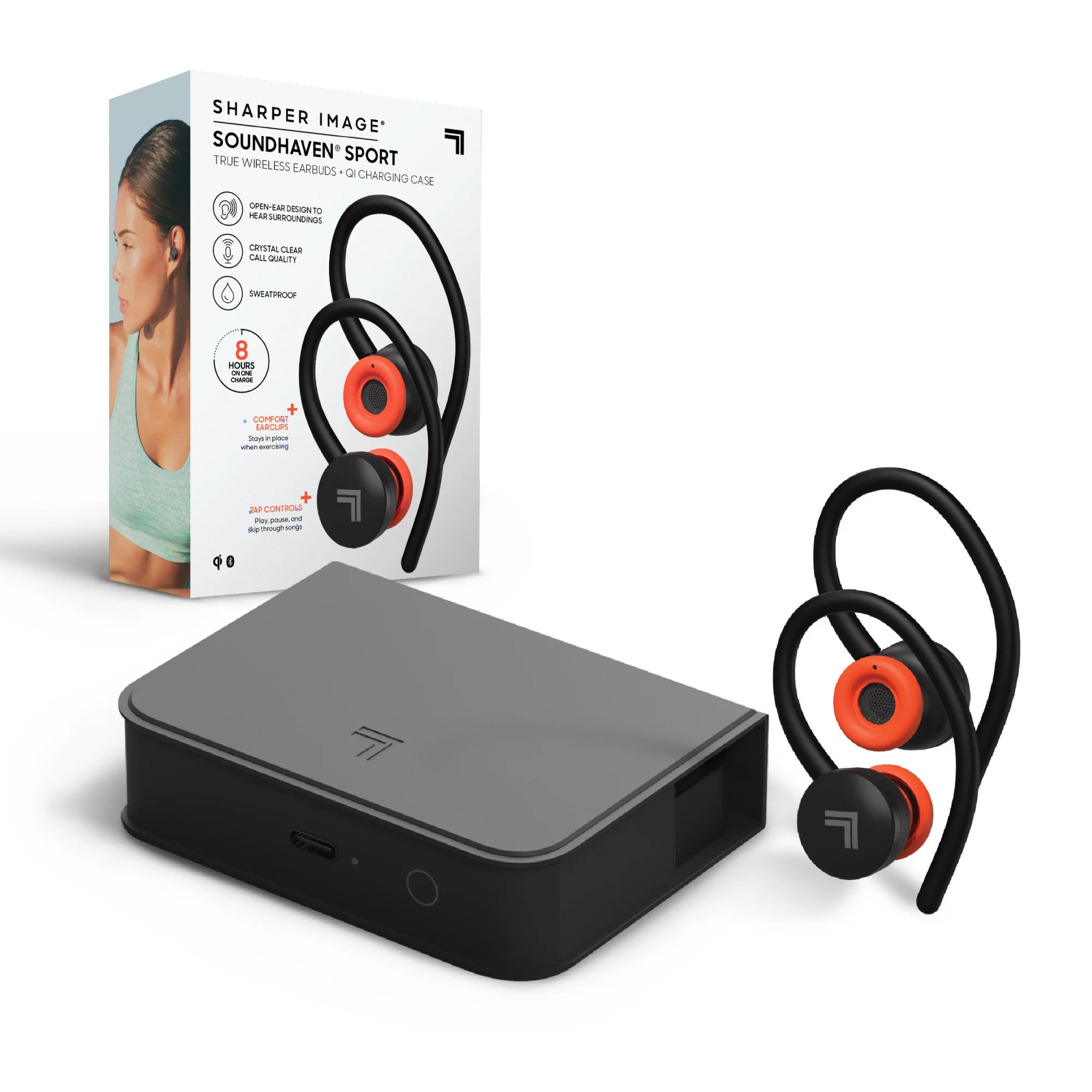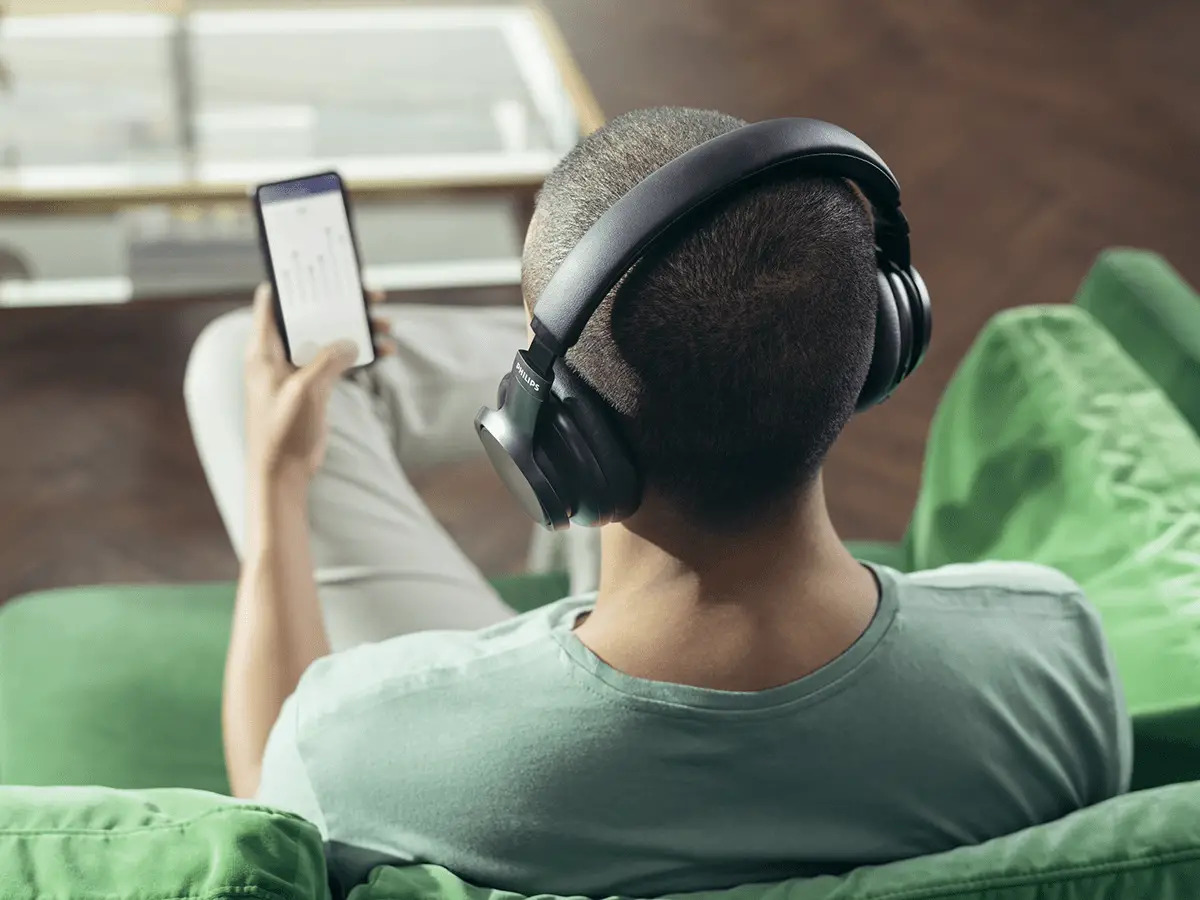
To pair Philips wireless headphones, you need to enter pairing mode on the headphones and then select the device from your phone, tablet, or computer's Bluetooth menu. The exact button and hold time vary by model, so checking your specific model's manual is essential for success.
Before you pair your Philips wireless headphones
Checking Bluetooth compatibility
Philips wireless headphones pair with Bluetooth devices such as mobile phones. If your device has Bluetooth 3.0 or higher, you will not need to enter the 0000 password when prompted during pairing. If a device has Bluetooth 3.0 or higher, there is no need to enter the 0000 password when prompted.
Charging the headphones
Identifying your model's specific pairing button method
The pairing method depends entirely on your model. Some true-wireless models enter pairing mode when you open the charging case with the earpieces inside. Other models require pressing and holding the power button for 5 seconds, while some use a 2-second hold on the power button or a dedicated button on the headphones. Still other true-wireless models use a button on the charging case itself.
How to put Philips headphones in pairing mode
There are four documented methods for entering pairing mode. Use the one that matches your model:
- Opening the charging case: For some true-wireless models, simply open the charging case with both earpieces inside. The lights on both headsets will blink white and blue, indicating the headset is ready to pair.
- Holding power for 5 seconds: Press and hold the power button for 5 seconds to enter pairing mode.
- Pressing the case button for 3 seconds: For certain true-wireless models, press the button on the charging case for 3 seconds with both earpieces inside and the case open.
Connect to your phone, tablet, or computer
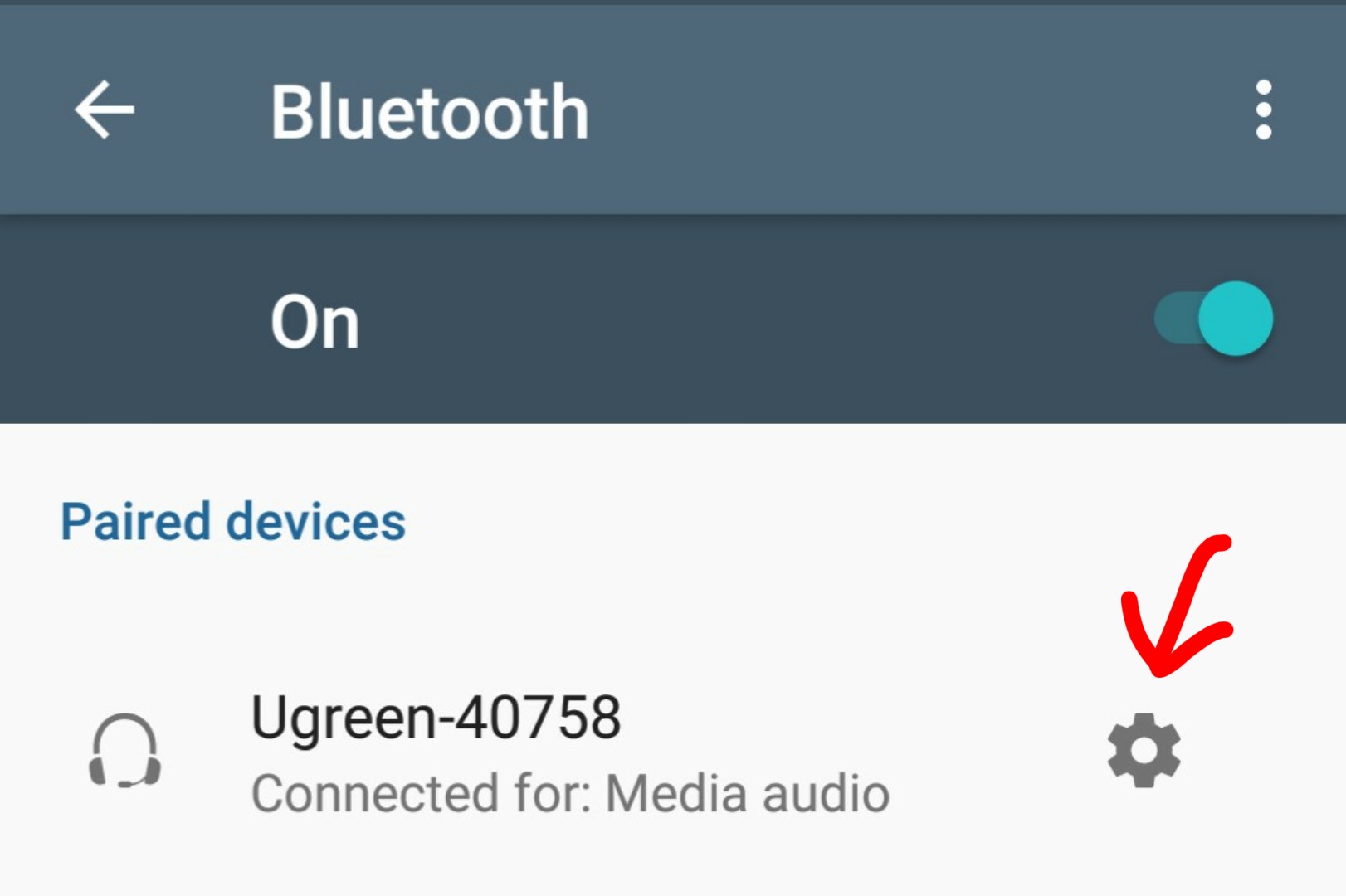
- Turn on Bluetooth on your source device.
- Open the Bluetooth settings on the device and look for the Philips model name. Common model names include Philips TAT3216, Philips TAT2000, Philips TAT3508, Philips TAT3509, Philips TAT1158, Philips TAH2000, Philips TAH4209, or Philips TAH2209.
- Select the Philips model name from the list of available devices.
- If prompted for a password, enter 0000. Devices with Bluetooth 3.0 or higher do not need a password.
Use Google Fast Pair on Android
Some Philips models support Google Fast Pair on Android smartphones. When the headphones are in pairing mode and Bluetooth is turned on, the headphones are automatically detected by the Android phone. For some models, Philips also documents Google Fast Pair on Android smartphones, with the headphones automatically detected when the headphones are in pairing mode and Bluetooth is on. For standard pairing on Android, the same general steps apply: turn on Bluetooth, put the headphones in pairing mode, and select the Philips model in the Bluetooth menu.
Pair a second device
To pair a second device, re-enter pairing mode using the same method you used initially, whether that is opening the charging case, holding the power button, or pressing the case button. If pairing a second device, Philips often says to re-enter pairing mode using the same button or case-button method, then discover the second device as normal. Then discover the second device normally from its Bluetooth settings.
Troubleshooting: headphones won't connect
If the headphones do not pair, Philips support recommends putting the headphones back into pairing mode and trying again. If the headphones do not pair, Philips says to put them back into pairing mode and try again. This simple step often resolves the issue when pairing wireless earbuds and headphones.
Frequently Asked Questions
Can I use my Philips wireless headphones while they are charging?
Most Philips wireless headphones can be used while charging, allowing you to continue listening even if the battery is low. However, the charging process may take longer if the headphones are being used simultaneously.
How do I reset my Philips wireless headphones to factory settings?
Resetting procedures vary by model.
Why does my Philips headphone battery drain quickly?
Power-intensive features such as noise cancellation or enhanced bass can drain the battery faster. Reducing the volume level and ensuring the headphones are fully charged before use can help optimize battery life.
Are Philips wireless headphones compatible with all smartphones?
Philips wireless headphones are compatible with any device that supports Bluetooth audio output, including smartphones, tablets, laptops, and some smart TVs. Check your device's specifications to confirm Bluetooth support before pairing.
Can I connect my Philips headphones to multiple devices at once?
Most Philips wireless headphones can only be connected to one device at a time. To switch between devices, disconnect from the current device and pair with the new device following the standard pairing process.
For the wider topic, see pairing wireless earbuds.
Related reading: How To Pair Wireless Skullcandy Headphones and How To Pair Heyday Wireless Headphones.