Start here: layers

All topics →

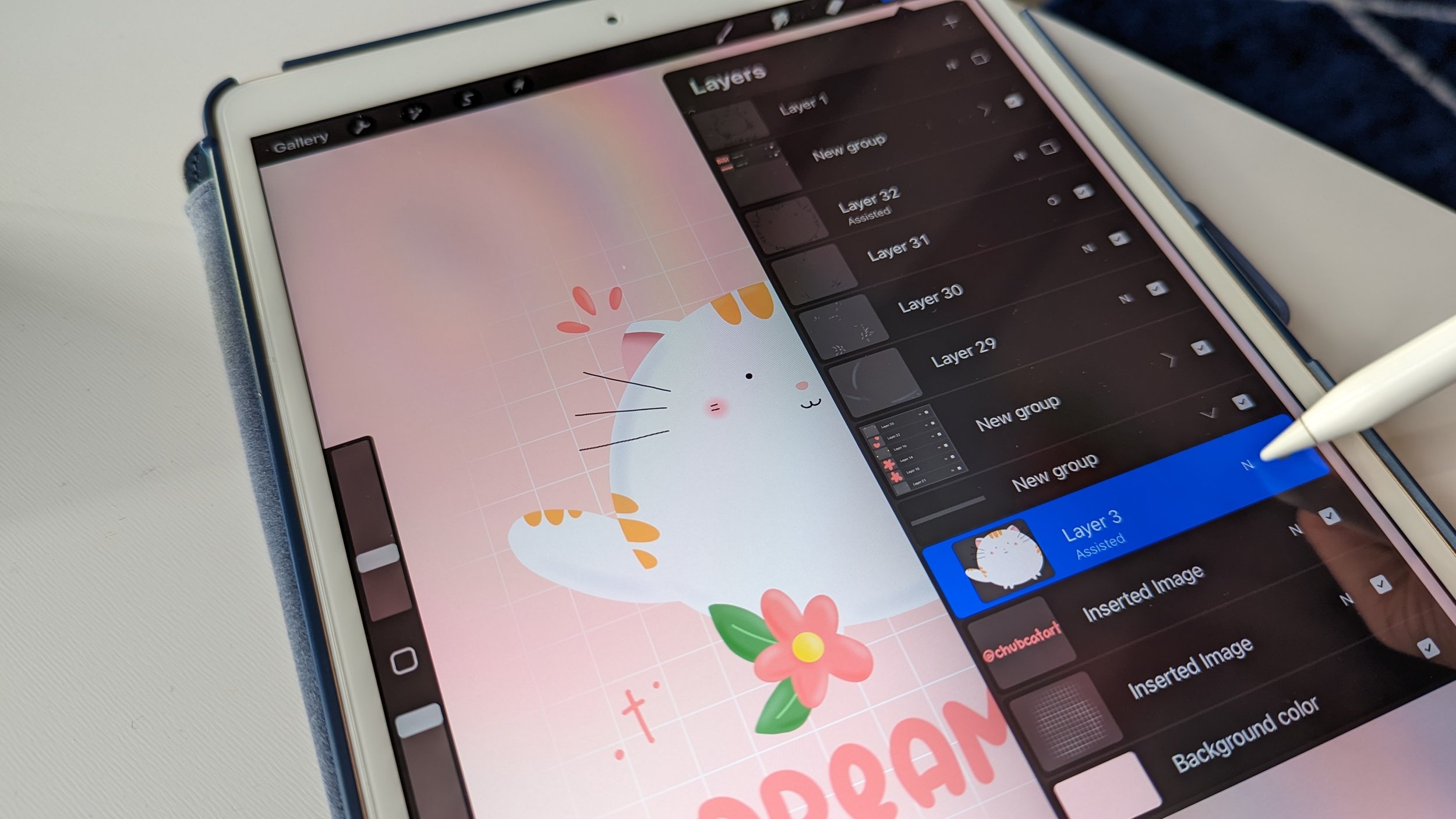
The "Layers" tag on CellularNews collects practical guides for anyone using Procreate on their iPad, from casual doodlers to more serious digital artists. These articles are designed for users who want to master the core layer-based workflow that makes Procreate such a powerful drawing and design tool, helping you move from confusion to confident creation.

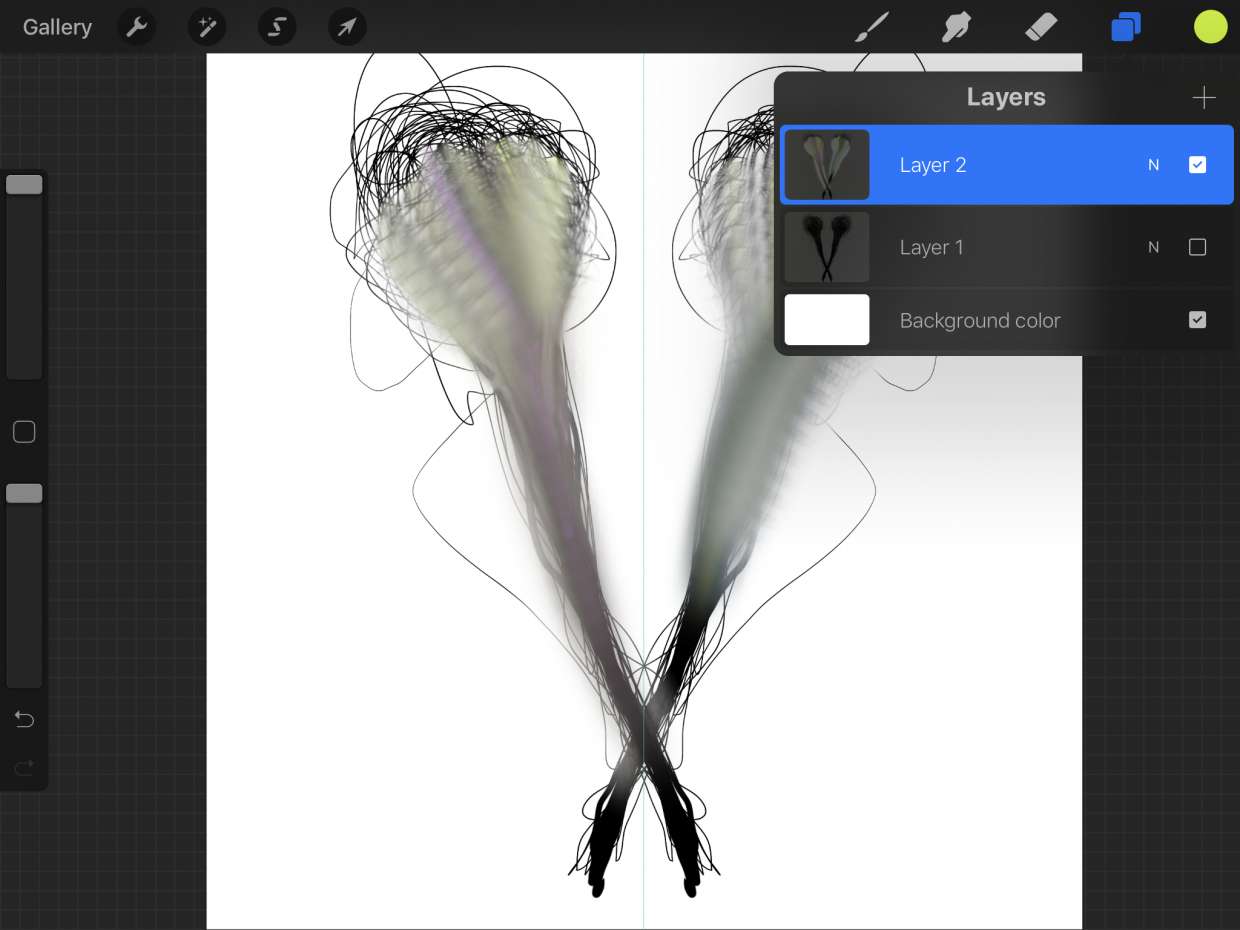
The articles here solve specific, hands-on problems grouped around a few clear themes. One major theme is layer management and organization, you will find straightforward steps for merging layers, moving a layer, ungrouping them, and flipping a layer to mirror your artwork. Another theme focuses on transparency and visibility, with guides on how to make a layer transparent, how to turn down opacity on a layer, and how to change the opacity of a layer on Procreate. A third theme covers image manipulation and masking, including how to cut out an image, how to resize an image, and how to alpha lock to keep your shading within the lines.

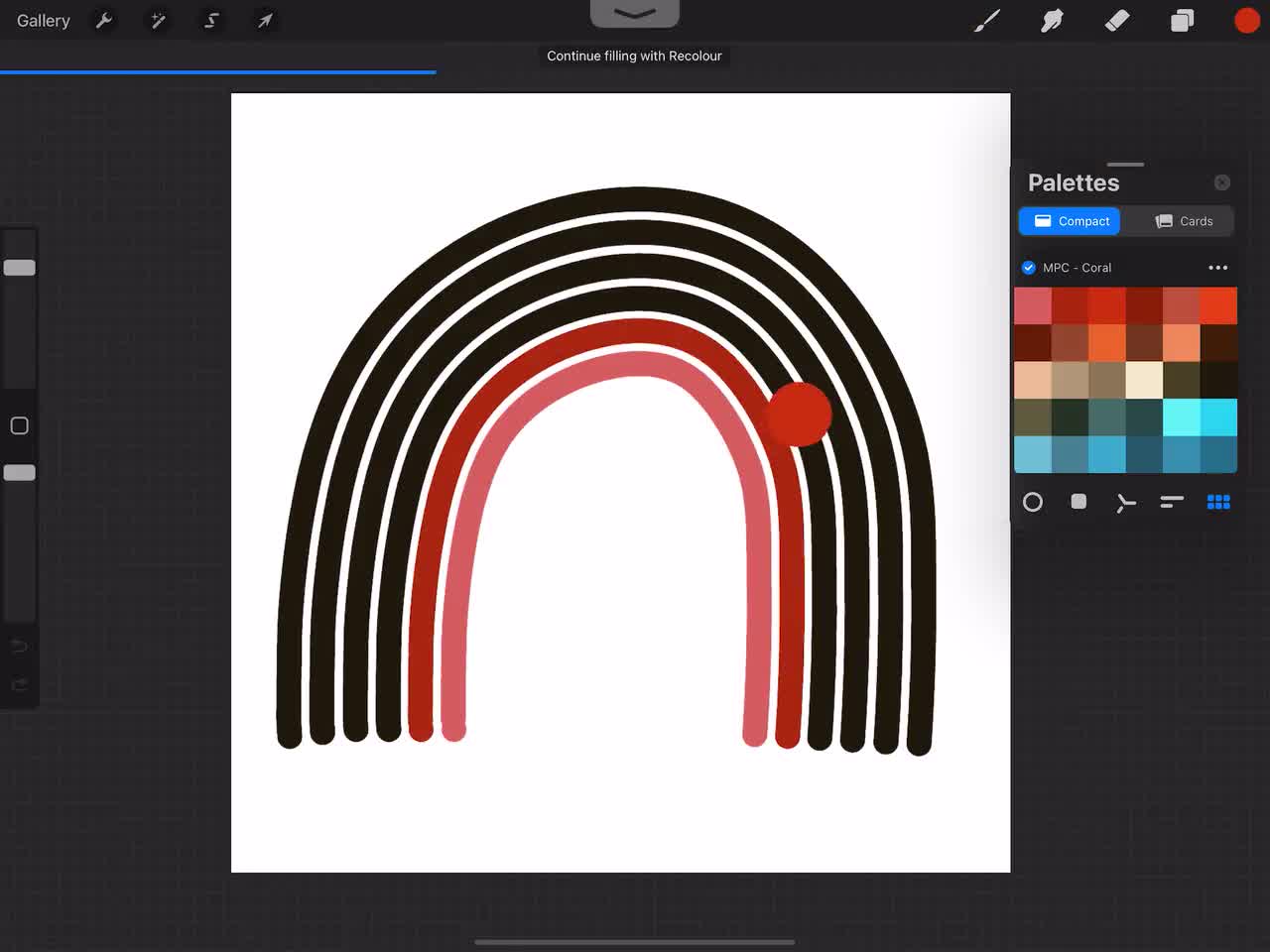
By following these guides, you will learn to do essential tasks like tracing an image, making the background transparent on Procreate, and coloring inside the lines without messy edges. Whether you are trying to shade a portrait or animate a simple drawing, these articles give you the direct, no-nonsense steps to get the job done.
Coloring, Shading and Rendering in Procreate

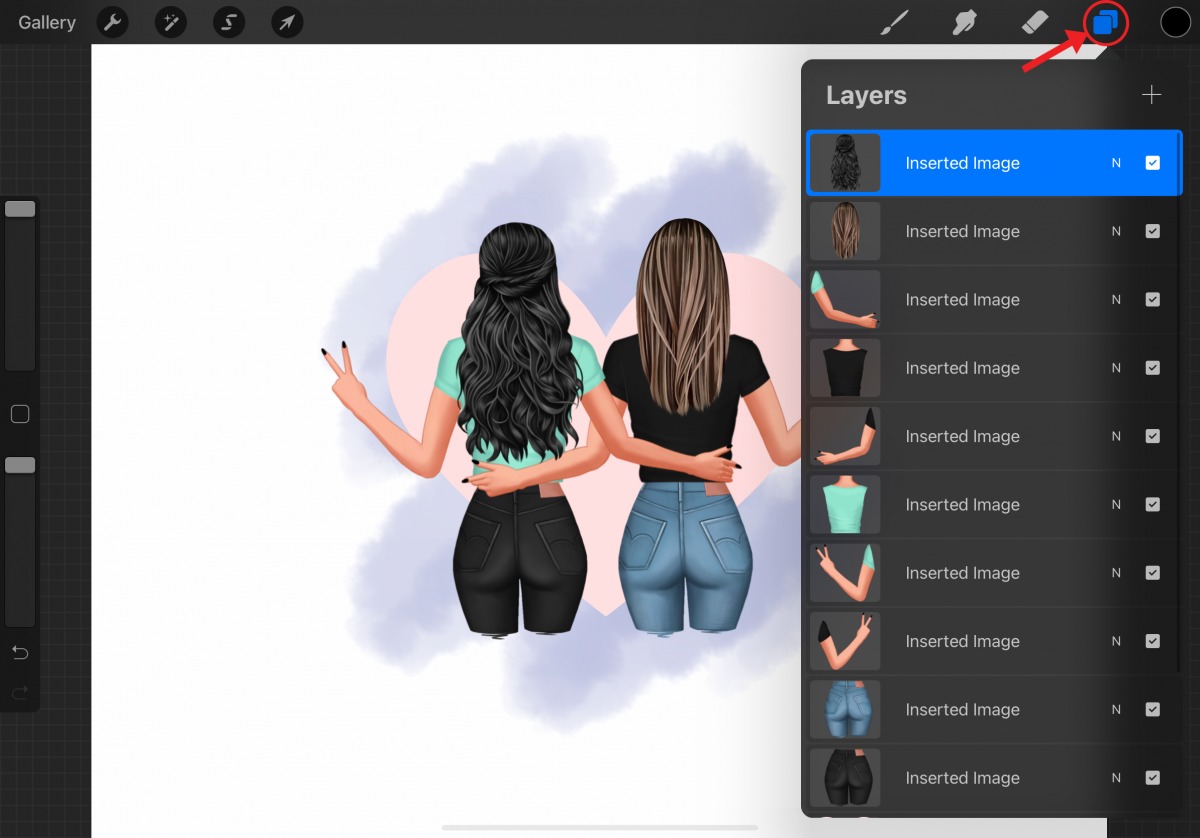
Setting up your canvas and layers for procreate shading rendering Master procreate shading rendering by first ensuring your Layers panel is set up correctly, because the state of it determines...

How To Turn Down Opacity On Procreate

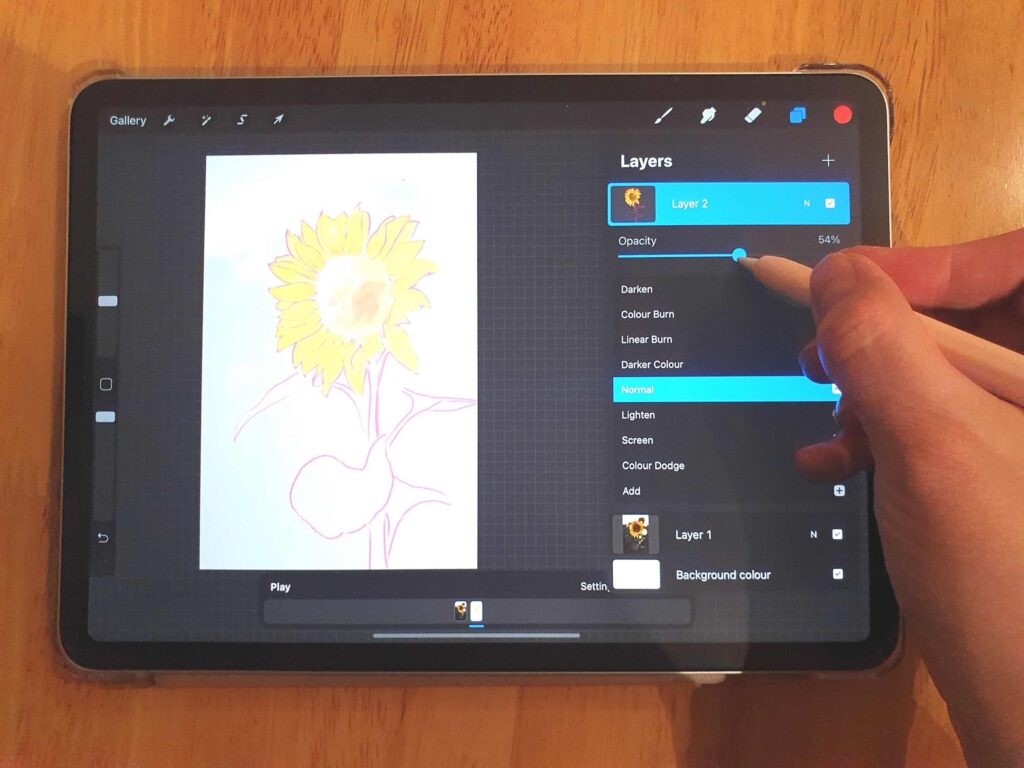
To turn down opacity on Procreate, you can adjust a layer's transparency using the Layers panel or the Adjustments menu on iPad, and the same controls are available on iPhone...

How To Alpha Lock In Procreate

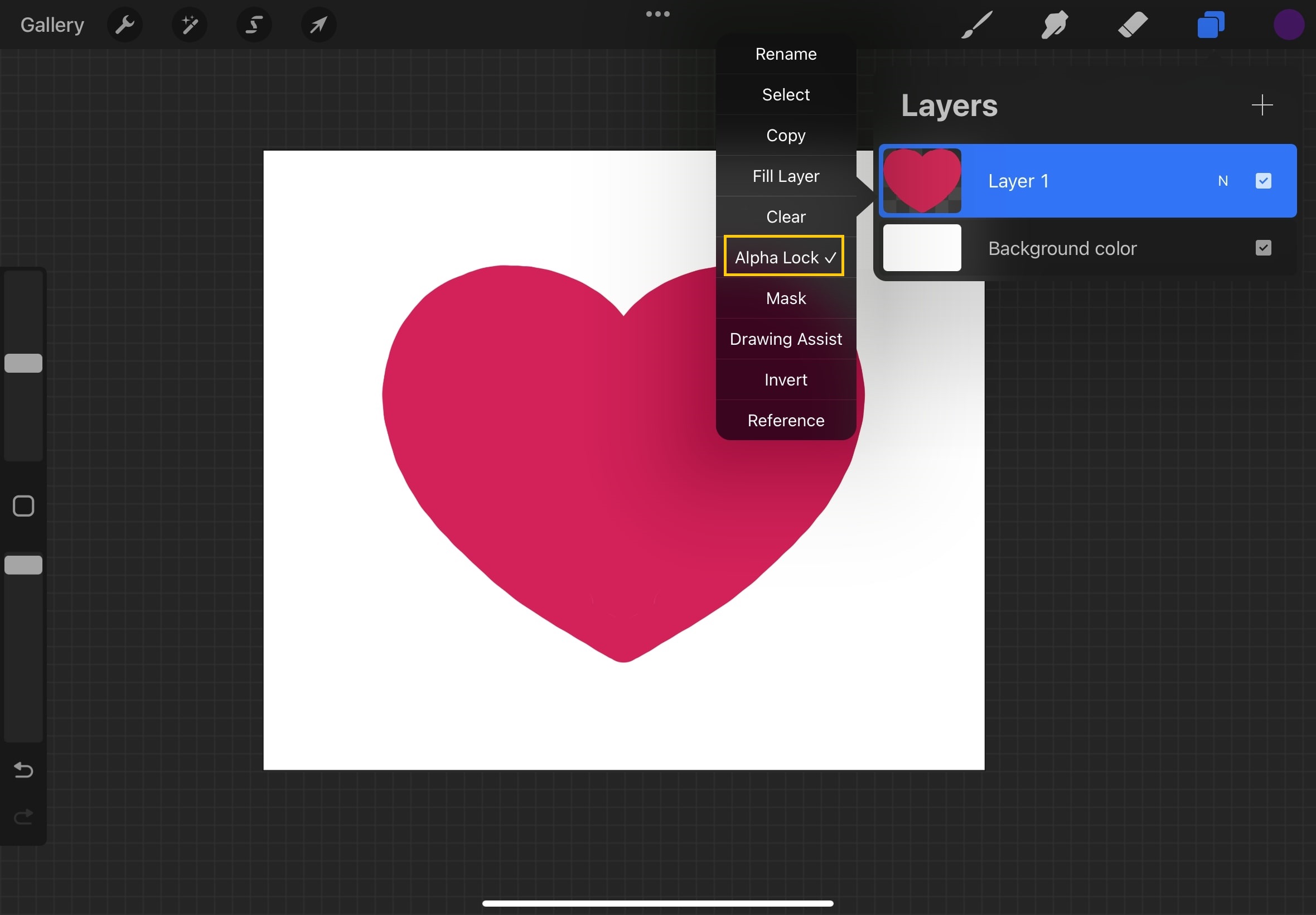
To alpha lock in Procreate, activate the feature on a layer so you can only paint or edit within the existing opaque pixels, leaving transparent areas untouched. This lets you...

How To Flip A Layer In Procreate

To flip a layer in Procreate, select the layer you want to mirror, then tap the Transform tool (the arrow icon) and choose Flip Horizontal or Flip Vertical. This two-step...

How To Ungroup In Procreate

To ungroup in Procreate, open the Layers Panel, tap the group name, then tap Ungroup in the pop-up menu. This is the only documented method for separating grouped layers so...

How To Move A Layer In Procreate

To move a layer in Procreate, you can reposition the artwork on the canvas using the Transform tool or change the layer’s position in the stacking order by dragging it...

How To Shade In Procreate

To shade in Procreate, start with a flat base color on one layer, then add shadows on a new layer using Blend Modes like Multiply, and finish with highlights on...

How To Color Inside The Lines In Procreate

To color inside the lines in Procreate, use the official layer-based workflow: set your line art layer as a Reference, create a new layer below it, and drag the Colors...

How To Resize Image In Procreate

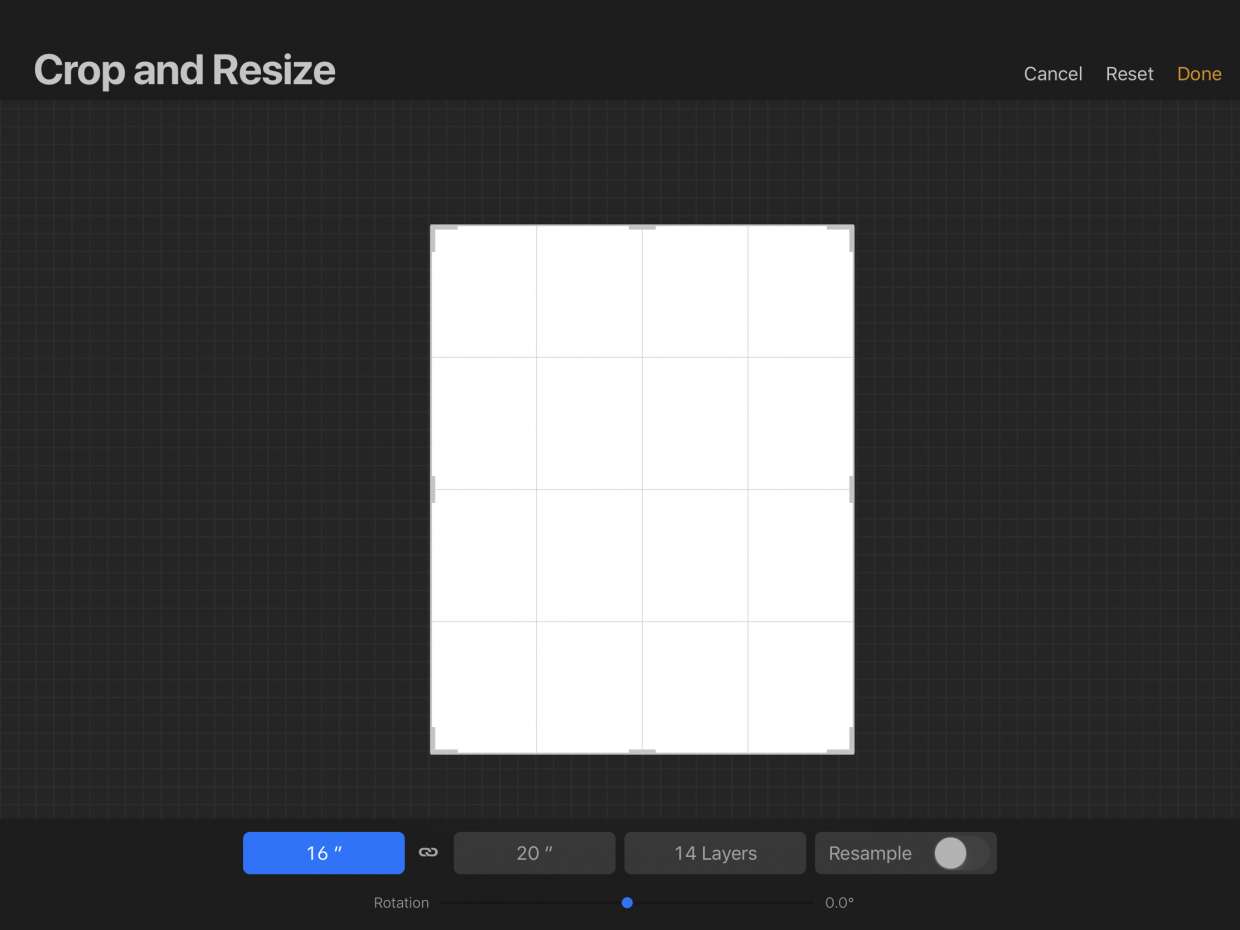
To resize an image in Procreate, you need to choose between two methods depending on whether you want to change the entire canvas or just a single layer. Resizing the...

How To Make Background Transparent On Procreate

To make a background transparent in Procreate, turn off the Background layer in the Layers panel. This reveals the checkerboard transparency grid, and you can then export your artwork as...

How To Make Layer Transparent In Procreate

To make a layer transparent in Procreate, open the Layers panel, tap the layer's "N" blend-mode label, and use the opacity slider that appears beneath it. This is one of...