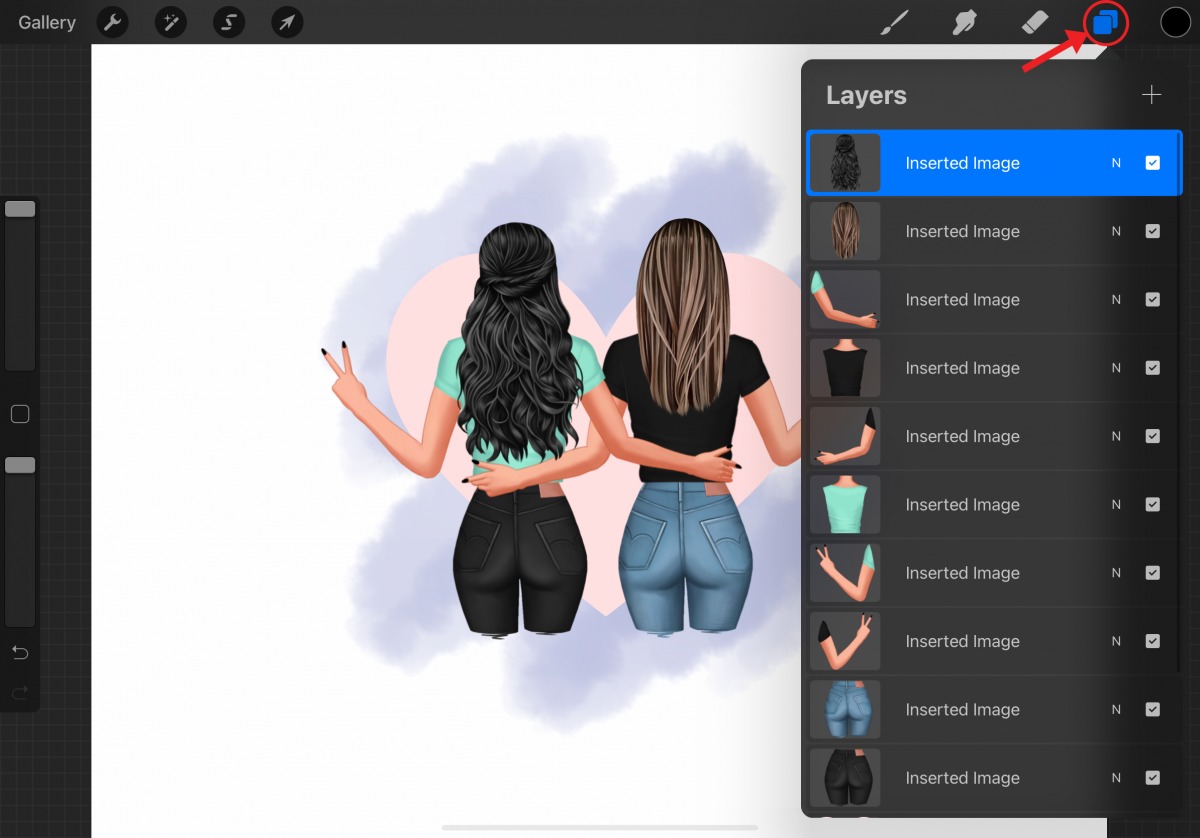
To make a layer transparent in Procreate, open the Layers panel, tap the layer's "N" blend-mode label, and use the opacity slider that appears beneath it. This is one of three quick methods to change a layer's see-through level, essential for coloring, shading and rendering in Procreate.
How to Make a Layer Transparent in Procreate
How to Make a Layer Transparent in Procreate: An introduction confirming the task is simple and outlining the three quick methods that will be covered
Adjusting a layer's transparency in Procreate is straightforward and can be done in seconds. Whether you are blending artwork, creating soft shadows, or building up depth, you have three reliable options: the Adjustments menu, the Layers panel, or a two-finger tap shortcut. Each method gives you precise control over how much of the underlying layers show through.
Method 1: Using the Adjustments Menu
- With your artwork open, tap the Adjustments icon (the magic wand) in the top toolbar.
- Select Opacity from the menu to enter the Opacity interface.
- The opacity bar starts at 100% by default. Slide left to make the active layer more transparent, or right to make it more solid.
- To commit the change, tap the Adjustments icon again or tap any other tool. Tap Cancel to exit without saving the adjustment.
Method 2: Using the Layers Panel
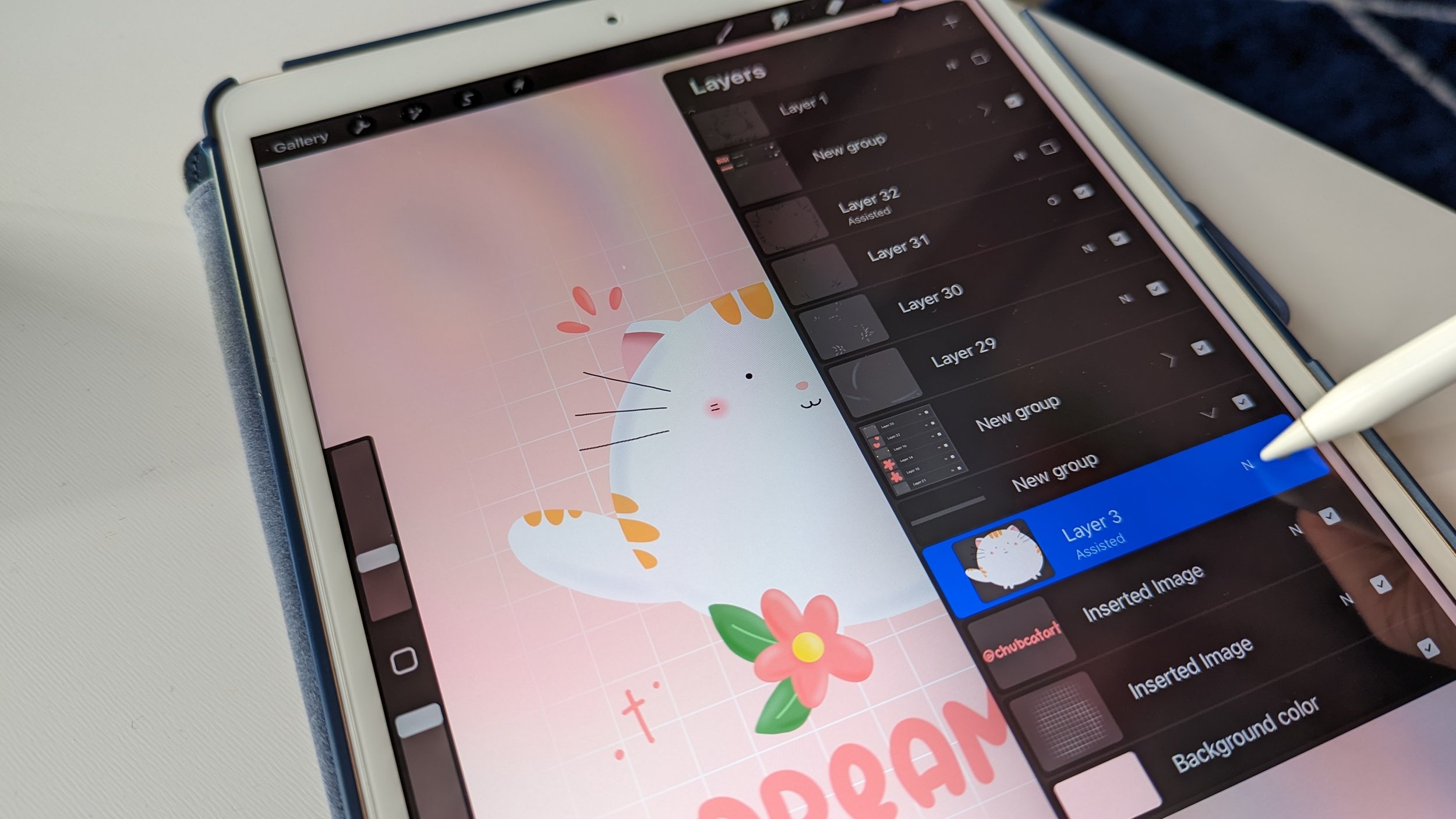
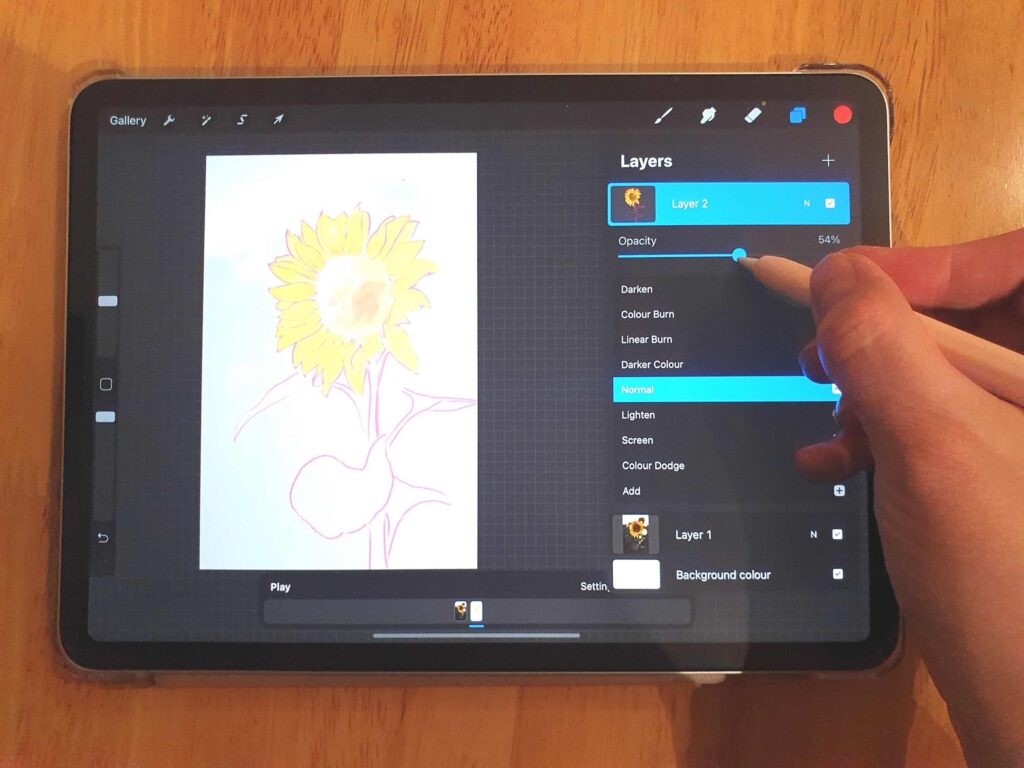
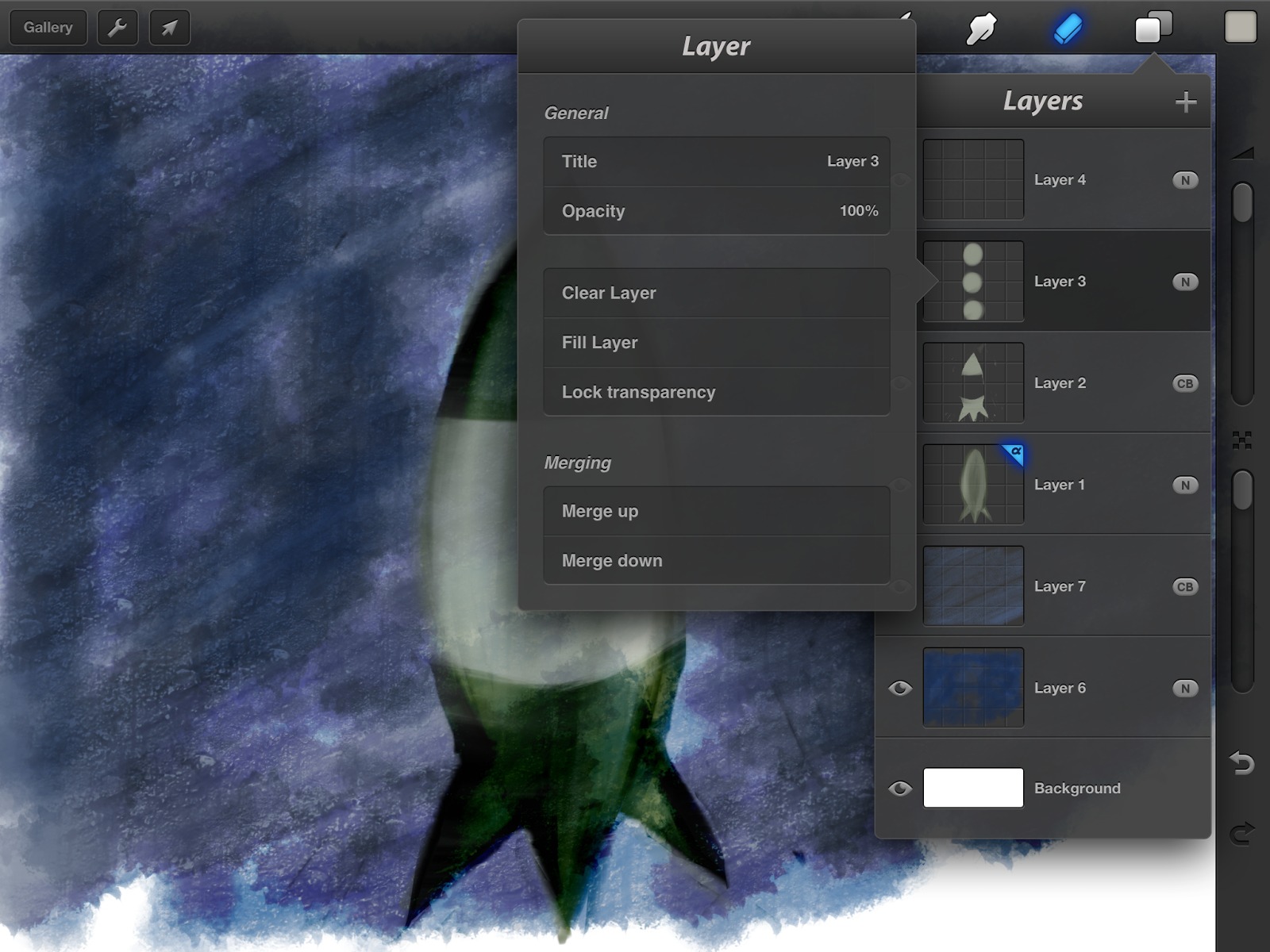
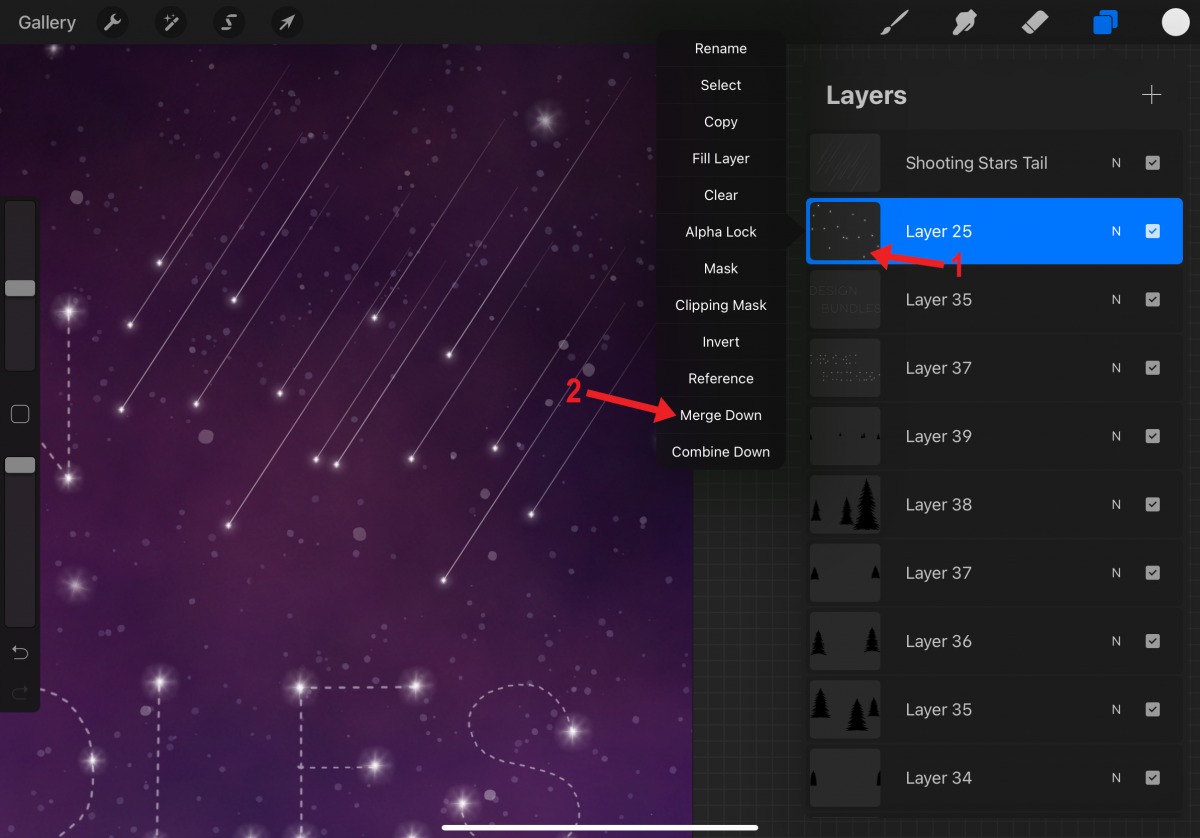
- Open the Layers panel in the top-right corner of the screen.
- Tap the small letter(s) to the right of the layer name, this is "N" by default, representing the blend mode.
- Directly beneath the blend-mode label, use the slider to set the layer's opacity. Slide left for more transparency, right for more solidity.
Method 3: The Two-Finger Tap Shortcut
- With the Layers panel open, use two fingers to tap the layer you want to adjust. This shortcut requires the Layers panel to be open.
- A narrow blue bar appears at the top of the canvas.
- Slide left on this bar to make the layer more transparent, or right to make it more solid. This is the fastest method for on-the-fly adjustments.
Important Notes on Layer Opacity
Opacity changes affect the entire layer and ignore any active selection. This means that even if you have a selection active on the canvas, adjusting the layer's opacity will still apply to all pixels on that layer, not just the selected area. Opacity changes ignore any current selection. The adjustment always starts from 100% opacity and can be reduced to any level of transparency; there is no documented minimum numeric limit.
How to Make Only Part of a Layer Transparent
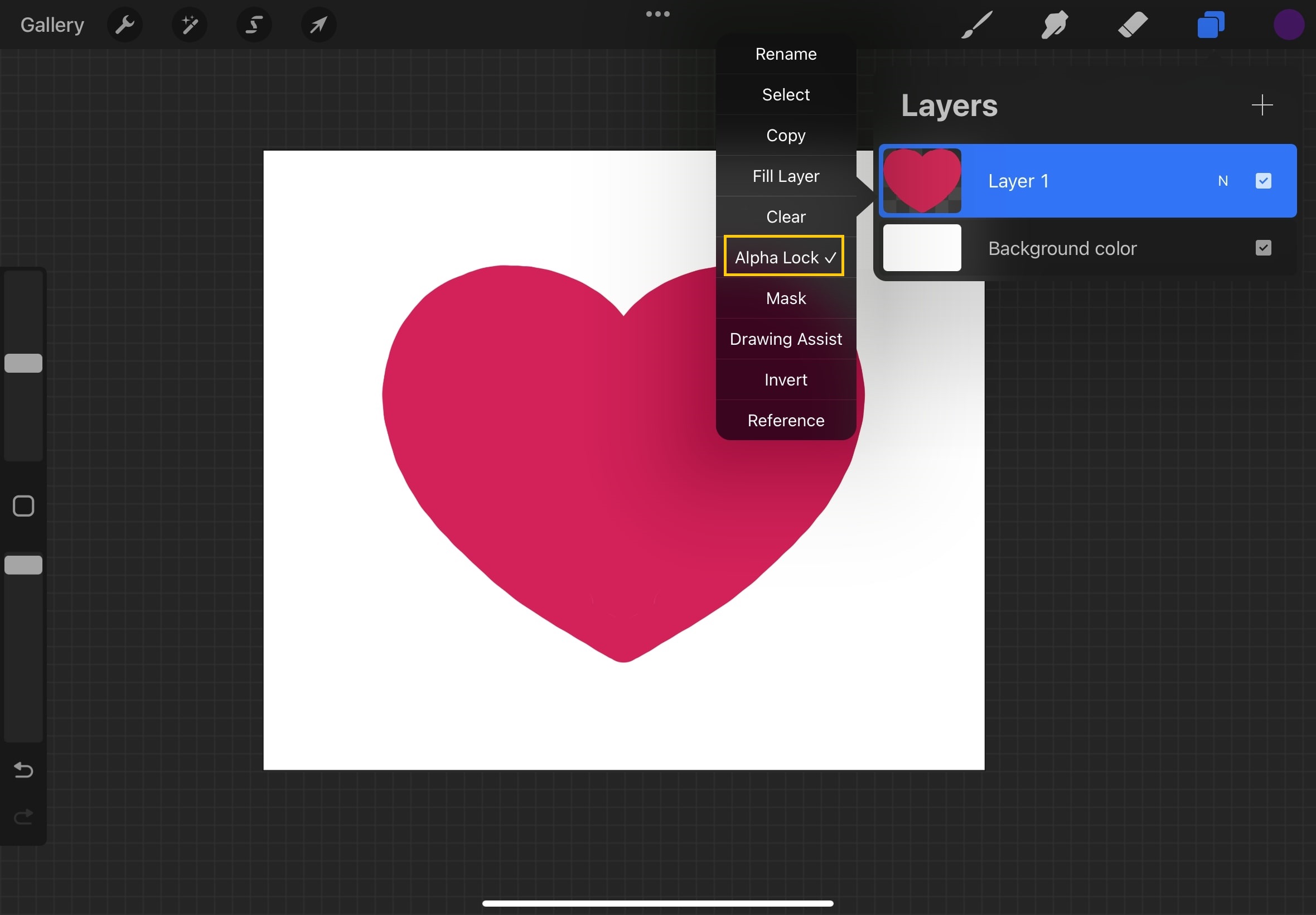
To make only specific elements within a layer transparent rather than the whole layer, you have two options. Second, you can use Alpha Lock: when enabled, any further drawing or painting affects only existing artwork on that layer, leaving transparent areas untouched. Layer Mask works similarly, but controls transparency based on the parent layer's existing transparency rather than protecting transparent pixels. A Layer Mask works from the parent layer's transparency instead.
Frequently Asked Questions
Can I adjust the opacity of multiple layers at once?
Opacity changes apply to the active layer only.
Does making a layer transparent work on Android?
No. Procreate is only documented for iPad devices running iPadOS 16.3 or later. Procreate requires iPadOS 16.3 or later. Procreate supports all iPads able to run iPadOS 16.3. No iPhone support is documented for Procreate. The retrieved support pages do not include any Android version or steps.
How do I make a layer completely transparent?
Slide the opacity slider all the way to the left using any of the three methods (Adjustments menu, Layers panel N label, or two-finger tap shortcut). When the opacity reaches its minimum, the layer becomes fully see-through.
Related reading: How To Change The Opacity Of A Layer On Procreate and How To Trace An Image In Procreate.