






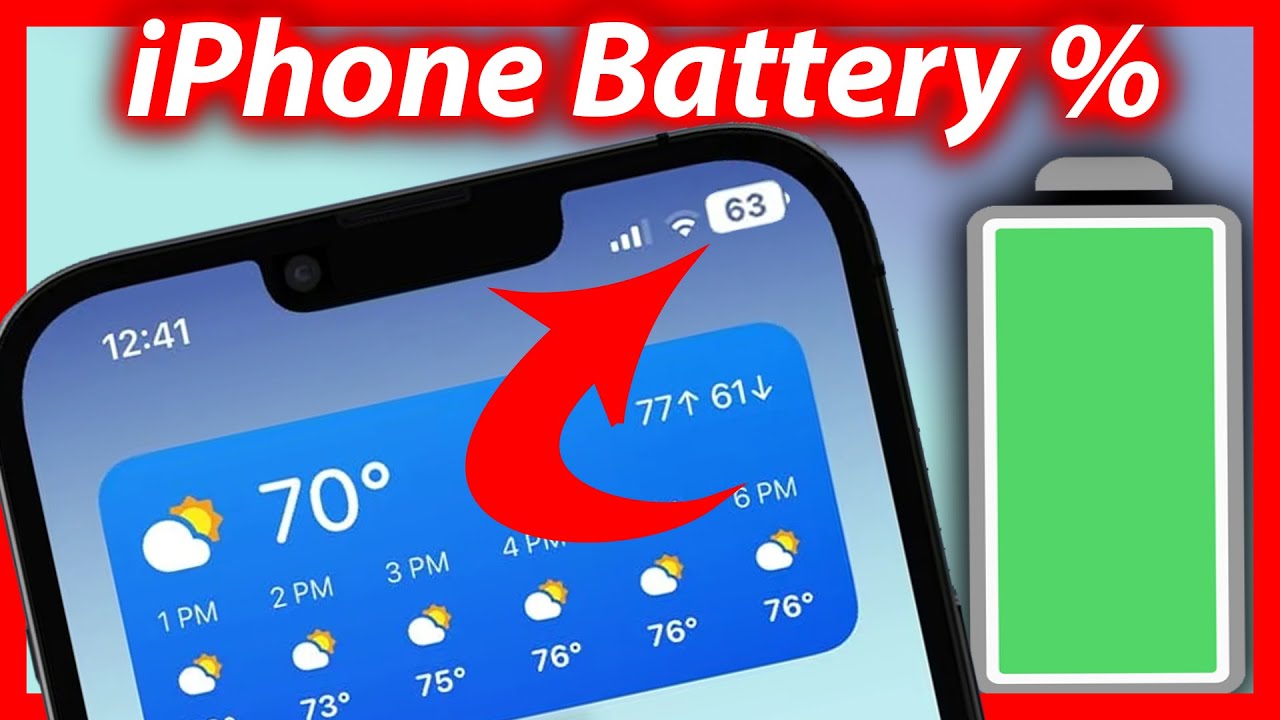
Your battery percentage is the exact amount of power remaining in your device, shown as a number from 0 to 100. To find what is my battery percentage right now, check your device's status bar or settings; the method varies slightly depending on whether you use an iPhone, Android, Windows, or Mac.
What is my battery percentage on an iPhone?
On an iPhone with Face ID running iOS 16 or later, go to Settings > Battery and turn on Battery Percentage. This displays the number inside the battery icon in the status bar. You can also swipe down from the top-right corner to open Control Center, where the battery percentage is always visible without any extra setup.
If it does not, enable it by going to Settings > Battery > Battery Percentage.
For all iPhone models, you can add a Batteries widget to the Home Screen or Lock Screen. This widget shows the battery level for your iPhone and any connected accessories, such as AirPods or an Apple Watch. If you want to see levels for multiple devices at a glance, this is the most convenient option. You can also view battery percentage through the battery widget on the Today View by swiping right on the Home screen.
What is my battery percentage on an Android phone?
On most Android phones, open Settings, tap Battery, then turn on Battery percentage or Show battery percentage in status bar. This places the number next to or inside the battery icon.
On Samsung phones, the setting may be under Settings > Notifications > Advanced Settings > Show battery percentage or Settings > Notifications > Status bar > Show battery percentage.
On Pixel phones, navigate to Settings > Battery and enable Battery percentage.
How to check battery percentage on Windows
On Windows 11, hover your mouse over the battery icon in the taskbar to see the percentage in a pop-up. You can also press Windows key + A to open Quick Settings, where the battery percentage is displayed at the top.
If the battery icon or percentage is missing from the taskbar, check that the battery icon is enabled in Taskbar Settings. If it still does not appear, try reinstalling your battery drivers.
How to check battery percentage on a Mac
On macOS Ventura and later, go to System Settings > Menu Bar & Dock, scroll to Battery, and turn on Show Percentage. The percentage then appears in the battery icon in the menu bar at the top-right of your screen. You can also check battery percentage by clicking the battery icon in the menu bar, which displays a dropdown with the current percentage. For more comprehensive information including battery health and estimated time remaining, go to System Preferences > Battery. You can also check via System Preferences > Energy Saver. Using the Terminal command: ioreg -l | grep -i capacity will also display the current percentage.
Why knowing your battery percentage matters
Knowing the exact percentage helps you manage your usage, plan when to charge, and avoid unexpected shutdowns. If you notice the number dropping faster than usual, you can take action before your device dies. Weak cellular or Wi-Fi signals can cause increased battery consumption because the device works harder to maintain the connection. For example, you can turn on battery saver to stretch remaining power, or investigate whether turning off optimized charging is right for your routine. If a battery seems completely dead, you may need to revive a battery that won't charge by checking the port and cable. For persistent drain issues, you can check for battery draw in your device's battery usage settings to identify problematic apps.
Quick tips to optimize your battery life
Once you know your percentage, you can extend it by adjusting screen brightness to a lower comfortable level and closing unused apps running in the background. For even more control, consider installing one of the 13 best battery widgets for Android and iPhone to monitor levels from your home screen. If you use AirPods, you can add AirPod battery widget to your iPhone's home screen or lock screen to see their charge alongside your phone's.
Frequently Asked Questions
Does the battery percentage show the same number in the status bar and Control Center?
Yes, the percentage shown in Control Center on an iPhone matches the percentage in the status bar. Both reflect the same current battery level.
Why does my Android phone not have the battery percentage setting?
Some Android manufacturers place the setting in a different menu. Try searching for "battery percentage" in your device's Settings search bar, or check under Display or Notifications settings.
Can extreme temperatures affect the accuracy of my battery percentage?
Yes, both extreme cold and heat can cause the battery percentage to drop or rise temporarily. The reading usually returns to normal once the device returns to a moderate temperature. Battery health and usage patterns over time can also impact the accuracy of the stated percentage.
How often should I check my battery percentage?
There is no fixed schedule, but checking periodically throughout the day helps you avoid running out of power during important tasks. Many users find it helpful to glance at the percentage each time they unlock their phone.
Does the battery percentage decrease faster when using certain apps?
Yes, apps that use GPS, camera, video streaming, or heavy graphics processing drain the battery more quickly. Checking the percentage after using such apps can help you plan your next charge.
For the wider topic, see turn on battery saver.

















