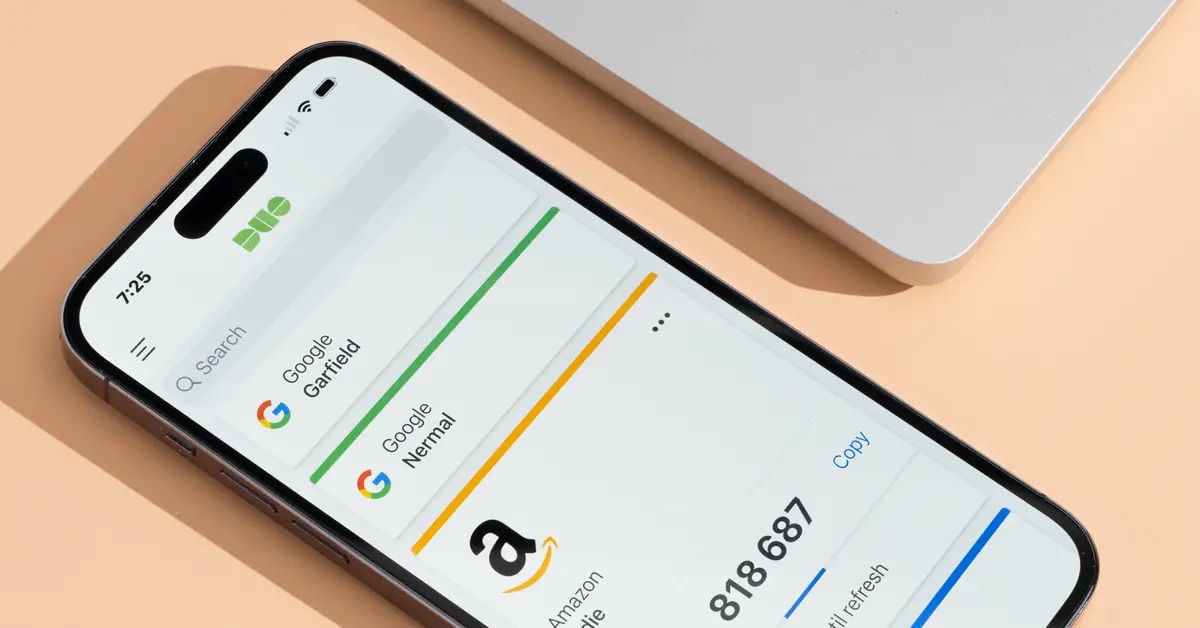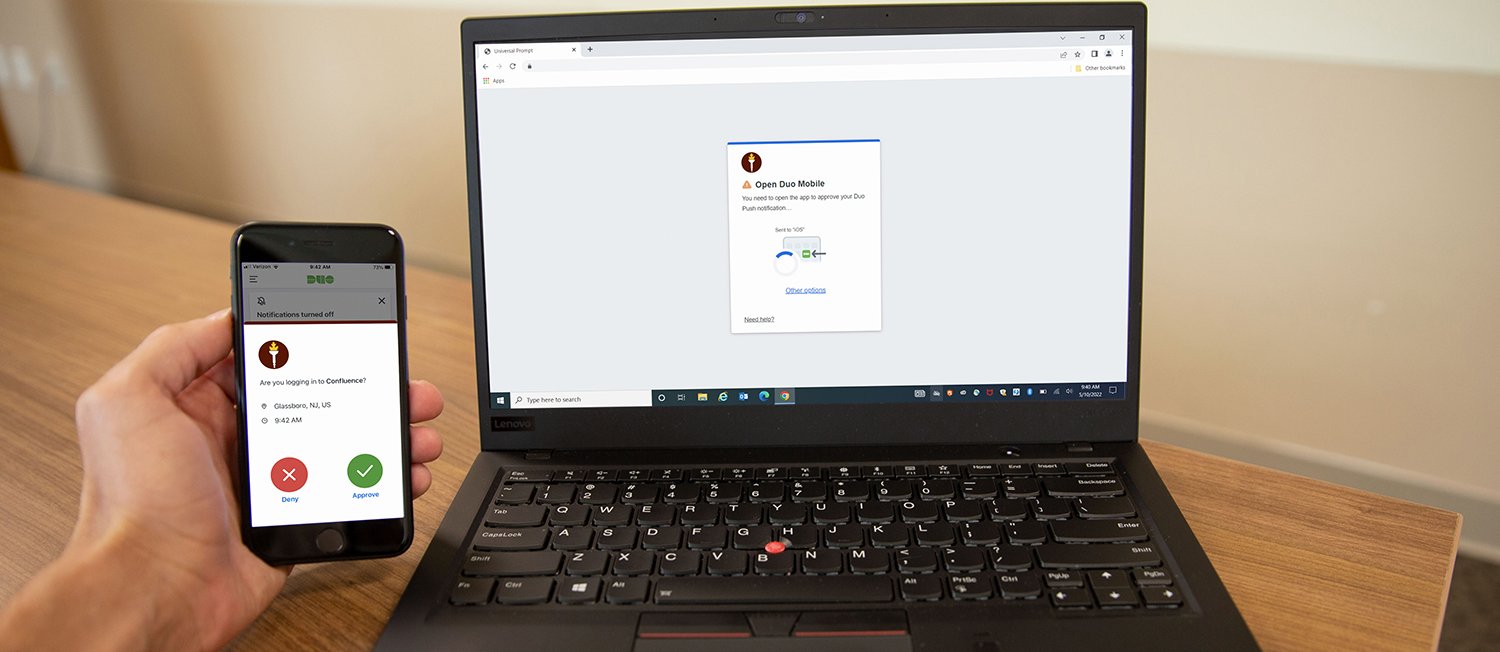
Your Duo Mobile account is disabled most commonly because you got a new phone, restored your device, or changed your SIM card, which deactivates the app on that device and requires you to reactivate. It can also be disabled due to excessive authentication failures (typically after five consecutive unsuccessful login attempts) or because an administrator manually changed your status in the Duo Admin Panel.
Why your duo mobile account is disabled
The most frequent cause of a disabled Duo Mobile account is a device change. Getting a new phone, restoring a device, or changing a SIM card will deactivate the Duo Mobile account on the new device, requiring you to reactivate it. For third-party accounts (such as Instagram or Facebook) within Duo Mobile, "Account Disabled" means the account needs to be reconnected, often after a device change or if no backup was made. WinLogon/RDP Offline Access or Mac Offline accounts are permanently marked disabled after a device restore and must be reactivated manually.
Other causes include excessive authentication failures, typically after five consecutive unsuccessful login attempts, which temporarily locks your account for 60 minutes (some sources indicate 15 minutes). Incorrect time settings on the device can cause authentication failures and lead to account disabling. An administrator may have manually changed your status to "Disabled" or "Locked Out" in the Duo Admin Panel. If your account is synchronized via a directory (e.g., Entra ID, Active Directory), being disabled in the source directory will also disable your Duo account. Your account can also be disabled if it has been deleted (moved to the Trash section) by an administrator or due to an Inactive User Expiration policy. Using an unsupported or outdated device or operating system, or not updating the Duo Mobile app, can lead to compatibility issues that disable the account. Finally, you may see "Account Disabled" if you are not a member of the specific groups permitted for the application you are trying to access.
How to reactivate your duo mobile account
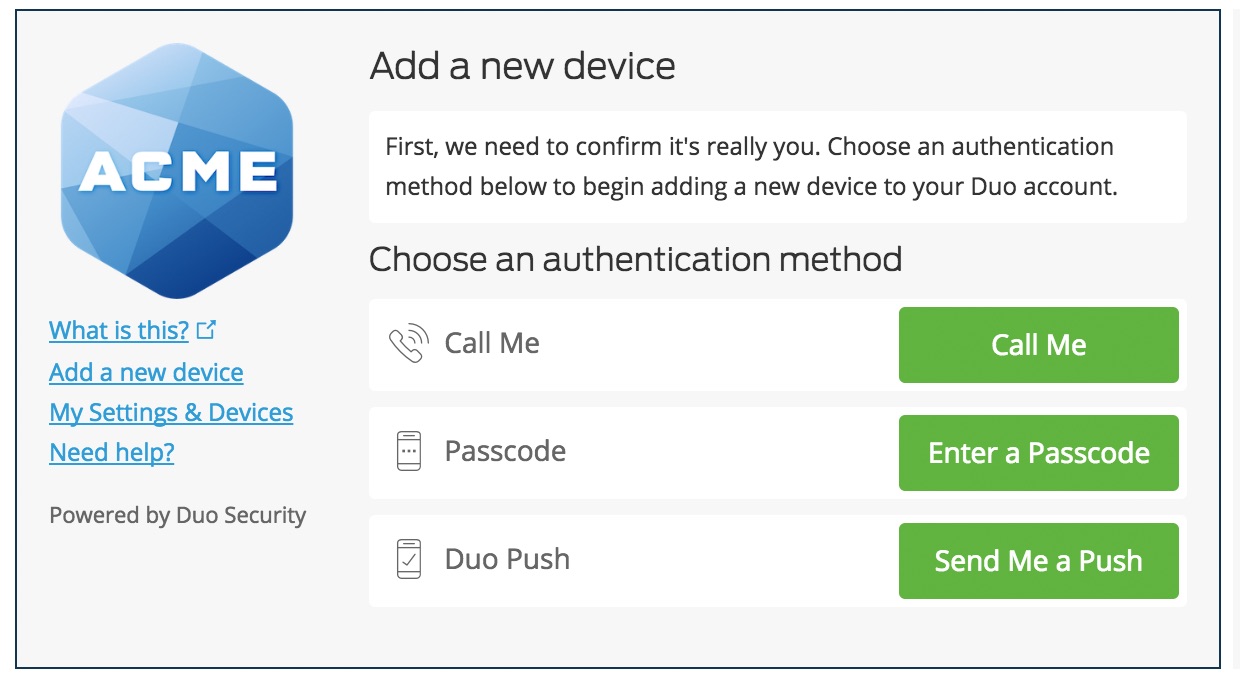
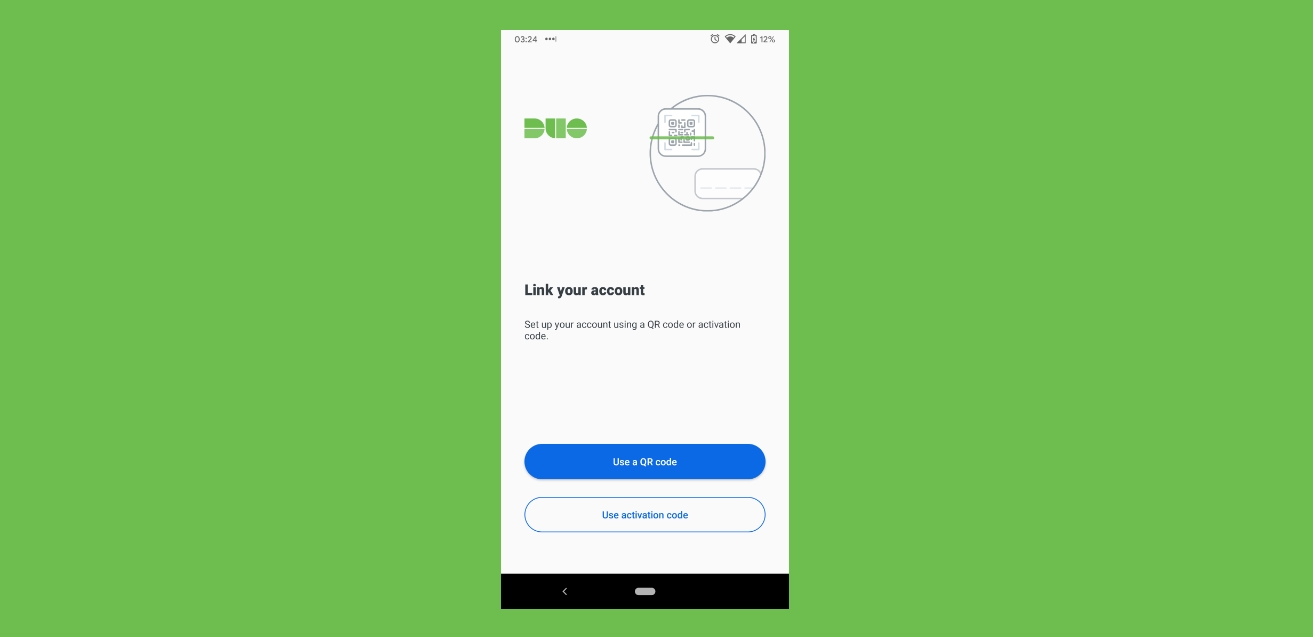
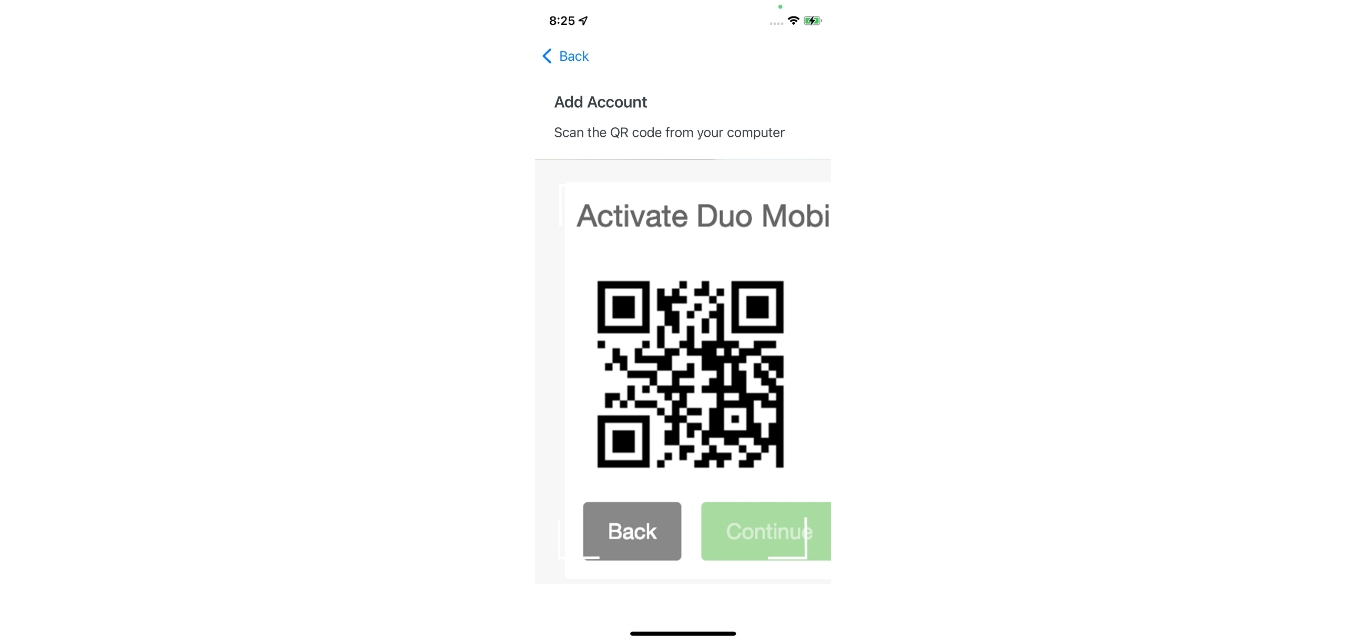
To reactivate your Duo Mobile account, start with the self-service process. Use your organization's self-service portal, accessible via the "My Settings & Devices" link on the Duo Prompt or a standalone Device Management Portal. In the self-service portal, select "Re-Enroll" to reactivate your device by scanning a QR code or using an SMS link.
If Duo Restore was previously enabled, Duo-protected and third-party accounts can be restored from a cloud backup (Google Drive for Android, iCloud for iOS) when setting up a new device. Restoring third-party accounts via Duo Restore typically requires a recovery password that was set when the backup feature was enabled. Note that Duo Instant Restore only works for migrating accounts between devices of the same operating system (e.g., Android to Android, iOS to iOS).
If self-service options are unavailable or for complex issues, contact your organization's IT Service Desk or Duo administrator for assistance. Administrators can change a user's status from "Locked Out" to "Active" in the Duo Admin Panel by navigating to Users -> Users, selecting the user, and clicking "Unlock" or editing their status. The Duo Support Team cannot directly assist individual users in reactivating their devices; you must contact your organization's IT department or help desk.
Use the built-in troubleshoot feature
The Duo Mobile app on iOS (version 4.51 and above) includes a "Troubleshoot" feature. Access it by going to Menu > Troubleshoot. This feature checks for issues like disabled accounts, network connectivity, and notification problems, helping you diagnose the specific reason for your account being disabled.
How to prevent this in the future
To prevent your Duo Mobile account from being disabled in the future, follow these best practices:
- Enable Duo Restore before switching phones so you can restore Duo-protected and third-party accounts from a cloud backup.
- Ensure your device's time settings are accurate and synchronized, as incorrect time can cause authentication failures.
- Avoid multiple incorrect login attempts, as five consecutive failures can temporarily lock your account.
- Keep your device registration up to date and promptly remove any devices you no longer use.
- Adhere to your organization's security policies to avoid policy violations that could lead to account disabling.
Frequently Asked Questions
Why is my account disabled after getting a new phone?
Getting a new phone deactivates the Duo Mobile account on the new device. You need to reactivate by using your organization's self-service portal to re-enroll, or by using Duo Restore if it was previously enabled.
Can Duo Support reactivate my account?
You must contact your organization's IT department or help desk for assistance.
How do I set up Duo Mobile on a new phone?
To set up Duo Mobile on a new phone, use your organization's self-service portal to select "Re-Enroll" and scan a QR code or use an SMS link. If Duo Restore was enabled, you can restore your accounts from a cloud backup.
How do I set up a Duo Mobile account?
To set up a Duo Mobile account, your organization's administrator will typically send you an enrollment link or you can access the self-service portal. Follow the prompts to scan a QR code or use an SMS link to activate the app on your device.
How can you temporarily or permanently deactivate your account?
If you need to stop using Duo, contact your organization's IT department.
Are there specific security measures I should implement to protect my Duo Mobile account?
Yes, enable Duo Restore for account recovery, keep your device's OS and the Duo Mobile app updated, use a strong device passcode, and never share your recovery passwords or backup codes.