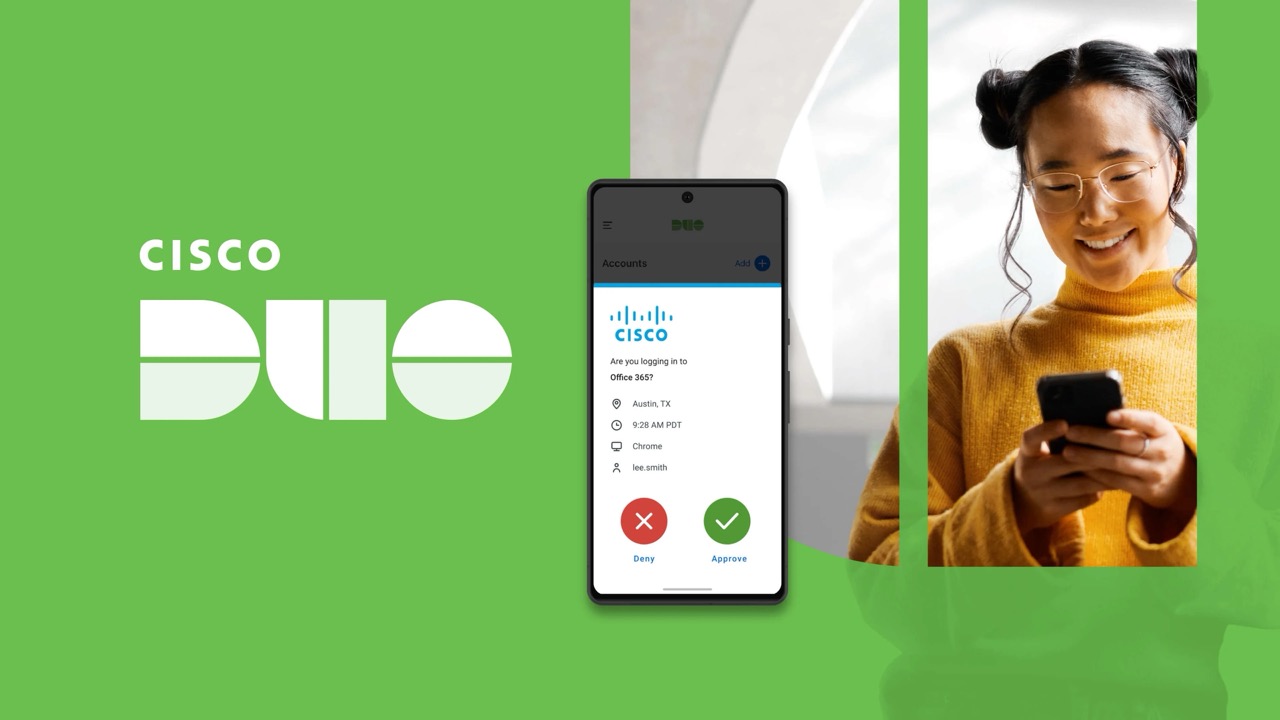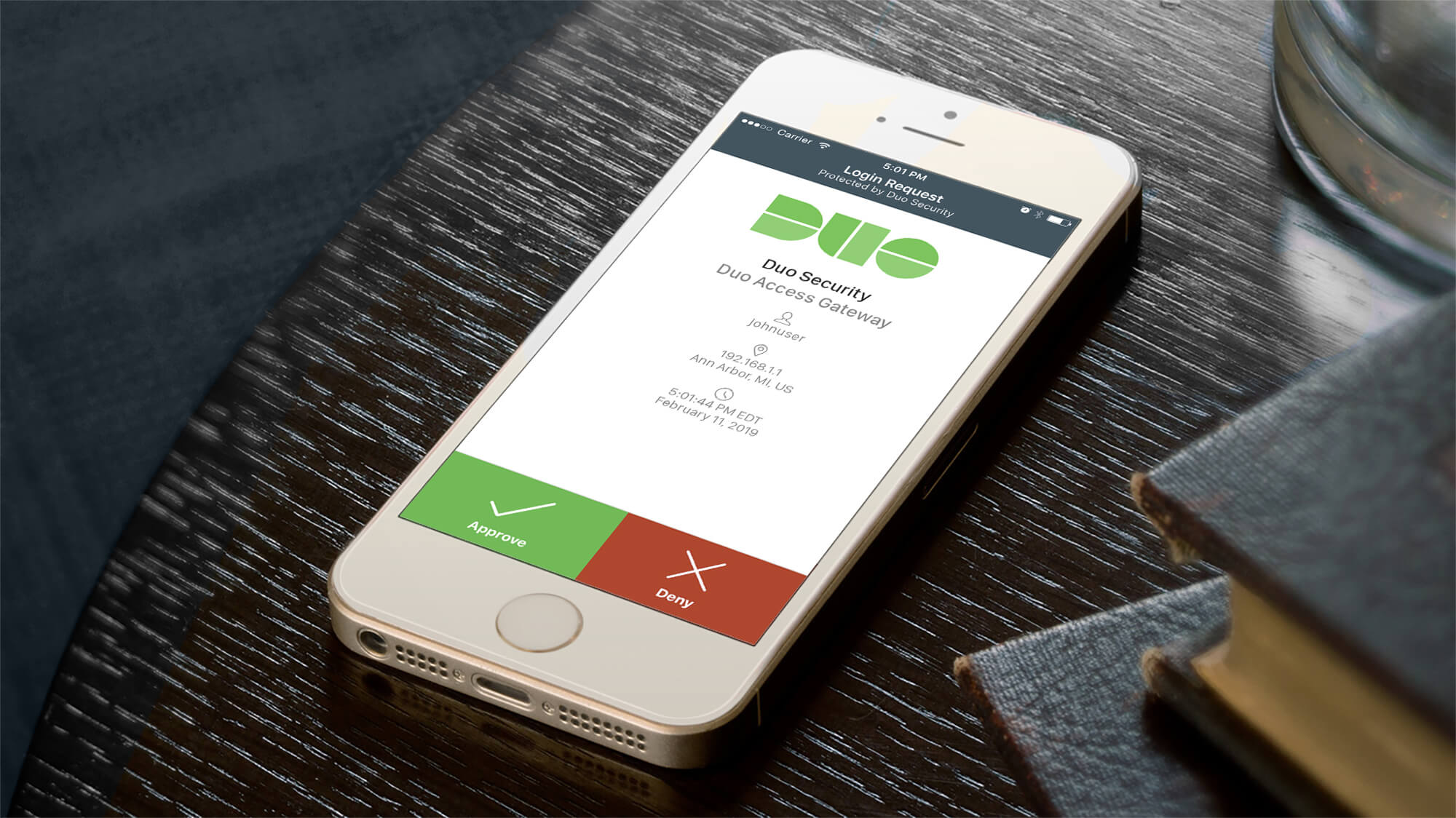
To set up Duo on a new phone, the fastest and most reliable method is Duo Restore, which uses your iCloud or Google Drive backup to transfer your Duo Mobile accounts automatically. If you need to set up Duo Mobile on a new phone but didn't use Duo Restore, you can reactivate through your organization's device portal.
How to set up Duo on a new phone with Duo Restore
Duo Restore is the recommended cloud backup method for transferring your Duo Mobile accounts to a new device. Duo Restore must be enabled on the old phone before getting the new phone; open Duo Mobile, go to Settings, and turn on Duo Restore. This backs up your accounts to your iCloud (iOS) or Google Drive (Android) account. When you install Duo Mobile on your new phone and sign into the same cloud account, the app will detect the backup and restore all your Duo accounts automatically. This method requires no QR codes or portal access.
Reactivate Duo Mobile through your organization's device portal
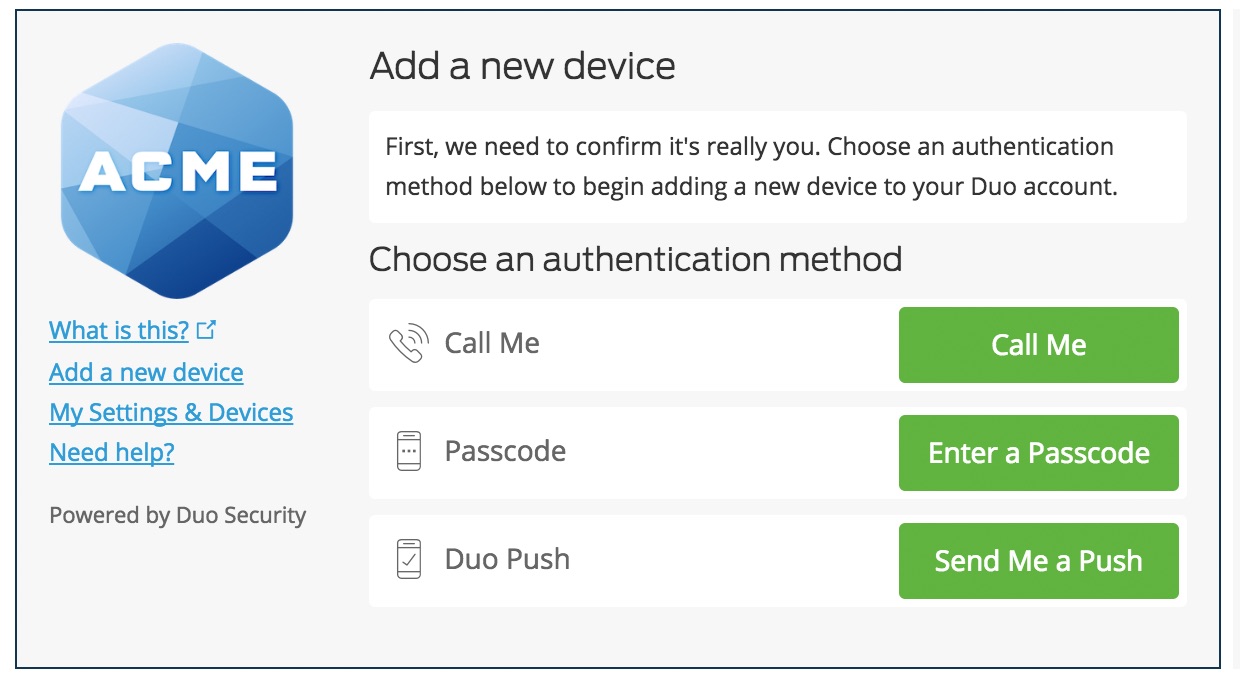
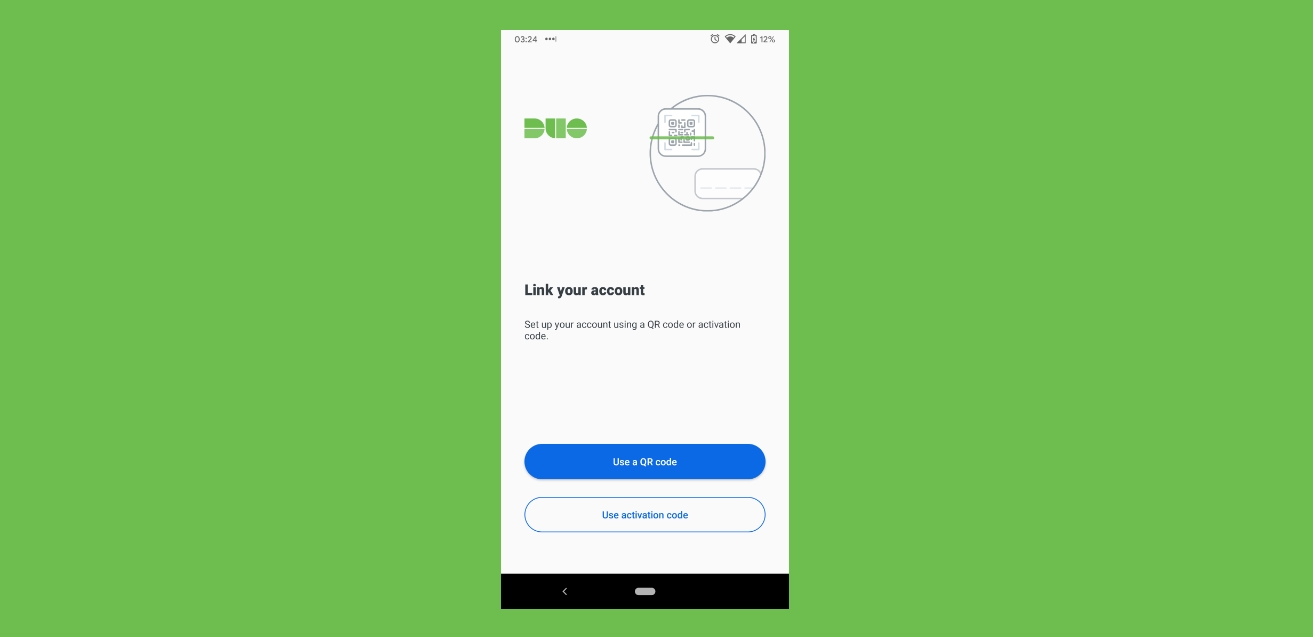
If Duo Restore was not used or fails, you can reactivate Duo Mobile through your organization's Duo device management portal. To access the portal, you must authenticate using an existing method, such as a phone call or SMS passcode sent to your old number, or another enrolled device like a hardware token. Once authenticated, navigate to the device management section, select your old phone, and choose the option to "Reactivate Duo Mobile." A QR code will appear on the screen. After scanning the QR code, the Duo Mobile app automatically generates a six-digit verification code that must be entered on the computer to complete activation. Activating Duo on the new phone deactivates it on the old phone.
What to do if you're locked out or have a new phone number
If you have a new phone number or no access to any existing authentication methods, such as when you lost your old phone and cannot receive SMS or calls, contact your organization's IT Help Desk for assistance. They can verify your identity through alternative means and manually reactivate Duo Mobile on your new phone. This is the only way to regain access if you are locked out entirely.
Duo Mobile OS and hardware requirements
Duo Mobile currently requires Android 12.0 or greater and iOS 16 or later. Older operating systems may not support the latest app version, so check your new phone's OS before attempting to set up a Duo Mobile account. Even if you keep the same phone number, Duo Mobile is tied to the device's hardware security module (HSM). This means you must reactivate the app on a new phone because the HSM is unique to each device and cannot be transferred.
Frequently Asked Questions
What if I lost my old phone?
If you lost your old phone and cannot use Duo Restore, you will need to contact your organization's IT Help Desk. They can revoke the old device's access and help you set up Duo Mobile on your new phone from scratch.
Can I use Duo Mobile on multiple devices at the same time?
Yes, Duo Mobile supports multiple devices. You can have the app active on both your new phone and another device, such as a tablet, as long as each device is enrolled separately through your organization's portal.
What happens to my old phone after I reactivate Duo on a new one?
When you reactivate Duo Mobile on a new phone through the device portal, the old phone is automatically deactivated. Duo Restore does not deactivate the old phone; you can manually remove the account from the old device if you still have it.
Do I need to set up Duo Mobile again after a factory reset?
Yes, a factory reset removes the Duo Mobile app and its connection to the hardware security module. You must use Duo Restore or reactivate through the device portal to set up a Duo Mobile account again on the same phone.
Can I transfer Duo Mobile to a new phone without a computer?
Yes, Duo Restore works entirely on your phones using cloud backups. If you use the device portal method, you will need a computer or another device to display the QR code for scanning.
Related reading: How To Transfer Duo Account To New Phone.