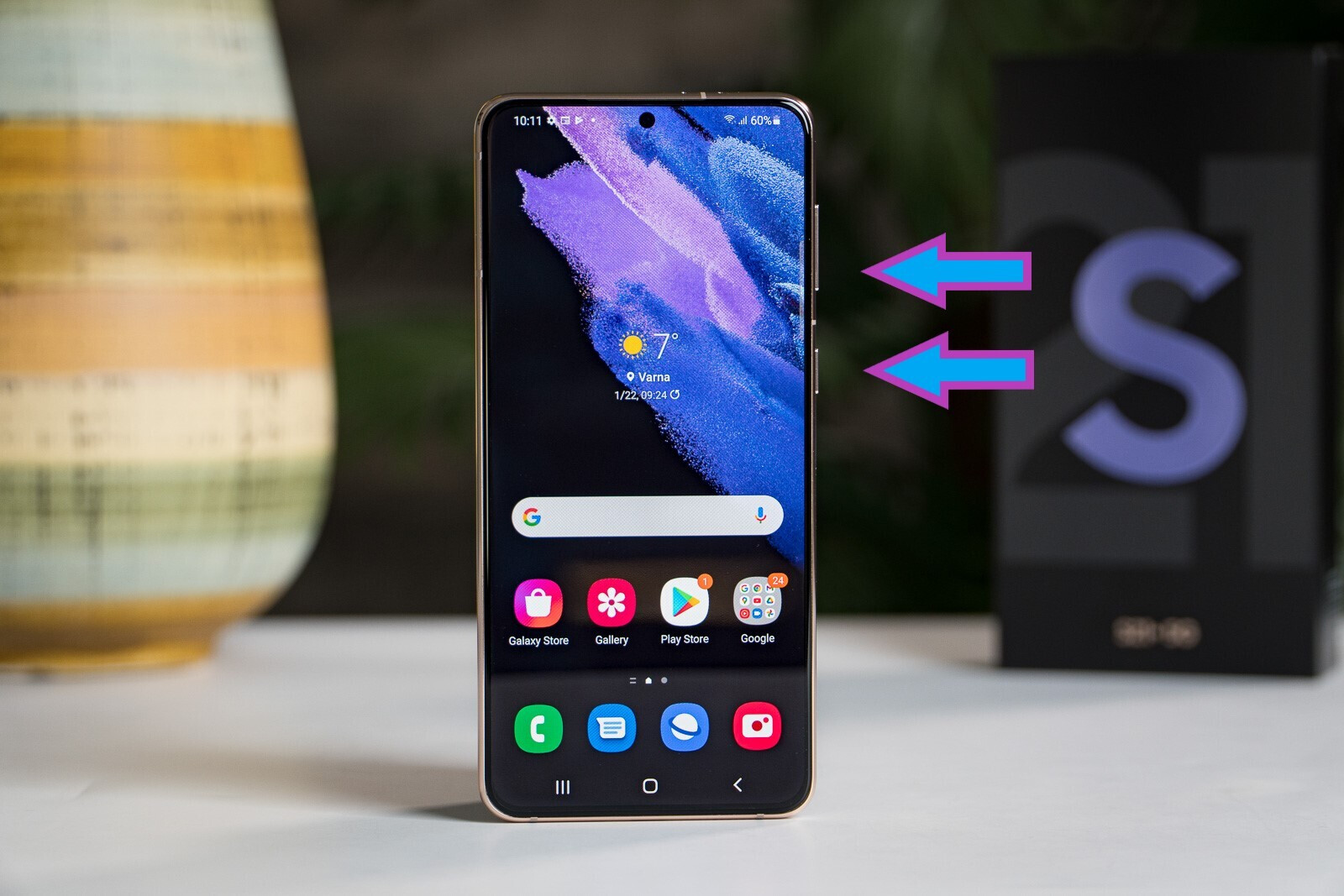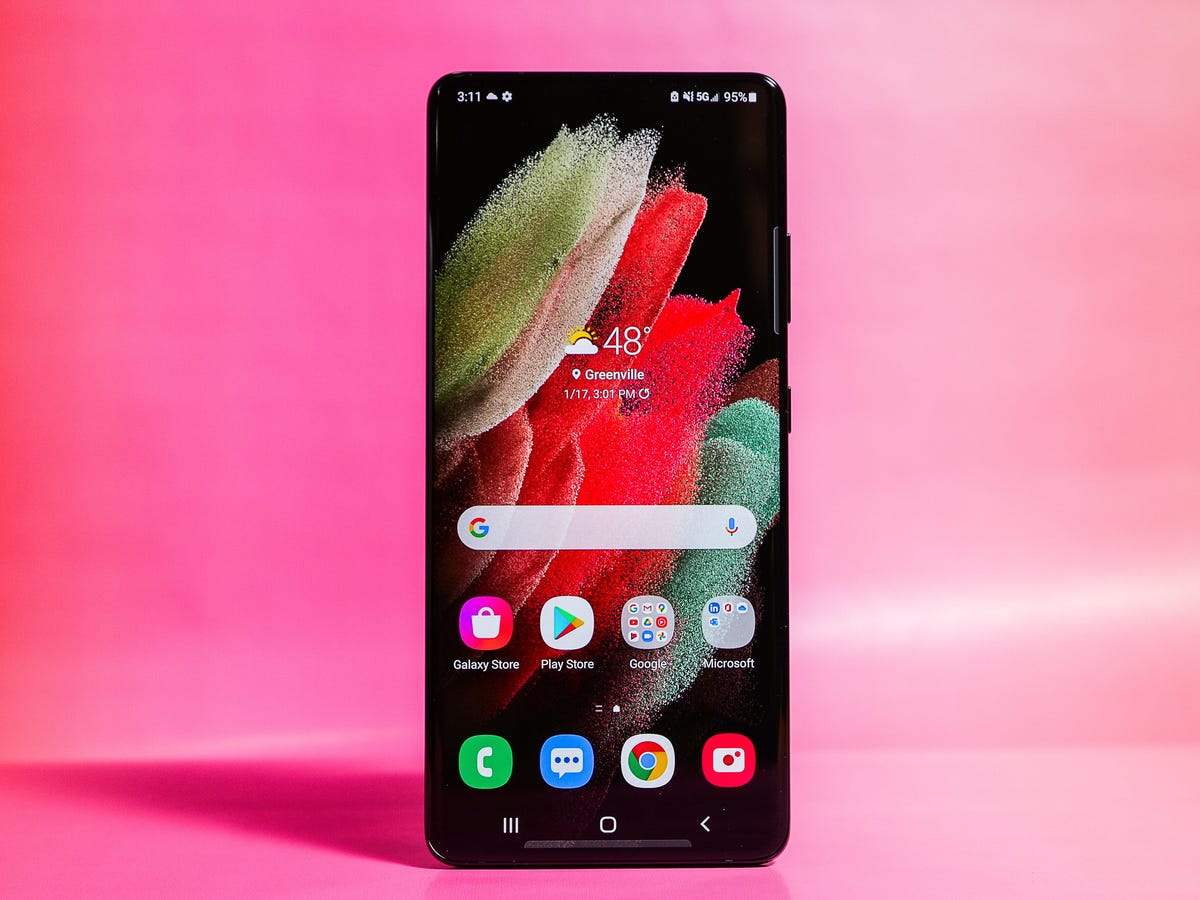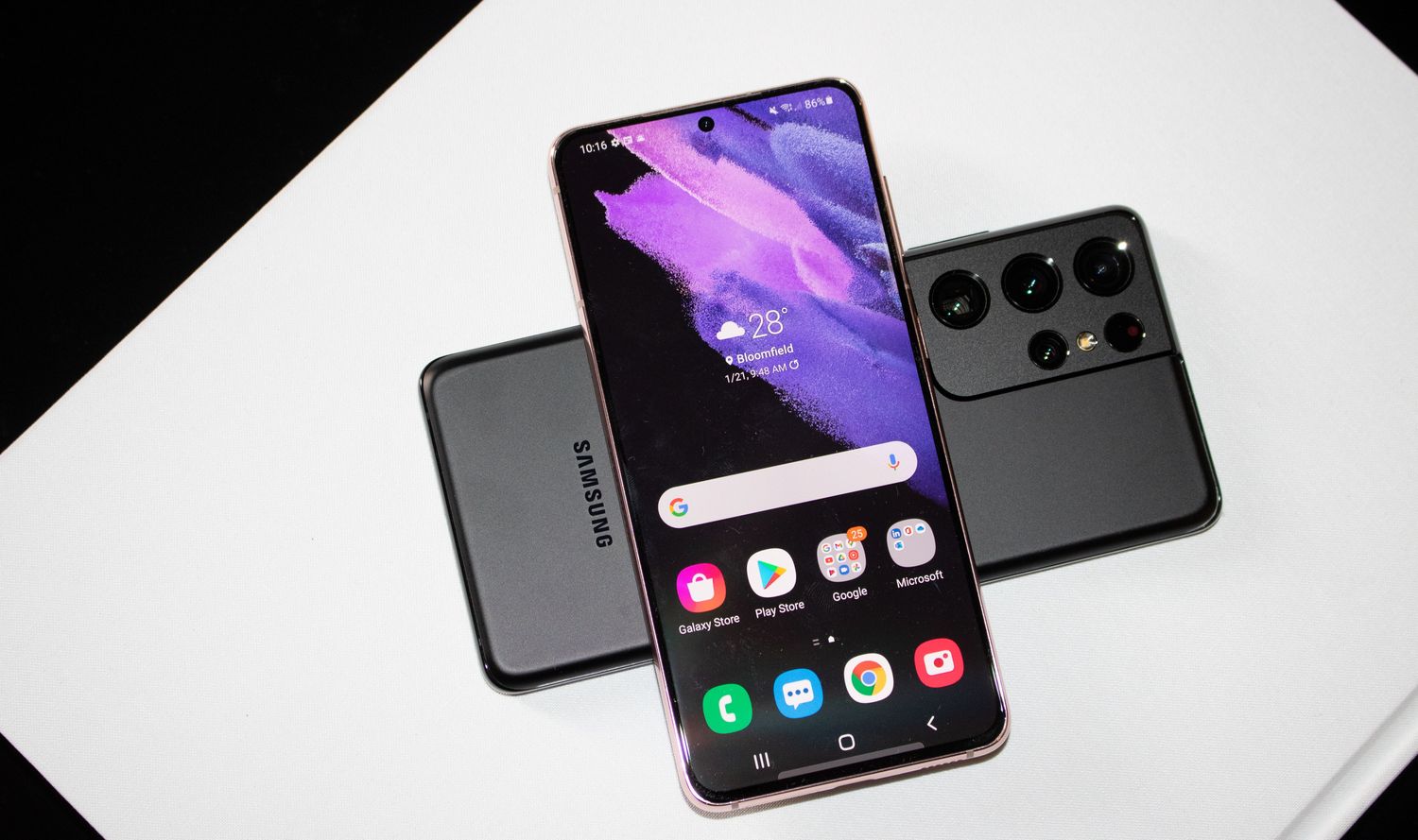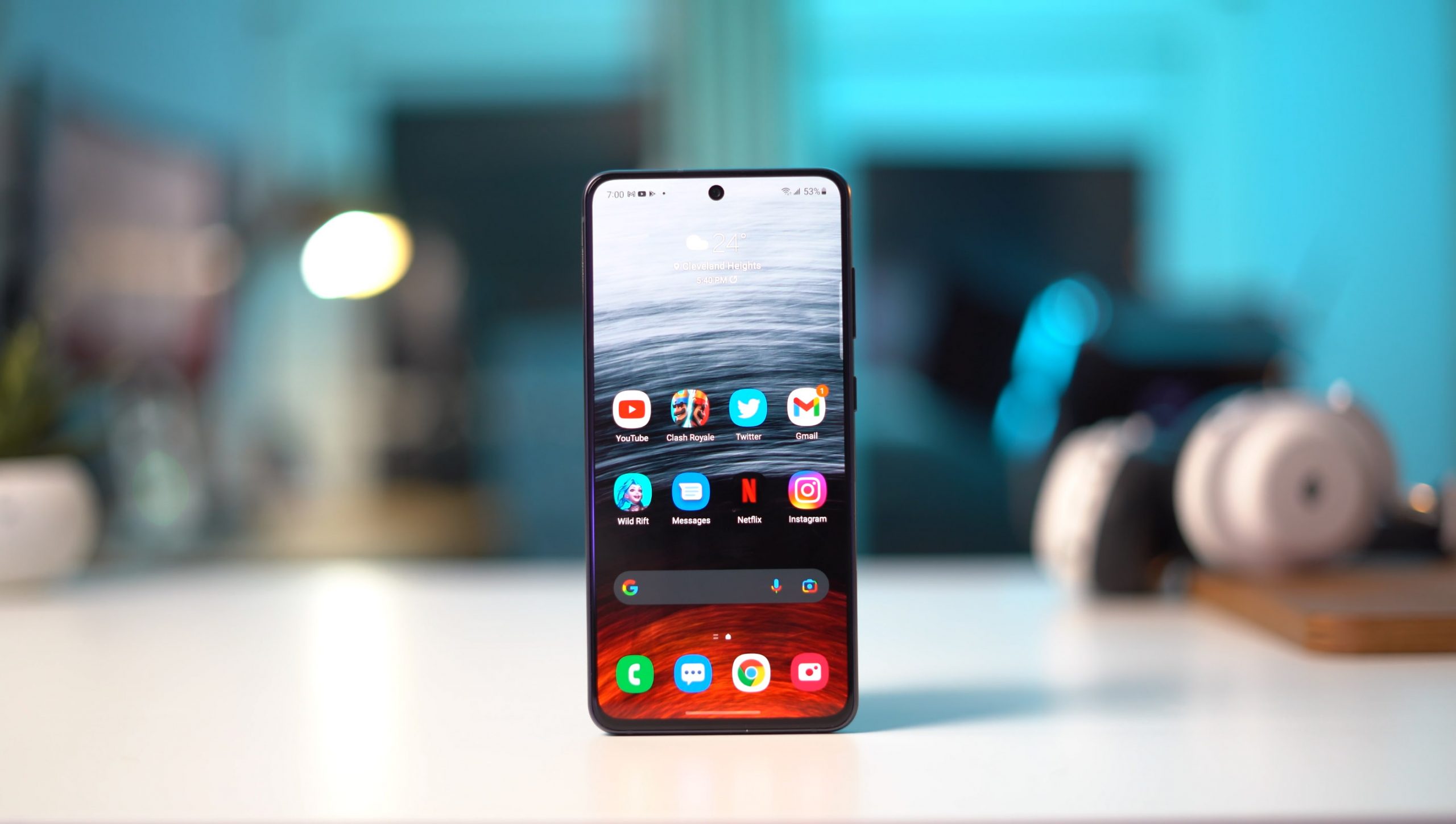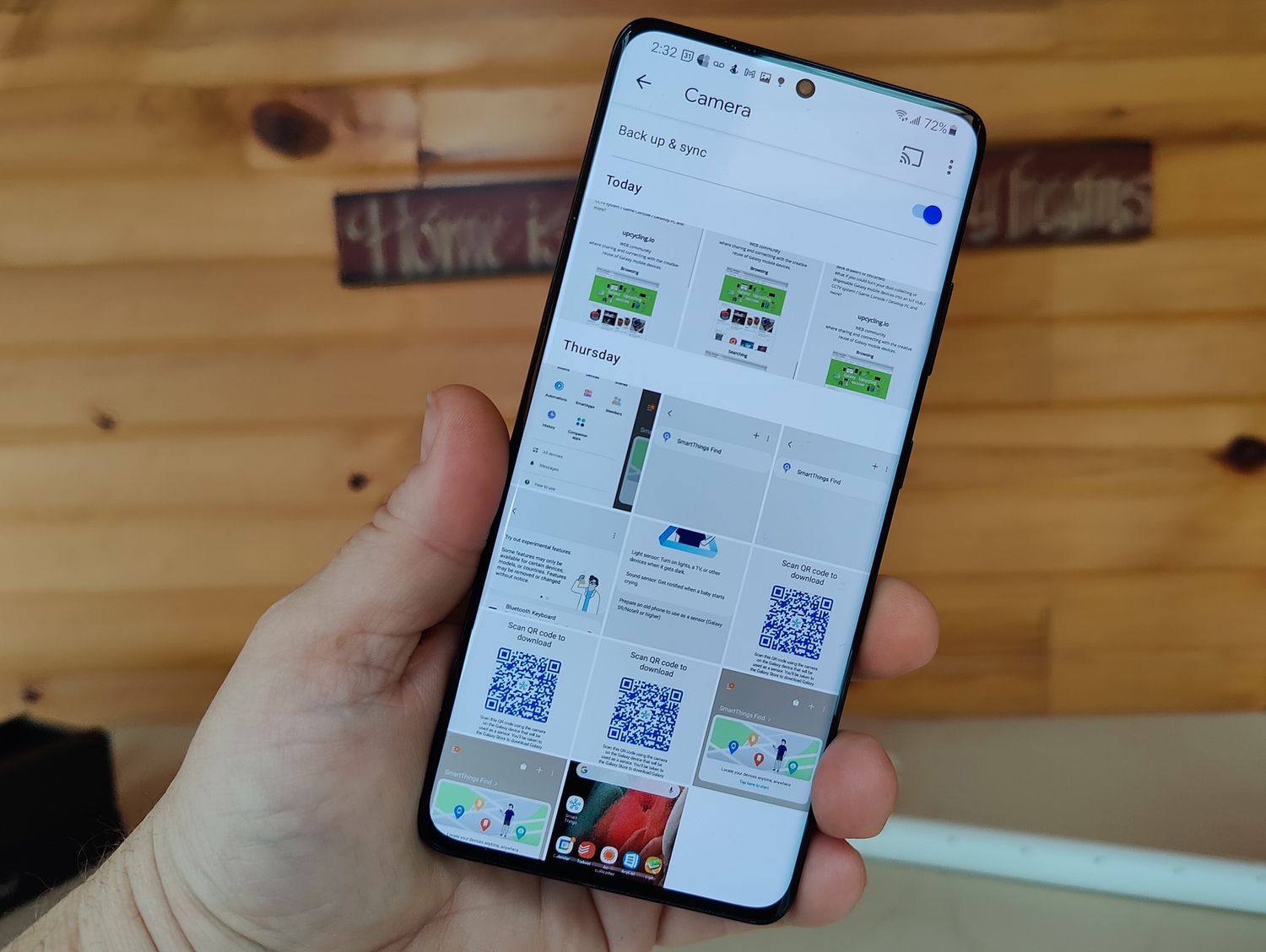
To take a screenshot on Galaxy S21, press the Power/Side and Volume Down buttons at the same time, then release quickly. This is the primary method to capture whatever is on your screen.
How to screenshot on Galaxy S21 with physical buttons
The standard way to take a screenshot on a Galaxy S21 uses the physical buttons. Press and release the Power/Side button and the Volume Down button simultaneously. Samsung’s Canada page says to press and release both buttons at the same time. A brief push is important because holding the buttons too long will open the power menu instead of capturing a screenshot. The screen will flash and the image will be saved to your device.
How to screenshot on Galaxy S21 with Palm Swipe
If you prefer not to use buttons, the Galaxy S21 supports a palm swipe gesture. First, enable the feature by going to Settings > Advanced features > Motions and gestures > Palm swipe to capture and toggling it on. Samsung’s Australia support page says to toggle on Palm Swipe to Capture. Once enabled, swipe the edge of your hand across the screen from left to right or right to left. The screen will flash to confirm the screenshot was taken.
How to take a long or scrolling screenshot
Some Samsung devices offer a scroll capture feature to capture content that extends beyond the screen.
Frequently Asked Questions
Can I take a screenshot on my Android using the same buttons?
Many Android phones use a similar button combination, but the exact buttons vary by manufacturer. On Samsung Galaxy devices, including the S21, the standard method is Power/Side + Volume Down.
Can I take a screenshot on a Galaxy S21 and other Android phones using palm swipe?
Palm swipe is a Samsung-specific feature. It is available on many Samsung Galaxy phones where the setting appears under Settings > Advanced features > Motions and gestures. Other Android brands typically do not include this gesture.
How do I turn off Galaxy S21 Ultra?
To turn off a Galaxy S21 Ultra, press and hold the Power/Side button and the Volume Down button simultaneously until the power menu appears, then select Power off. Holding only the Power/Side button may trigger Bixby instead.
What happens after I take a screenshot?
The screen flashes briefly and the screenshot is saved automatically. You can access it from the notification panel or the Gallery app in the Screenshots folder.
Does the Galaxy S21 support S Pen screenshots?
S Pen screenshot actions are available only on devices that support the S Pen, such as the Galaxy S21 Ultra, but no official S Pen screenshot method for the S21 series is documented in Samsung's retrieved support pages. Samsung’s German support page says S Pen-related screenshot actions are accessed through the S Pen icon and S Pen-Befehle menu on supported models.
Does the Galaxy S21 support screenshots with buttons?
Yes, Samsung officially documents Power/Side + Volume Down for Galaxy phones.
Does the Galaxy S21 support palm swipe screenshots?
Samsung documents Palm swipe to capture for Galaxy phones where the feature is available in Settings > Advanced features > Motions and gestures.
Is an S Pen screenshot method documented for Galaxy S21?
No Galaxy S21-specific S Pen screenshot method is documented.
Related reading: Where Are My Downloads On Galaxy S21.