






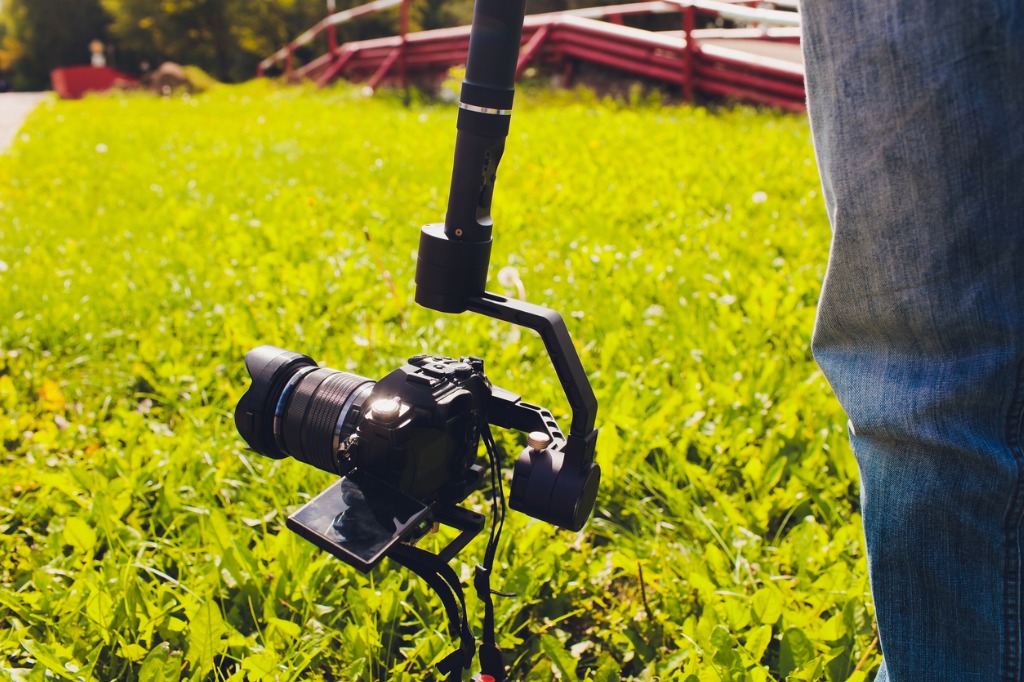
To use a gimbal, you mount and balance your smartphone on the motorized stabilizer before powering it on, then use the handle and controls to capture smooth, cinematic footage.
What is a gimbal and how to use a gimbal for smooth video
A handheld gimbal is a motorized stabilizer that keeps your phone camera level by using motors and follow modes such as PF, PTF, FPV, and lock modes on supported models. The goal is to eliminate shaky footage and allow you to pan, tilt, and rotate your camera smoothly, producing professional-looking video even while walking or moving.
Getting started: power off and mount your phone
The critical first step is to keep the gimbal powered off before mounting your phone. On models whose manuals require manual balancing, powering on an unbalanced gimbal may cause motor damage and faster battery drain. Securely clamp your smartphone in the mount, then shift it in the clamp until it stays level when released. The phone should be centered and balanced before use.
How to balance your gimbal correctly
Balancing ensures the gimbal motors don't have to fight gravity, which prevents shaky footage and protects the device. To balance your gimbal, first unlock the three axis locks. Observe which direction the phone tilts, then loosen the fixing knob, move the cross arm in the opposite direction, and tighten the knob again. Adjust the phone position in the clamp until the device remains horizontal when you let go. Do not switch on the gimbal without manual balancing because it may cause motor damage and faster battery drain. Note that some models, such as the DJI Osmo Mobile 8, use a high-torque motor and do not require precise balancing.
Powering on and connecting to the app
Once balanced, turn the gimbal on. Enable Bluetooth on your phone, open the manufacturer's app, and follow the on-screen Bluetooth pairing prompts. Some manuals say to scan the QR code in the quick-start guide or search the named app in the App Store or Google Play. Exact menu paths and supported devices vary by manufacturer and model, so refer to your specific gimbal's documentation.
Understanding and changing gimbal follow modes
Gimbals use follow modes to control which axes move with your hand. The mode button typically uses single-click, double-click, triple-click, and long-press functions for mode changes and calibration. The mode light changes to show the active mode. One manual documents a flash-follow mode, with the mode light changing to show the active mode. DJI's Osmo Mobile 8 beginner guide says the gimbal defaults to PTF mode on power-on. Some gimbals offer advanced options like customizing the follow speed or sensitivity. Common modes include:
- PF (Pan Following): Only the pan axis follows hand movement. Tilt and roll stay locked. This is ideal for horizontal pans while keeping the horizon level.
- PTF (Pan and Tilt Following): Pan and tilt follow hand movement, while roll stays locked. This is the default mode on many gimbals and works for most general shooting.
- FPV (All Following): Pan, tilt, and roll all follow hand movement. This allows dynamic, immersive camera motion.
- Lock: All axes are locked, keeping the camera pointed in one direction regardless of handle movement.
- SpinShot: Listed by DJI on the Osmo Mobile 7 Series as one of the follow modes.
To switch modes, press the mode button once, twice, or three times depending on your gimbal's manual. For example, pressing the M button once on the DJI Osmo Mobile 7 Series cycles through modes.
Controlling movement for smooth panning and tilting
To achieve smooth, steady shots, use the joystick and handle movement together. In PF mode, the gimbal follows horizontal hand movement while keeping tilt and roll steady, making it perfect for sweeping pans. In PTF mode, the gimbal follows both pan and tilt while roll stays fixed, allowing you to track a subject moving vertically. In FPV mode, all three axes move with the handle, enabling dynamic camera motion like rolling the horizon. For smooth pans, move the handle slowly and deliberately. For tilting, use the joystick or tilt the handle gently. To change the subject or focus on something else while using the follow mode, you can simply reposition the gimbal by moving it in the desired direction. The follow mode will then adjust to the new subject. Using a tripod in combination with your gimbal eliminates any possibility of hand-induced shakes and ensures even smoother footage, especially for longer pans.
Frequently Asked Questions
Why is my gimbal shaking?
Gimbal shaking issues are often caused by an unbalanced phone or incorrect follow mode selection. Ensure your phone is centered and level in the clamp before powering on. If shaking persists, check that the gimbal is not set to a mode like FPV that allows roll movement when you want a locked horizon.
How do you use a selfie stick vs. a gimbal?
You use a selfie stick to extend your arm for wider selfies or group photos, but it does not stabilize video. A gimbal uses motors to keep the camera level, so you use a selfie stick for static photos and a gimbal for smooth video.
How to balance a gimbal without the app?
To balance a gimbal, unlock the axis locks, adjust the phone in the clamp until it stays level when released, then tighten the knobs. This manual process does not require the app and is the same whether you use an app or not.
Can I use a gimbal without the app?
Yes, many gimbals work without the app for basic stabilization and mode switching using the hardware buttons. The app adds features like object tracking, timelapse, and custom settings, but the core stabilization functions are available without it. Carrying spare batteries is always recommended, especially for longer shooting sessions. Familiarize yourself with the power-saving settings of your gimbal to maximize the usage of each charge. When shooting outdoors, wind can disrupt the stability of the gimbal. Using a heavier camera or attaching weights to the bottom of the gimbal can help stabilize it against strong gusts of wind.
What does PF mode mean on a gimbal?
PF stands for Pan Following. In this mode, only the pan axis follows your hand movement, so the camera rotates left and right while tilt and roll stay locked. This is ideal for horizontal pans where you want the horizon to remain level.

















