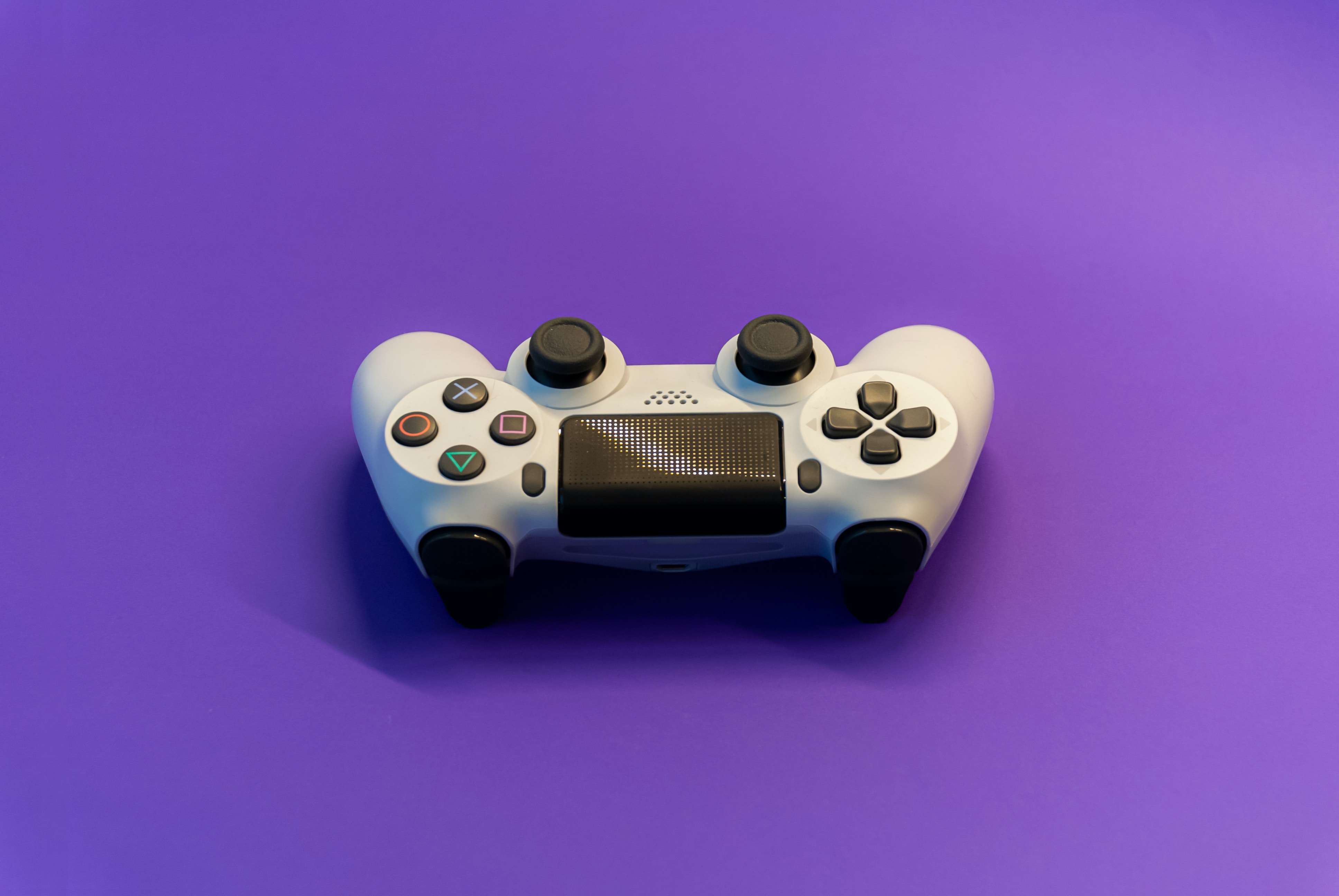
To reduce joystick sensitivity, the most effective method is to lower the sensitivity slider inside your game's settings menu, which directly controls how much your in-game character or crosshair moves in response to physical joystick movement. This adjustment makes the joystick feel less "twitchy" and gives you finer control for precise aiming or steering.
How to reduce joystick sensitivity in your games
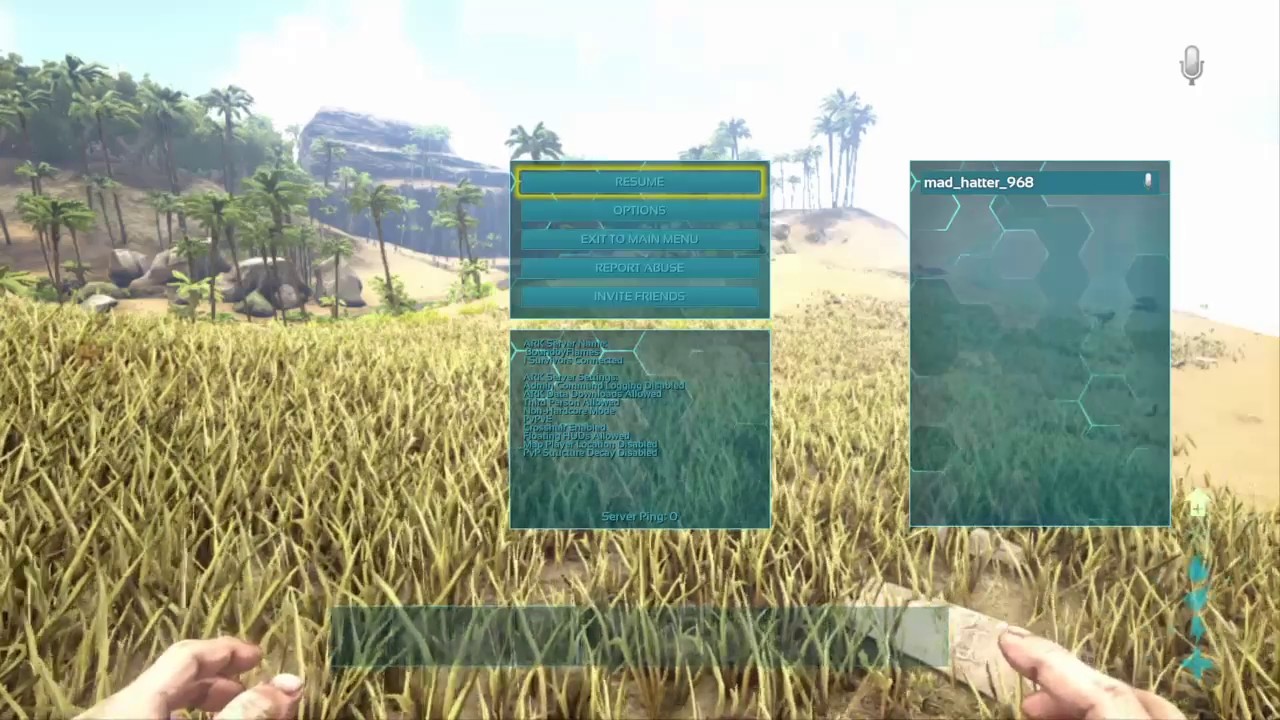
The primary method most gamers need is locating and adjusting the sensitivity slider inside game settings. This is the most direct way to reduce joystick sensitivity because it changes the game's interpretation of your stick movements. Look for options labeled "Sensitivity," "Look Sensitivity," "Aim Sensitivity," or "Controller Sensitivity" in the settings menu, typically under "Controls" or "Input." Lowering these values will make your joystick input less responsive, requiring more physical movement to achieve the same in-game action.
Use dead zones to stop unwanted joystick movement
Dead zones are a specific range of motion near the joystick's neutral (center) position where no input is registered. Increasing the dead zone prevents unwanted movement from a slightly off-center stick or a controller with minor drift, effectively stopping the twitchy input that makes aiming feel imprecise. You can find dead zone settings in many games under the same "Controls" or "Input" menus where sensitivity is adjusted. Some games offer separate dead zone sliders for the left and right thumbsticks. Additionally, if your game lacks this option, you can adjust dead zones through controller software on PC, such as Steam's controller configuration or the Xbox Accessories app, which allows you to fine-tune the dead zone to ignore small, unintended movements. For a dedicated guide on this, see our article on how to adjust deadzone joystick.
Calibrate your joystick for accurate input
Calibration ensures your joystick is recognized correctly by your system, mapping its full range of motion accurately. This can help when the joystick feels too sensitive because of a misaligned center point or uneven response. Calibration is most helpful when the joystick registers input even when you are not touching it, but it will not change the game's internal sensitivity curve. If the joystick still feels twitchy after calibration, adjust the in-game sensitivity or dead zone instead.
Reduce touch joystick sensitivity on iPhone
The closest documented touch-adjustment path is to go to Settings > Accessibility > Touch > Touch Accommodations. Here, you can configure options to reduce unintended input. Enable "Hold Duration" to require your finger to stay on the joystick for a set time before it registers a touch, which prevents accidental activation. Enable "Ignore Repeat" to prevent the screen from registering multiple touches if your finger bounces slightly. Under "Touch Assistance," you can choose "Use Initial Touch Location" or "Use Final Touch Location" to control where the joystick registers your finger. To make long-press behavior less sensitive, go to Settings > Accessibility > Touch > Haptic Touch and choose "Slow" to require a longer press. Note that the "Tracking Sensitivity" setting under AssistiveTouch is for mouse or trackpad pointer movement, not for a joystick.
What about Android joystick sensitivity?
No official Android manufacturer support page documents a system-wide joystick sensitivity setting. This means that, unlike iPhones with Touch Accommodations, Android does not offer a built-in, universal way to adjust how a physical or on-screen joystick responds to touch. Your best option is to check the per-game settings within each app or game you play, as many mobile games include their own sensitivity and dead zone sliders. If the game does not offer these controls, you may need to look for third-party controller mapping apps, but be aware that these are not officially documented by Android or phone manufacturers.
When to try a different approach
If software adjustments do not solve the problem, the issue may be with the hardware itself. Persistent drift or overly sensitive movement that cannot be fixed by settings often indicates a physical problem with the joystick mechanism. For hardware issues, you may need to clean the joystick, replace its components, or consider a different controller. Modifying joystick hardware for reduced sensitivity, such as adjusting tension or replacing internal components, may void warranty. Using smaller and lighter joysticks can make precise and quick movements easier. Exploring ergonomic solutions like joysticks with adjustable angles, cushioned grips, or wrist supports can improve comfort and control during long sessions. Developing fine motor skills through exercises targeting hand-eye coordination and finger dexterity can improve joystick precision. Experimenting with different grip techniques (thumb grip vs. palm grip) can help you find what offers the most comfort and control. For specific hardware troubleshooting, see our guides on how to fix your Xbox controller joystick, how to fix a controller joystick that moves by itself, and how to play games with joystick on PC for setup basics. Each of these addresses a different root cause beyond sensitivity settings.
Frequently Asked Questions
Why would I want to reduce the sensitivity of my joystick?
You might want to reduce sensitivity if your joystick reacts too quickly or if a game requires more precision and slower movements, making it hard to aim or steer accurately.
Are there any other methods to reduce joystick sensitivity?
Yes, you can add damping materials like foam or rubber pads to the joystick mechanism, or modify physical tension by adjusting the spring mechanism.
Will lowering sensitivity make my aim slower?
Yes, lowering sensitivity reduces the speed at which your crosshair or character moves, which can make turning around or tracking fast-moving targets slower. This trade-off is often worthwhile for precision aiming, as it allows for finer, more controlled adjustments.
Can I adjust joystick sensitivity on a console?
Yes, most modern consoles like PlayStation and Xbox allow you to adjust controller sensitivity and dead zones within individual game settings. Some consoles also offer system-level controller configuration in their settings menus, though these options are often less detailed than on PC.
What is the difference between sensitivity and dead zone?
Sensitivity controls how much your in-game character moves per unit of joystick travel, affecting the overall speed of movement. Dead zone sets a small area around the joystick's center where no movement is registered, which helps prevent drift and accidental inputs.
Does calibration fix joystick drift?
Calibration can fix drift that is caused by a misaligned center point, where the system incorrectly thinks the joystick is slightly off-center. However, if the drift is due to physical wear, dust, or a damaged potentiometer, calibration will not permanently solve the problem, and hardware cleaning or replacement may be needed.
Can I use third-party software to reduce joystick sensitivity on PC?
Yes, programs like Steam's controller configuration, JoyToKey, or reWASD allow you to create custom sensitivity curves and dead zones for any controller. These tools can provide more granular control than in-game settings, but they require some setup to configure properly.