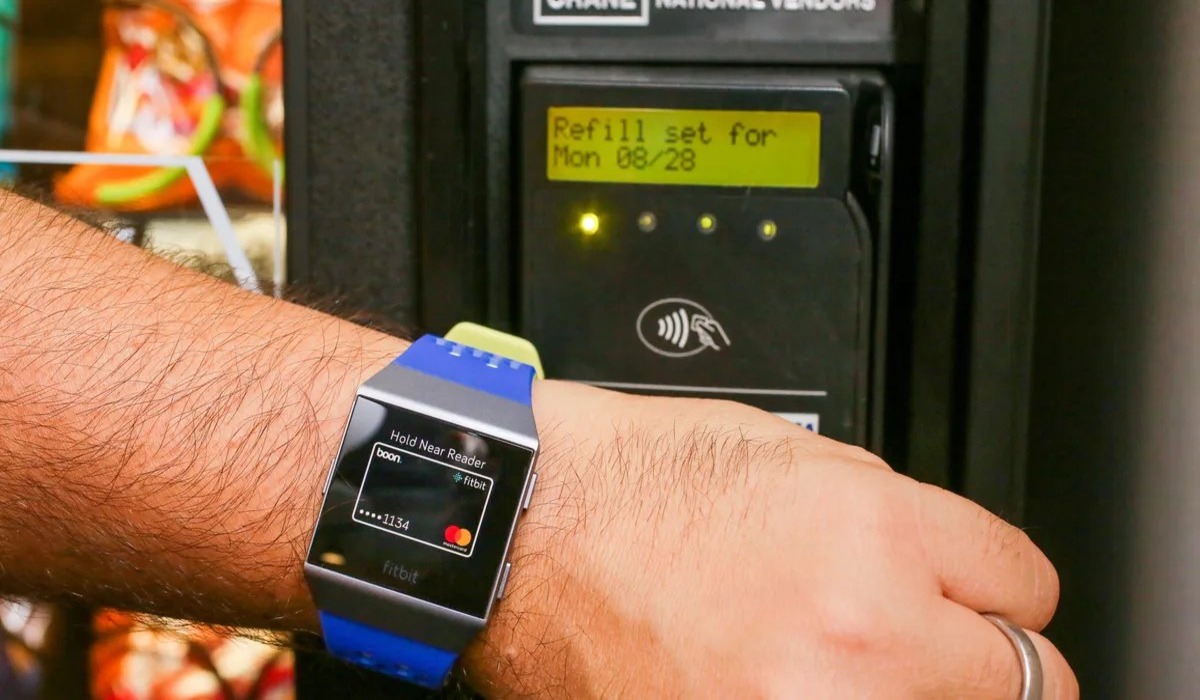
To set up wallet in Fitbit, you need to update your supported device to Google Wallet in the Fitbit app, then add a payment card and set a 4-digit PIN for contactless payments. Fitbit Wallet has been replaced by Google Wallet, meaning cards from the older Fitbit Pay system are not carried over and must be added again.
How to set up wallet in Fitbit: what you need to know
Google Wallet is now the default contactless payments solution on supported Fitbit devices. For devices launched after November 2022 outside Japan and Taiwan, including Versa 4, Sense 2, and Charge 6, it is the standard payments feature. The following Fitbit models support contactless payments: Charge 4, Charge 5, Charge 6, Sense, Sense 2, Versa 2, Versa 3, Versa 4, and editions of Charge 3 and Versa that contain an NFC chip. Cards previously loaded in Fitbit Pay will not be migrated, so you must add them again through the updated flow. Fitbit wallet supports prepaid cards in addition to credit and debit cards.
Step-by-step setup in the Fitbit app
Have your Fitbit device nearby and powered on. In the Fitbit app on your phone, follow this exact path:
- Tap the Today tab.
- Tap the Devices icon.
- Select your Fitbit device from the list.
- Tap the Wallet tile.
- Tap Update to Google Wallet and sign in to your Google Account, or follow the on-screen instructions to add a payment card.
- When prompted, enter the card details (number, expiration date, and security code).
- Complete any additional verification requested by your bank (such as a one-time code sent via text or email). During card validation, Fitbit sends a one-time verification code to your phone number or email associated with the card.
Once the card is approved, it is stored securely in Google Wallet on your Fitbit. You can add at least one credit or debit card from a participating bank to get started.
Setting your 4-digit PIN for payments
During the first-time setup of Google Wallet on your Fitbit, you will be prompted to create a 4-digit PIN. This PIN is required every time you make a contactless payment from your watch. It ensures that even if your Fitbit is lost or stolen, no one else can use it to pay. Choose a number you can remember easily but that others would not guess.
How to access Google Wallet on your Fitbit device
Once your card and PIN are set, accessing Google Wallet to pay differs by model:
- Charge 5 and Charge 6: Swipe down from the clock face, then tap Payments or Google Wallet.
- Versa and Versa 2: Swipe down from the top of the screen to see notifications, then swipe down again to open the control center. Tap the Wallet icon.
- Sense and Versa 3: Open the Wallet app directly. For quicker access, you can add it as a button shortcut in the Settings app under Shortcuts.
To pay, hold your Fitbit near any contactless payment terminal with the screen facing the reader. Enter your 4-digit PIN when prompted to complete the transaction. The NFC technology communicates instantly with the terminal, making the payment fast and secure.
Troubleshooting wallet setup issues
If you cannot set up Google Wallet on your Fitbit, start by checking whether Google Wallet is available in your country. Availability varies by region and not all countries support contactless payments on Fitbit. Also confirm that your Fitbit device is nearby and connected to your phone during the entire setup process, a weak or lost Bluetooth connection can prevent the update or card addition from completing. If your bank requires additional verification, make sure you have access to the phone number or email they use to send a one-time code. Ensure the Fitbit app on your smartphone is up to date. Restart your Fitbit device and try adding or using cards again. For further issues, Fitbit support and ownership help can provide device-specific guidance, including repair and identification support for your model.
Frequently Asked Questions
Which Fitbit devices support the wallet feature?
Supported models include Sense, Versa 3, Charge 4, and other NFC-enabled devices like Charge 5, Charge 6, Sense 2, Versa 2, and Versa 4.
Is it safe to use a wallet in Fitbit?
Yes. Card information is encrypted on the device, not shared with Fitbit or third parties, and may require biometric authentication for access.
Can I use more than one card in Google Wallet on my Fitbit?
Official documentation does not specify a maximum number of cards, so you can likely add multiple supported credit or debit cards and switch between them for different purchases. You can add and switch between multiple payment methods for different purposes like personal and business expenses.
Does Google Wallet on Fitbit work with all banks?
Not all banks are supported. Your bank must be a participating issuer and your card must support contactless transactions. Check with your bank or Google's official list before setting up.
How do I remove a card from Google Wallet on my Fitbit?
Official support pages do not outline a specific card-removal path. Typically, this is done through the Wallet tile in the Fitbit app's device settings, where you can manage or delete stored cards. Removing a card from your Fitbit wallet does not affect your physical card or other payment methods associated with that card.
How do I check my transaction history?
To check transaction history, open the Fitbit app, navigate to the Wallet section, and select Transaction History to see date, time, and amount of each transaction.
Will my Google Wallet cards transfer if I switch to a new Fitbit?
Cards are not automatically migrated. You will need to add them again on the new device by following the same setup steps in the Fitbit app.
Is my card information stored on the Fitbit device itself?
No. Your actual card details are stored securely within the Fitbit app and Google Wallet system, not on the watch. The device only holds a tokenized representation used for transactions.