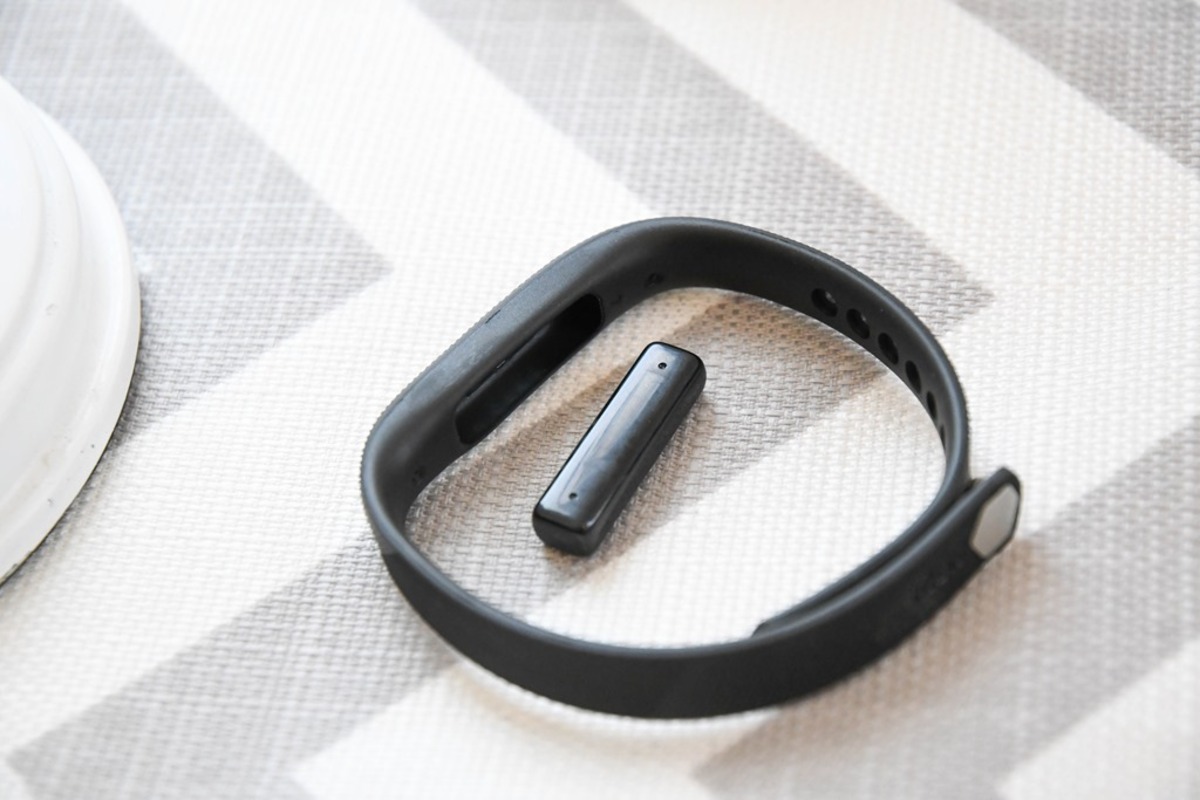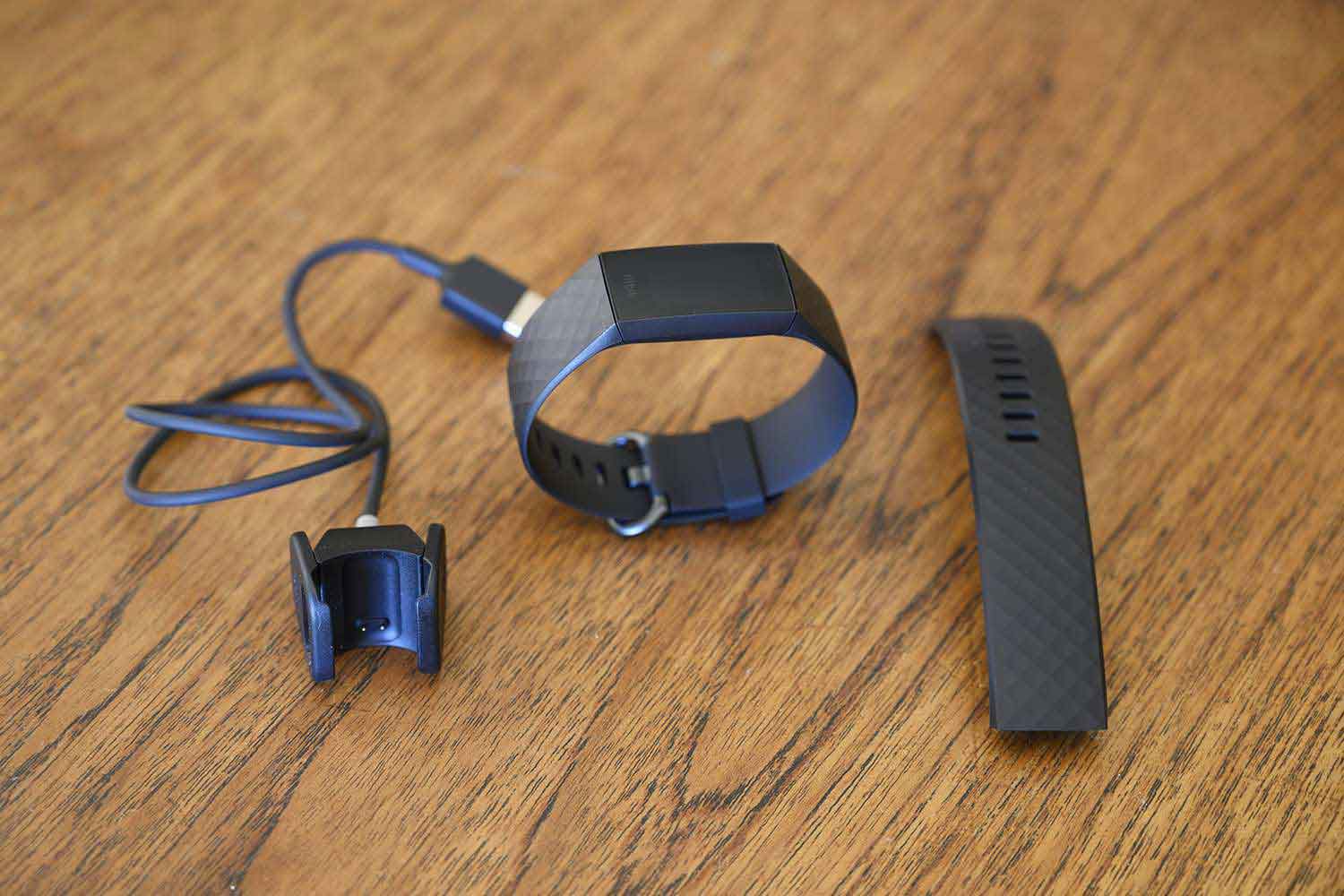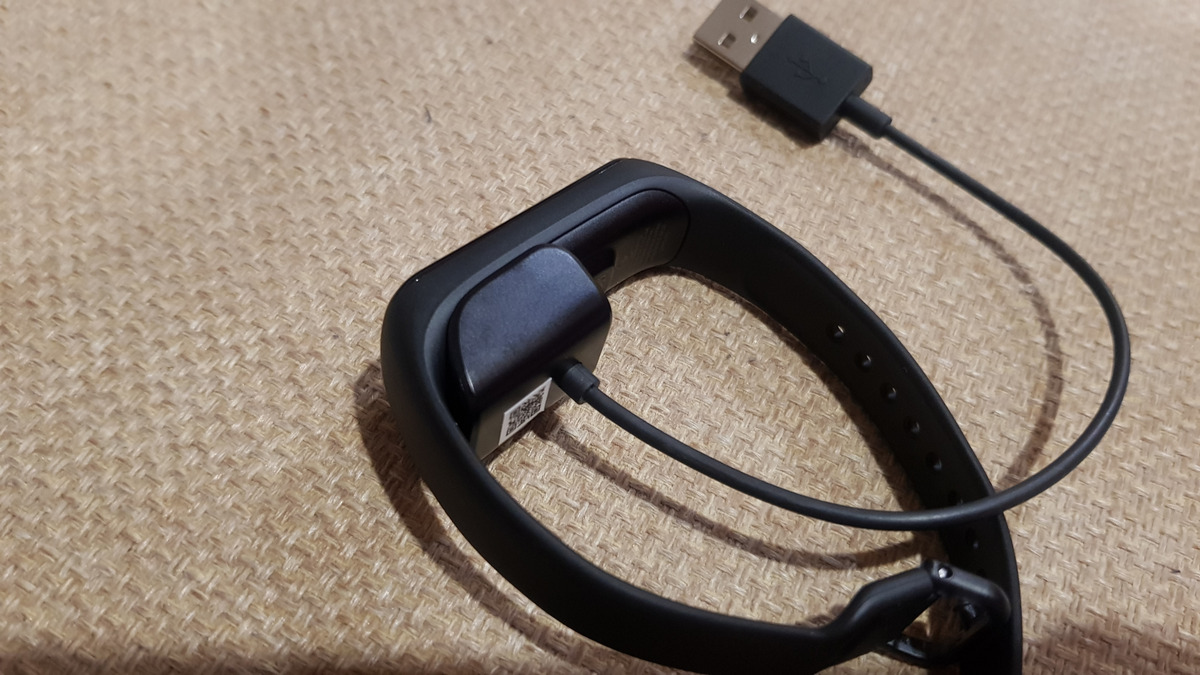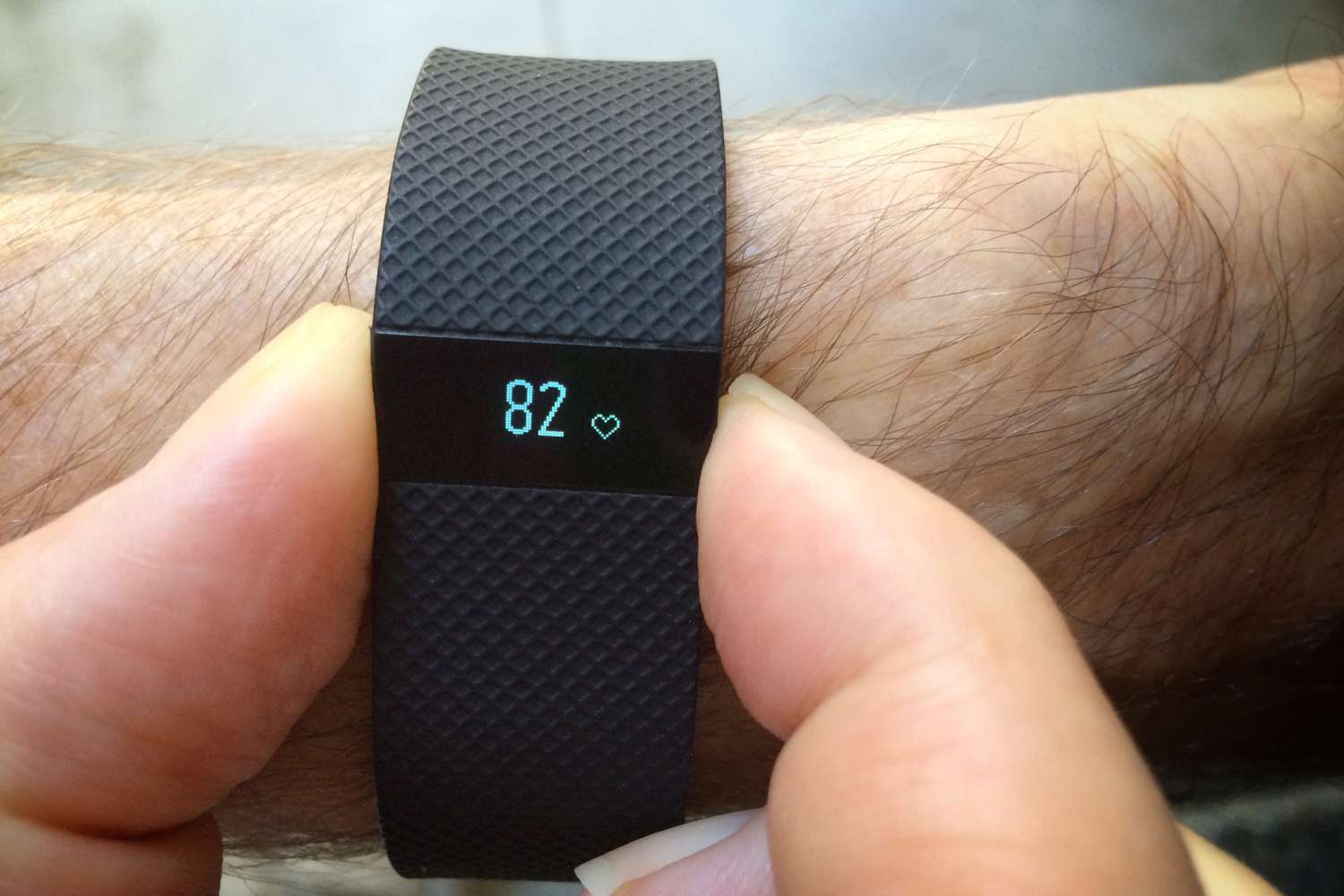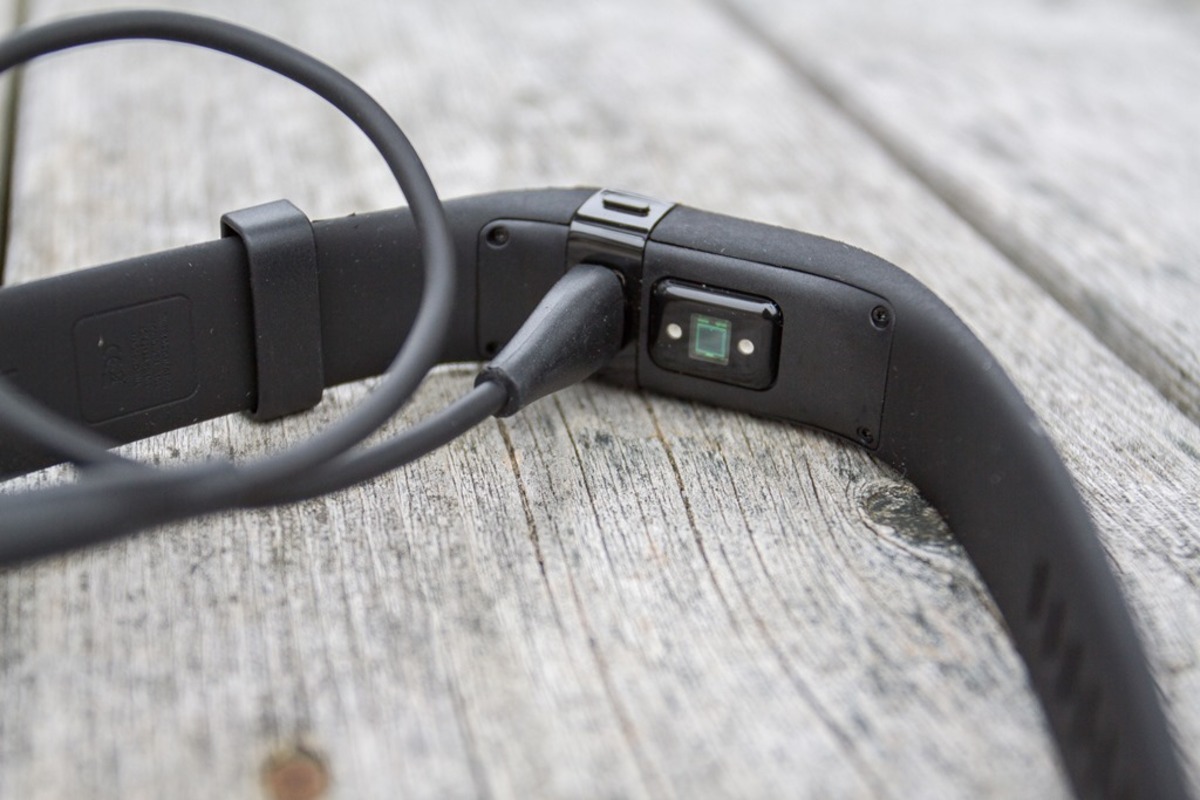
Your Fitbit Charge HR is fully charged when you see a solid battery icon on the tracker’s display. This is the single, documented visual indicator that confirms the device is ready to disconnect from the charger.
How to know if your Fitbit Charge HR is fully charged
The only way to confirm a full charge directly on the Fitbit Charge HR is by looking at the battery icon on its screen. When you connect the device to its charger, the battery icon appears and a lightning bolt symbol appears on the battery icon to indicate active charging. If no battery icon appears at all, the device has completely run out of battery and needs immediate charging. As charging progresses, the icon fills up. Steady blinking lights indicate battery level below 50%. Slow blinking lights indicate battery level between 50% and 80%. Rapid blinking lights indicate the device is almost fully charged. Once it is completely solid, with no blinking or empty segments, the tracker is at 100% charge. Fitbit’s official support documentation states that a fully charged Charge HR shows a solid battery icon.
Therefore, rely on the solid battery icon as your primary check.
Charging time and battery life estimate
The Fitbit Charge HR manual specifies that a complete charge takes 1 to 2 hours. Once fully charged, the device’s normal battery life is about 5 days, based on typical usage including heart rate monitoring and activity tracking. Heavy usage like continuous GPS tracking or frequent backlight use may reduce battery life below the 5-day estimate. Regularly syncing with the app can help prolong battery life by optimizing power consumption. These estimates help you plan when to plug in your tracker so it’s ready when you need it.
To manage your charging routine, you can also check the battery level through the Fitbit app, though the app does not show a dedicated battery percentage for the Charge HR specifically. Instead, the app provides a general battery status for supported devices. For the Charge HR, the most reliable method remains the solid battery icon on the tracker itself. A portable charger can be used to recharge on the go, though it may slightly extend charging time.
Frequently Asked Questions
Can I overcharge my Fitbit Charge HR?
No. The Charge HR automatically stops charging once the battery reaches 100%, so leaving it on the charger overnight will not damage the battery or reduce its lifespan.
How long does it take to fully charge a Fitbit Charge HR from empty?
From a completely drained battery, the Charge HR takes approximately 1 to 2 hours to reach a full charge, as stated in the official manual.
What should I do if the battery icon never turns solid?
If the battery icon remains partially filled or does not appear at all, ensure the charging cable is securely connected to both the tracker and a power source. Try a different USB port or wall adapter. If the issue persists, the charging cable or the tracker’s charging contacts may need cleaning or replacement. If lights do not blink at all when connected, there may be a connection or cable issue.
Does the Fitbit Charge HR show a battery percentage?
No, the Charge HR does not display a numeric battery percentage on its screen. You can only see the battery icon, which fills gradually to indicate charge level. For a more detailed readout, you can check the Fitbit app, though the app’s battery indicator is not guaranteed for this model.
How often should I charge my Fitbit Charge HR?
Charge the tracker when the battery icon shows a low level, typically every 4 to 5 days under normal use. Regular charging helps maintain the device’s performance and ensures you don’t run out of power during the day.
Can I use the Fitbit app to check the charge status of my Charge HR?
While the Fitbit app can display battery status for some newer trackers, the official documentation does not list the Charge HR among models with a dedicated on-screen battery indicator in the app. For the Charge HR, the solid battery icon on the device itself is the confirmed method to know it is fully charged. If you want to manage charging settings, explore the Fitbit battery and power settings in the app to see general power controls and syncing options.
For the wider topic, see Fitbit battery and power settings.
Related reading: How Do I Know When Fitbit Flex Is Fully Charged and How To Tell If Fitbit Is Fully Charged.