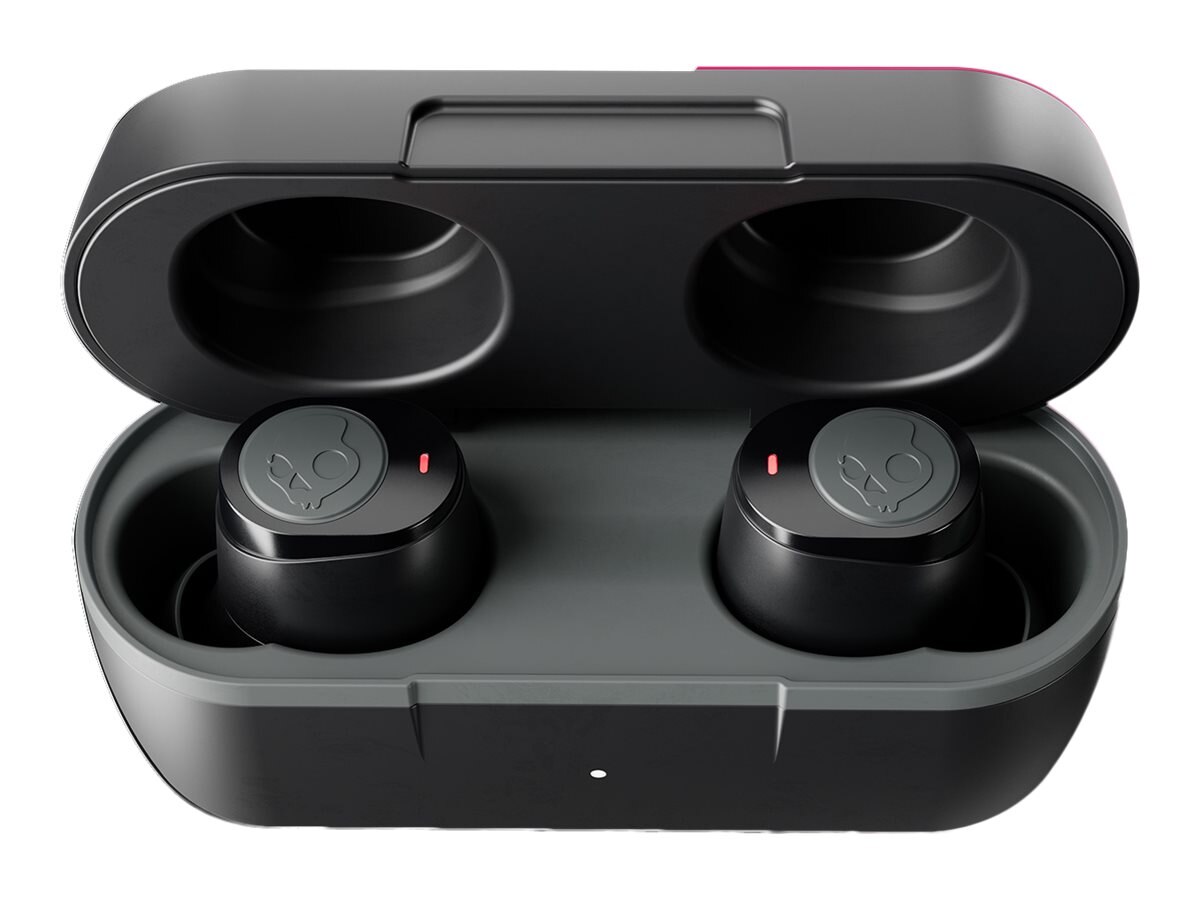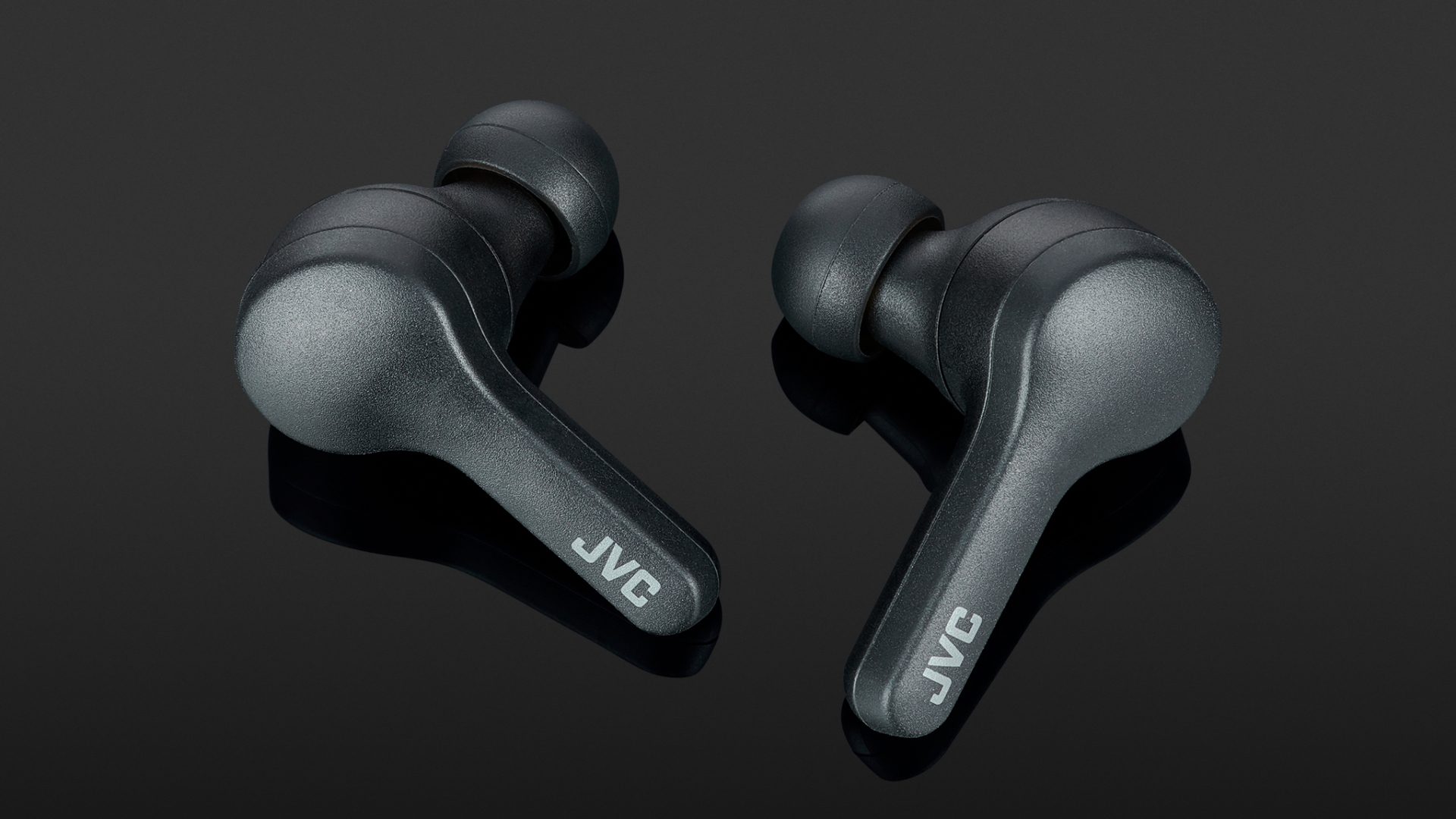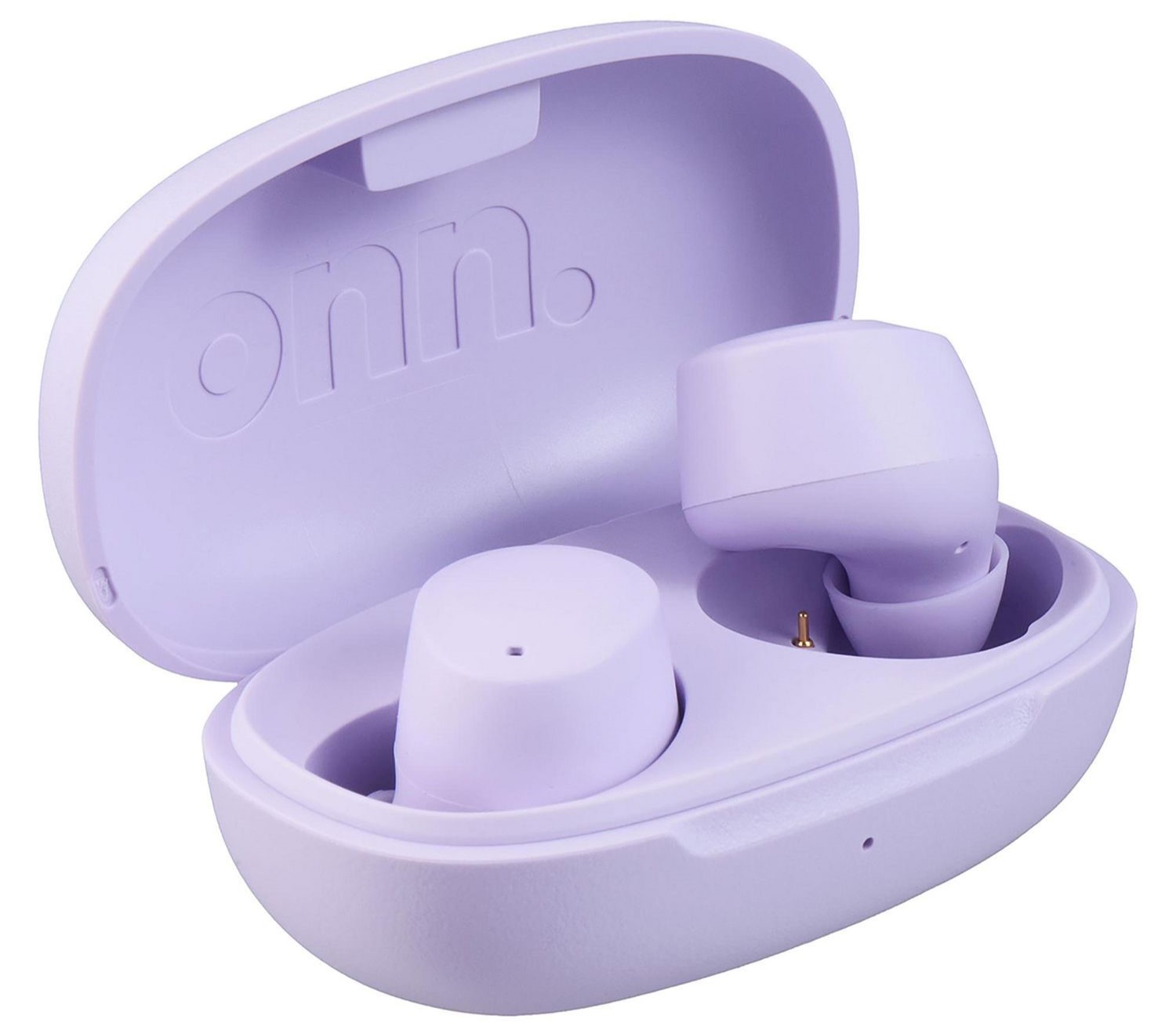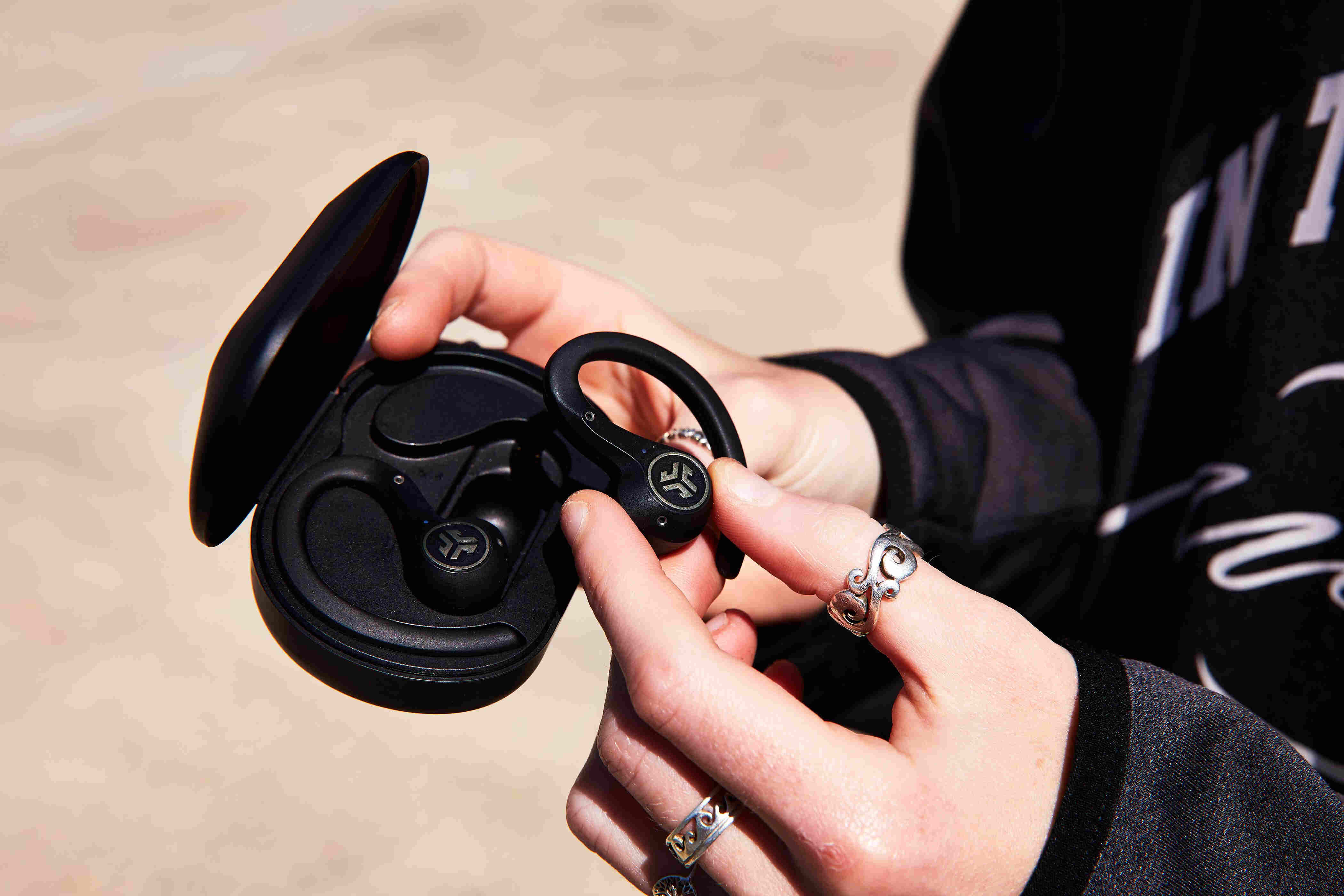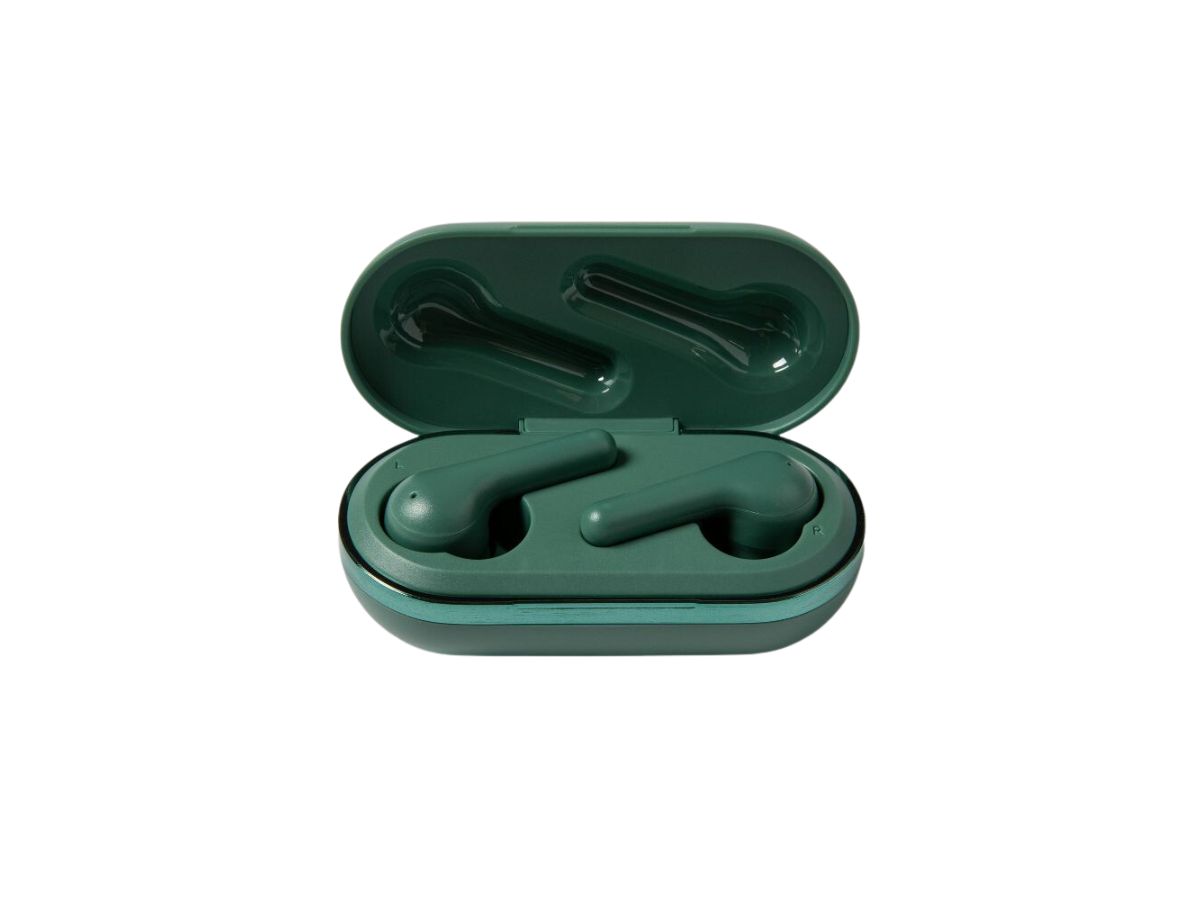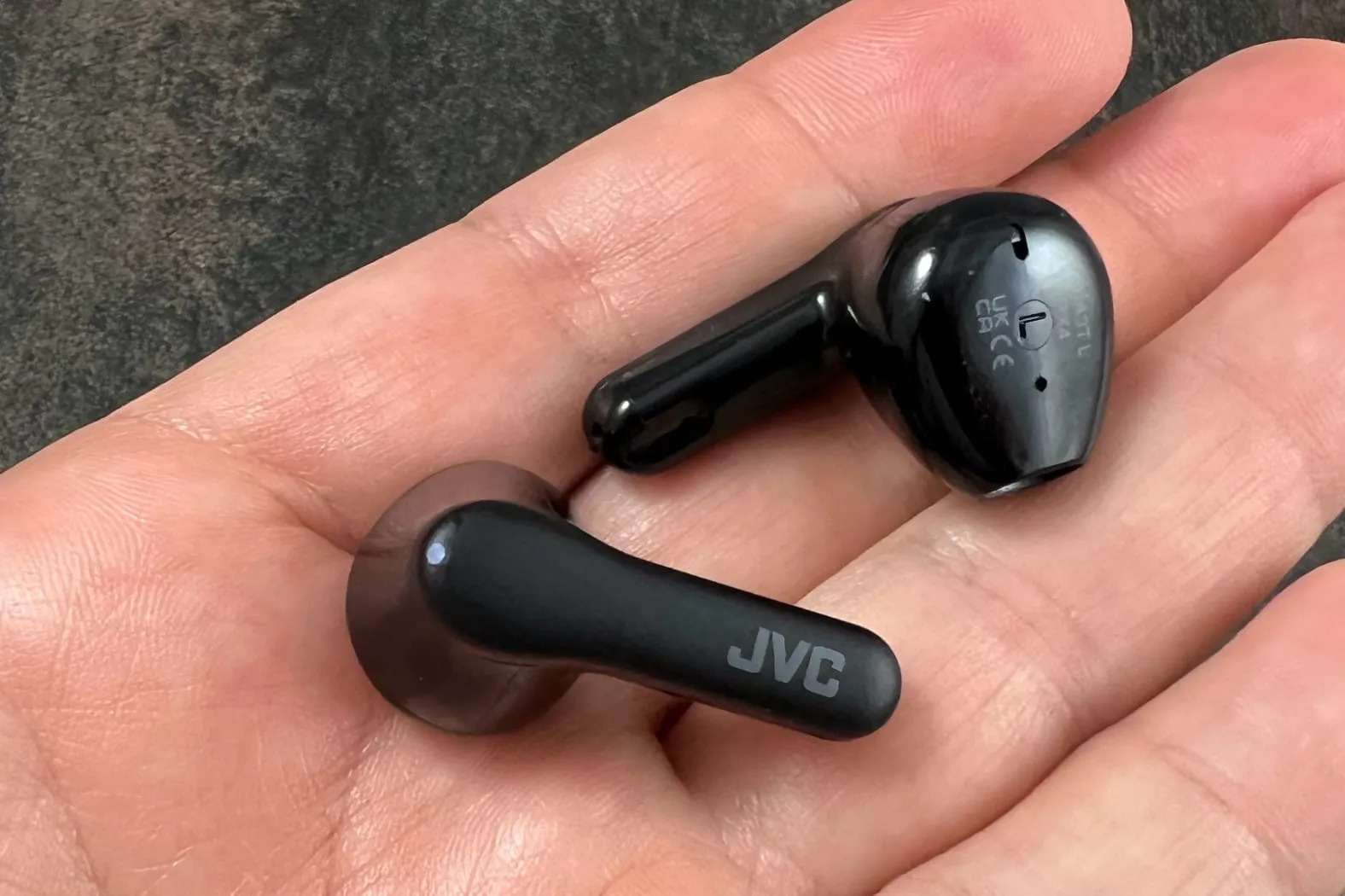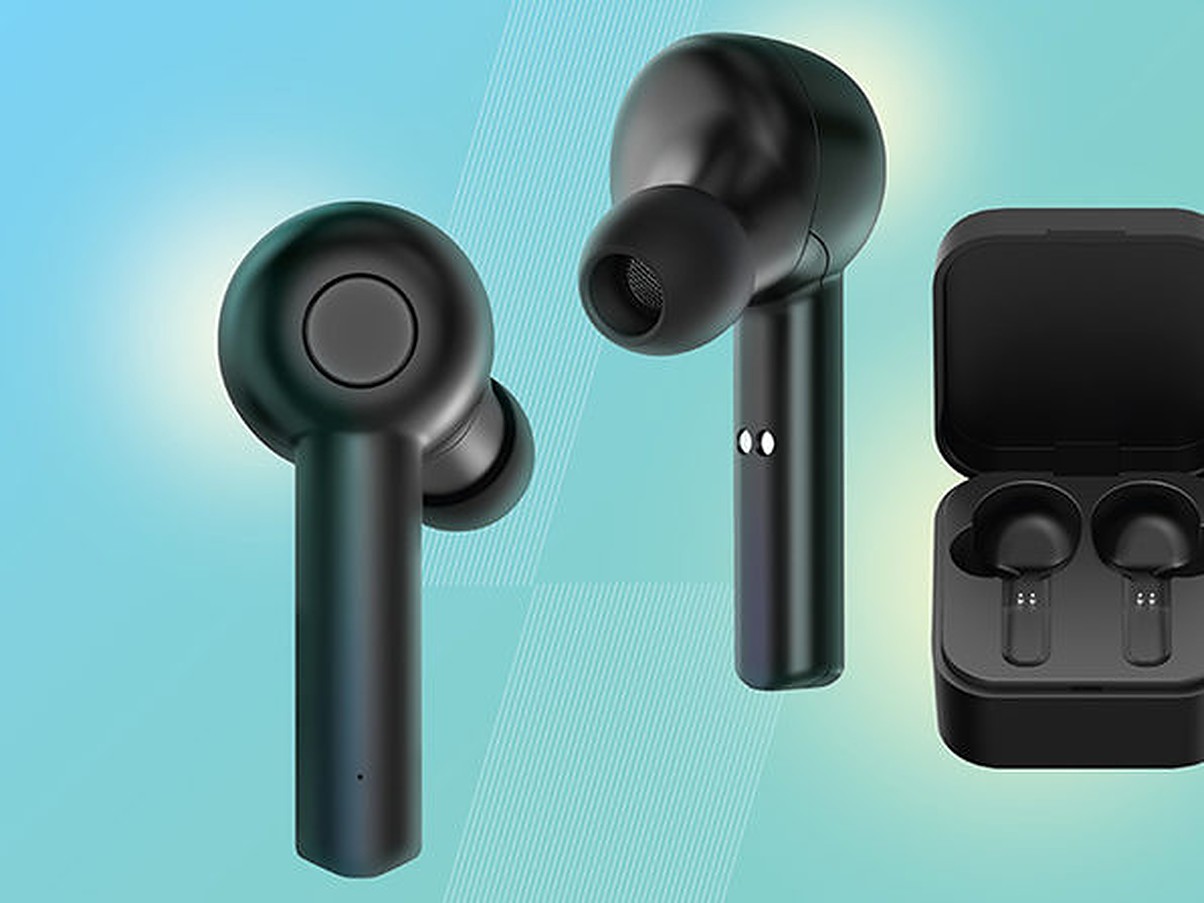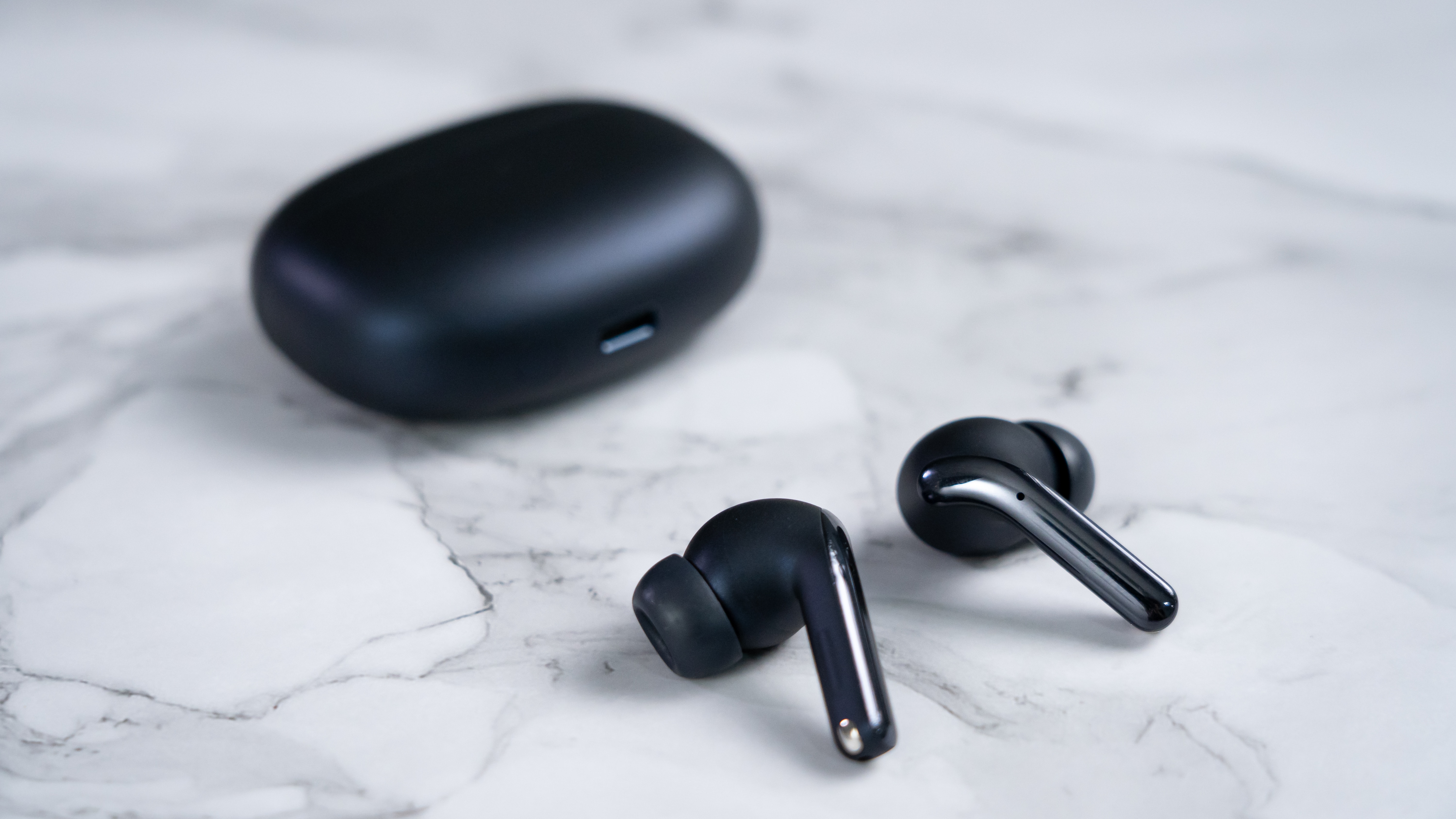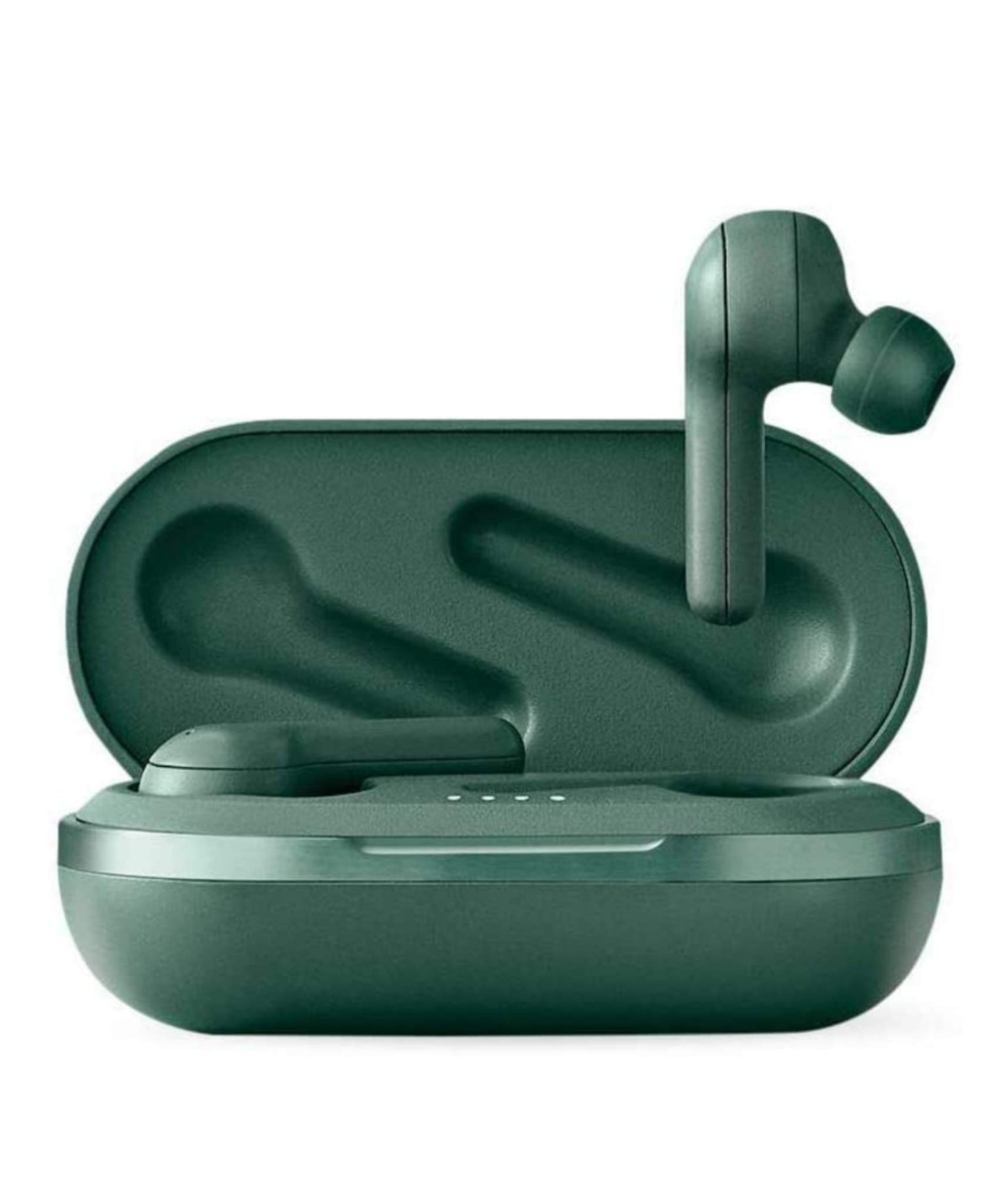
To pair Heyday wireless earbuds, you need a Bluetooth-enabled phone or tablet and earbuds that are charged. The exact process for pairing Heyday wireless earbuds depends on your specific model, but all models connect by putting the earbuds into pairing mode and then selecting the correct device name from your phone’s Bluetooth settings.
Turn on Bluetooth on your phone or tablet
Open the Bluetooth settings on your device and turn Bluetooth on. This is the universal step required before the earbuds can be discovered. The manuals only document pairing with a smartphone, tablet, or other Bluetooth-enabled device; they do not list specific iPhone or Android models, operating system versions, or carrier requirements.
Put your Heyday earbuds in pairing mode
There are three documented methods to enter pairing mode, depending on your earbud version. The manuals say to ensure the earbuds are charged or fully charged before pairing. One model sheet says pairing starts only after the earbuds are removed from the case, and another says to place them back in the case to power off.
- Auto-pair by opening the case: Open the charging case and remove both earbuds. They will flash red and white, indicating they are ready to pair.
- Press and hold the multi-function button: On some models, press and hold the multi-function button on the earbud for 5-7 seconds until the indicator flashes red and blue.
- Press and hold the case button: With the lid open, press and hold the button on the back of the case for 3 seconds to initiate pairing for both earbuds.
Select your earbuds in Bluetooth settings
On your phone or tablet, search for available devices in Bluetooth settings. The earbuds will appear under a model-specific name such as HEYDAY EARBUD 05, HEYDAY EARBUD 07, HEYDAY EARBUD 04, Heyday Earbud 11, Heyday Earbud 13, or simply “Heyday Earbuds”. One manual says the earbuds may appear as “Heyday Earbuds” or a similar name and, if prompted, the password is 0000. Tap the matching name to connect. If prompted for a password, enter 0000. A successful pair is confirmed by a chime, a confirmation tone, or the indicator lights turning off or flashing slowly, depending on the model.
Troubleshooting when Heyday earbuds won’t pair
If the earbuds do not appear or fail to connect, try these documented fixes:
- Re-enter pairing mode: Place both earbuds back in the case, leave the lid open, and press and hold the reset button on the back of the case for 3 seconds. This forces the earbuds to re-enter pairing mode.
- Factory reset: With the earbuds in the case and the lid open, press and hold the reset button for 6 seconds to perform a factory reset.
- Manual power button: If auto-pairing fails, press and hold the power button on each earbud until the LED flashes, which manually activates pairing mode.
These steps cover the most common issues when pairing true wireless earbuds, ensuring you can restore the connection without external support.
Frequently Asked Questions
Can I pair Heyday earbuds with multiple devices at once?
Yes, you can pair Heyday earbuds with multiple devices, but they can only be connected to one device at a time. To switch devices, disconnect from the current device first, then pair with the new one.
Do Heyday earbuds automatically reconnect to my phone?
Yes. When you take the earbuds out of the case, they automatically reconnect to the last paired device if Bluetooth is enabled on that device. One manual says to use the device’s Bluetooth settings; another says the earbuds automatically reconnect to the last paired device when taken out of the case if Bluetooth is enabled.
How long does the battery last on Heyday earbuds?
Battery life varies by usage, but on average, the earbuds provide up to 4-5 hours of continuous playback. The charging case provides additional charges, extending total listening time to around 15-20 hours.
Related reading: How To Pair Jib True Wireless Earbuds and How To Pair JVC Gumy Wireless Earbuds.