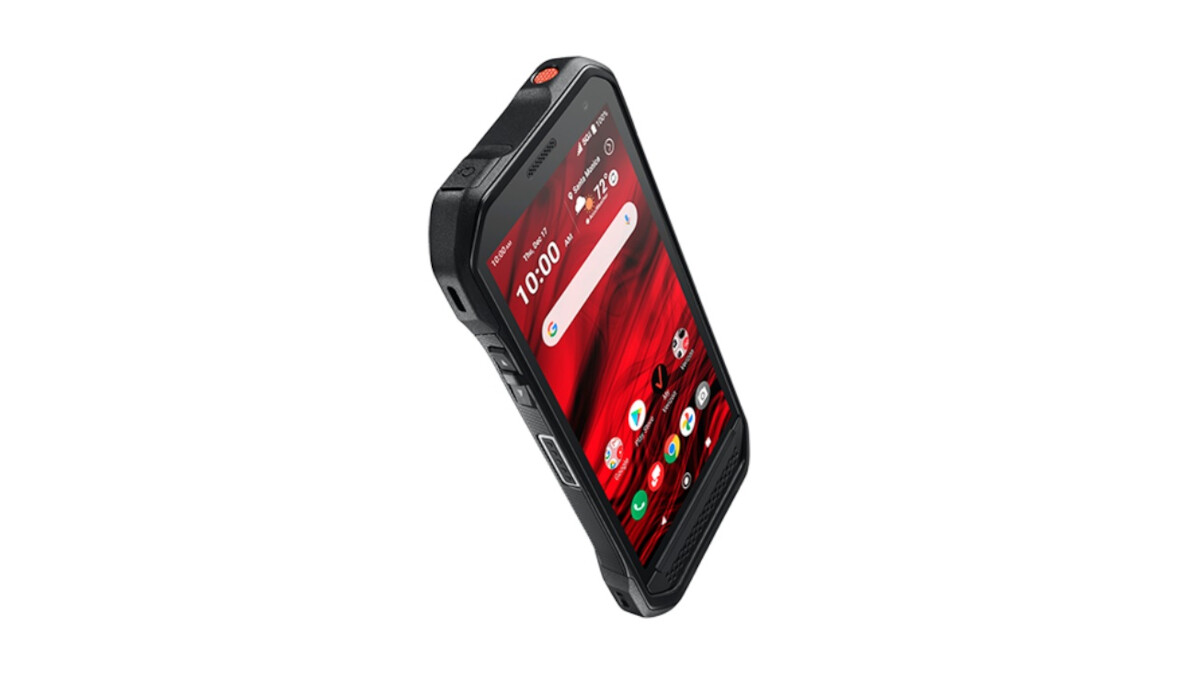
To remove the SIM card from a Kyocera phone, you physically eject the SIM tray using a SIM-eject tool or a paper clip, which is necessary when you want to swap carriers, replace a faulty SIM, or troubleshoot network issues. Follow these steps to remove SIM card from kyocera devices safely:
- Turn the phone off if the device manual for your model instructs that step; one Kyocera user guide says to turn off the phone before removing the SIM card.
- Locate the SIM tray on the device edge; for Kyocera models documented by AT&T, the tray is on the right side.
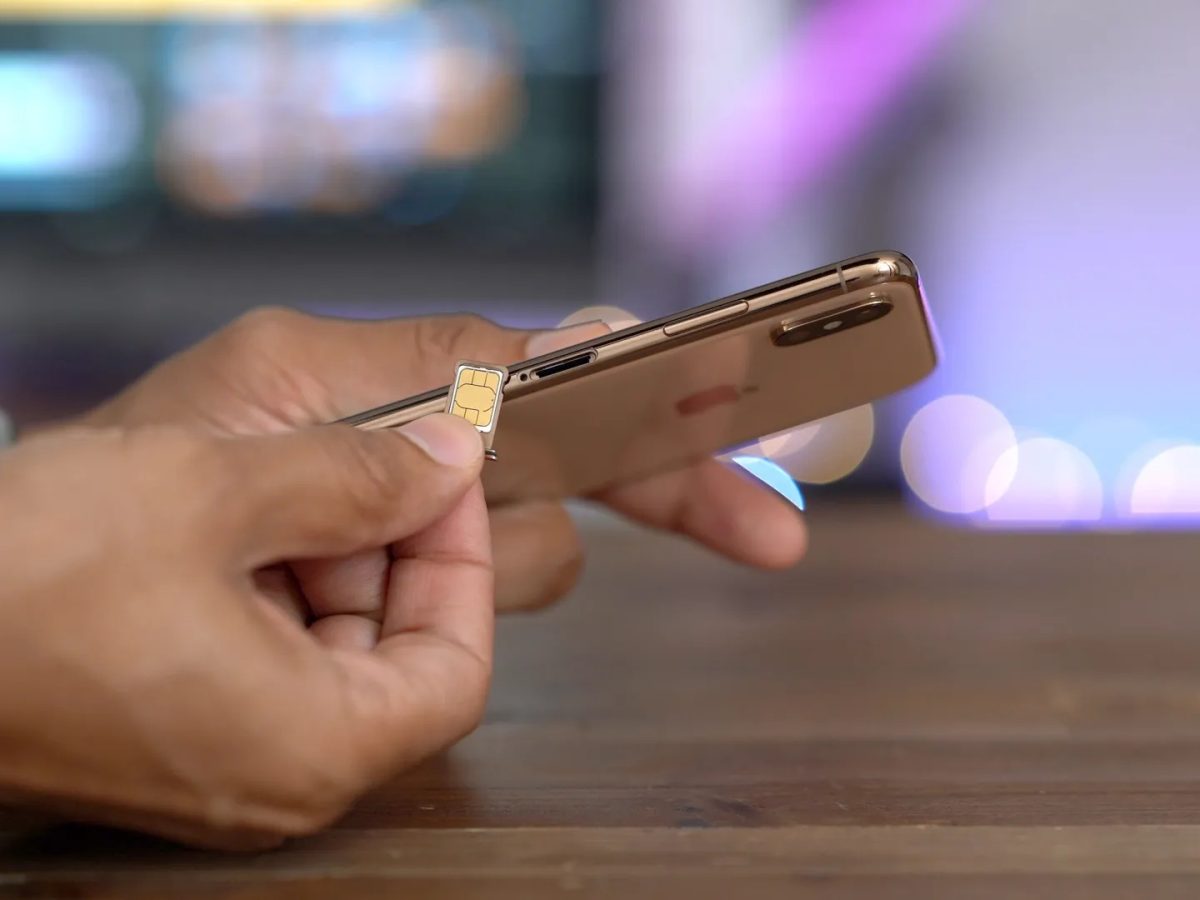
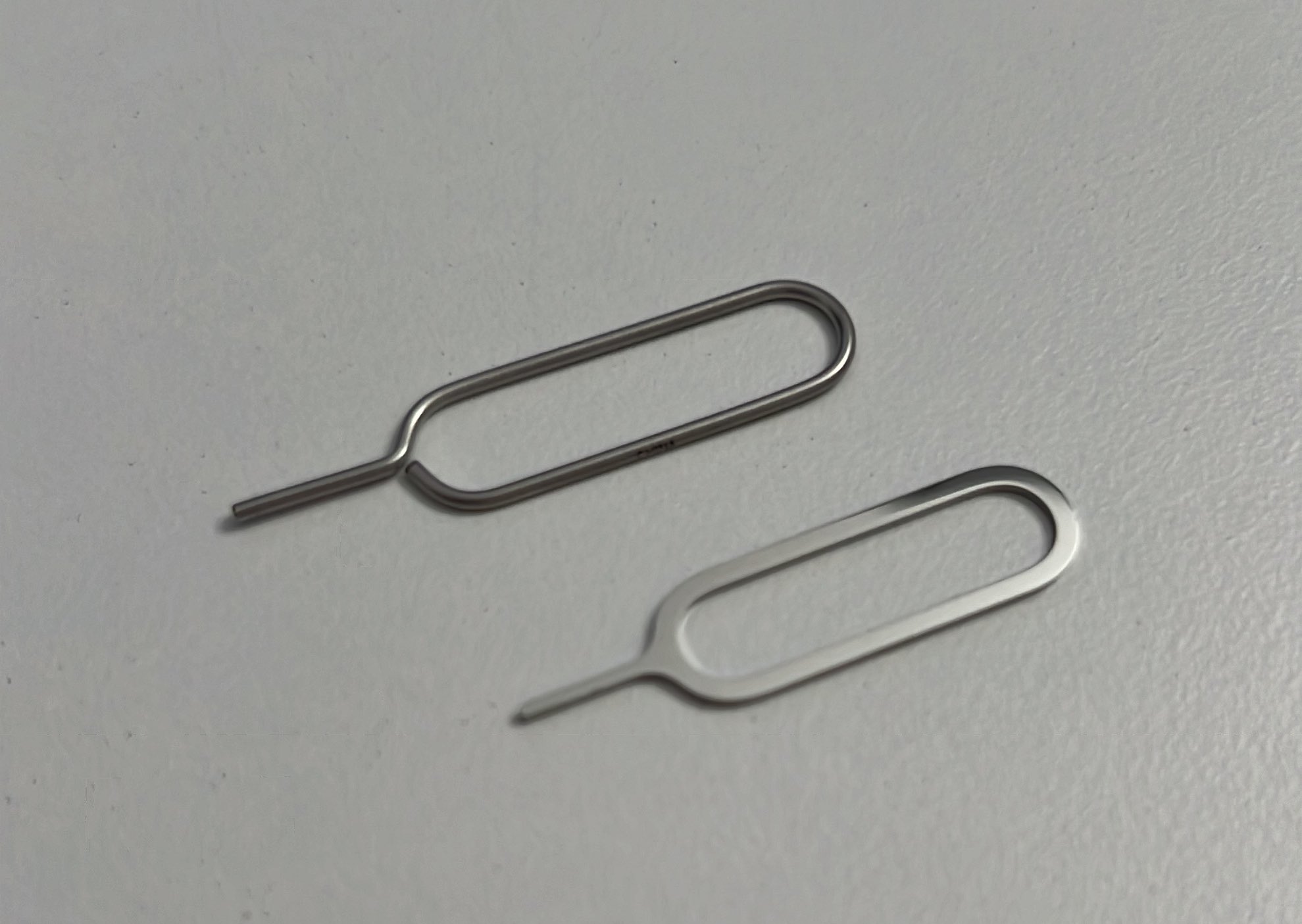
- Insert a SIM-eject tool or paper clip into the small hole next to the tray.
- Push gently until the tray ejects; do not force it.
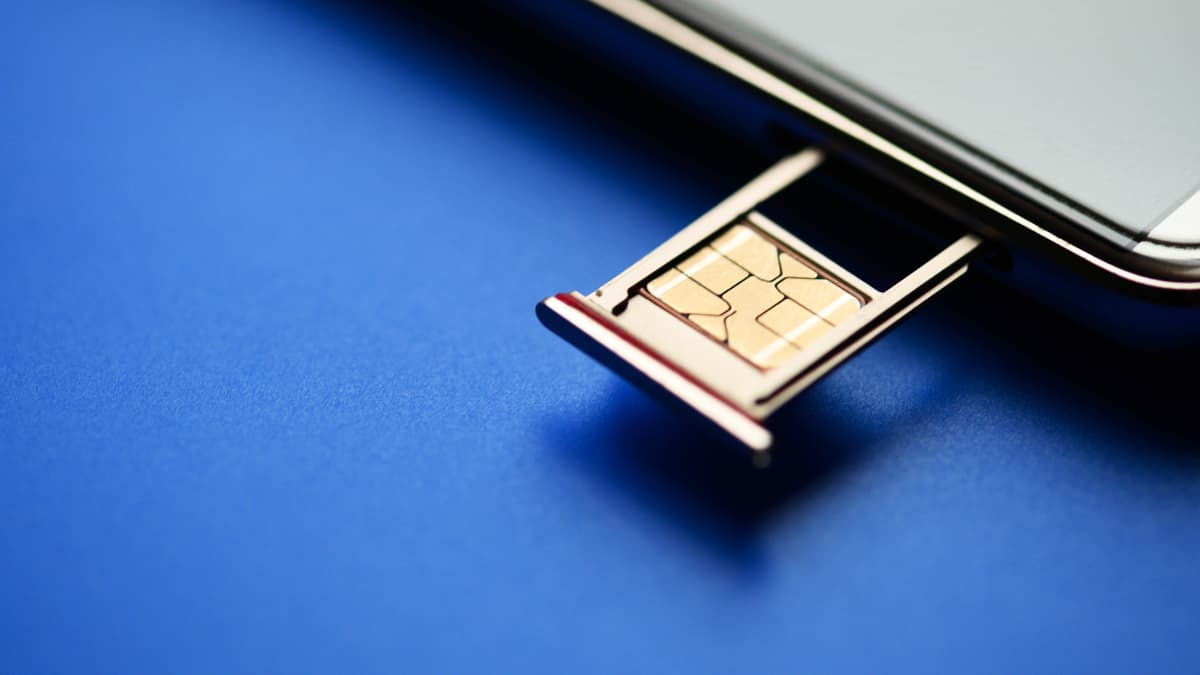
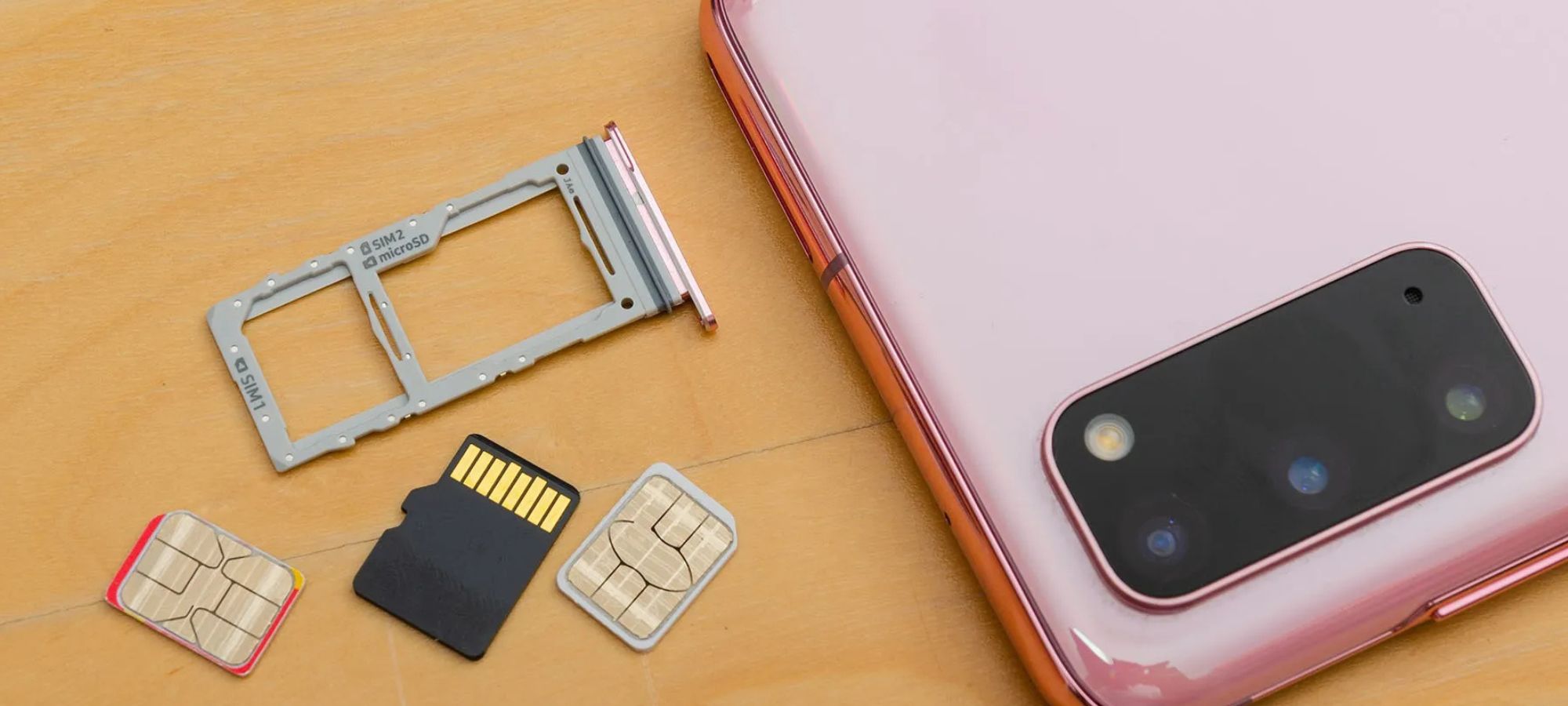
- Pull the tray out and remove the Nano-SIM from the tray. Take note of the orientation of the SIM card, as it will need to be inserted in the same position when you reinstall it.
- Reinsert the tray in the same orientation if you are finished. To insert the SIM card back into your Kyocera smartphone, simply align the card with the tray's designated slot and gently push the tray back into the device until it clicks into place.
Where is the SIM tray on Kyocera models?
For verified Kyocera models like the Dura XE (E4710) and DuraXE Epic (E4830/E4830NC), the SIM tray is documented on the right side of the device.
What you need to eject the tray
You need the SIM eject tool that came with the phone, or a small paper clip as an alternative. Insert the tool into the small hole next to the tray and push gently until the tray pops out.
What to do if the SIM tray won't open
Do not force the tray. If the tray is difficult to eject, make sure you're using the correct tool and applying gentle pressure. If it still won't open, the documented advice is to contact your carrier or a repair shop for assistance, as forcing it can damage the tray or the device.
Frequently Asked Questions
Can a SIM card be removed from a Kyocera without the tool?
Yes, a paper clip can be used as an alternative to the SIM-eject tool. Insert it into the tray hole and push gently to eject the tray.
Is there a software setting to remove the SIM?
No documented menu path exists for physically removing a SIM card on a Kyocera. The removal method is physical ejection of the tray, not a settings option.
Do all Kyocera models use the same tray location?
No. The right-side tray is documented for specific AT&T models like the Dura XE and DuraXE Epic, but other Kyocera models may place the tray differently, so check your device or carrier documentation.
What if the tray will not open?
If the tray is hard to eject, take the device to your carrier or a repair shop for help. Do not force it, as this can cause damage.
What is a SIM card?
The SIM card is a small chip that stores vital information necessary for your phone to connect to a cellular network.
Should I turn off my phone before removing the SIM card?
It is recommended to power off your Kyocera smartphone before removing the SIM card to avoid any potential damage to the device or the SIM card.
Can I use a SIM card from another carrier?
You can replace the SIM card with one from another compatible carrier. Just make sure to contact the new carrier to ensure compatibility and follow their activation process. Your Kyocera phone must be unlocked to use a SIM card from a different carrier, and the new carrier's network must be compatible with your phone's network bands.
What if my phone doesn't recognize the SIM card?
If your Kyocera phone is not recognizing the SIM card, first ensure that the SIM card is inserted correctly and securely in the SIM card tray. You can also try rebooting your phone. If the problem persists, check if the SIM card is damaged or needs cleaning.
For the wider topic, see take SIM card out of Android.
Related reading: How To Remove The SIM Card From The Moto G Stylus 5G? and How To Change SIM Card On Motorola Moto G.