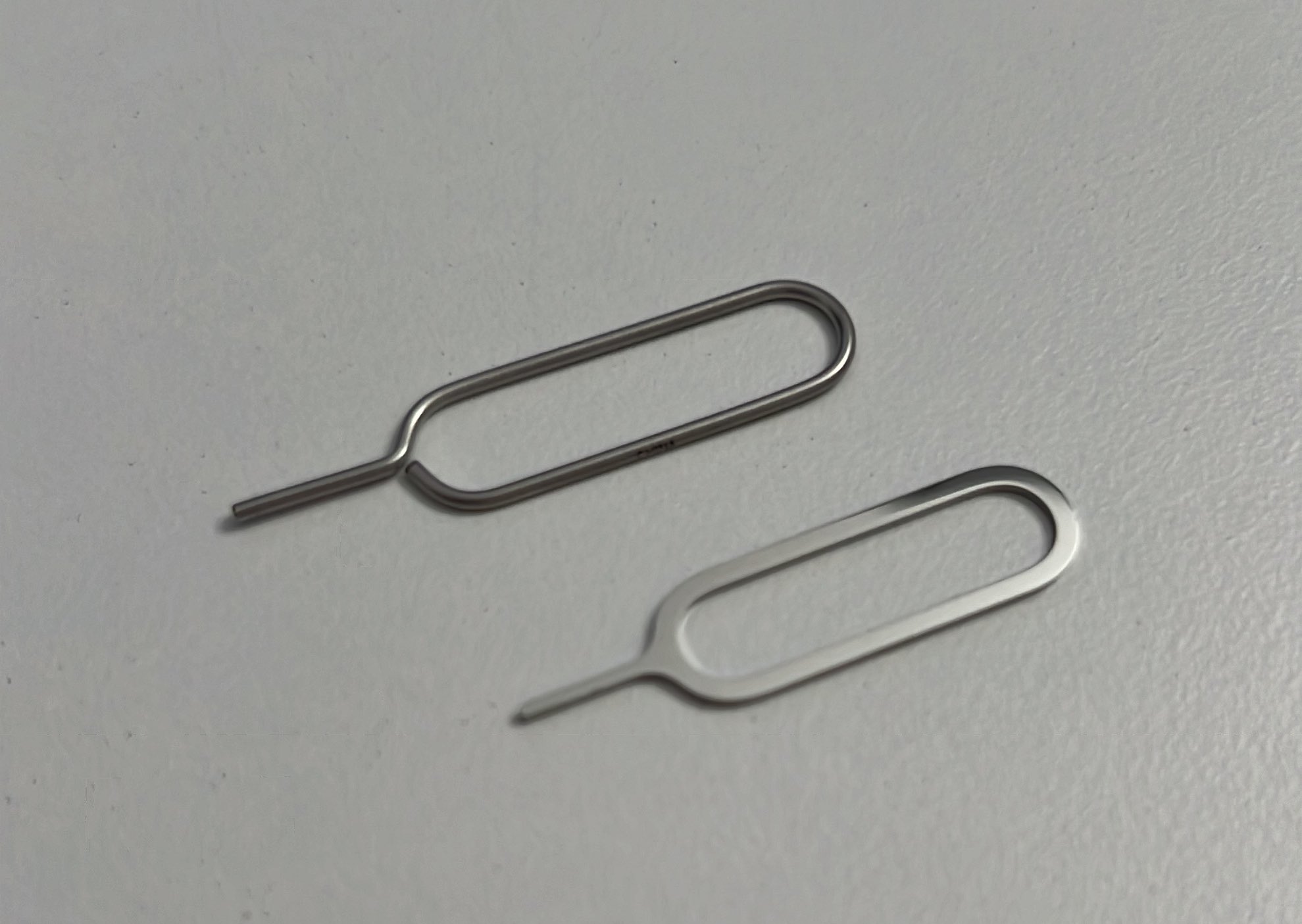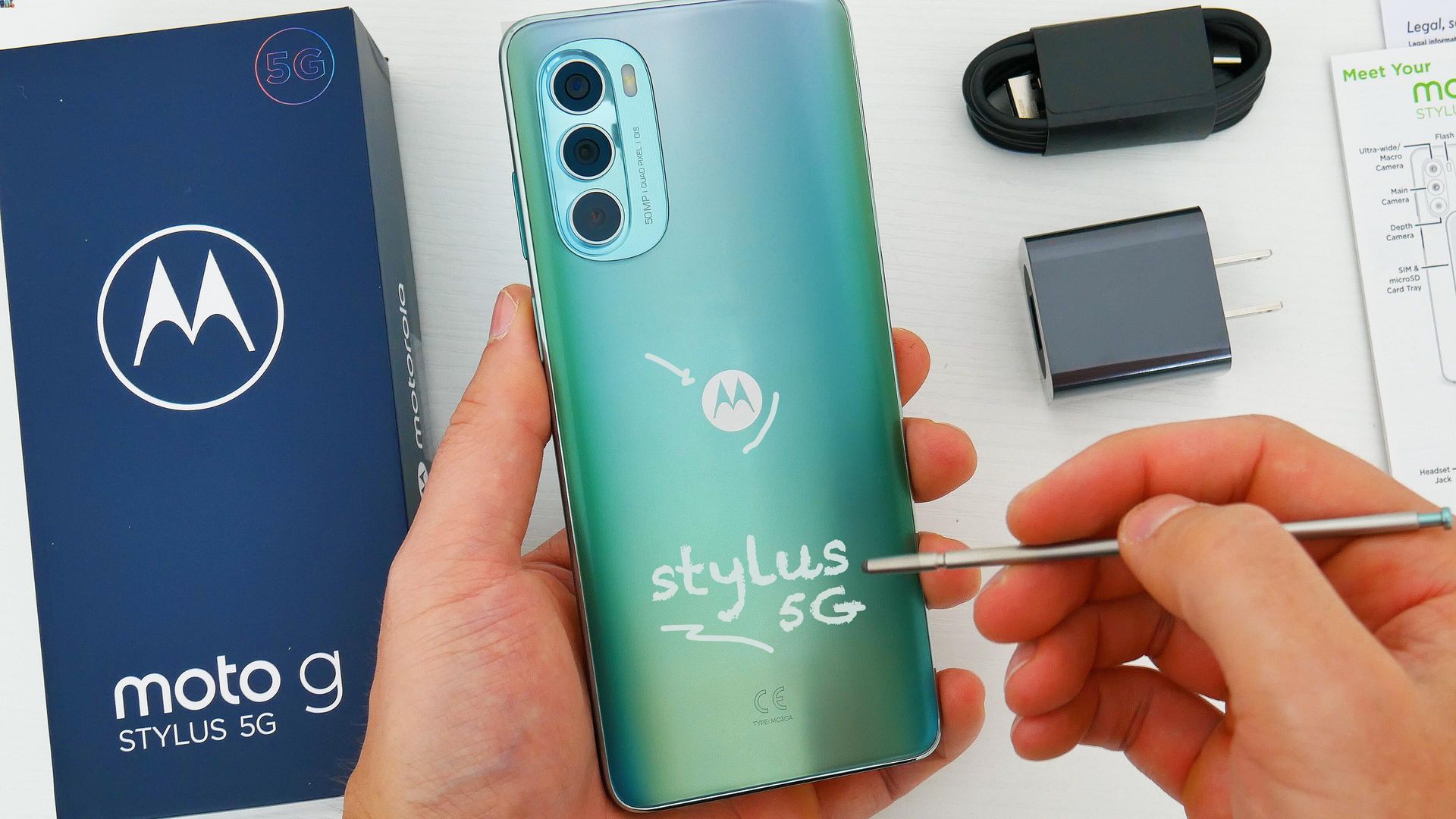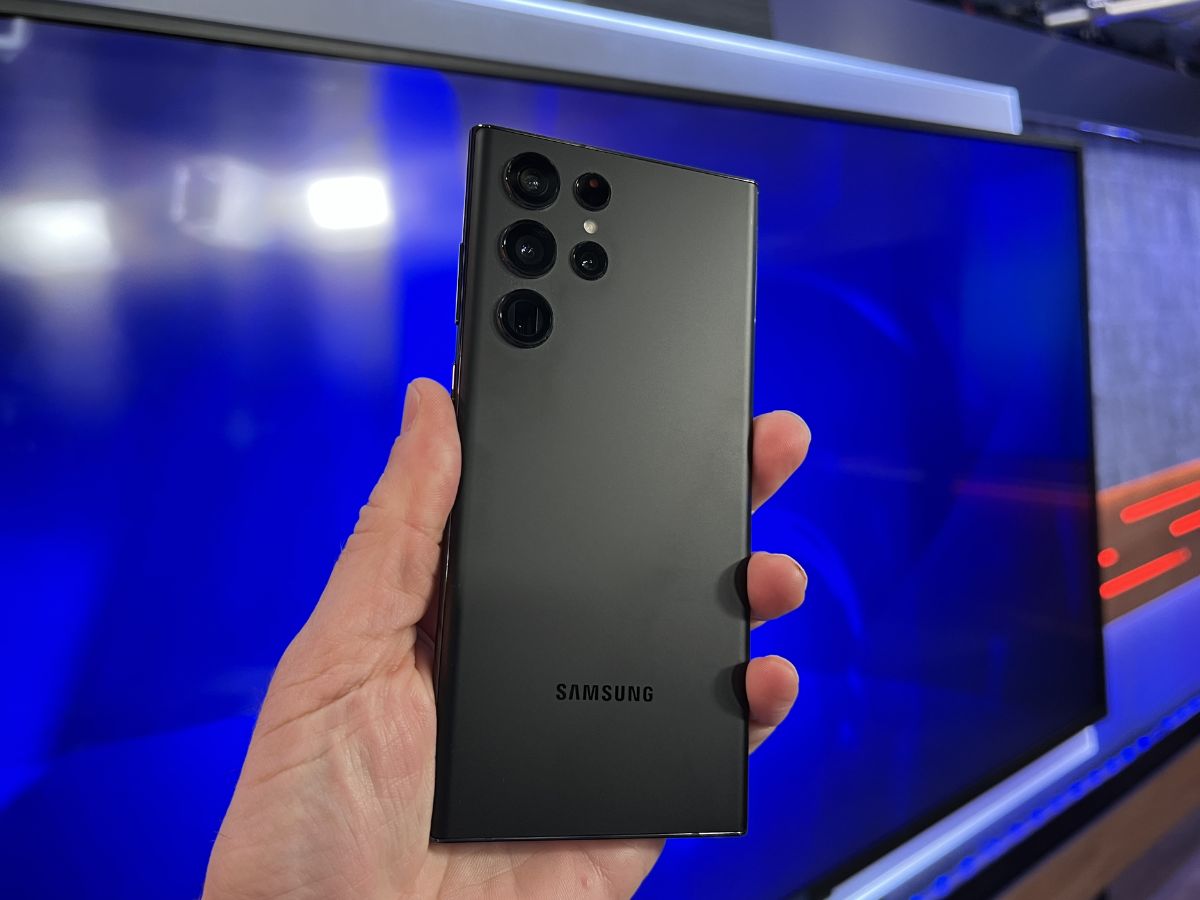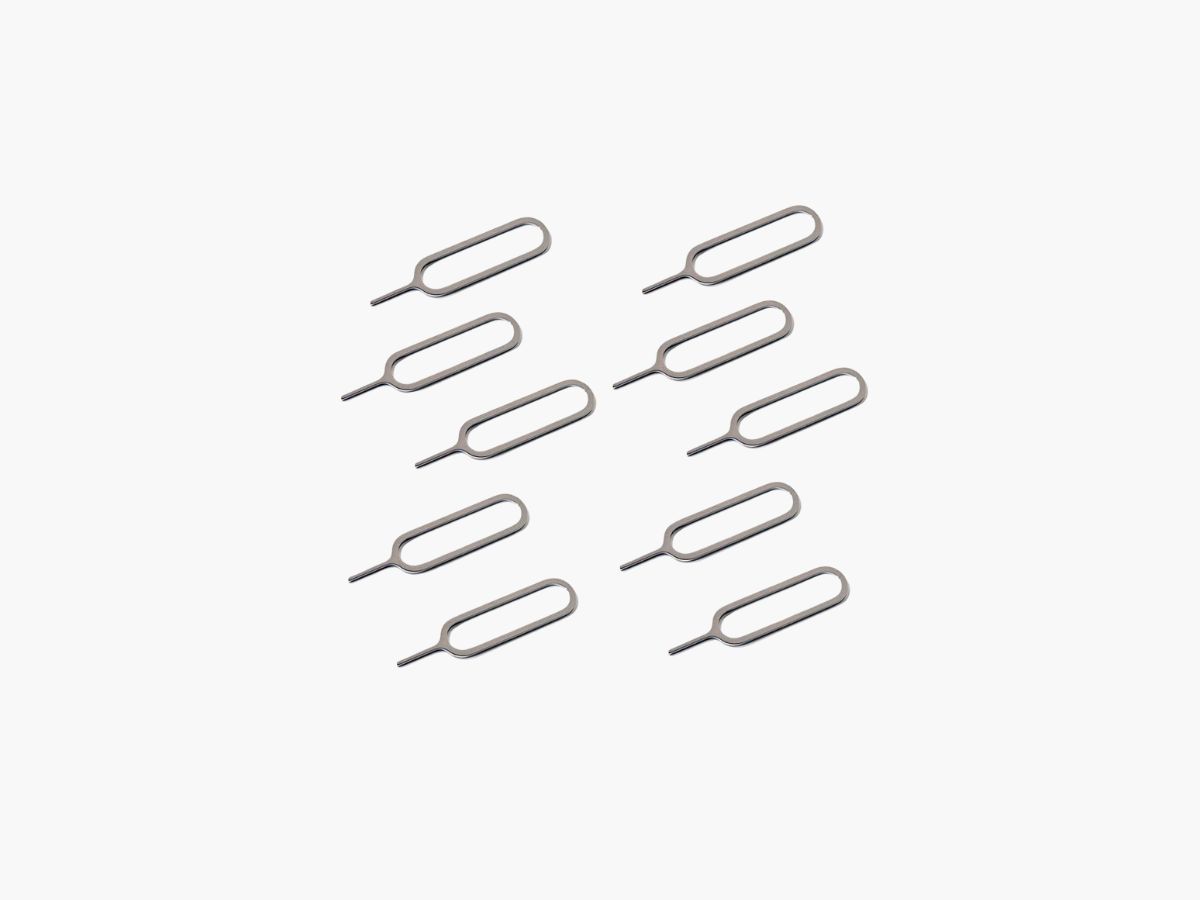
To open SIM card tray, you need either the SIM-eject tool that came with your phone or a standard paper clip, both are officially documented by Apple, Google, and Samsung as safe methods. The SIM-eject tool is the preferred option, but a paper clip works just as well when the original tool is lost.
What to use to open a SIM card tray
Apple and Google both document the SIM-eject tool and a paper clip as acceptable ways to pop open the SIM tray on iPhone and Pixel devices. Samsung likewise specifies the ejector pin that comes in the box with Galaxy phones. These two methods are the only ones endorsed by manufacturers, so skip improvised tools like earrings, needles, or sewing pins, they can scratch the phone or damage the tray mechanism.
How to use a paper clip
A paper clip is the most common household substitute for the SIM-eject tool. Here is the step-by-step process:
- Straighten one end of a standard paper clip so it forms a single straight wire.
- Locate the SIM tray hole on the device's edge, it is a small, circular pinhole beside the tray.
- Insert the straightened tip of the paper clip directly into the hole.
- Push in gently but firmly toward the device until the tray pops out.
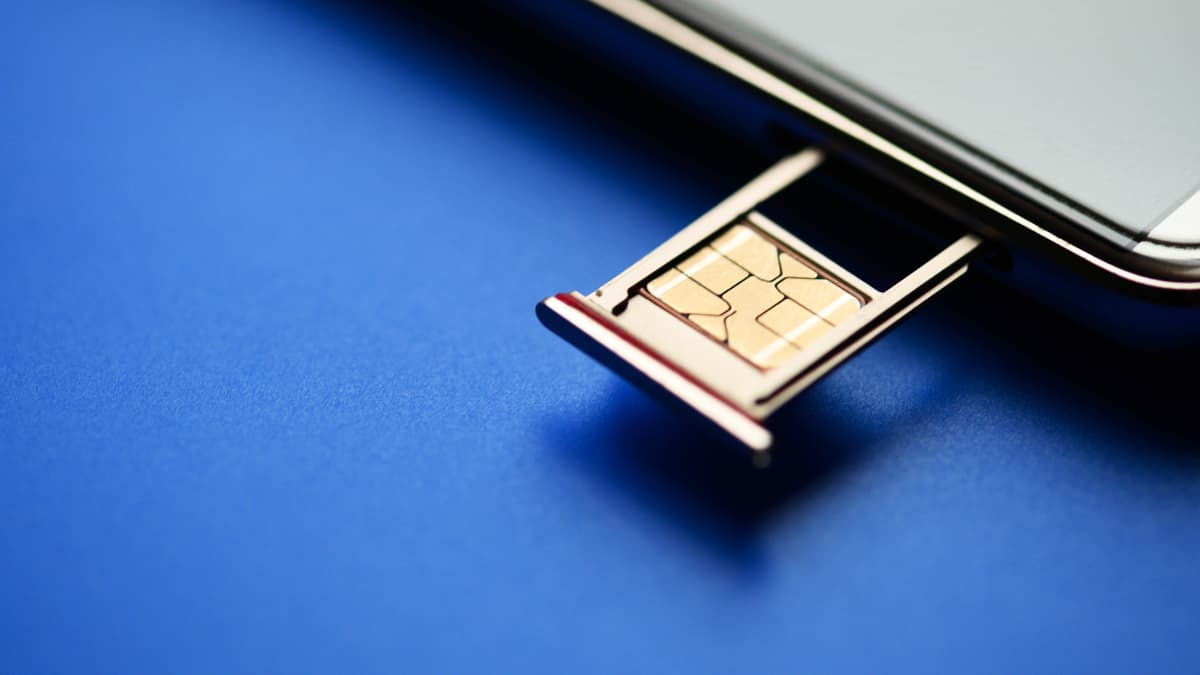
- Pull the tray out with your fingers, place or remove the SIM card, then slide the tray back in until it clicks.
Apple's instructions for iPhone say to push in toward the device but not force it, and Google's Pixel help says to push firmly but gently. If you meet resistance, stop, forcing the clip can bend the pin or crack the tray.
How to use the SIM-eject tool
The SIM-eject tool, also called the ejector pin, is the small metal pin included in the phone's box. This is the preferred and safest method because the tip is sized exactly for the tray hole. To use it:
- Find the included ejector pin that shipped with your device.
- Insert the pointed end into the small hole beside the SIM tray.
- Push straight in toward the device until the tray releases.
- Gently pull the tray out, swap the SIM card, and reinsert the tray carefully into the slot.
Samsung's Galaxy help notes that you will have received an ejector pin in the box, and the pin should be inserted gently into the hole until it clicks open. Samsung's UK help says to insert the pin gently into the hole in the SIM tray, wait for it to click open, then gently pull out the tray and carefully insert the tray back into the slot. Samsung's SIM/eSIM help for Galaxy phones says: Step 1 insert the ejection pin into the hole on the tray to release it, Step 2 pull the tray out gently, Step 3 place the SIM or USIM card with the gold-colored contacts facing out. The ejector tool minimizes any risk of scratching the device, making it the best choice whenever you have it on hand.
Device-specific instructions
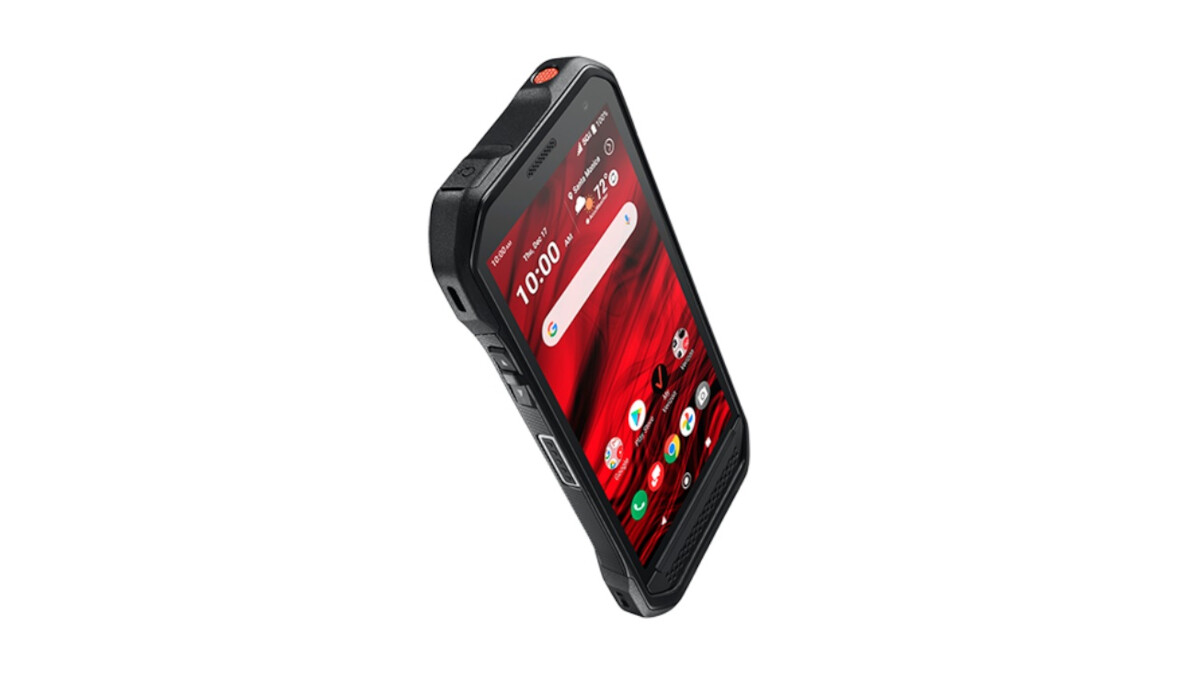
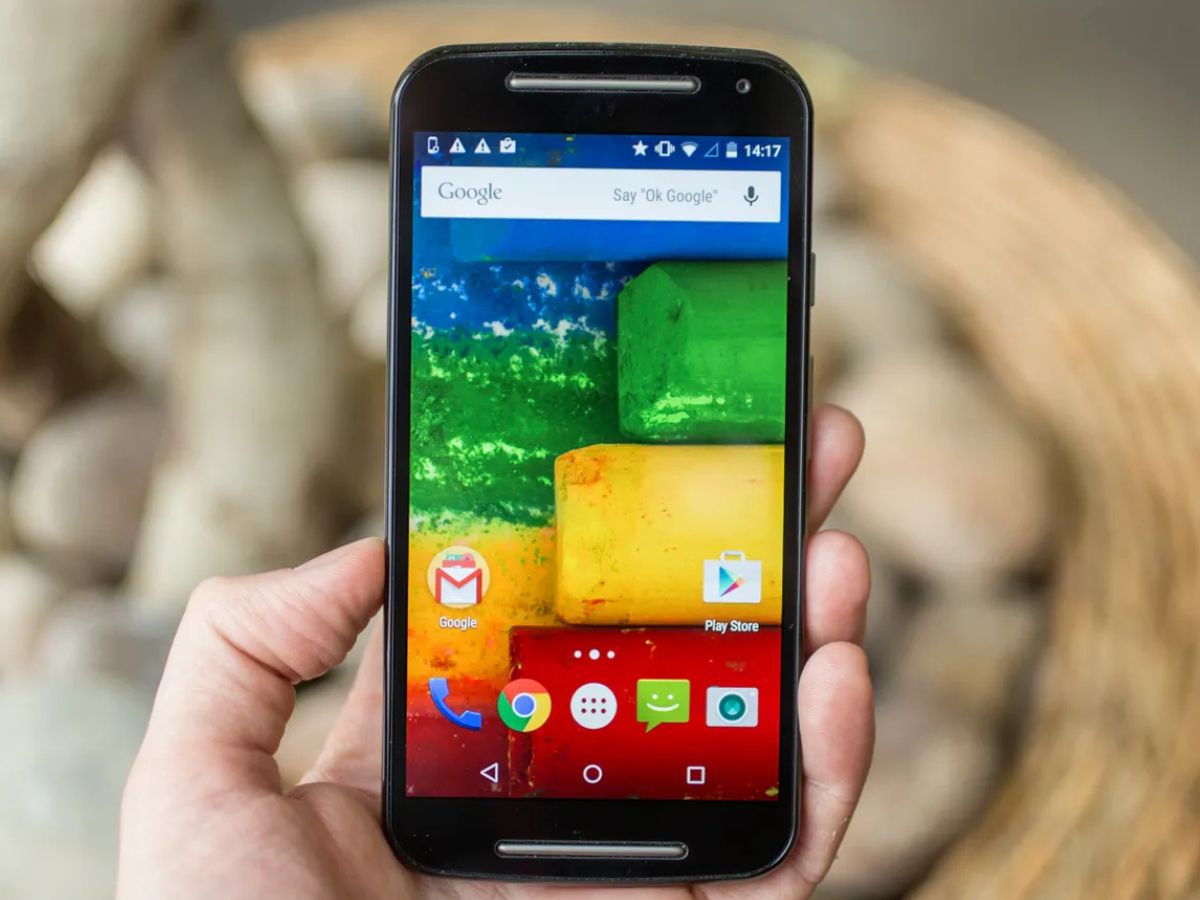
While the basic method is the same across phones, a few model-specific details matter. Google Pixel phones have the SIM tray on the left edge, except for the Pixel 3 (2018), which has the slot on the bottom edge. Google's Designed for Fi phone help says the SIM tray is on the top left side and the eject button is in the small hole on the right side of the tray door; turn the phone off, insert the tool into the hole on the left edge, and push until the tray pops out. Samsung Galaxy trays click open when the ejector pin is inserted, and the SIM card should be placed with the gold-colored contacts facing out. Apple lists these iPhone models on the current SIM card support page: iPhone 11, 11 Pro, 11 Pro Max, XS, XS Max, XR, X, SE (1st, 2nd, and 3rd generation), 8, 8 Plus, 7, 7 Plus, 6s, 6s Plus, 6, 6 Plus, 5s, 5c. Some iPhone models, including the iPhone 11, XS, XR, X, SE, 8, 7, 6s, and 6 series, have a physical SIM tray, but certain newer iPhone models support eSIM only and have no tray at all. Apple also has a separate SIM tray page for iPhone 13 that gives the same basic removal steps. Apple also says to use only the SIM tray that came with your device, as third-party trays may not fit correctly.
What to do if the tray won't open
If the tray does not eject with gentle pressure, stop immediately. Never force the tray open, as pushing too hard can bend the ejector pin, crack the tray, or damage the internal SIM slot. Apple's guidance is to take the device to your carrier or an Apple Store for professional help if it will not eject. A stuck tray is often caused by debris, a misaligned SIM card, or a bent pin, none of which you can safely fix with more force. Trying to pry the tray open with a knife, tweezers, or other sharp objects will almost certainly scratch the phone's frame and may void your warranty.
Frequently Asked Questions
Can I use a safety pin to open the SIM card tray?
A safety pin can work in a pinch if it is thin enough to fit the hole, but it is not recommended. The tip is often too thick or blunt, which increases the risk of scratching the phone or damaging the tray mechanism. A paper clip is the safer household substitute.
What if I don't have a paper clip or SIM-eject tool?
If neither is available, the best option is to visit your carrier's store or a phone repair shop, where they can eject the tray for you in seconds. Avoid using earrings, needles, or sewing pins, as these can slip, bend, or leave debris in the hole.
Why is my SIM card tray stuck even with the right tool?
A stuck tray usually means the SIM card is misaligned, the tray is slightly bent, or debris is blocking the mechanism. Do not force it, take the phone to your carrier or an authorized service center so they can inspect and safely remove the tray without causing internal damage.
For the wider topic, see take SIM card out of Android.
Related reading: How To Use The SIM Card Tool and How Often Change Screen Protector.