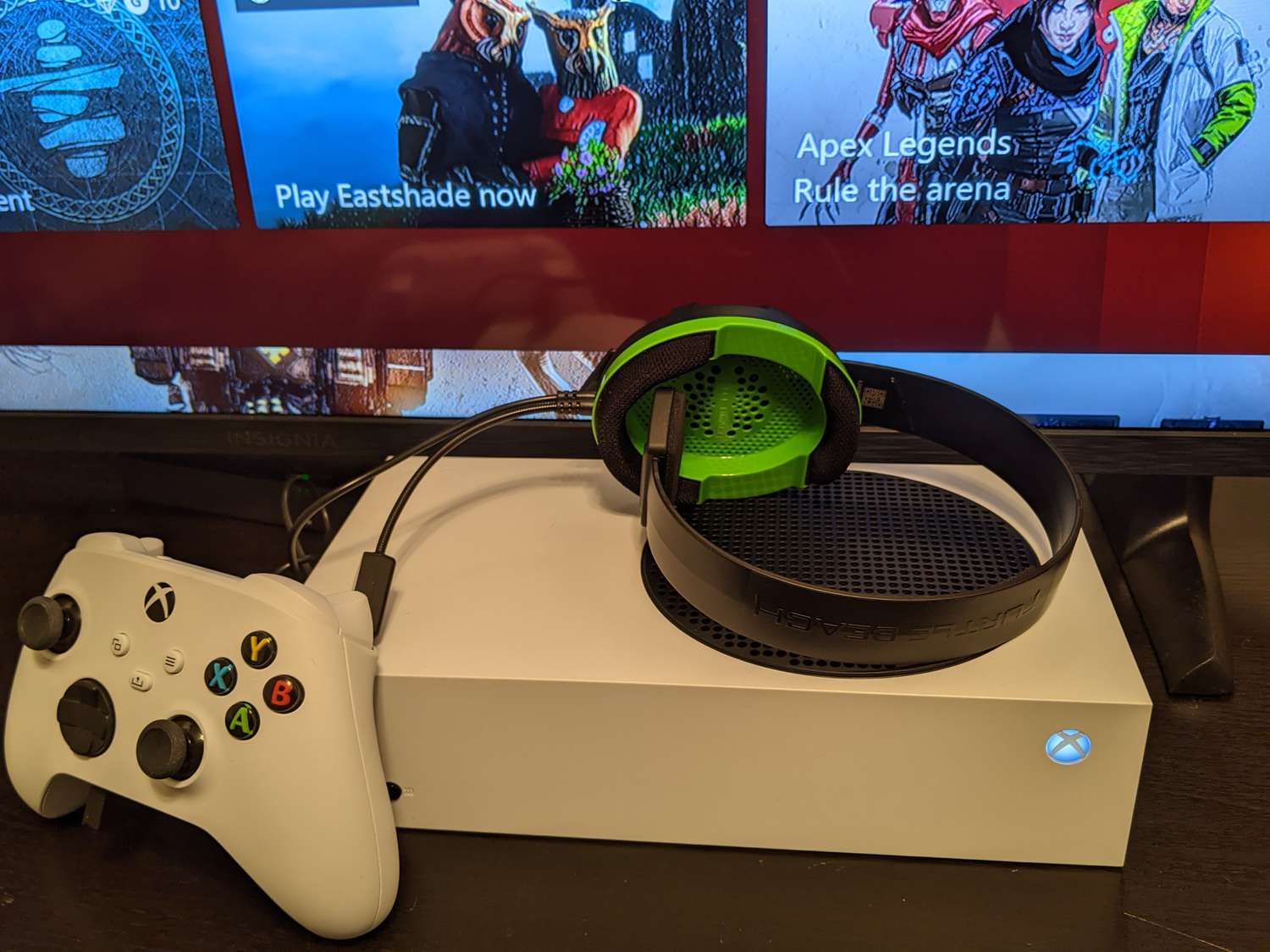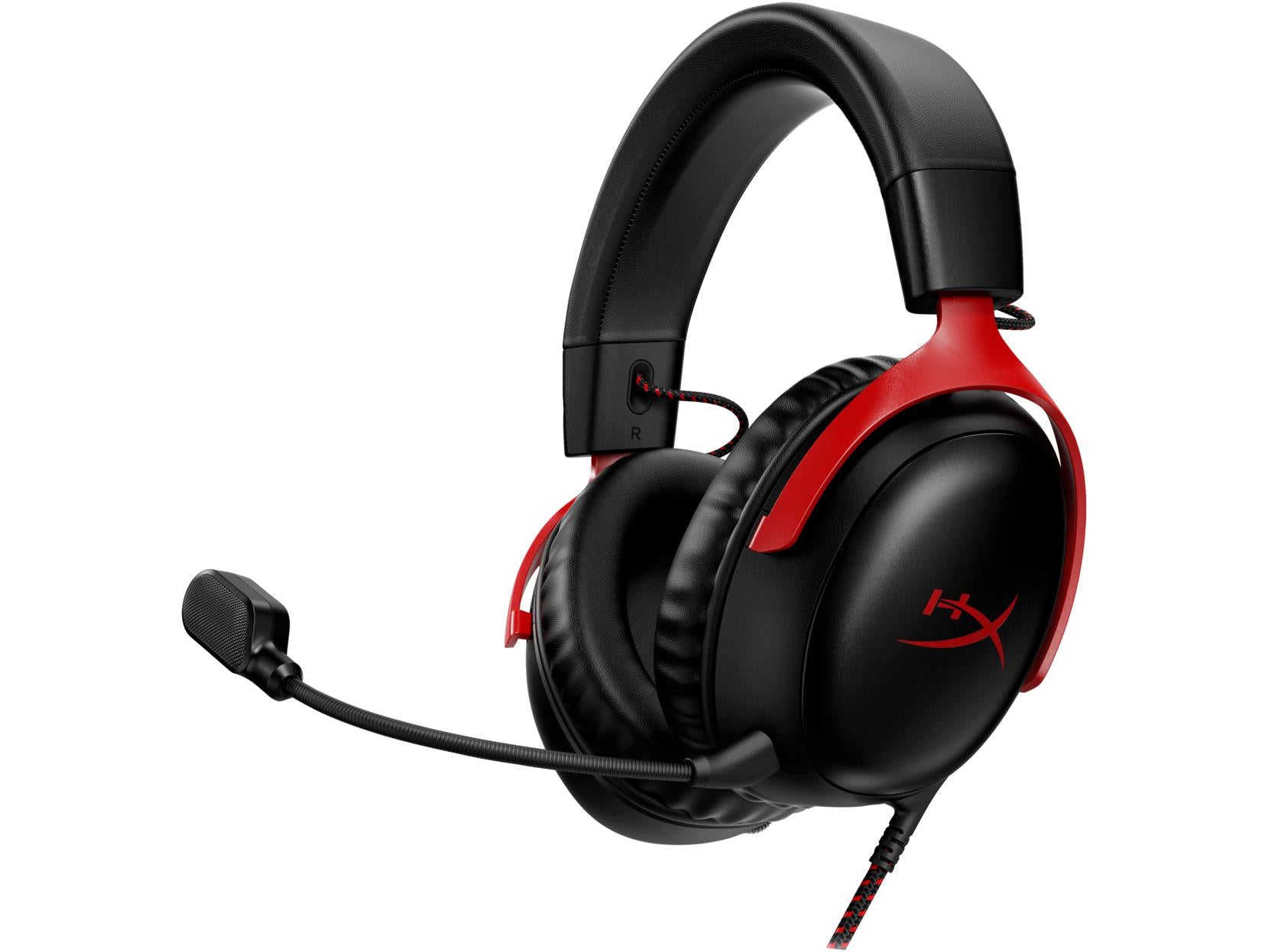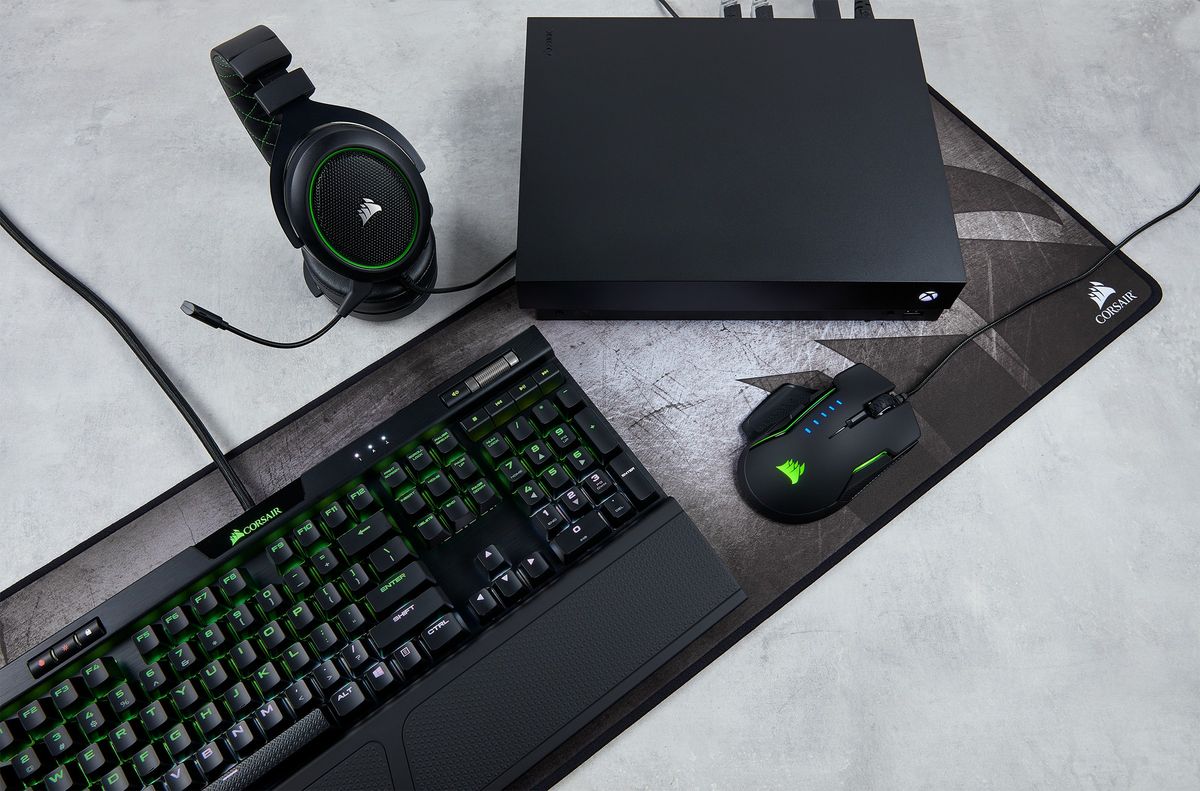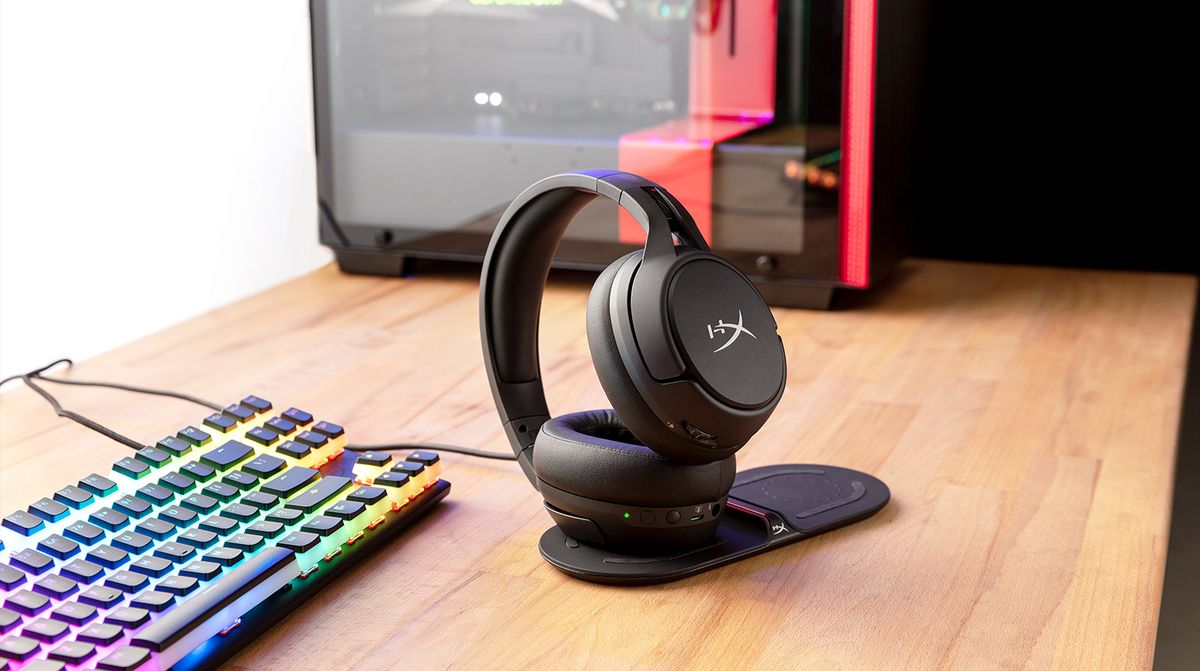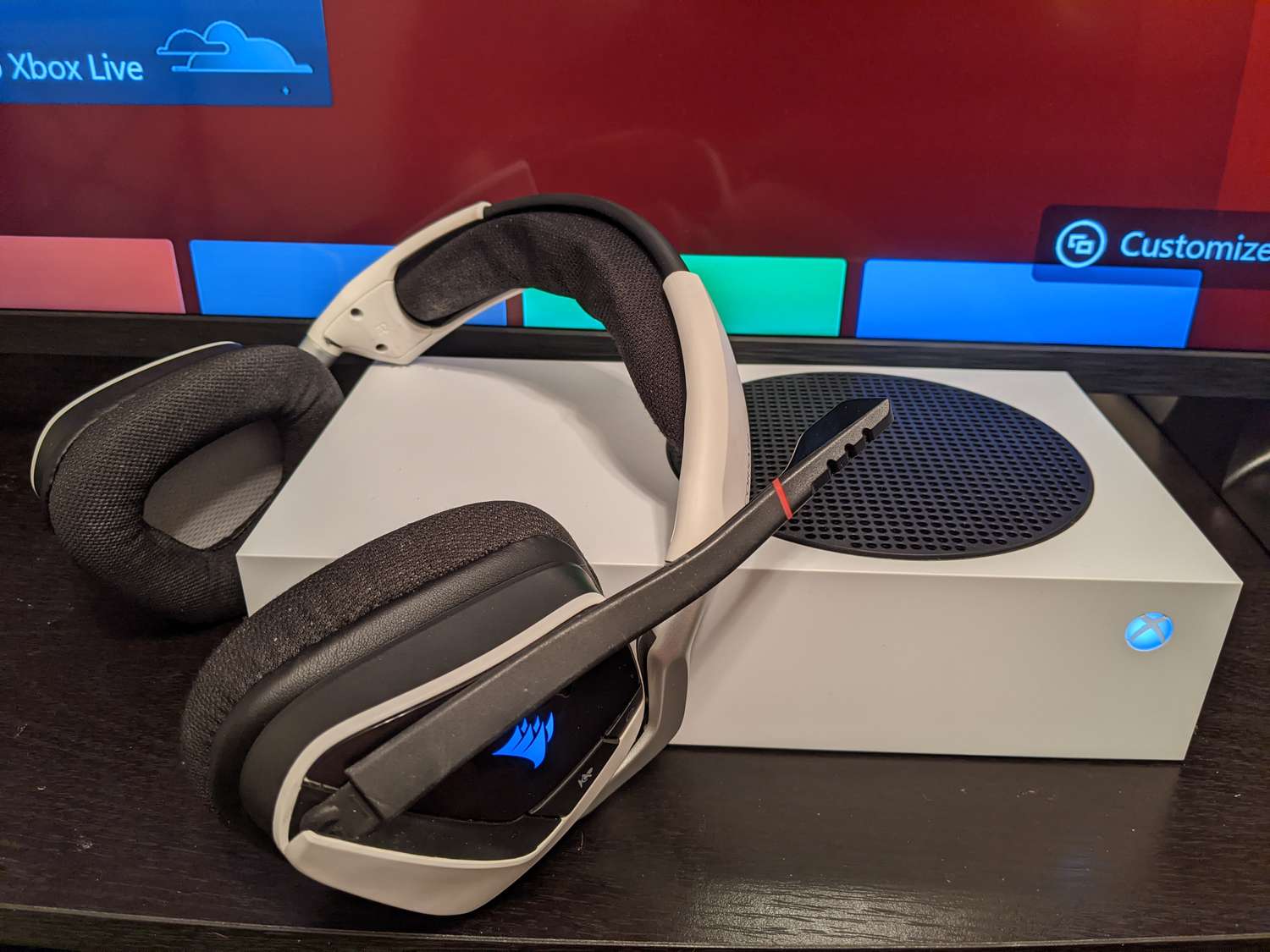
If you want to use a USB headset on Xbox series s, you need to know one hard truth first: standard USB headsets that you plug directly into the console’s USB port are not supported by the Xbox Series S. Instead, the two reliable methods for connecting gaming headsets are using a wireless headset that comes with its own USB dongle or using a wired headset that plugs into the 3.5mm jack on your controller, this is the same method you would use to connect headset to Xbox One.
The truth about using a USB headset on Xbox series s
Many gamers expect to plug any USB headset into the console and have it work, but the Xbox Series S does not natively support standard USB audio devices. Official partner documentation and retailer information do provide instructions for connecting wireless headsets with USB dongles directly to the console’s USB ports, and wired headsets via the controller’s 3.5mm jack are fully supported. However, a typical wired USB headset (one that uses a USB-A connector for both audio and mic) will not function when plugged into the console’s USB port. The two working paths are: wireless headsets that use a USB dongle, and wired headsets that connect through the controller’s stereo headset jack.
How to connect a wireless headset with a USB dongle
- Locate the USB port on the front of your Xbox Series S console, just below the power button.
- Plug the wireless headset’s USB dongle firmly into that USB port.
- Power on your wireless headset according to the manufacturer’s instructions (usually a power button or switch).
- Wait for the headset to sync with the dongle. You should hear an audio confirmation or see a light indicator on the dongle or headset.
- To confirm the headset is selected as the output device, press the Xbox button on your controller to open the guide. The headset should appear as the active audio device.
How to connect a wired headset via the controller
The Xbox Series S controller features a 3.5mm stereo headset jack, which is the primary method for connecting wired headsets. This jack supports both game audio and voice chat through a single cable.
- Locate the 3.5mm port on the bottom of your Xbox Series S controller.
- Insert the 3.5mm plug of your wired headset into the port until it clicks into place.
- If your headset has an inline mute switch or volume wheel, adjust it as needed.
- The console should automatically recognize the headset. To verify, press the Xbox button on your controller and check that the headset is listed as the audio device.
Adjusting your headset audio settings
Once your headset is connected, you may want to fine-tune the audio output. Navigate to Profile & system > Settings > General > Volume & audio output. Under Headset audio, select USB headset as the Output device. Then set the headset format to Windows Sonic for Headphones or Stereo Uncompressed. Windows Sonic provides spatial sound for a more immersive experience, while Stereo Uncompressed delivers standard two-channel audio. You can also adjust the chat mixer here to balance game audio and voice chat volume.
Troubleshooting headset issues on Xbox series s
Resolving connectivity issues with the dongle
If your wireless headset is not being recognized, first ensure the USB connector is properly inserted into the USB port. Try a different USB port on the console. Check if the USB port is functioning by connecting a different device. Restart your Xbox Series S and power cycle the headset. If the headset still does not connect, check that the headset’s battery is charged.
Updating wireless headset firmware
Some wireless headsets require firmware updates for compatibility and optimal performance. Visit the manufacturer’s website, download the latest firmware for your headset model, and follow their instructions, usually connecting the headset to a computer via USB and running the update software. After updating, reconnect the headset to your Xbox Series S.
Resetting audio settings to default
If you experience audio distortion, no sound, or chat issues, resetting the audio settings may help. Under Headset audio, select the headset format option and choose “Reset” to restore default settings. Restart your console and test the headset again.
Frequently Asked Questions
Can I use a Bluetooth headset with Xbox Series S?
No, the Xbox Series S does not support Bluetooth audio. You must use a wireless headset with a USB dongle or a wired headset via the controller’s 3.5mm jack.
Can I use a wireless USB headset on Xbox Series S?
Yes, but only if it is specifically designed for Xbox and comes with its own USB dongle. Standard wireless USB headsets that rely on generic drivers will not work.
Will any wireless headset with a USB dongle work?
Not all wireless headsets are compatible. Look for headsets specifically designed for Xbox Series X|S, as they use the console’s proprietary wireless protocol or a compatible USB dongle. Check the manufacturer’s specifications for Xbox support.
Why doesn’t my USB microphone work when plugged into the console?
The Xbox Series S does not support USB audio input from standard microphones or headsets. For voice chat, you must use a headset connected via the controller’s 3.5mm jack or a wireless headset with a dongle that includes a microphone.
Can I use a USB-C headset with Xbox Series S?
USB-C headsets are not directly supported. If your headset has a USB-C connector, you would need a USB-C to 3.5mm adapter to use it with the controller’s jack, but this may not provide microphone functionality. A wireless headset with a USB dongle is the better option.
How do I know if my headset is selected as the audio device?
Press the Xbox button on your controller to open the guide. The headset should appear in the audio section as the active output device. You can also check in Settings > General > Volume & audio output under Headset audio.