To connect an Xbox headset to Xbox Series X, you can use a 3.5mm wired connection to the controller, pair a wireless headset using the Xbox Wireless protocol, or plug in a USB-A dongle. This guide covers all three methods for connecting gaming headsets to consoles, plus the workaround for standard Bluetooth headphones.
Connect a wired headset via the 3.5mm jack
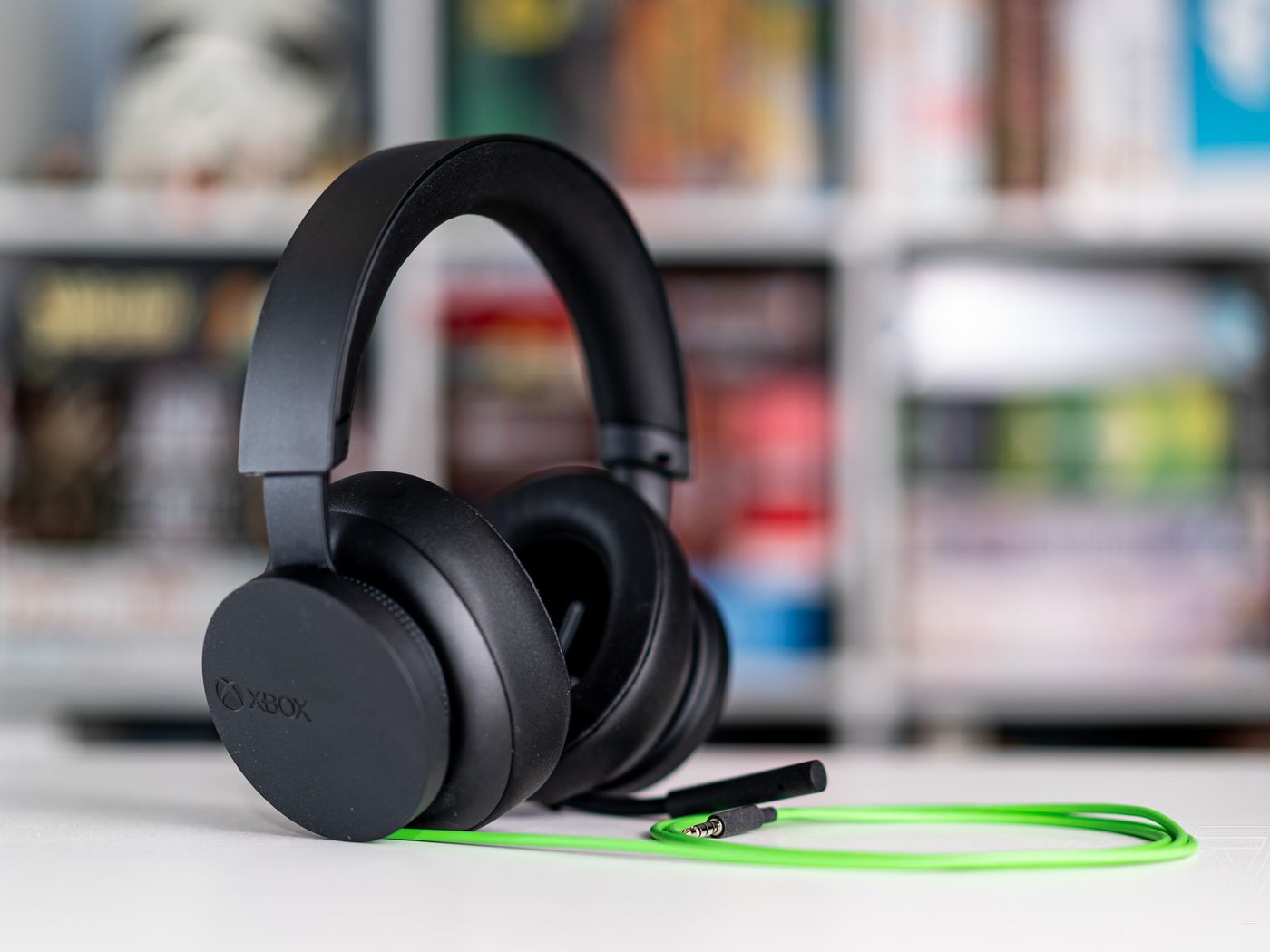
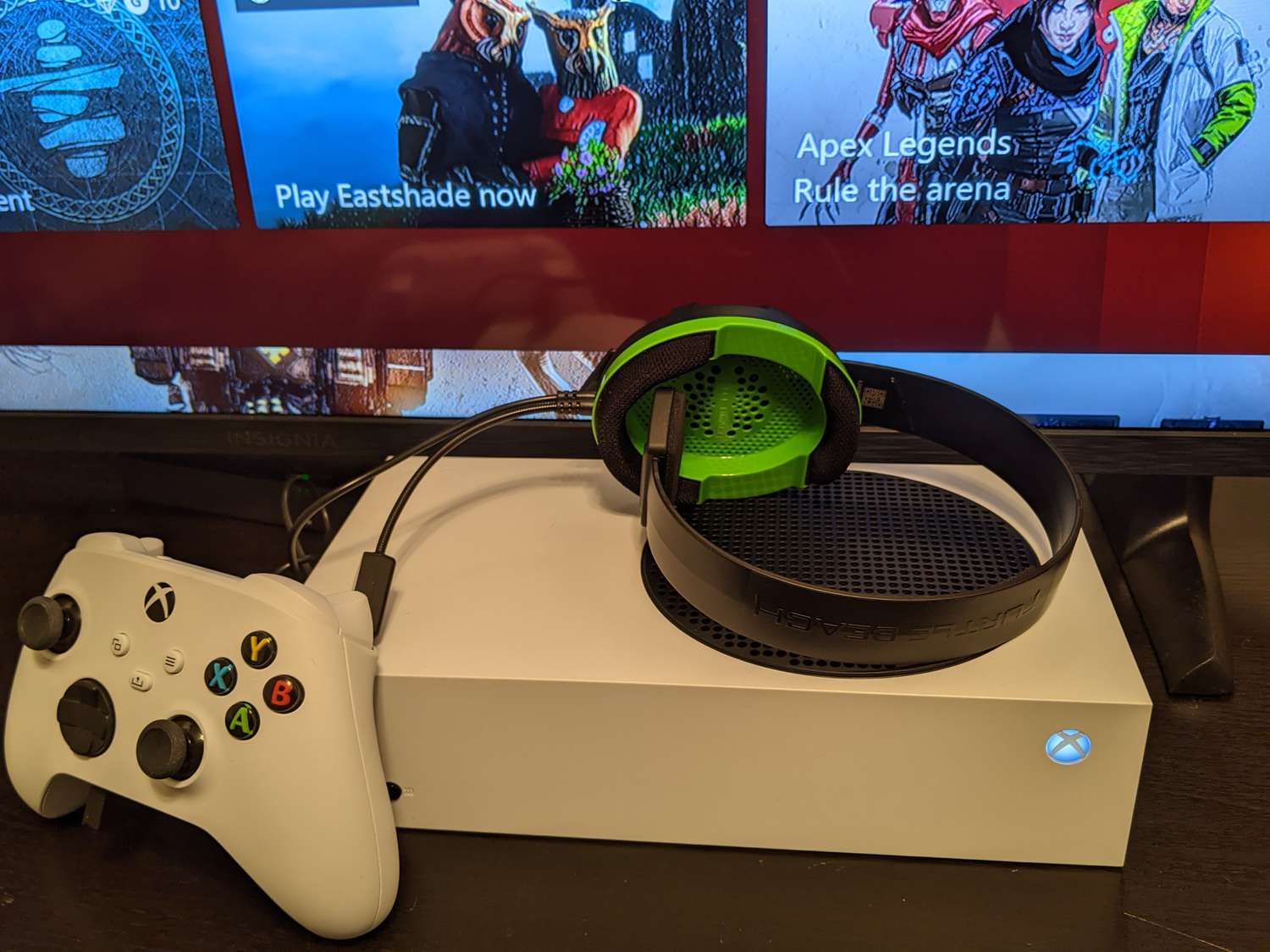
Every modern Xbox Wireless Controller, including those for the Xbox Series X|S, includes a 3.5mm headset jack on the bottom. To connect a wired headset, firmly plug its 3.5mm connector into the jack on the bottom of the Xbox controller until it clicks. If your headset has separate connectors for audio and microphone, insert the green connector into the audio jack and the pink connector into the microphone jack on the controller. The Xbox should automatically detect the headset and route audio to it.
Pair a wireless headset using the Xbox Wireless protocol
Xbox Wireless Headsets (and other headsets using the Xbox Wireless protocol) connect directly to the console without a dongle. To pair them:
- Press and hold the green power button on the headset (located on the back of the left earcup) for 4 seconds until you hear a repeated pairing tone and the power light on the headset starts flashing.
- Press the Pair button on your Xbox Series X console. This is the same button used to pair a wireless controller and is located above the USB-A port at the front of the console.
The headset and console should connect automatically within a few seconds.
Connect a wireless headset with a USB-A dongle
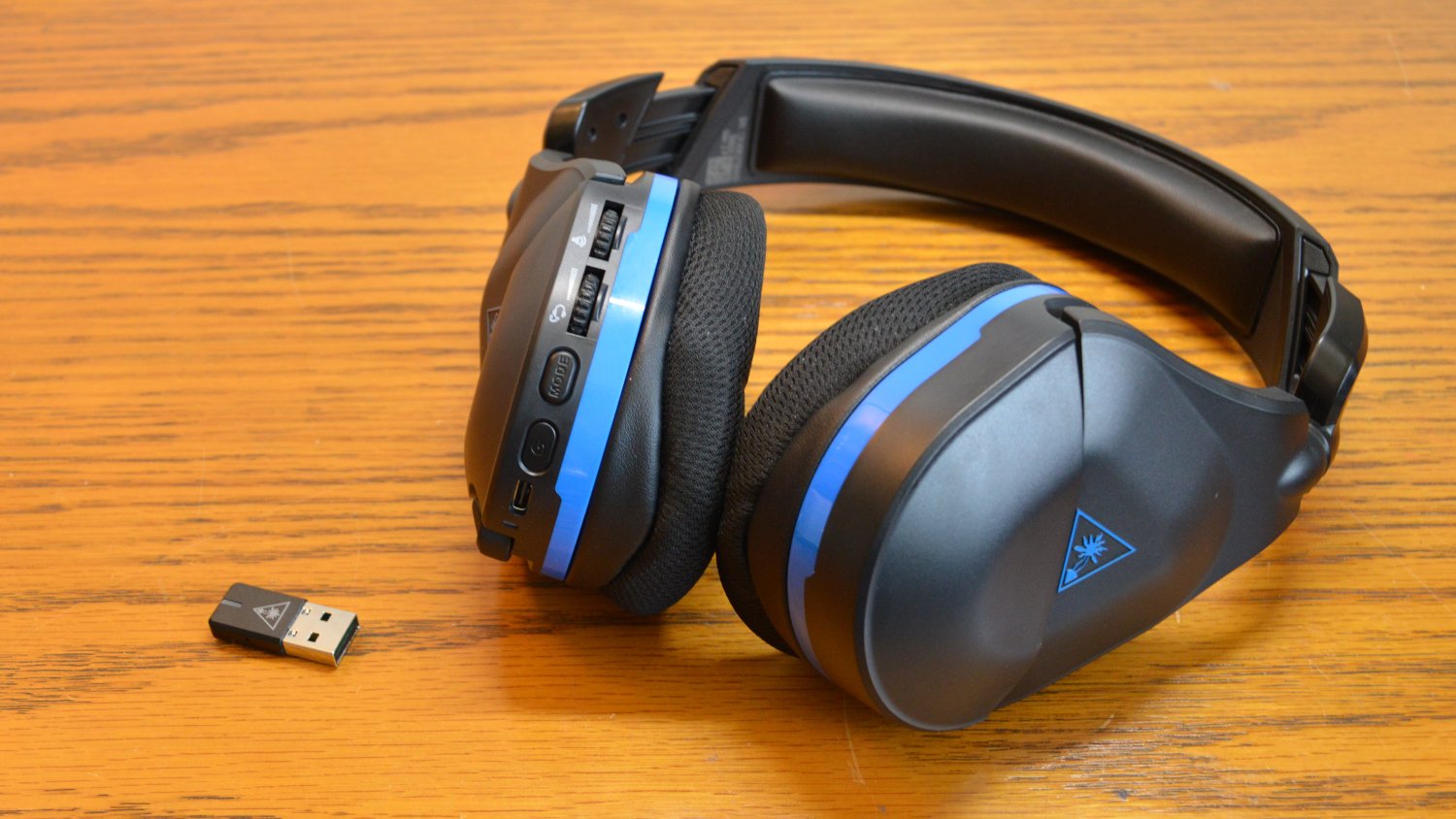
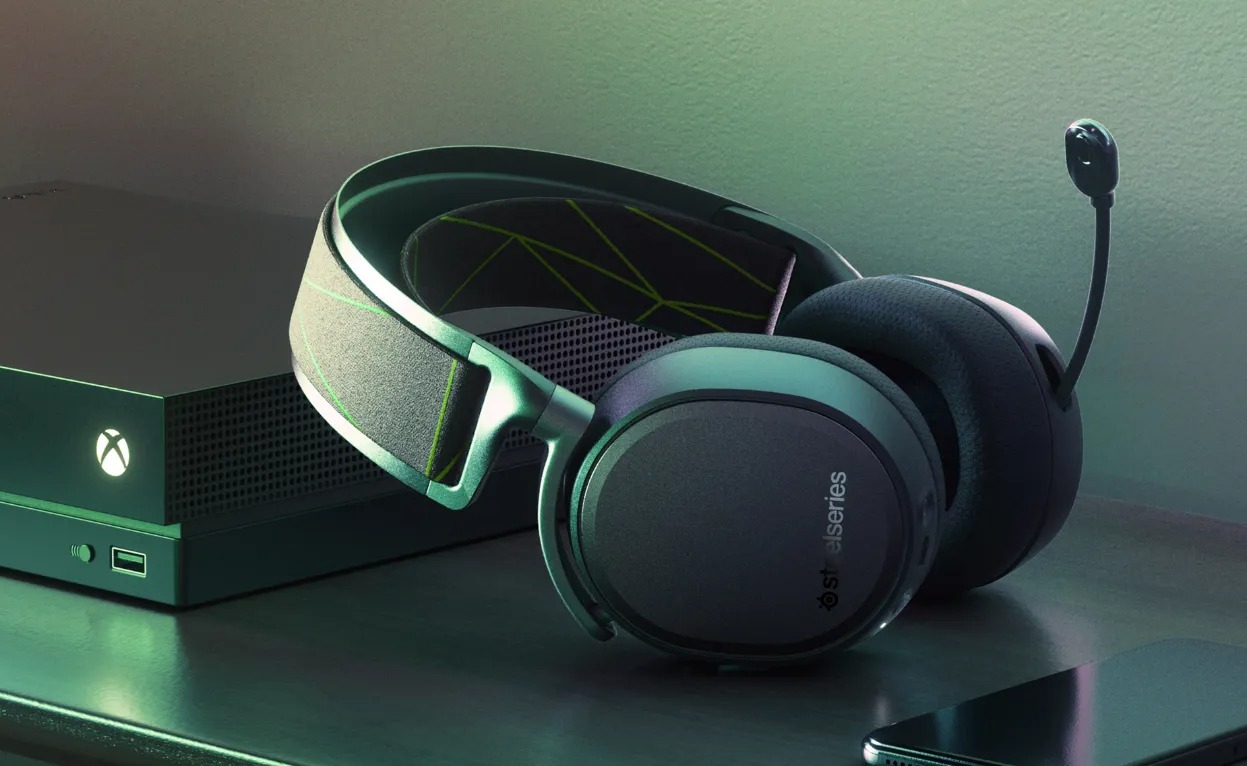
Many wireless gaming headsets connect via a USB-A dongle that plugs into a USB-A port on the front or back of the Xbox Series X|S console. For headsets with a USB dongle, plug the dongle into the console's USB port, then power on the headset; they should pair automatically. If a USB headset dongle has a mode switch, ensure it is set to "Xbox mode" before plugging it into the console. Power on the headset (hold the power button for two seconds). The headset and transmitter should pair automatically within a few seconds. If they don't connect automatically, ensure the dongle is firmly placed in the Xbox Series X and the headset is powered on.
Use Bluetooth headphones with a USB adapter
The Xbox Series X does not natively support Bluetooth headphones due to Microsoft's proprietary Xbox Wireless protocol, which uses 2.4GHz RF for ultra-low latency and enhanced wireless stability. To connect Bluetooth headphones, you need a Bluetooth adapter for Xbox Series X plugged into the console's USB port (rear ports are recommended for stability). Enable pairing mode on your Bluetooth headphones, then sync the adapter by holding its pairing button until the LED flashes. Select the adapter in Xbox audio settings (Settings > General > Volume & audio output).
Adjust your headset audio settings
After connecting a headset, audio settings can be adjusted by pressing the Xbox button on the controller, navigating to the Speaker icon (Audio), or by going to Settings > General > Volume & Audio Output. Adjustable audio settings typically include Headset volume, Headset chat mixer (to balance game and chat audio), and Mic monitoring. If you're having issues with the audio balance between game audio and chat audio, navigate to the audio settings on your Xbox Series X and adjust the balance accordingly. The 'Headset Format' setting determines the audio format used by your headset. Depending on the capabilities of your headset, you may see options such as Windows Sonic for Headphones or Dolby Atmos for Headphones. Choose the option that matches your headset's capabilities for the best audio experience. You can adjust headset settings by pressing the Xbox button, navigating to Menu > Audio, where you can toggle the headset mic, adjust headset volume, headset chat mixer, and mic monitoring.
Troubleshoot headset connection problems
If you don't hear audio, press the Xbox button on your controller, scroll to the Speaker icon (Audio), and check the settings. Confirm the headset is selected as the output device by going to Settings, then General, then Volume & Audio Output. Ensure the connection is firm, the headset is powered on, and your controller firmware is up to date. Check for controller updates: Ensure that your Xbox controller is up to date with the latest firmware. Updating the controller's firmware can address compatibility issues. Some older Xbox headsets may require a firmware update to ensure compatibility with the Xbox Series X. Updating the firmware may involve connecting your headset to a computer and running a software update. Test chat functionality: Start a party chat or join an existing one to test if you can hear and be heard by other party members. Adjust the microphone sensitivity if necessary. Most Xbox controllers released after mid-2015 include the 3.5mm port; all Xbox Series X|S controllers include it. Certain third-party headsets and adapters may not properly connect to the Xbox Series X, or may have issues with audio and adjusting game/chat audio mix. There is currently no solution for unsupported headsets other than using a 3.5mm headset jack or manually adjusting the mix.
Frequently Asked Questions
Can I use a USB-C headset with Xbox Series X?
While the Xbox Series X console has a USB-C port on the front, most gaming headsets designed for Xbox use a USB-A dongle or connect via the controller's 3.5mm jack. A generic USB-C headset may not work unless it is specifically designed for Xbox compatibility.
Why is my headset microphone not working on Xbox Series X?
First check that the headset is firmly connected. Then press the Xbox button, go to the Audio menu, and ensure the headset mic is not muted. Also verify that the mic monitoring setting is not turned all the way down, as this can make it seem like the mic isn't working.
Can I use my old Xbox One headset with Xbox Series X?
Yes, most Xbox One headsets work with Xbox Series X. If your headset uses a 3.5mm jack, it will plug directly into the controller. If it uses a USB dongle, plug that into the console's USB port. Some older headsets may require a firmware update for full compatibility.
Do I need to update my controller firmware for a headset to work?
Updating your controller firmware can resolve audio issues and improve compatibility with certain headsets. You can update the firmware through the Xbox Accessories app on your console.
Can I use Bluetooth headphones without an adapter?
No. The Xbox Series X does not support standard Bluetooth audio due to its proprietary Xbox Wireless protocol. You must use a Bluetooth adapter plugged into the console's USB port, or connect via the controller's 3.5mm jack.
Related reading: How To Connect PS5 Headset.