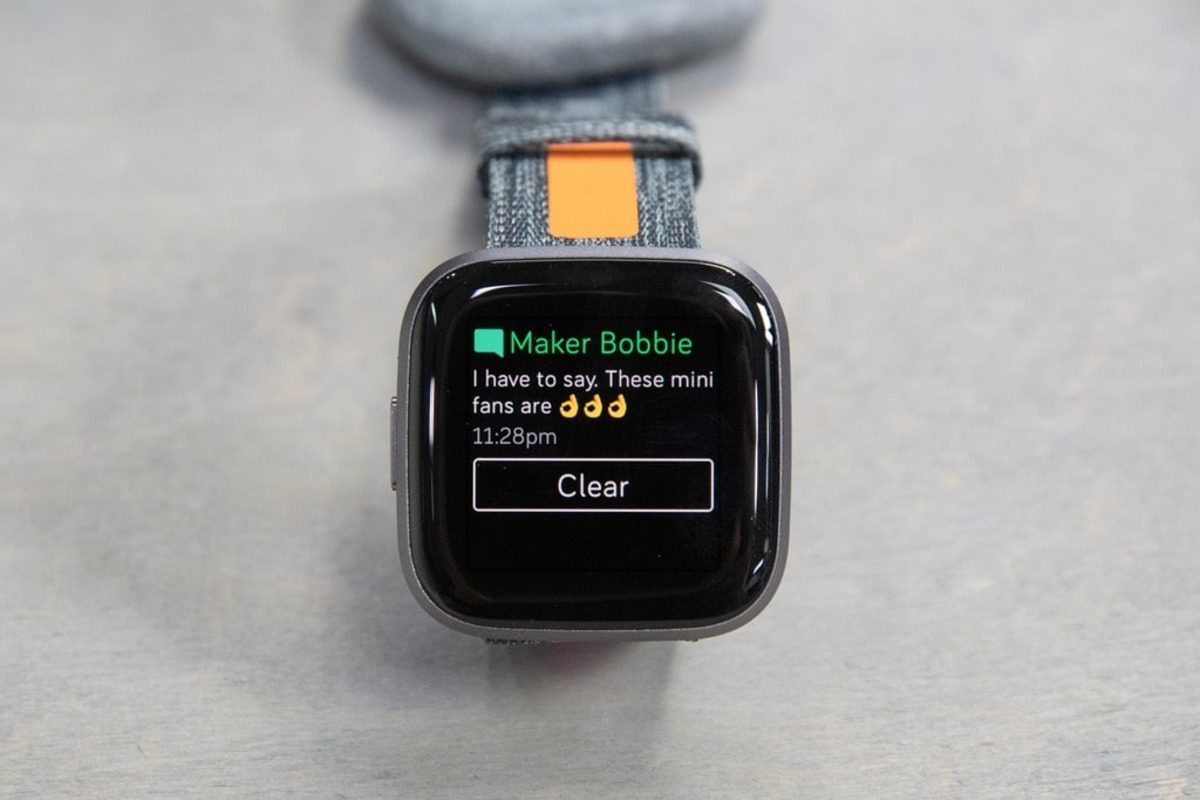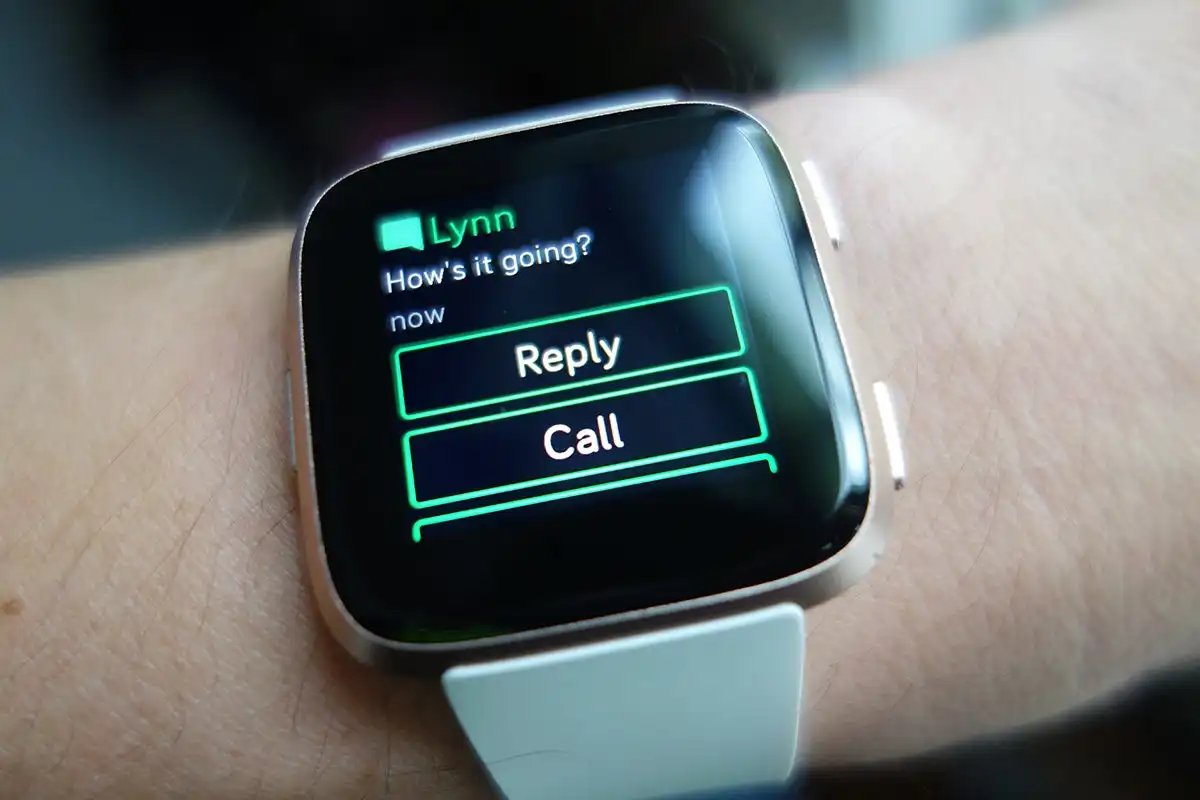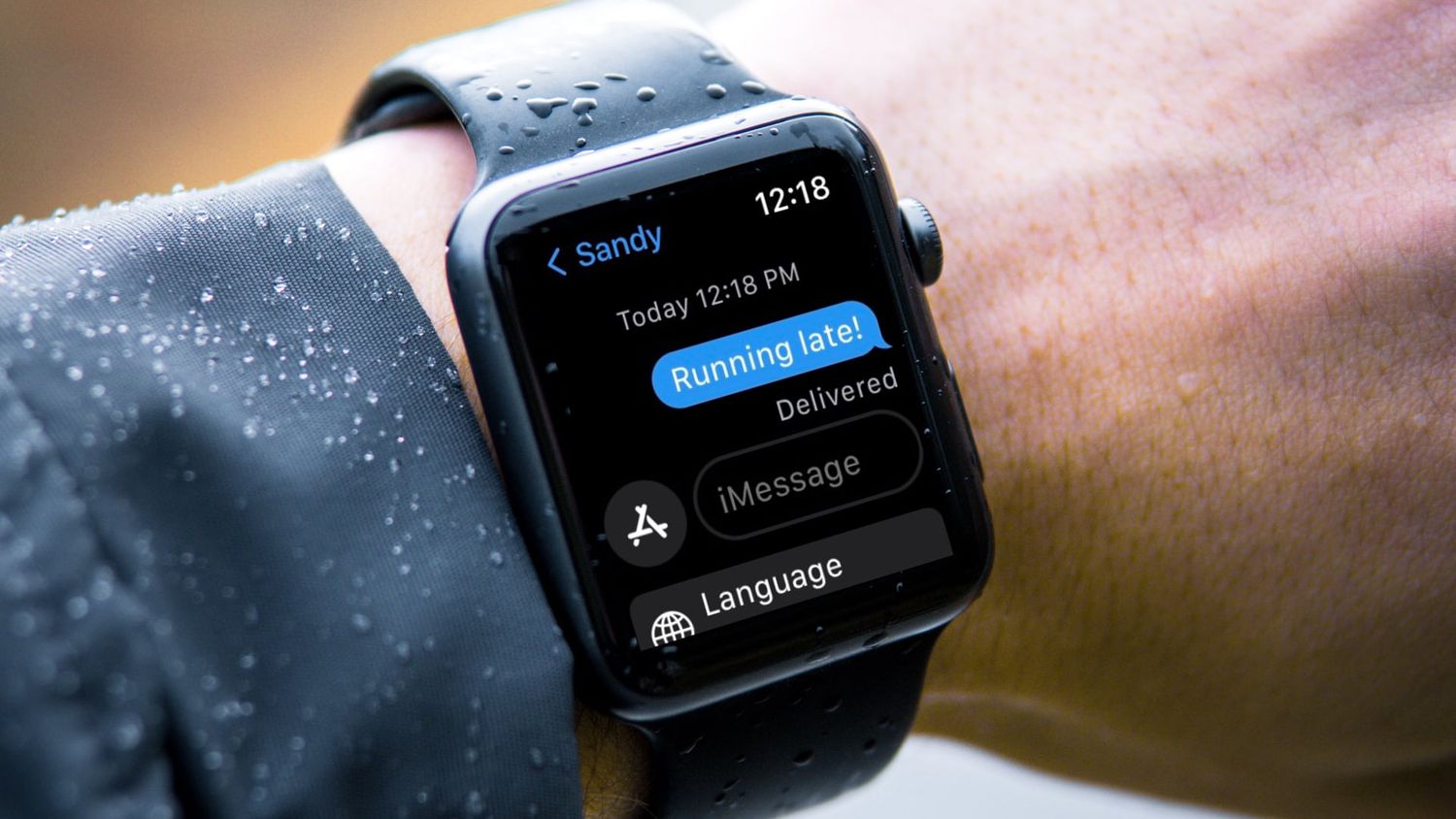
If your Fitbit is not getting text messages, the problem is almost always one of three simple things: your Bluetooth connection is off or out of range, Do Not Disturb or Sleep Mode is active on either your phone or your Fitbit, or the text conversation is currently open on your phone. Start by checking these three causes before trying anything else, as they are the most common and immediate fixes for a Fitbit not getting text messages.
Fitbit not getting text messages? Start here: The three most common and immediate causes
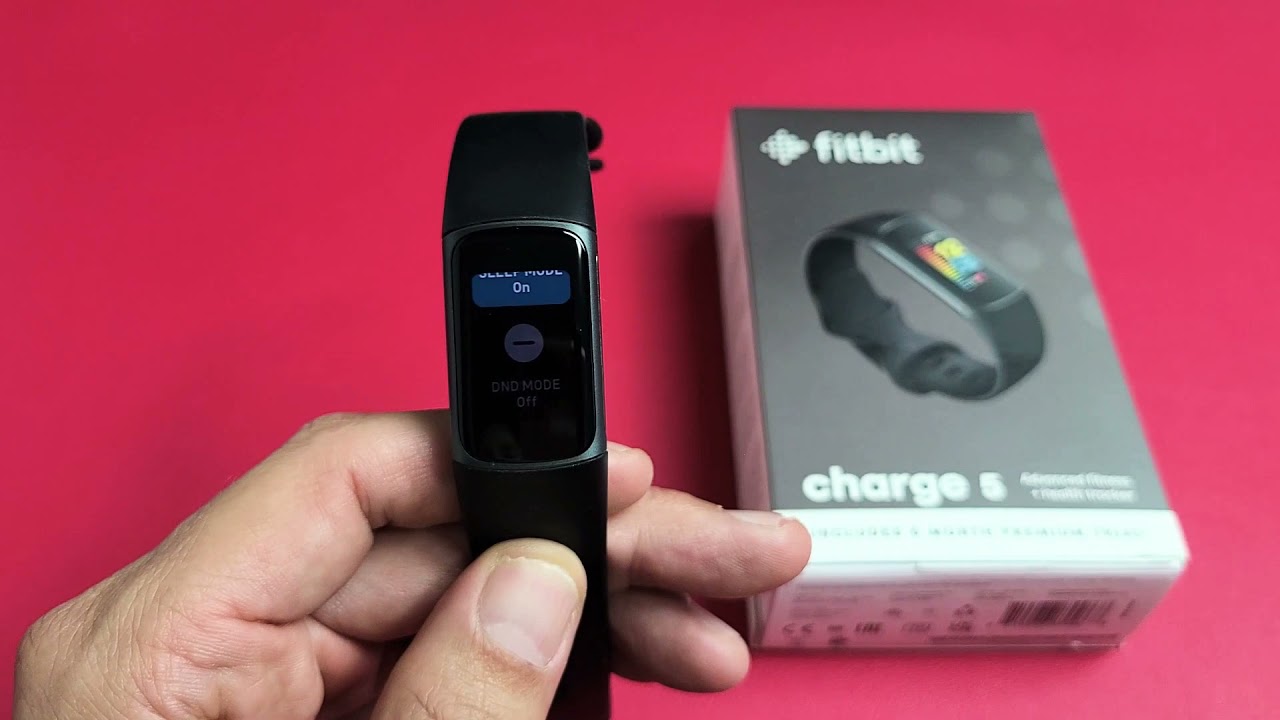
The most frequent reasons for missing text notifications are straightforward and quick to check. First, ensure Bluetooth is enabled on your phone and that your Fitbit device is connected. Your phone must be within 30 feet (approximately 9 meters) of your Fitbit to receive notifications. Second, check that "Do Not Disturb" (DND), "Focus Mode," "Quiet Hours," or "Sleep Mode" are turned off on both your phone and your Fitbit device, as these settings suppress all notifications, including texts. Third, text messages will not appear on your Fitbit if the conversation is currently open on your phone; Fitbit devices only display new, unread texts.
Check your phone's notification and lock screen settings
Your phone must be properly configured to send notifications to the Fitbit app. Verify that the Fitbit app has notification permission and that notifications are allowed to show on your lock screen. On Android, go to Settings > Apps & notifications > Notifications > Notifications on lock screen. On iPhone, go to Settings > Notifications > Show Previews and select "Always" or "When Unlocked." Additionally, confirm that the Fitbit app (or Google Health app for some Android users) has permission to run in the background on your phone. Disable any battery optimization or power-saving modes on your phone that might restrict the Fitbit app from running in the background. For Android, navigate to Settings > Apps > Fitbit > Battery and ensure it is set to "Unrestricted" or that battery optimization is turned off for the Fitbit app.
Verify the Fitbit app and device notification settings
Within the Fitbit app, tap your profile icon (top left), select your device, then tap "Notifications" and ensure "Text Messages" is toggled on. You may also need to select your preferred messaging app. If you have an Android phone, ensure "Always Vibrate" is turned on in the Fitbit app's "Vibration Settings" under Notifications to ensure you feel alerts. This is a key step if you want to receive text messages on Fitbit Versa 2, as the Versa 2 relies on these app settings to pass texts from your phone. Similarly, if you are trying to get text notifications on Fitbit Alta, the same notification toggle in the app controls whether your Alta vibrates and displays incoming texts.
Restart, update, and toggle Bluetooth
These classic first-aid steps resolve most temporary glitches. Restart both your Fitbit device and your phone, then force quit and reopen the Fitbit app. Ensure your Fitbit app and device firmware are up to date, as outdated software can cause notification issues. If notifications are still not working, try toggling Bluetooth off and on on your phone. On iPhones, go to Settings > Bluetooth, tap the information icon next to your Fitbit, and toggle "Share System Notifications" off and then back on. If you have multiple Bluetooth devices connected to your phone, it can sometimes interfere with the Fitbit's notification functionality; try disconnecting other devices. This is especially helpful if you experience persistent Fitbit Bluetooth disconnection issues, where the connection frequently drops and prevents texts from reaching your wrist.
Unpair and set up your Fitbit again
If all other steps fail, the nuclear option is to unpair your Fitbit device from your phone's Bluetooth settings (select "Forget" or "Unpair"), then re-establish the connection through the Fitbit app. This resolves persistent sync errors that can prevent text notifications from working. Note that this process will erase any unsynced data, so it is best to sync your Fitbit first if possible. After unpairing, set up your Fitbit as a new device through the Fitbit app, following the on-screen instructions to pair it again. This step is also useful when your Fitbit app is getting a big update. Here's what it looks like: a major app update can sometimes reset notification permissions or Bluetooth pairings, making a fresh setup the most reliable way to restore text notifications.
Still stuck? Contact Fitbit support
If you have tried every step above and your Fitbit still does not show text messages, it is time to contact Fitbit support. Before reaching out, gather your device information, including the model of your Fitbit and your phone, and note which troubleshooting steps you have already tried. Visit the official Fitbit support website to use their live chat, email, or phone support options. Providing clear details about the issue and the DND mode on Fitbit, specifically whether it was active on your device or phone, can help support diagnose the problem faster. They will guide you through any remaining steps or determine if a hardware issue is at fault.
Frequently Asked Questions
Do I need my phone nearby to get text messages on my Fitbit?
Yes. Your Fitbit receives text messages by mirroring them from your phone via Bluetooth. If your phone is more than 30 feet away or Bluetooth is disconnected, texts will not appear on your Fitbit.
Can I reply to text messages from my Fitbit?
No. Fitbit devices can only receive and display text notifications. They do not have the capability to send or reply to messages. You must use your phone to respond.
Why do I get some text notifications but not others?
This usually happens because the conversation is open on your phone, so the message is already marked as read. Fitbit only shows notifications for new, unread texts. It can also occur if your messaging app is not selected in the Fitbit app's notification settings.
Will factory resetting my Fitbit fix text notification issues?
A factory reset can resolve persistent software glitches, but it should be a last resort. It erases all data and settings on your Fitbit. Before resetting, try the unpair and set-up-again method, which is less drastic and often works.
Does Sleep Mode on my Fitbit block text notifications?
Yes. Sleep Mode, like Do Not Disturb, suppresses all notifications on your Fitbit, including text messages. Ensure Sleep Mode is turned off during the hours you want to receive texts.