To find a song you recently heard but forgot to save, the fastest way is to check your Spotify listening history directly in the app. This feature shows your most recent plays, letting you quickly rediscover that track without scrolling through playlists or albums.
How to find your Spotify listening history
Spotify provides a built-in "Recently played" feature on both its mobile and desktop apps, though the exact steps differ slightly. Below are the direct instructions for each platform.
On mobile (iOS and Android)
- Open the Spotify app and tap the Home icon at the bottom of the screen.
- Tap your profile picture in the top-left corner.
- From the menu that appears, tap Recents (indicated by a clock icon). On mobile, the clock icon is in the upper-right of the screen (not via profile picture menu). If you can't see the clock icon on mobile, update your Spotify app first.
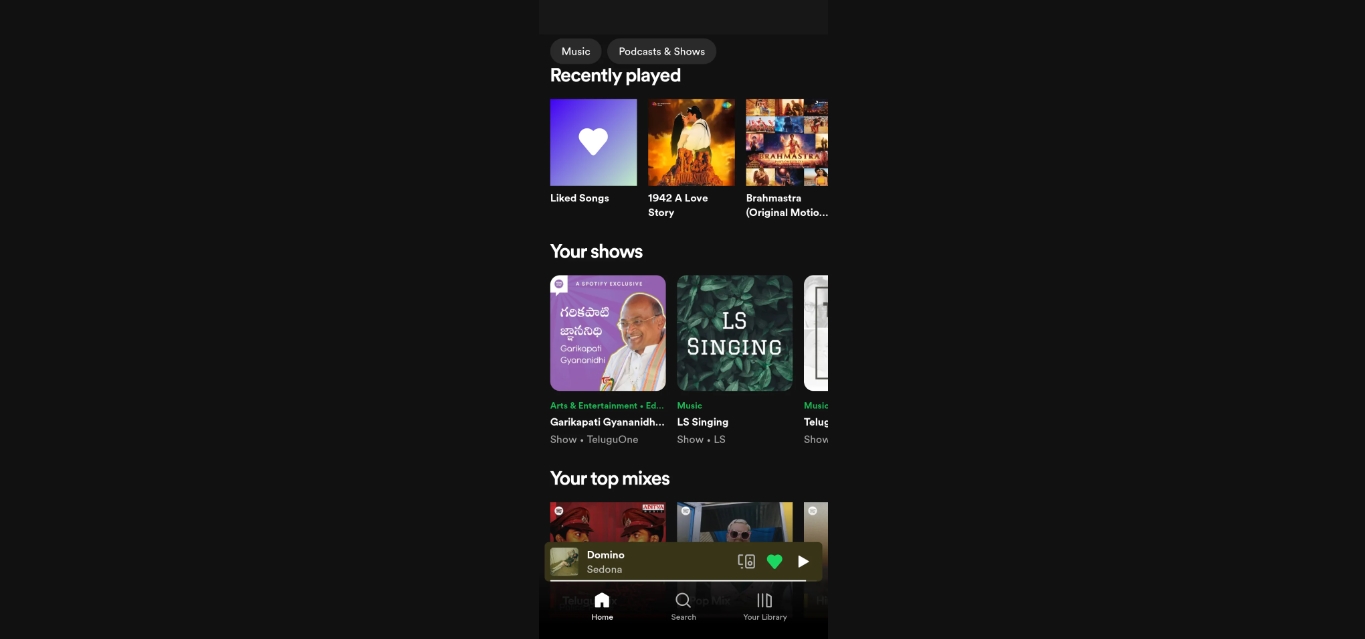
- The list shows your recently played songs, podcasts, and audiobooks, with the most recent items at the top. To narrow it to only music, tap the Music filter at the top of the screen.
This "Recents" list is limited to approximately the last 50 tracks or items. It pulls from all your listening, including Spotify mobile features like podcasts and audiobooks, so the filter helps you find songs quickly. You can view recent plays indirectly by creating or editing a playlist, going to 'Add songs', and swiping to the 'Recently played' list, this shows only individual tracks without albums, playlists, or podcasts. On the free tier, you cannot play a specific song directly from your listening history.
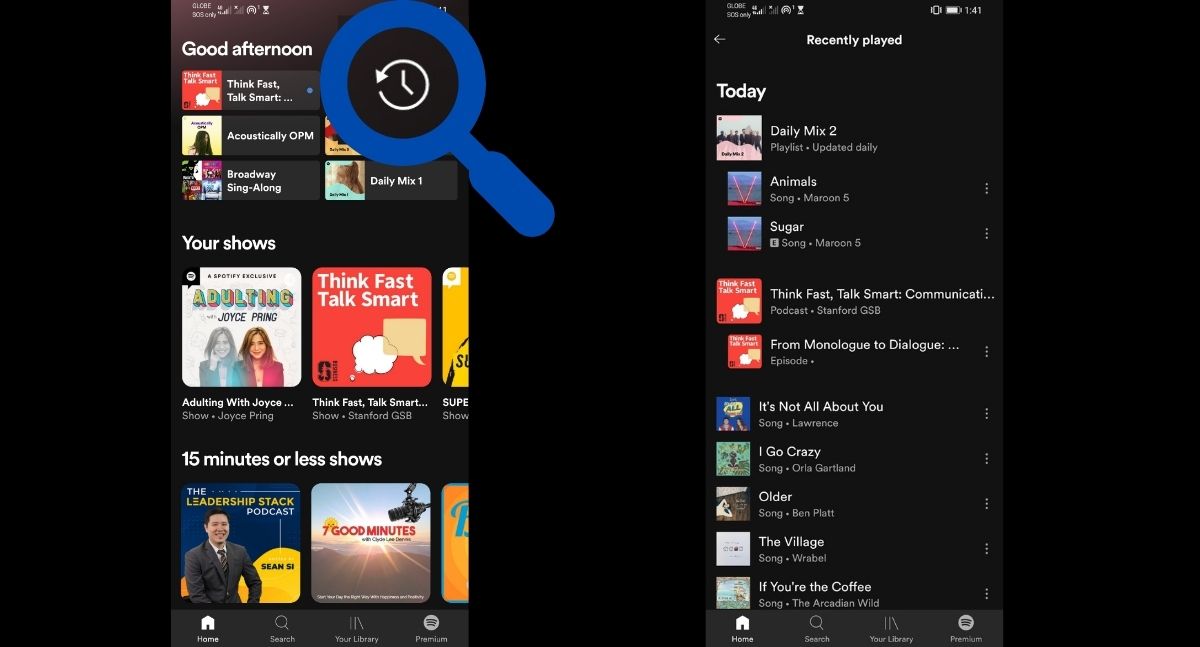
On the desktop app
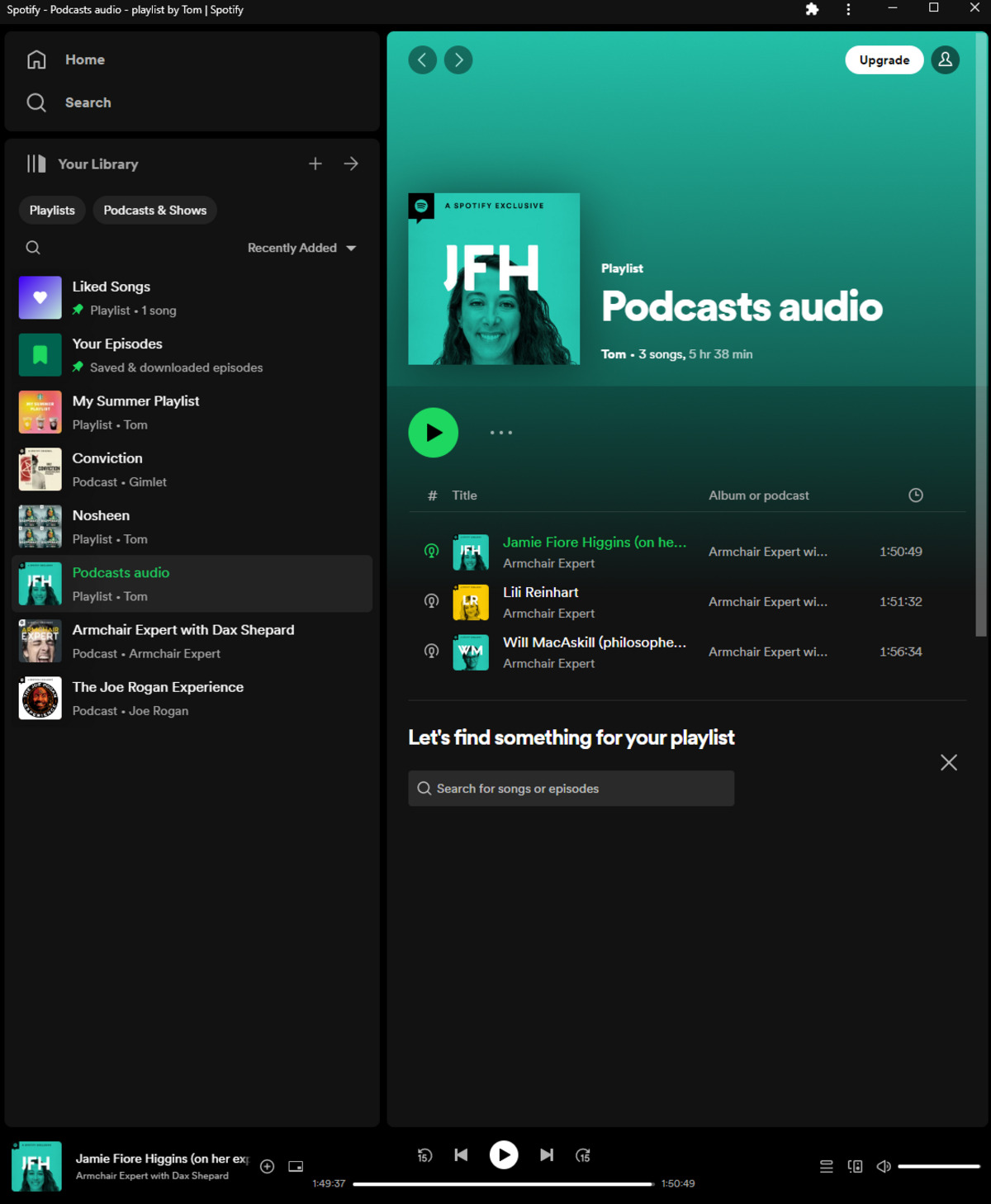
- In the Spotify desktop app, look at the bottom-right corner of the player and click the Queue icon (shaped like a pill-shaped rectangle with two or three horizontal lines).
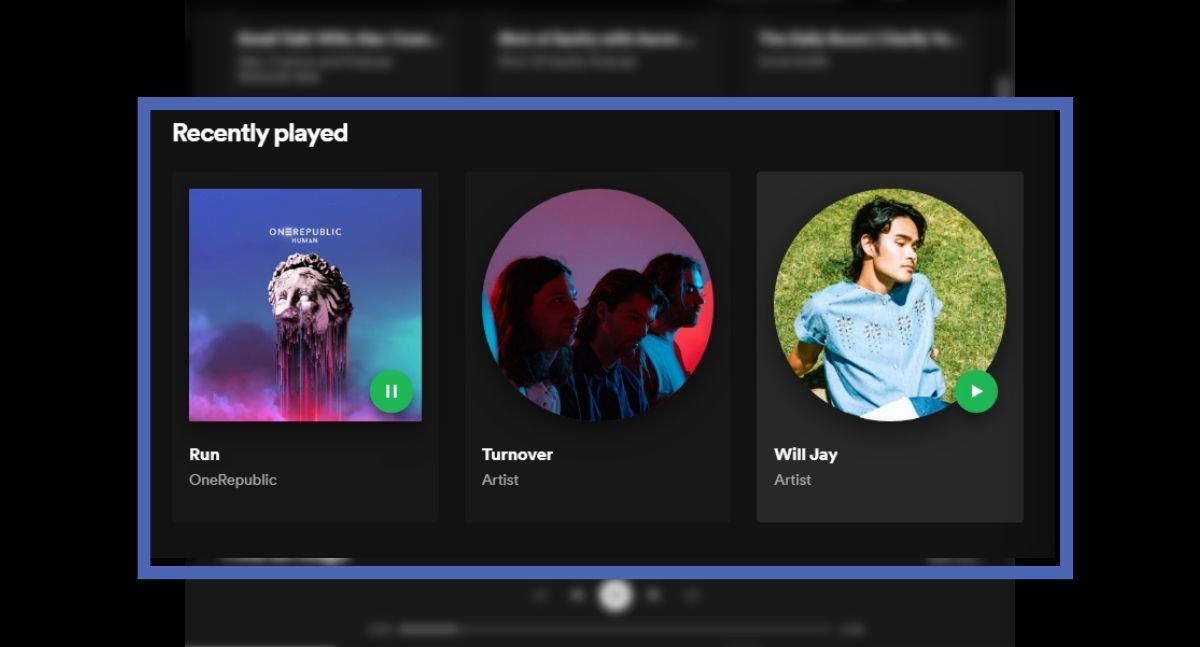
- In the panel that opens on the right side, click the Recently played tab at the top.
- You will see a list of the last 50 songs you listened to, with the most recent at the top.
Note that on the desktop app, your listening history temporarily disappears when you close the app. It will reappear once you relaunch and finish listening to a new track. The web player does not offer this dedicated "Recently played" tab.
Does Spotify sync recent plays across devices?
Spotify's syncing for recent plays is not symmetrical. Songs you play on the desktop app will appear in the "Recently played" section of your mobile app when logged into the same account. However, plays from the mobile app do not sync to the desktop app's "Recently played" list. The desktop 'Recently played' list won't fetch recent plays from your mobile app or other desktops even with the same account logged in. Within the mobile ecosystem (iOS to Android or vice versa), syncing works normally.
How to see your full, long-term listening history
The in-app "Recently played" feature only shows the last 50 tracks. To access your complete listening history, you can request your personal data from Spotify. Go to your account's privacy settings on the Spotify website and request a copy of your data. The download includes an "Extended streaming history" file in JSON format, which lists every item you have listened to over the past year or the entire lifetime of your account. This is the only way to view your full, long-term listening history beyond the 50-item limit.
How to manage your recent plays
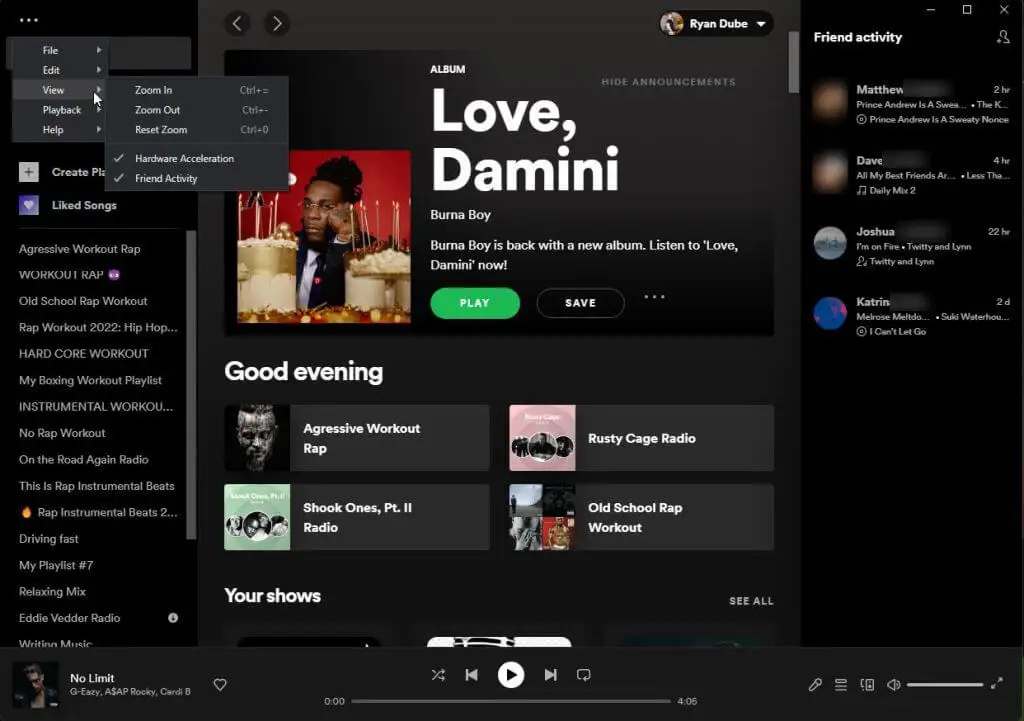
Spotify does not allow you to directly clear or delete your recent plays list. The closest option is to use a Private Session. This works like incognito mode: it prevents Spotify from saving the songs you listen to during the session to your history. To enable it on mobile, go to Settings (the gear icon) and toggle the "Private session" switch under Social. On mobile, there is no padlock indicator to show a Private Session is active (unlike desktop). On desktop, click the dropdown arrow next to your profile name, select Settings, and toggle the same option. A padlock icon will appear next to your profile name on desktop when active. Users used to be able to remove artists from the 'recently played' section, but Spotify removed that option. For more details on managing your history, see the related article on deleting recently played items.
Frequently Asked Questions
Why can't I see my listening history from yesterday?
The in-app "Recently played" feature only stores the last 50 tracks. If you have listened to more than 50 songs since yesterday, older entries are automatically removed. To see older history, you need to request your extended streaming data from Spotify's privacy settings.
Does Spotify's web player show listening history?
No, the Spotify web player does not have a dedicated "Recently played" tab like the desktop app. You can still see a "Recently played" section on the Home page, but it shows albums, playlists, and artists, not individual tracks in chronological order.
Can I see my listening history from years ago?
Yes, but only by requesting your personal data from Spotify. The "Extended streaming history" file you download can include data going back to the creation of your account, provided you have been using Spotify that long. It is delivered in JSON format.
How do I stop Spotify from saving my listening history?
You cannot permanently disable history tracking, but you can use a Private Session to listen anonymously. While in a Private Session, Spotify will not add the tracks you play to your "Recently played" list or use them for recommendations. The session ends when you close the app or turn it off.
Why does my desktop listening history disappear when I close the app?
This is a known behavior of the desktop app. The "Recently played" list is temporary and clears when you close the application. It will restore only after you play a new track after relaunching. This does not affect the mobile app's history.
Related reading: How To Rearrange Songs In Spotify Playlists?.