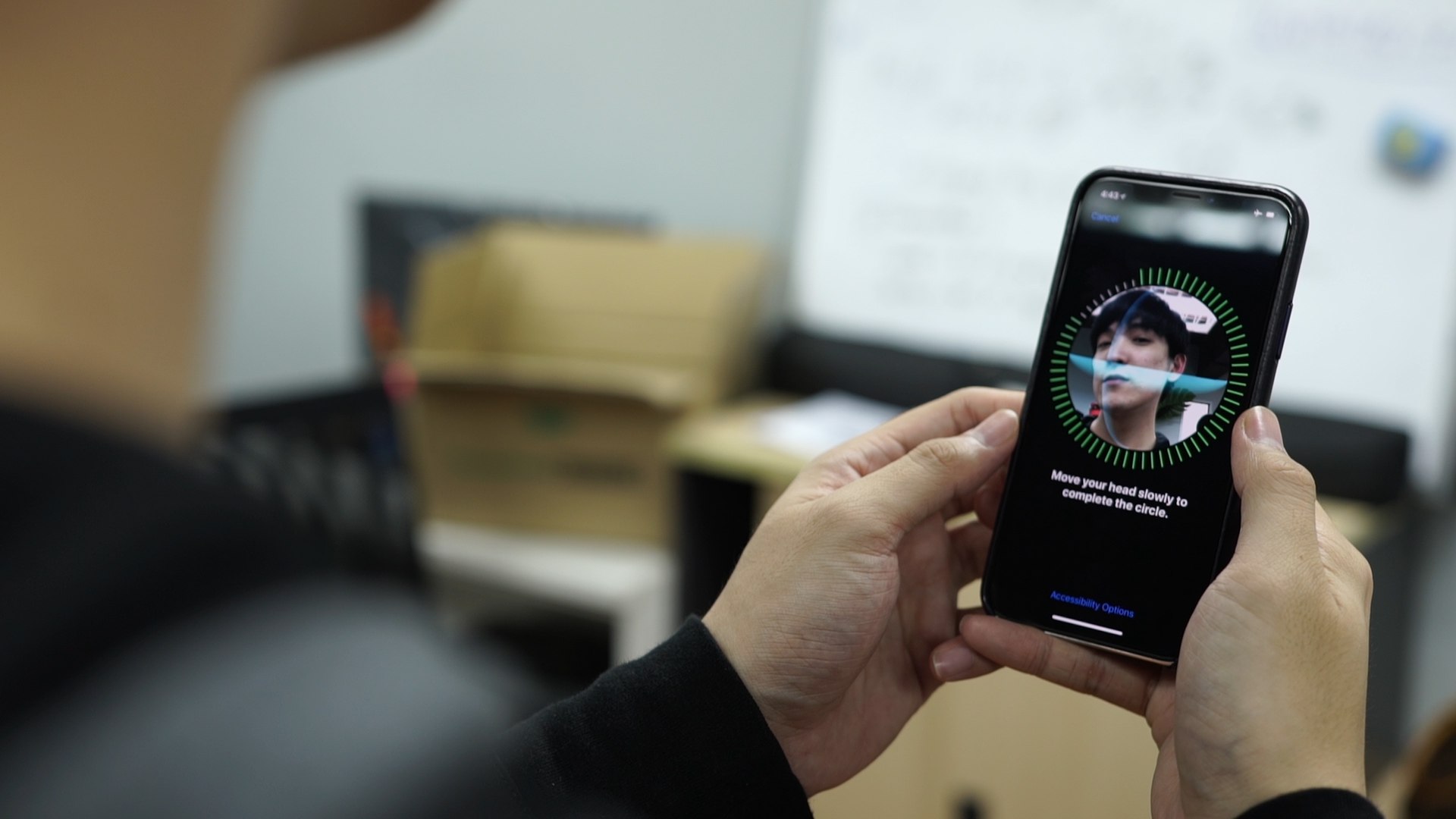
To set up Face ID on iPhone 13, open Settings, tap Face ID & Passcode, enter your passcode, then tap Set Up Face ID. Hold your iPhone 13 in portrait orientation, tap Get Started, position your face inside the frame, and slowly move your head in a circle to complete the scan twice, tapping Continue after the first scan and Done at the end.
How to set up Face ID on iPhone 13
- Open the Settings app on your iPhone 13.
- Tap Face ID & Passcode and enter your existing passcode. If prompted, enter your passcode before tapping Set Up Face ID.
- Tap Set Up Face ID.
- Hold your iPhone 13 in portrait orientation and tap Get Started.
- Position your face inside the frame shown on the screen.
- Slowly move your head in a circle to complete the first scan, then tap Continue.
- Move your head in a circle a second time to complete the second scan, then tap Done.
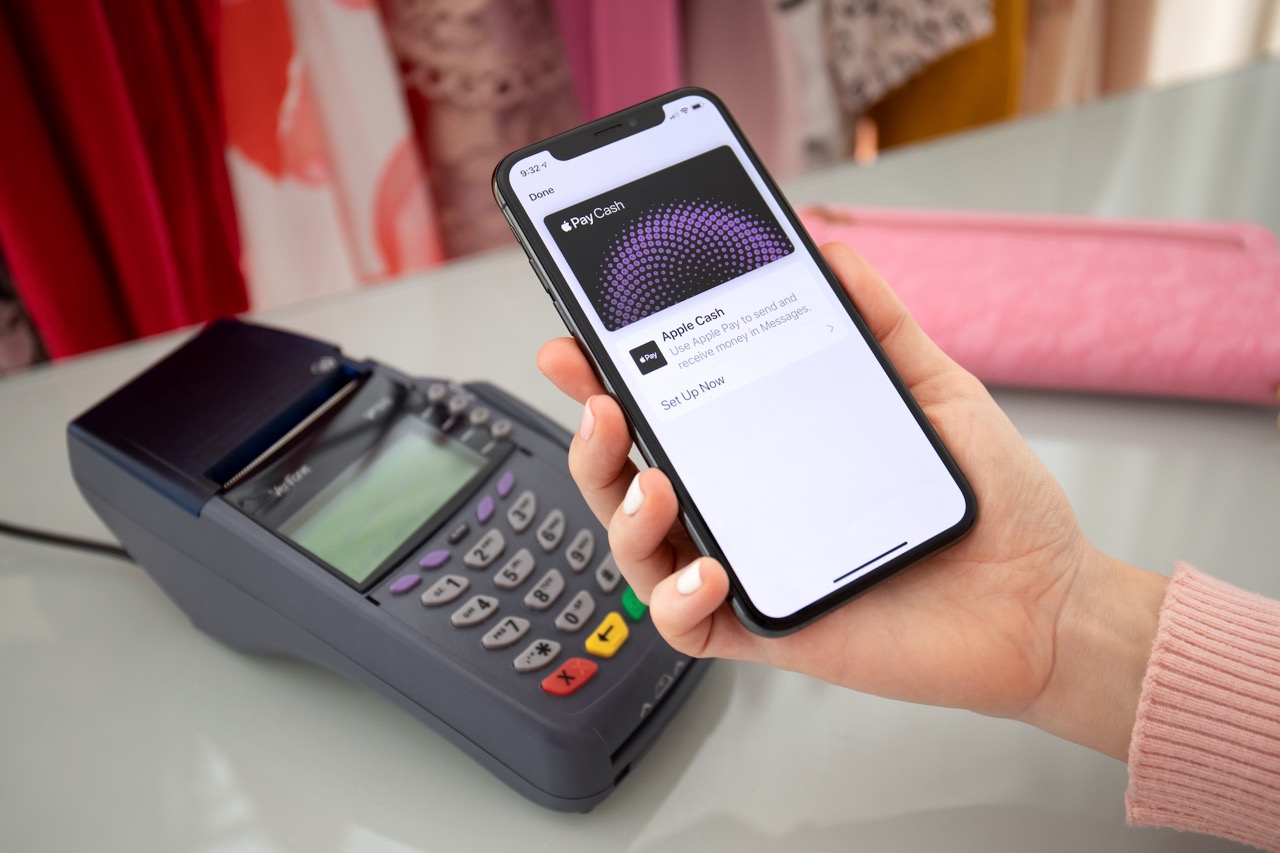
After setup, Face ID will automatically unlock your iPhone 13 when you look at it. You can also use it to authorize Apple Pay purchases, App Store downloads, autofill passwords in Safari, and sign in to many third-party apps.
Before you start: what you need
You must have a passcode set on your iPhone 13 to use Face ID. Face ID uses the TrueDepth camera system that projects and analyzes over 30,000 invisible infrared dots to create a depth map. It incorporates advanced anti-spoofing technologies to prevent unauthorized access through photos or masks. Face ID works in both portrait and landscape orientation on iPhone 13 models running iOS 16 or later. On iPhone 13, Face ID can also recognize you while wearing a face mask or other covering that blocks your mouth and nose.
Face ID not working? Try these fixes
If Face ID fails to recognize you or stops working, follow Apple's documented troubleshooting steps in this order:
- Clean the TrueDepth camera and your face. Remove anything covering the TrueDepth camera, such as a smudge, case, or screen protector. Make sure your eyes, nose, and mouth are fully visible.
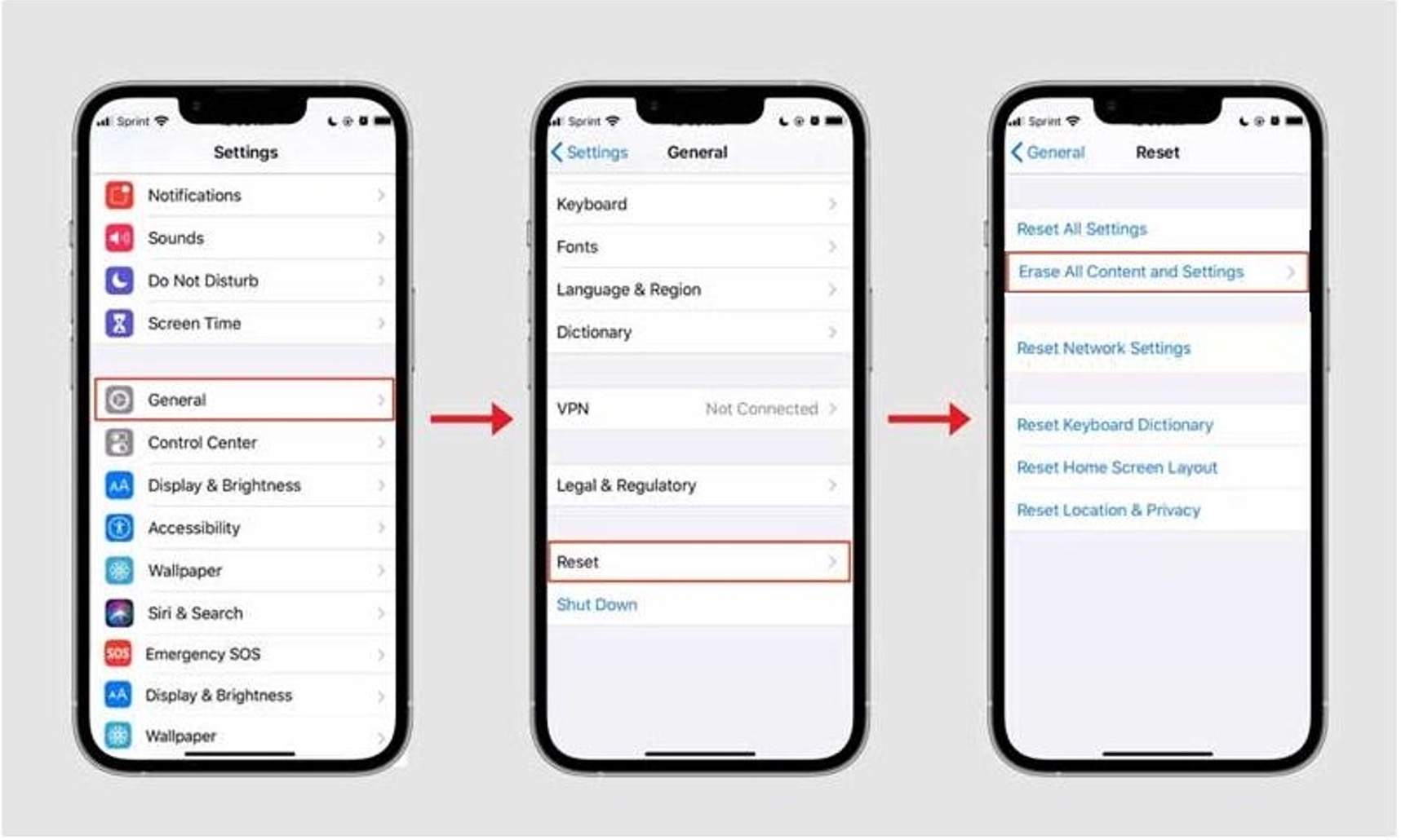
- Check for software updates. Go to Settings > General > Software Update and install the latest version of iOS.
- Re-enroll your face. Go to Settings > Face ID & Passcode, tap Reset Face ID, then tap Set Up Face ID to scan your face again.
- Check Face ID settings. Go to Settings > Face ID & Passcode and confirm Face ID is set up and the features you want (such as iPhone Unlock) are turned on.
- Restart your iPhone. To force restart iPhone 13: quickly press and release volume up, press and release volume down, then press and hold side button until Apple logo appears. Enter your passcode when it powers back on, and try Face ID again.
- Contact Apple Support. If Face ID still does not work after trying all the steps above, contact Apple Support for further assistance.
Frequently Asked Questions
What if 'Set Up Face ID' is greyed out?
If the Set Up Face ID option is greyed out, make sure you have a passcode set. Face ID requires a passcode to be active. If the option remains unavailable, update iOS, restart your iPhone, and check for any restrictions in Settings > Screen Time > Content & Privacy Restrictions.
Does Face ID work with glasses?
Yes, Face ID works with most glasses. Face ID is designed to adapt and improve over time, recognizing you even with slight changes like growing a beard. If you frequently switch between glasses and contacts, you can set up an alternate appearance in Settings > Face ID & Passcode.
Does Face ID work with a mask?
Is there an Android or carrier-specific setup path for Face ID?
No. Face ID is an Apple iPhone feature and there is no Android setup path.
Can I use Face ID for privacy screens and screen locking?
Yes, Face ID can be used to unlock your iPhone and control access to your device, which works alongside privacy screens and screen locking methods to keep your information secure. You can also use Face ID to authorize app downloads and Apple Pay transactions.
What if Face ID fails during setup?
If Face ID fails during setup, the documented next steps are to update iOS, check the TrueDepth camera area, restart, reset Face ID, and contact Apple Support if needed.