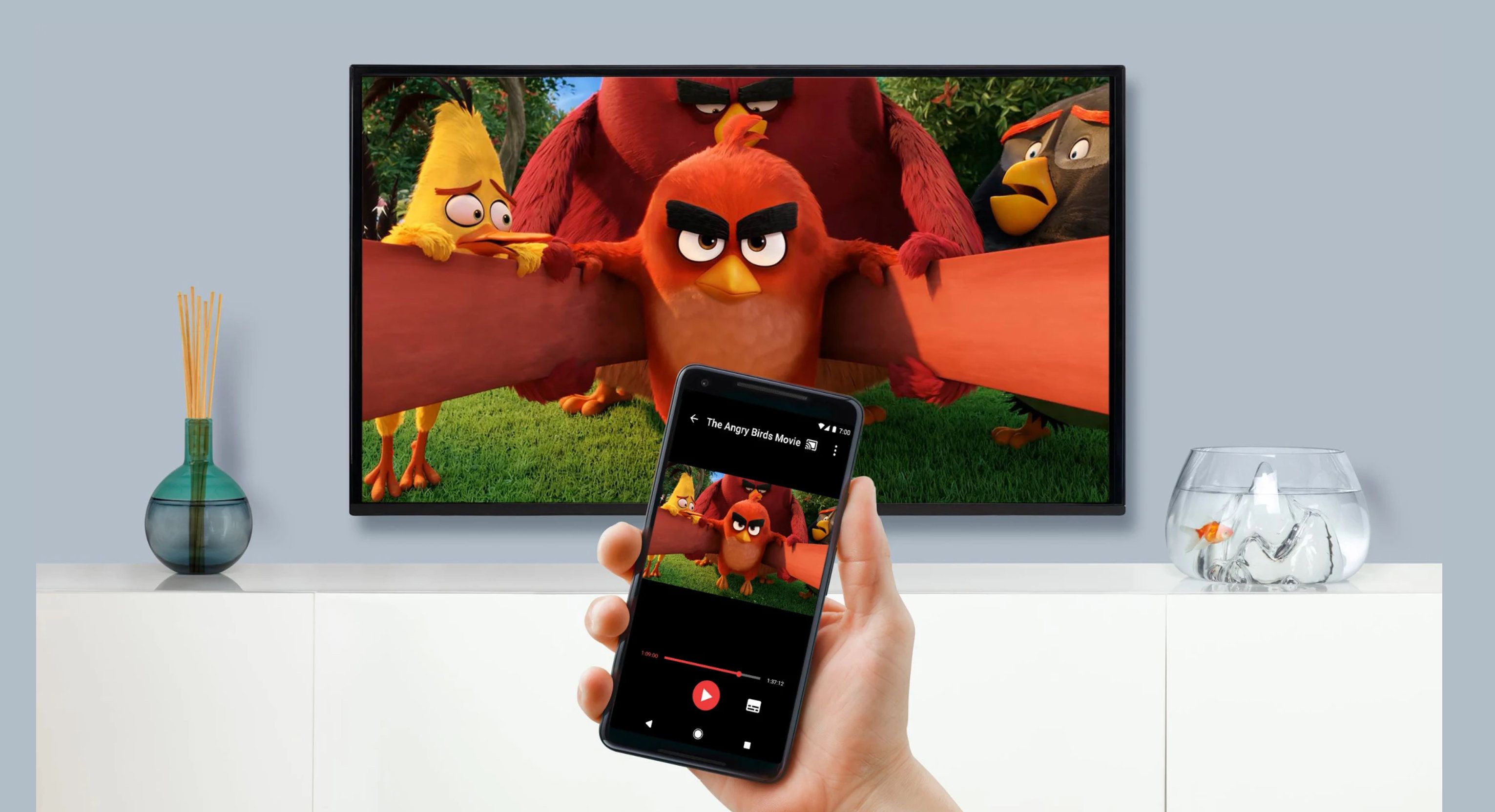
To cast videos from a phone to TV, both devices must be on the same Wi‑Fi network; then you open a supported app, tap the Cast or AirPlay button, and select your TV.
Cast videos from a phone to TV: what you need
The common requirement for casting videos from a phone to TV is that the phone and the TV, streamer, or receiver are connected to the same Wi‑Fi network. Once they are, you open a Cast‑enabled app, tap the Cast button, and choose the TV or device. The methods below cover Chromecast, Apple TV, and screen mirroring for both Android and iPhone.
Cast using Chromecast or Google Cast
Google documents that for Google Cast or Chromecast-style casting, you open a Cast-enabled app, tap the Cast icon, and pick the target device. Follow this sequence:
- Connect the phone and the Chromecast or TV with Google Cast to the same Wi‑Fi network.
- Open a Google Cast‑enabled app on your phone.
- Tap the Cast icon. Google’s page says the Cast button is not in the same place in all apps.
- Select the target device from the list.
- Start the video.
To stop casting, Google says to tap the Cast icon again and then choose Stop casting, Disconnect, This phone, or This device, depending on the device and app.
Cast using Apple TV and AirPlay
Apple’s AirPlay path is documented for iPhone, iPad, Apple TV, AirPlay-compatible smart TVs, and Mac. The steps are:
- Connect the phone and the TV or Mac to the same Wi‑Fi network.
- Find the video you want to cast.
- Tap the Share button in some apps.
- Choose your Apple TV or AirPlay‑compatible smart TV from the list.
Cast via screen mirroring on Android
Google says to swipe down from the top of the screen to open Quick Settings, find the mirroring control, which may be labeled Screen Mirror, Screen Cast, or Smart View, then select the TV from the list of available devices. This mirrors your phone’s entire screen, which is useful for casting apps to a TV that don’t have a built‑in Cast button.
Screen mirroring with iPhone and AirPlay
Apple’s documented mirroring path is AirPlay to an Apple TV, an AirPlay‑compatible smart TV, or a Mac. Ensure both devices are on the same Wi‑Fi network, then use Control Center to start mirroring. This method shows your iPhone’s screen on the TV, making it another way to cast videos from a phone to TV when the video app does not have a direct AirPlay button.
Troubleshooting common casting problems
Google documents a specific iOS limitation: if casting does not work on iOS 13 devices, you may need to wait for the app to release a version that supports cast on iOS 13. Google also notes that some Cast-enabled apps may request location permissions and may not cast if location permissions are not granted. The Cast button location varies by app, so look for the Cast icon in different parts of the app interface. Google says unsupported or outdated app versions may prevent casting on iOS 13 until the app is updated.
Frequently Asked Questions
Can I cast videos from any phone to a TV?
Most modern smartphones support casting, but the method depends on the phone’s operating system and the TV’s capabilities. Android phones typically use Google Cast or screen mirroring, while iPhones use AirPlay.
What equipment do I need to cast videos from my phone to a TV?
You need a TV with built‑in casting support (such as Google Cast or AirPlay) or a separate device like a Chromecast or Apple TV. Both the phone and the TV or device must be on the same Wi‑Fi network.
How do I cast videos from an iPhone to a TV?
You can also use screen mirroring via Control Center.
Do all video streaming apps support casting?
Not all apps have built‑in casting functionality. Google’s instructions apply to Google Cast-enabled apps, not every app. Apple’s AirPlay path works with apps that include the Share button. Check the app’s settings or support documentation to confirm.