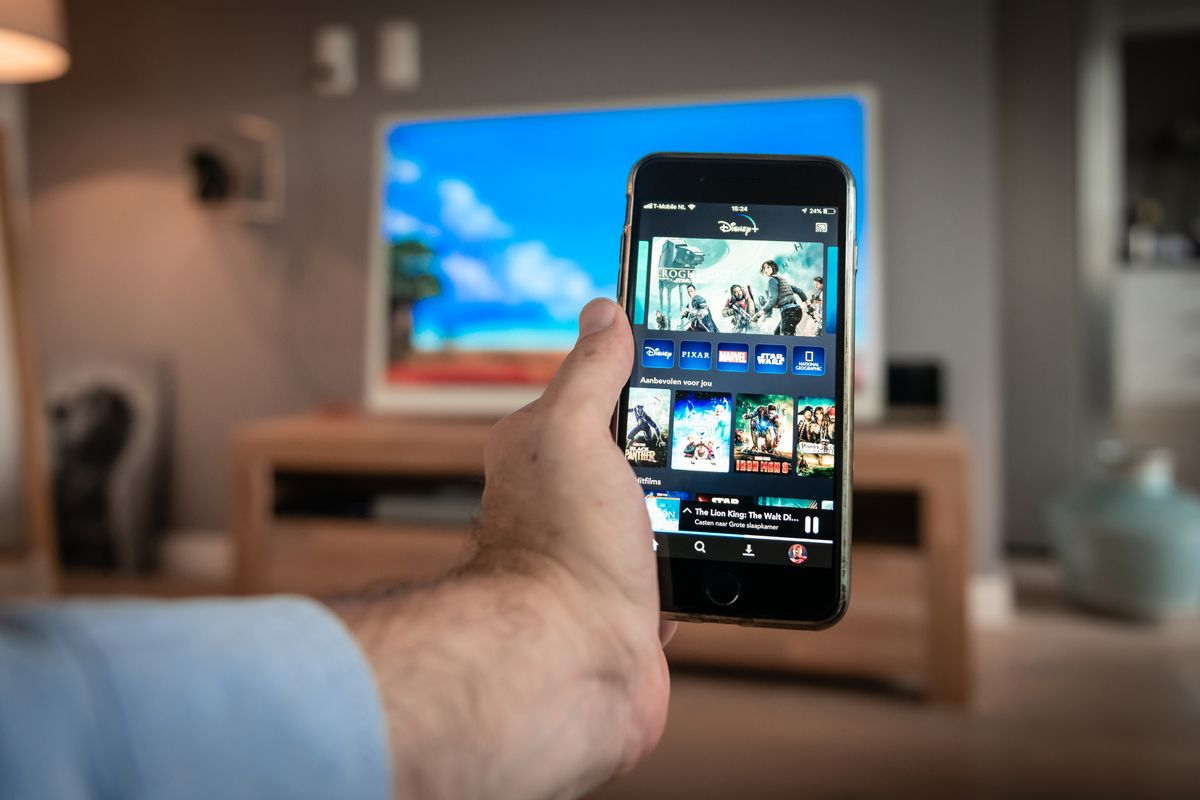
Before you start: how to cast phone to TV
When you cast phone to TV, every connection relies on one of two underlying methods, and mixing them up is the most common reason for a blank screen. When you tap the cast icon inside an app like YouTube, you are sending a video link for the television to fetch and play on its own, which is why the phone stays free for other tasks.
Screen mirroring works differently by cloning your entire screen, including notifications and battery icons. Many services block mirroring for copyright reasons, so if you see a black rectangle where the film should be, you need to use the built-in cast button instead.
In supported hotel rooms, you can cast a phone to TV without WiFi by using available casting features. You may need to connect to the room’s Wi‑Fi if needed and choose the room’s television.
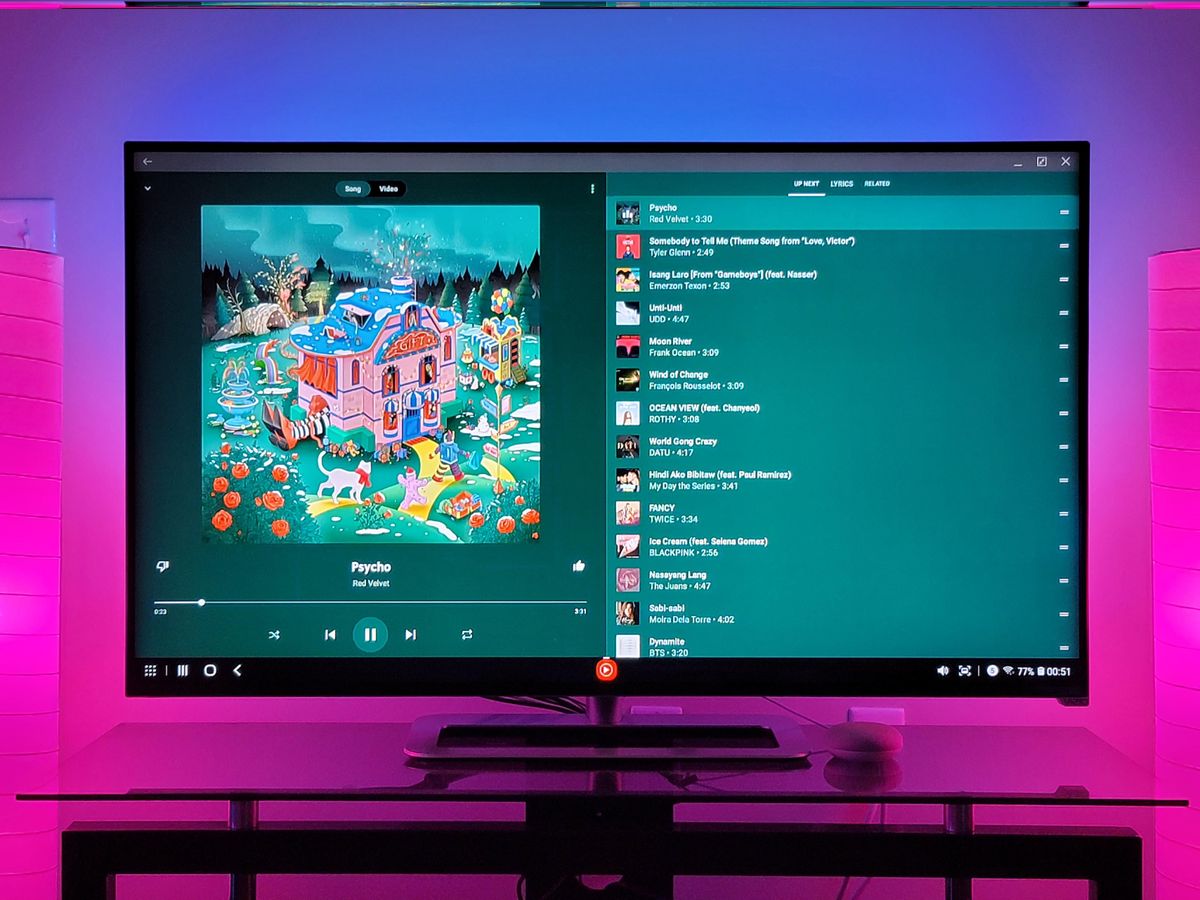
If you want to play music from my phone on TV, AirPlay handles this by sending audio to an Apple TV, AirPlay-compatible smart TV, or compatible smart speaker. Both devices must be on the same network, and playback is controlled from the Control Center with just a few taps.
When you play video on Android phone, Google’s model relies on a cast-compatible screen appearing in the Quick Settings cast control. This hands the stream off so the television does the heavy lifting, and your handset then becomes a simple remote for the content.
Casting from an iPhone
To change TV provider on ESPN app on iPhone, open the app and navigate to the account or settings area to update your provider information. Choose your new provider from the list, enter the credentials, and tap Log In.
Some video apps also read the provider setting that iOS stores at the system level, and a mismatch there can affect access even after you update the ESPN app itself. To fix that, go to Settings and navigate to the TV Provider section, then sign out and sign in again with the correct account.
If your provider does not appear in the ESPN chooser at all, the list only reflects participating partners. There is no override method built into the app, so you will need to check whether your subscription includes ESPN access before troubleshooting further.
Casting from specific Android phone brands
When you are using an LG phone, the casting experience relies on the Google Cast technology built into Android. If you want to know how to cast from an LG phone to TV, you will find that LG’s own custom interface may not add a separate, manufacturer-specific screen sharing menu. Look for the cast icon inside your individual apps.
Moving to a Motorola device, the approach stays nearly identical since the brand sticks close to the unmodified Android experience. The cast control lives in the Quick Settings shade and inside supported video apps, which is exactly what you need when you want to cast videos from a phone to TV. For the popular Moto G series, the same rule applies. The phone must run a recent version of Android that supports casting. When you need to know how to cast Moto G to TV, the phone hands the video link off to a Chromecast or a television with Google Cast built in. You will also want to read the article on how to cast from a Motorola phone to TV if you need step-by-step guidance for that specific brand.
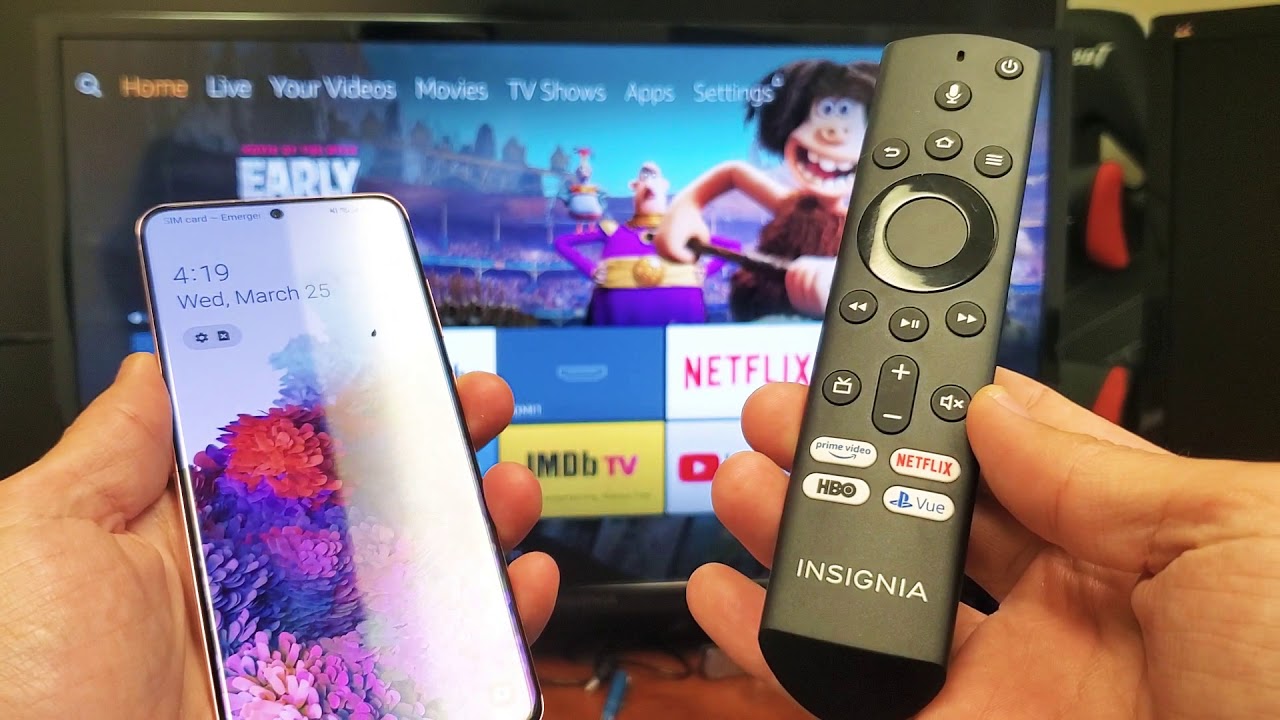
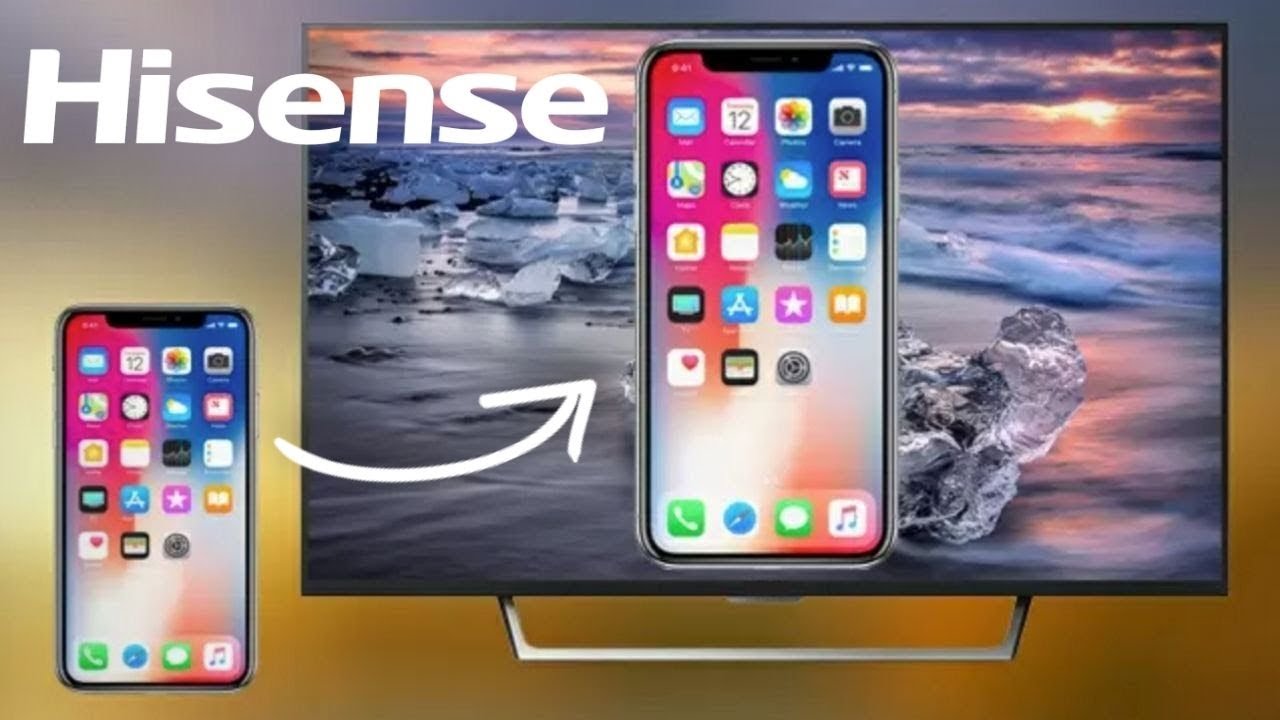
An iPhone uses AirPlay to connect to an Apple TV or an AirPlay 2-enabled smart TV, so if you want to cast iPhone to TV, this is the method you will use. Android devices need a Google Cast-enabled app and a compatible screen on the same Wi‑Fi network. Similarly, if you are trying to figure out how to cast a phone to an Amazon Fire Stick TV, you may need to enable the mirroring feature in the Fire TV's screen settings. Then you connect from your phone’s wireless screen menu. For example, you can learn how to cast Prime video from a phone to TV, how to cast Tubi from a phone to TV, or how to cast phone to Hisense Roku TV.
Casting to Amazon Fire TV and Xbox consoles
When you want to put a video from your phone onto the big screen, Amazon Fire TV and Xbox One consoles work differently than a Chromecast. Because Fire TV does not have Google Cast built in, you usually need to enable Display Mirroring on the stick first by holding the Home button and selecting Mirroring, or via Settings > Display & Sounds > Enable Display Mirroring. Then find the wireless screen option in your phone’s connection menu.
Just remember that mirroring a media app often triggers a black screen. You should look for the cast icon inside the app instead. On an Xbox, the process relies on Microsoft’s Wireless Display app, which you must download from the Microsoft Store. This lets you project your screen once you open the app on the console. If you want to cast from phone to Xbox One, you may need to install a wireless display app from the Microsoft Store on the console. Your phone will not see it as an available screen before you do this.
A compatible app can also let you stream videos from phone to Xbox One. Such apps may handle online clips, local files, and music. However, protected content from paid services may still be blocked. Those services require their native casting buttons.
Casting major streaming services
Most major services rely on the same core casting logic. Your phone hands off a video link and the TV’s app takes over playback. To connect Netflix from a phone to TV, open the Netflix mobile app on your phone, tap the Cast icon, and select your TV or display. Then tap the Cast icon. If you need to play Disney Plus from a phone on TV, look for that same Cast icon inside the Disney+ app once playback begins. When you want to play YouTube from a phone on TV, open the app, tap the Cast button, and select your smart TV or streaming device from the list that appears. On Android, YouTube also supports a device-linking flow: turn on the TV or streaming device, open the YouTube app, and when prompted tap Connect to pair the device with the TV. Keep in mind that Netflix also notes you can mirror the entire mobile screen using a built-in feature or app as a non-cast alternative. The in-app cast button is one path. For example, you can stream Crunchyroll from a phone to TV to watch anime on the big screen, stream Peacock from a phone to TV for live sports and movies, stream Roku from a phone to TV to mirror your mobile screen, stream ESPN from a phone to TV to catch every game, stream HBO from a phone to TV for the latest series, or stream Hulu from phone to TV for on-demand shows and films.
Casting live TV and sports apps
Live television and sports apps enforce some of the strictest casting rules and often require you to abandon mirroring entirely. If you attempt to mirror NFL mobile to TV during a live local or primetime regular season or postseason game, the official app may restrict this content to phones and tablets only.
For other sports content, tap the Cast or AirPlay icon inside the ESPN video player to hand the stream off to your Chromecast or Apple TV, with both devices sharing the same Wi‑Fi network. Subscribers who watch Verizon Fios on phone can launch live channels directly from the Fios TV Mobile App.
While you may encounter the phrase get red mobile TV. In every case, look for the built-in casting icon rather than your phone’s screen-duplication toggle.
Solving specific login and offline problems
When a streaming app on your TV asks you to sign in, the quickest path is often an activation code instead of typing a password with the remote. To login to Disney Plus on TV from phone, open the Disney+ app on the television and select Log In, then grab your mobile device to visit the activation page and enter the code shown on the screen. The phone simply becomes a keyboard and approval tool rather than the source of the video feed.
A different challenge arises entirely when there is no home network available, which makes the standard discovery process impossible because every official troubleshooting guide requires the phone and TV to share the same Wi‑Fi connection. While you can still watch Hulu on my phone using its cellular plan for personal viewing, getting that picture onto a larger screen without a router is not something the built-in cast buttons support. You may see workarounds that claim to cast Netflix from a phone to TV without WiFi, but no documented method from the service itself enables this, and attempts usually fail during the device-discovery step that looks for a shared network.
Frequently Asked Questions
How do I stop my iPhone notifications from appearing on the TV during AirPlay?
Open Control Center, tap Screen Mirroring, then tap the TV name to stop mirroring. For video-only playback without mirroring, use the AirPlay button inside the app instead, which sends only the content and keeps notifications private.
Why does my Android phone not show the Cast icon in the Quick Settings shade?
Your phone must run Android 6.0 or later and be on the same Wi‑Fi network as a Google Cast-compatible TV or streamer. If the icon is missing, pull down the Quick Settings shade fully and look for a Screen Cast or Cast tile to add.
Can I cast Tubi from my phone to a Fire TV Stick without mirroring?
Look for the Cast icon inside the Tubi app itself rather than using the Fire TV's Display Mirroring feature. Mirroring a media app often triggers a black screen, while the in-app cast button hands the video link off properly.
What AirPlay setting controls whether my iPhone automatically connects to a TV?
Go to Settings, then General, then AirPlay & Continuity, and tap Automatically AirPlay. Choose Never, Ask, or Automatic to control whether your iPhone connects to TVs on the same network without prompting each time.
How do I connect YouTube on my phone to a TV that is already turned on?
Open the YouTube app, tap the Cast button, and select your TV from the list. On Android, YouTube also supports a device-linking flow where the app prompts you to tap Connect to pair with the TV directly.
Does the ESPN app on Android use the same TV Provider login as my iPhone?
ESPN uses its own in-app authentication on both platforms. Tap the Settings icon, select TV Provider, choose your provider, and enter the credentials. The app does not read a system-level provider setting on Android the way it does on iPhone.