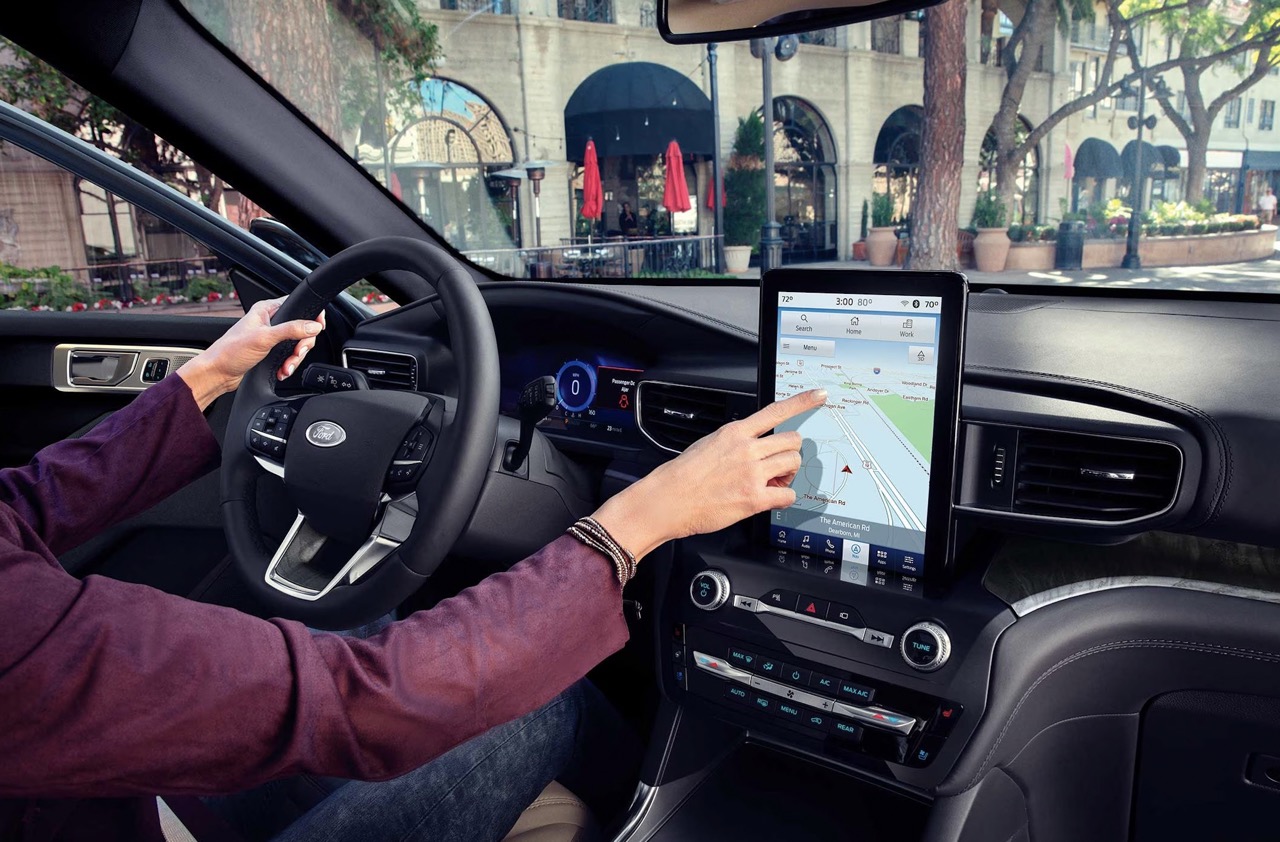
To connect your phone to a Ford Explorer, you need to choose between Bluetooth for hands-free calls and audio streaming, or a wired or wireless connection for Apple CarPlay and Android Auto, which provides full app integration. Your available features depend entirely on your Explorer's SYNC system version, so identifying that first ensures you use the correct method.
Before you connect your phone to a Ford Explorer: Clarifying the two main connection types and identifying your SYNC system version
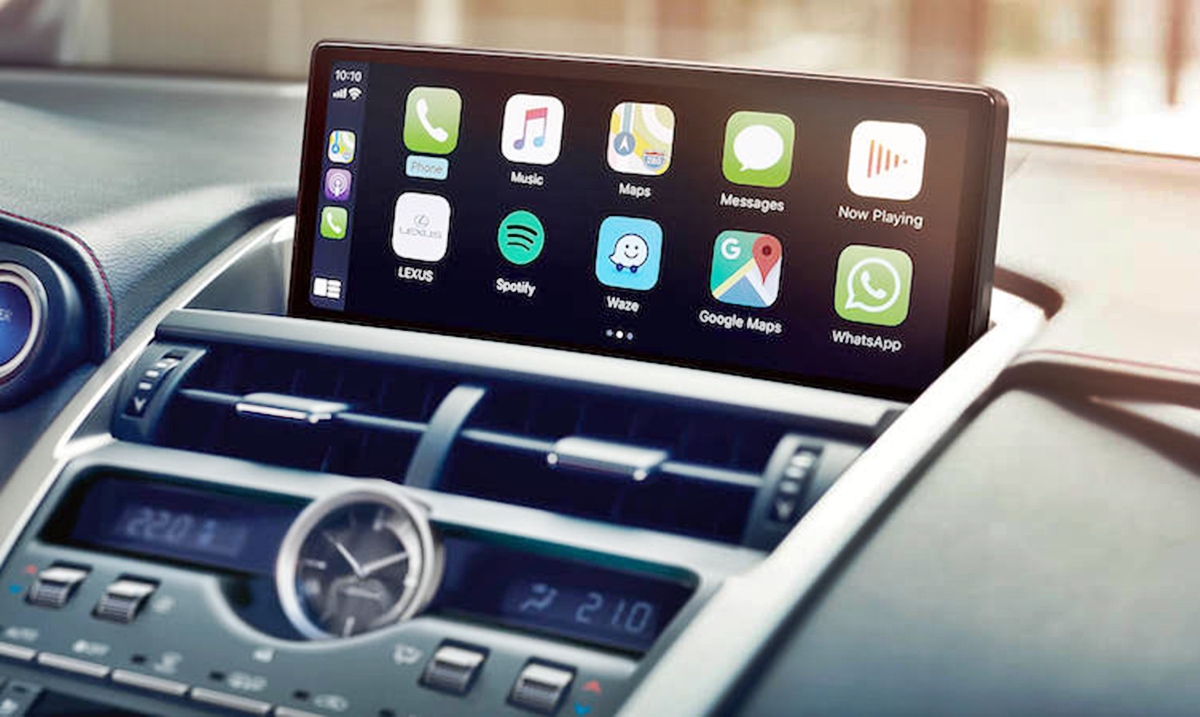
The two primary ways to connect your phone are Bluetooth, which handles calls and music, and a USB or wireless connection specifically for Apple CarPlay or Android Auto, which mirrors your phone's apps on the display. To know which features your Explorer supports, check your SYNC version. Bluetooth alone will not launch CarPlay or Android Auto on any SYNC version. SYNC 4 and the Ford Digital Experience (available on 2025+ Explorer models) support wireless Apple CarPlay and Android Auto, in addition to wired connections.
How to pair your phone with Ford Explorer Bluetooth
- Enable Bluetooth on your phone and start your Ford Explorer, ensuring it is in Park and the engine is running.
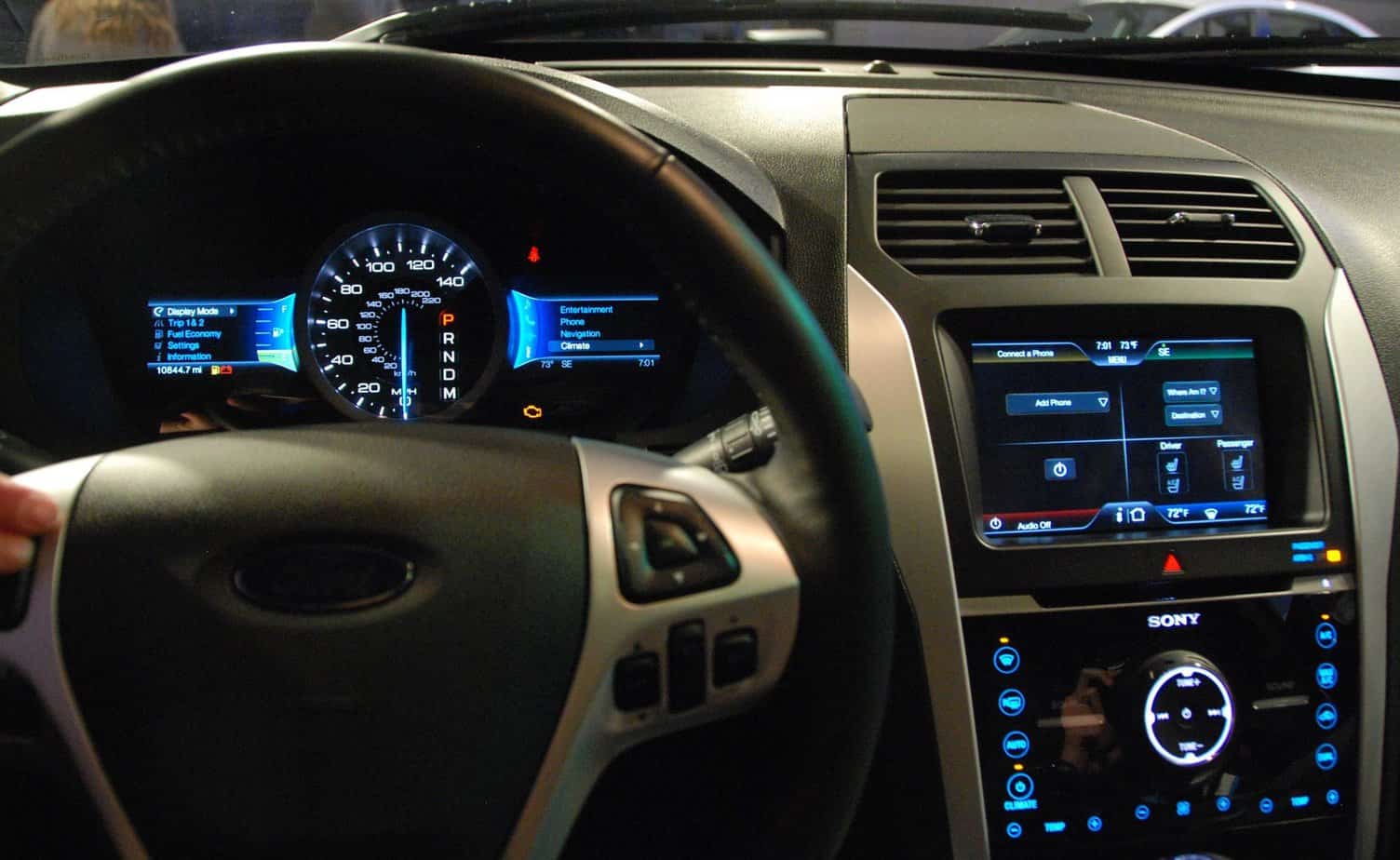
- On the SYNC touchscreen, navigate to the "Phone" menu and select "Add Phone" or "Add Device". Some Ford Explorer models may require you to accept the SYNC terms and conditions before proceeding.
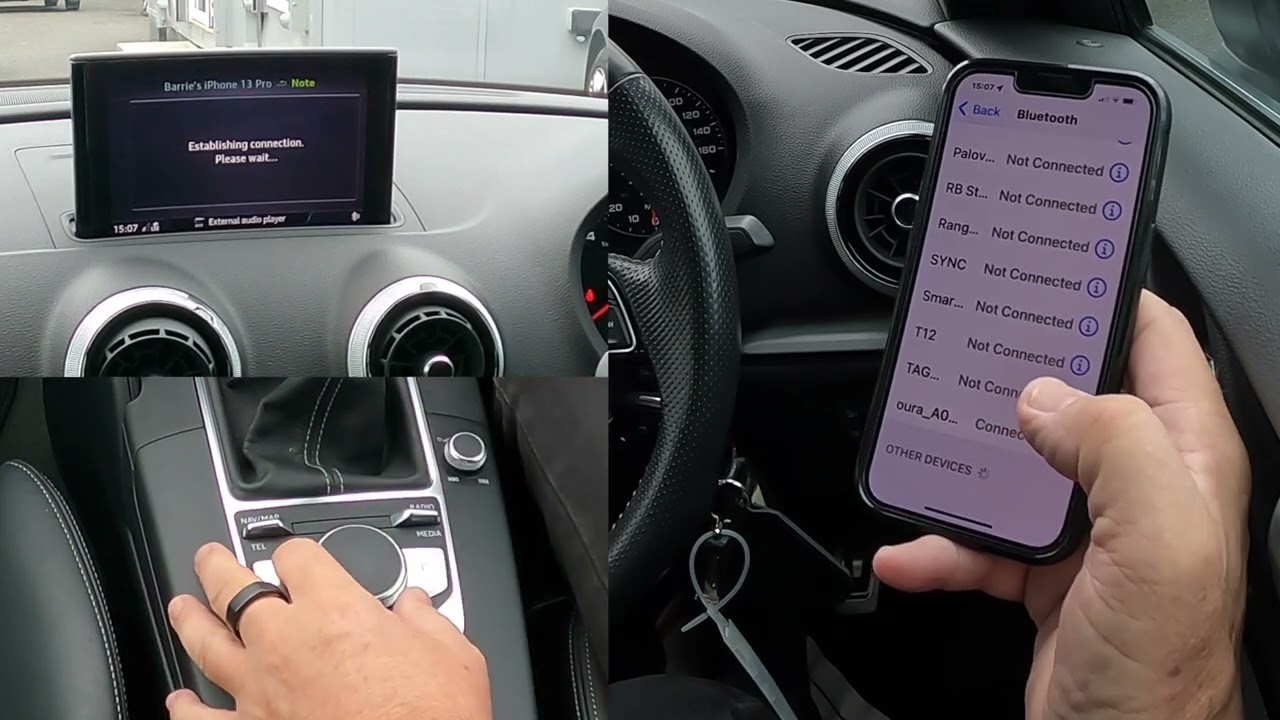
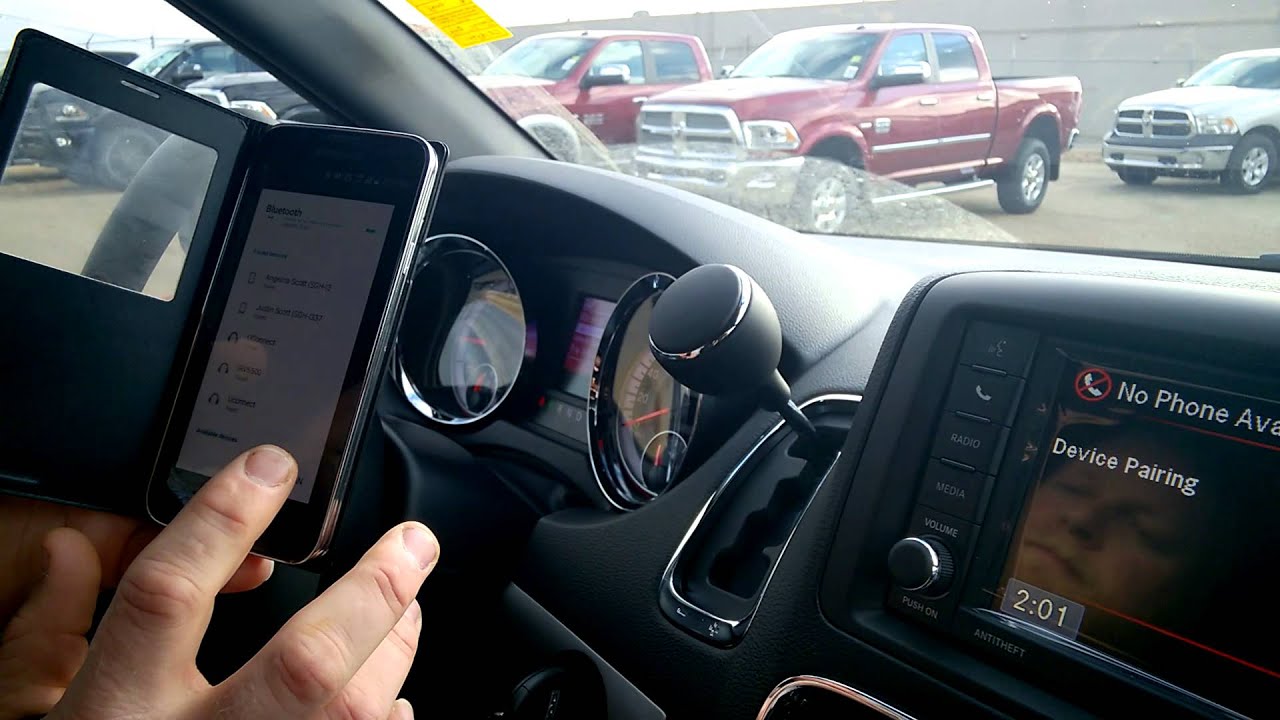
- On your phone, select your vehicle's name, often displayed as "SYNC" or "Ford Explorer", from the list of available Bluetooth devices.
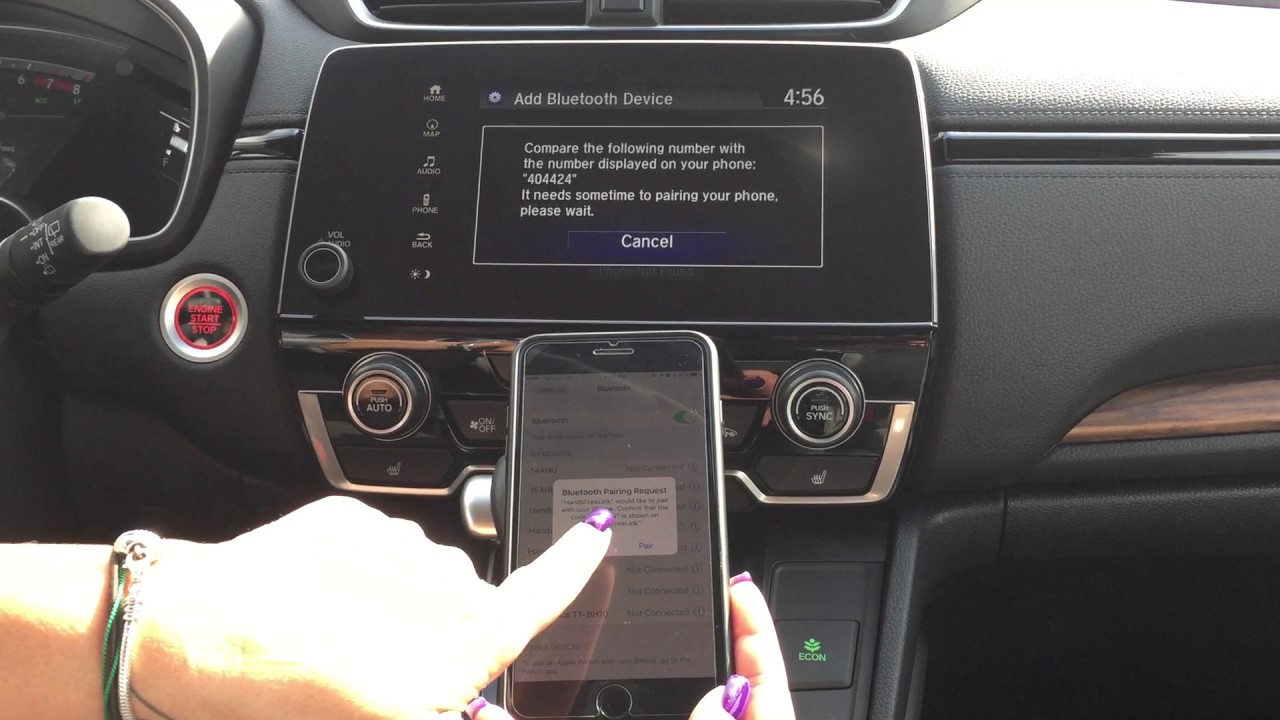
- Confirm that the PIN displayed on both your phone and the SYNC screen matches, then tap "Pair" or "Yes" on both devices.
- Grant permissions on your phone if prompted, allowing SYNC to access your contacts and messages for full hands-free functionality.
How to set up Apple CarPlay in a Ford Explorer
Apple CarPlay with SYNC 3 (wired connection)
For SYNC 3, you must use a wired connection. Connect your iPhone to the Explorer's USB port using an Apple-certified data cable. Ensure Siri is enabled on your iPhone in Settings. The CarPlay interface should launch automatically on the SYNC screen. For optimal performance, your iPhone should be running iOS 16.0 or newer.
Apple CarPlay with SYNC 4 (wireless connection)
For SYNC 4, after your iPhone is already paired via Bluetooth for calls, ensure both Bluetooth and Wi-Fi are enabled on your phone. Accept any prompts that appear on the SYNC screen to complete the wireless CarPlay setup. This requires an iPhone 8 or newer running iOS 13.0 or newer.
How to set up Android Auto in a Ford Explorer
Android Auto with SYNC 3 (wired connection)
For SYNC 3, connect your Android phone to the Explorer's USB port using a certified USB cable. Then, on the SYNC 3 screen, go to "Settings" and select "Android Auto Preferences" to enable the feature. Your Android phone should be running Android OS 9.0 or newer for optimal performance.
Android Auto with SYNC 4 (wireless connection)
For SYNC 4, after your Android phone is initially paired via Bluetooth, ensure Bluetooth and Wi-Fi are turned on. Accept the prompts on the SYNC screen to activate wireless Android Auto. This requires an Android phone running Android OS 8.0 or newer.
Troubleshooting Ford Explorer phone connection problems
If you encounter connection issues, the most effective verified fixes are straightforward. First, restart Bluetooth on your phone. If the problem persists, delete the phone pairing from both your phone and the SYNC system, then complete a fresh pairing process. Turn off Battery Optimization: Some phones have battery optimization features that can interfere with Bluetooth connections. Check your phone's settings and disable battery optimization for the Bluetooth app or system service. Finally, ensure your phone's operating system is up to date, as outdated software is a common cause of compatibility problems. For persistent issues, consider clearing the Bluetooth cache on your phone.
Frequently Asked Questions
Can I connect two phones to my Ford Explorer at the same time?
Yes, Ford SYNC systems allow two phones to be connected simultaneously via Bluetooth for calls and audio. However, only one phone can actively use Apple CarPlay or Android Auto at a time.
How do I make hands-free calls after connecting my phone?
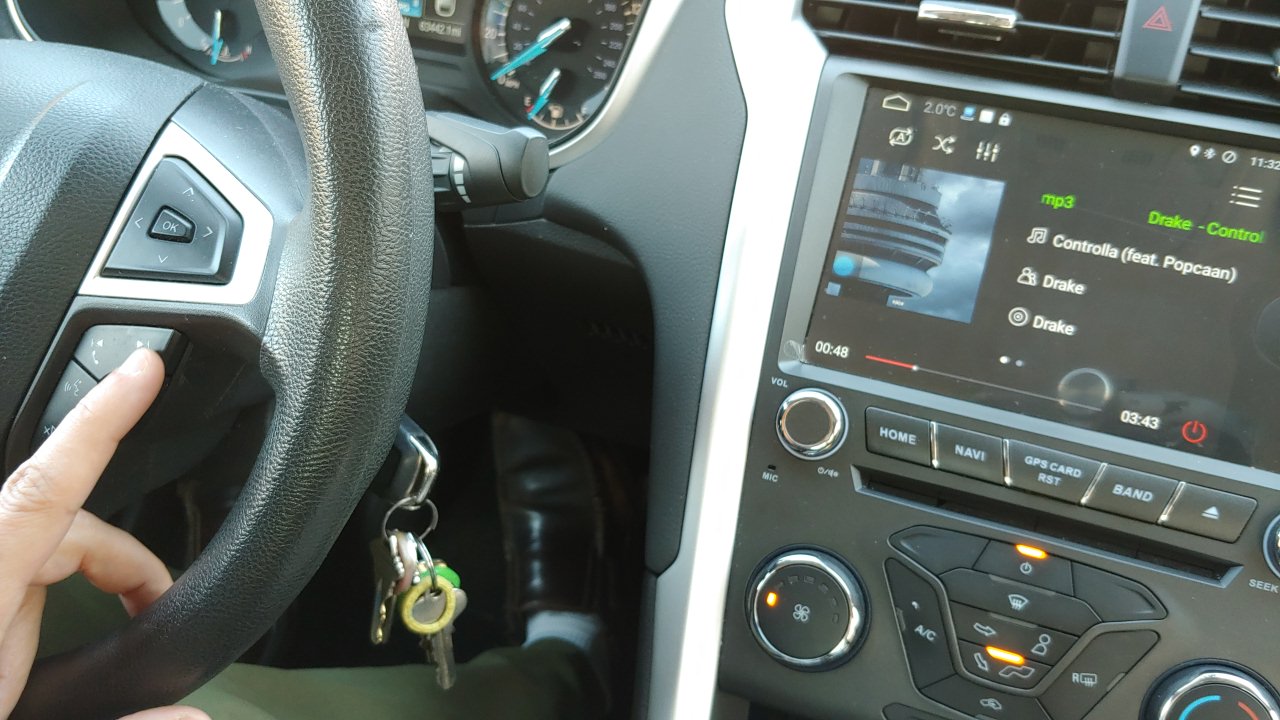
Once your phone is paired via Bluetooth, you can make and receive hands-free calls using the SYNC voice command system or the controls on the steering wheel or infotainment screen. You do not need to touch your phone.
How do I play music from my phone through the Ford Explorer's speakers?
If connected via Bluetooth, you can stream music wirelessly from any app. If using a USB connection, you can access your phone's music files directly through the infotainment system. With Apple CarPlay or Android Auto, you can use the respective interface to control music apps on the display.
What should I do if my phone is not showing up in the Bluetooth list on SYNC?
First, ensure your phone's Bluetooth is enabled and that it is set to "discoverable" mode. Then, on the SYNC screen, confirm you have selected "Add Phone" or "Add Device." If the vehicle still does not appear, restart both your phone and the Explorer's SYNC system, then try again.
Does the Ford Explorer support wireless phone charging?
Many newer Ford Explorer models offer a wireless charging pad, but this is a separate feature from phone connectivity. A phone placed on the charging pad will charge wirelessly, but it will not connect to SYNC or launch CarPlay or Android Auto unless paired via Bluetooth or connected via USB.
Why won't Apple CarPlay or Android Auto launch when I plug in my phone?
For SYNC 3, this is almost always due to a non-certified or damaged USB cable. Use an Apple-certified Lightning cable or a high-quality USB cable certified for data transfer. Also, verify that Siri (for iPhone) or Android Auto (in your phone's settings) is enabled. For SYNC 4, ensure Bluetooth and Wi-Fi are both active on your phone. Ford Sync and Car Bluetooth pairing must be established first for wireless systems to work.