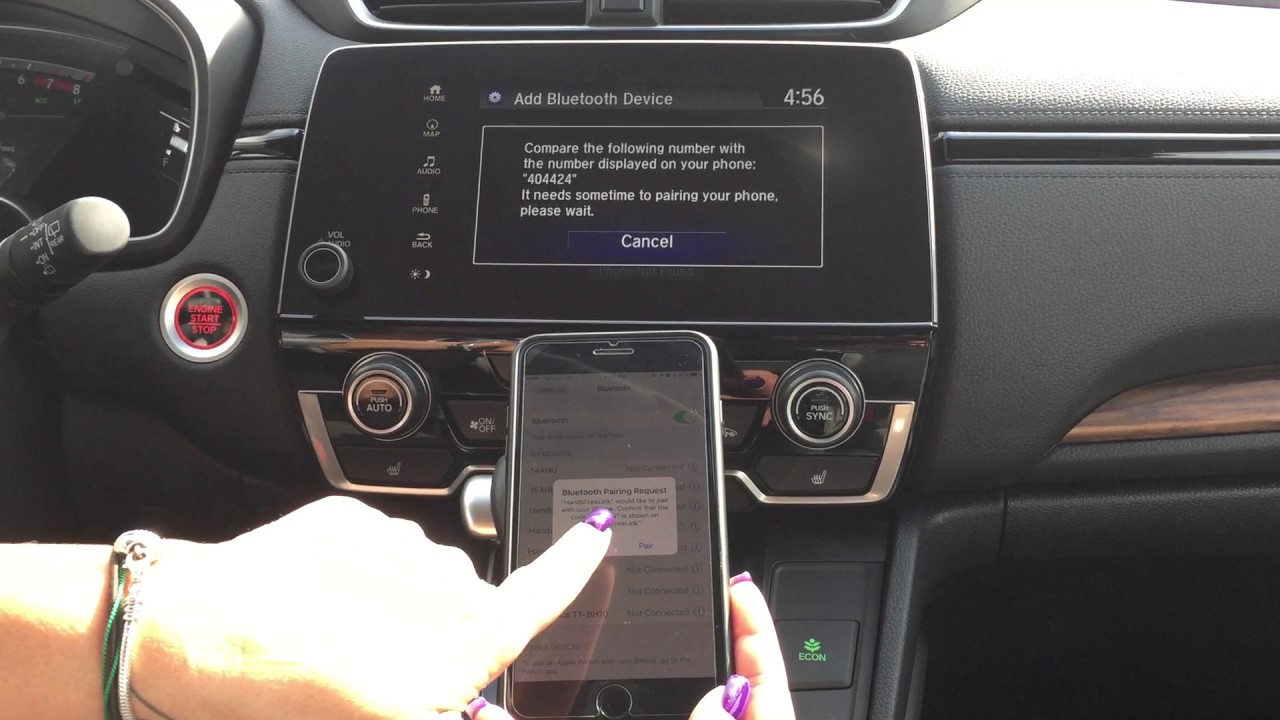
To connect your phone to a Honda CR-V, you have three main options: Bluetooth for hands-free calling and music, or a USB cable for Apple CarPlay or Android Auto. The method you choose depends on whether you want simple wireless audio or full app integration for navigation and messaging.
How to connect your phone to a Honda CR-V with Bluetooth
Honda's Bluetooth system, called HandsFreeLink, allows you to make hands-free calls, stream music, and read out text messages. The system can store up to six paired devices.
- Ensure your phone's Bluetooth is switched on and the vehicle is safely parked with the ignition set to "On" or "Accessory."
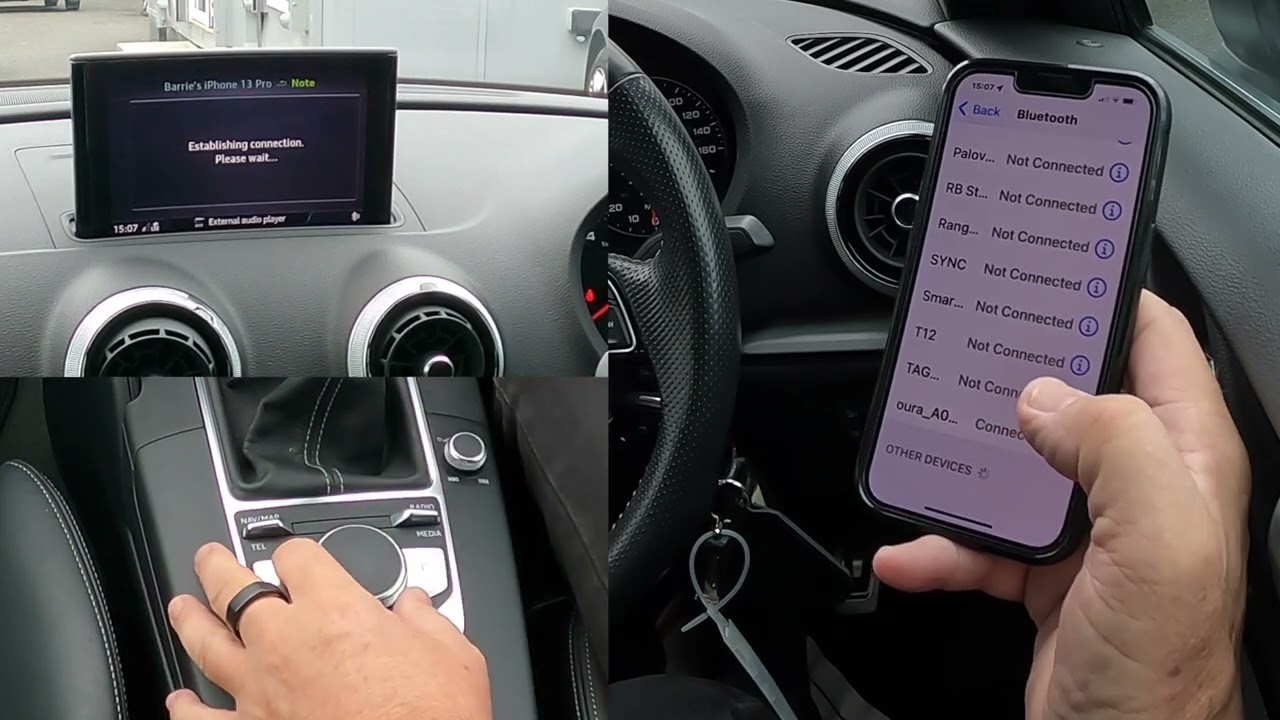
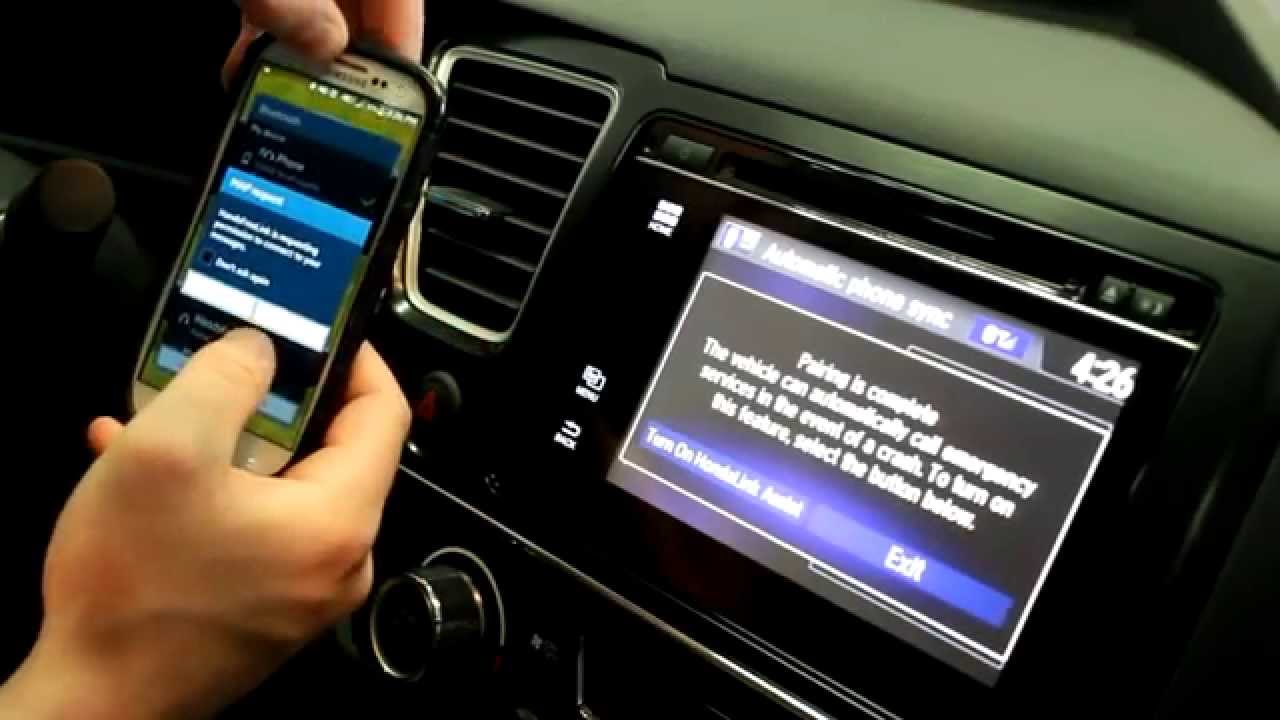
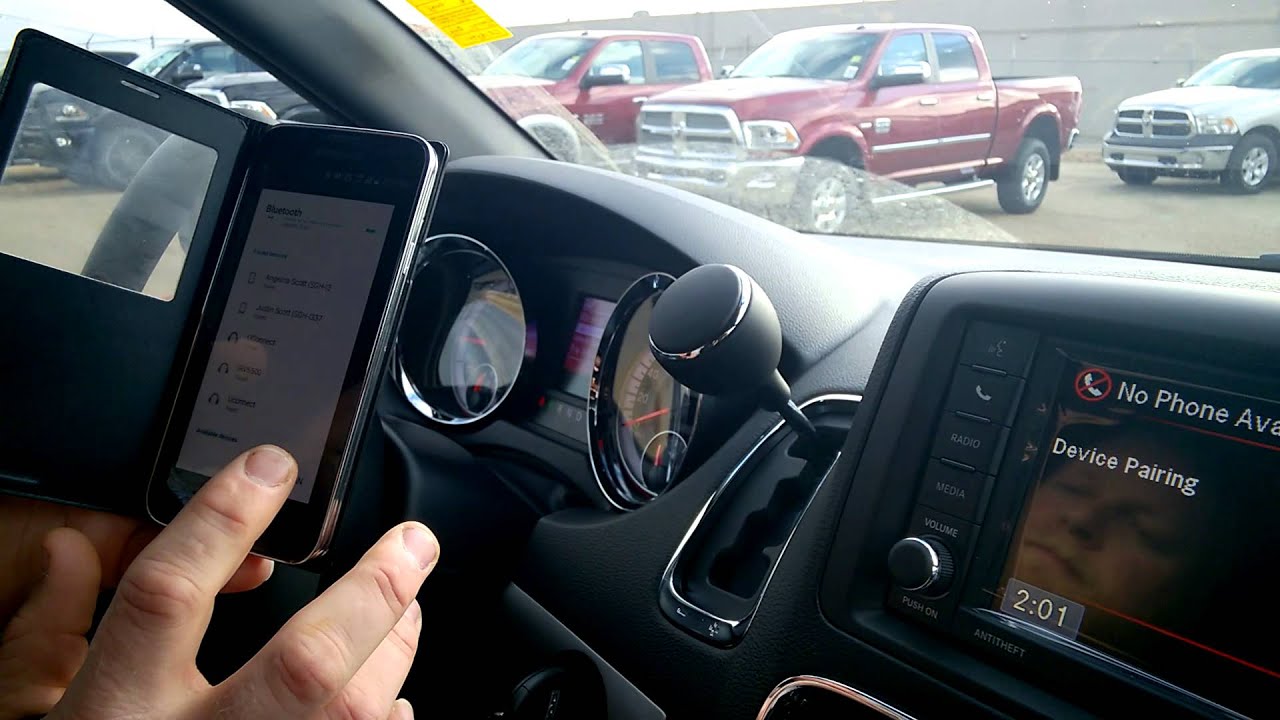
- On the Honda touchscreen, press the "Home" button, then select "Phone," and then "Pair Phone" or "Add New Device."
- Your Honda's Bluetooth system will become discoverable and display a pairing code on the screen.
- On your phone, go to Bluetooth settings, select your Honda (often listed as "HandsFreeLink" or the model name), and confirm the pairing code on both devices to complete the connection.
Once paired, HandsFreeLink enables hands-free calls, music streaming, and text message readouts. If your car lacks Bluetooth or you want a simpler wireless audio solution for older vehicles, FM transmitters for cars can stream music through an unused radio frequency.
Connect with Apple CarPlay (wired and wireless)
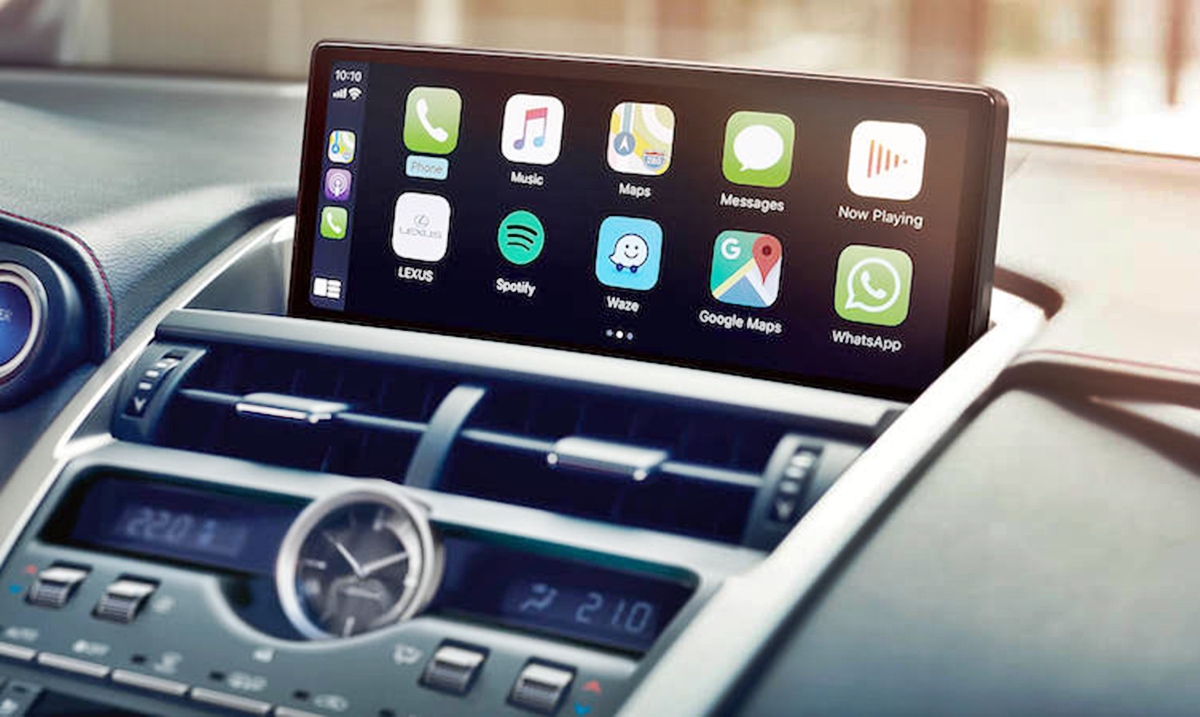
Apple CarPlay mirrors your iPhone's apps for navigation, calls, messages, and music on the CR-V's display.
Wired Apple CarPlay requirements and setup
- Ensure Siri is enabled on your iPhone (Settings > Siri & Search).
- Use an Apple Lightning to USB cable to connect an iPhone 5 or later to a CarPlay-labeled USB port in the CR-V.
- Accept prompts on your phone for connection and grant necessary permissions for features like contacts and messages.
Wireless Apple CarPlay setup (select newer CR-V models)
On compatible models such as the 2025 CR-V, enable Bluetooth and Wi-Fi on your iPhone. On the CR-V display, go to "Smartphone Connection," "Apple CarPlay," and "+ Connect New Device," or press and hold the steering wheel's talk button. For wireless Apple CarPlay, press and hold the steering wheel's (talk) button as an alternative to the touchscreen menu.
Connect with Android Auto (wired and wireless)
Android Auto brings Google Maps, music, messaging, and other apps to your CR-V's screen.
Wired Android Auto requirements and setup
- Your phone needs Android 6.0 (Marshmallow) or newer. Android 10 or later has Android Auto built-in, requiring no separate app download.
- Use a data-capable USB cable (not charge-only) to plug your Android phone into the CR-V's USB port.
Wireless Android Auto setup (select newer CR-V models)
Wireless Android Auto is available on select 2022 and newer Honda models, including 2023 and newer CR-V. Your phone must run Android 11 or later and support 5 GHz Wi-Fi, with both Bluetooth and Wi-Fi enabled.
Troubleshooting Honda CR-V phone connection problems
Phone not appearing during pairing
Ensure the Honda is actively in pairing mode (e.g., "Phone > Pair Phone" on the touchscreen) and restart your phone.
Calls or contacts not working after Bluetooth pairing
You may have declined permissions during setup. Forget the device on your phone and re-pair, ensuring all permissions for contact and call log access are granted.
Apple CarPlay and Android Auto cannot run simultaneously
The CR-V supports only one smartphone integration platform at a time. Disconnect one phone or switch cables to use the other system.
USB connection not recognized
When using a USB cable, set your phone to MTP (Media Transfer Protocol) mode for proper recognition by the car's system.
Persistent connectivity issues
If connectivity issues persist, restart the infotainment system by turning off the engine, waiting a few minutes, and starting the car again. Move away from potential sources of interference like other electronic devices or radio transmitters if experiencing connectivity issues. Check for software updates for both your phone and Honda CR-V's infotainment system to address connectivity issues.
Frequently Asked Questions
Can I connect multiple phones to my Honda CR-V at the same time?
Yes, the HandsFreeLink system can store up to six paired devices, but only one phone can be actively connected for hands-free calling at a time. Only one phone can be actively connected at a time for hands-free calling.
Why does my iPhone connect for Bluetooth but not for CarPlay?
CarPlay requires a wired USB connection (or wireless on compatible models) and Siri enabled. If using a cable, ensure it is an Apple Lightning cable plugged into a CarPlay-labeled USB port.
Do I need to download an app for Android Auto on my CR-V?
If your phone runs Android 10 or later, Android Auto is built-in and requires no separate app.
How do I disconnect my phone from the CR-V?
You can turn off Bluetooth on your phone, or on the CR-V display go to Settings > Phone or Bluetooth, select the connected device, and choose "Disconnect" or "Remove Device."
Can I use a third-party USB cable for Android Auto?
Yes, but the cable must be data-capable, not charge-only. A high-quality, short USB cable is recommended for reliable Android Auto performance.
Related reading: How To Connect Phone To Subaru.