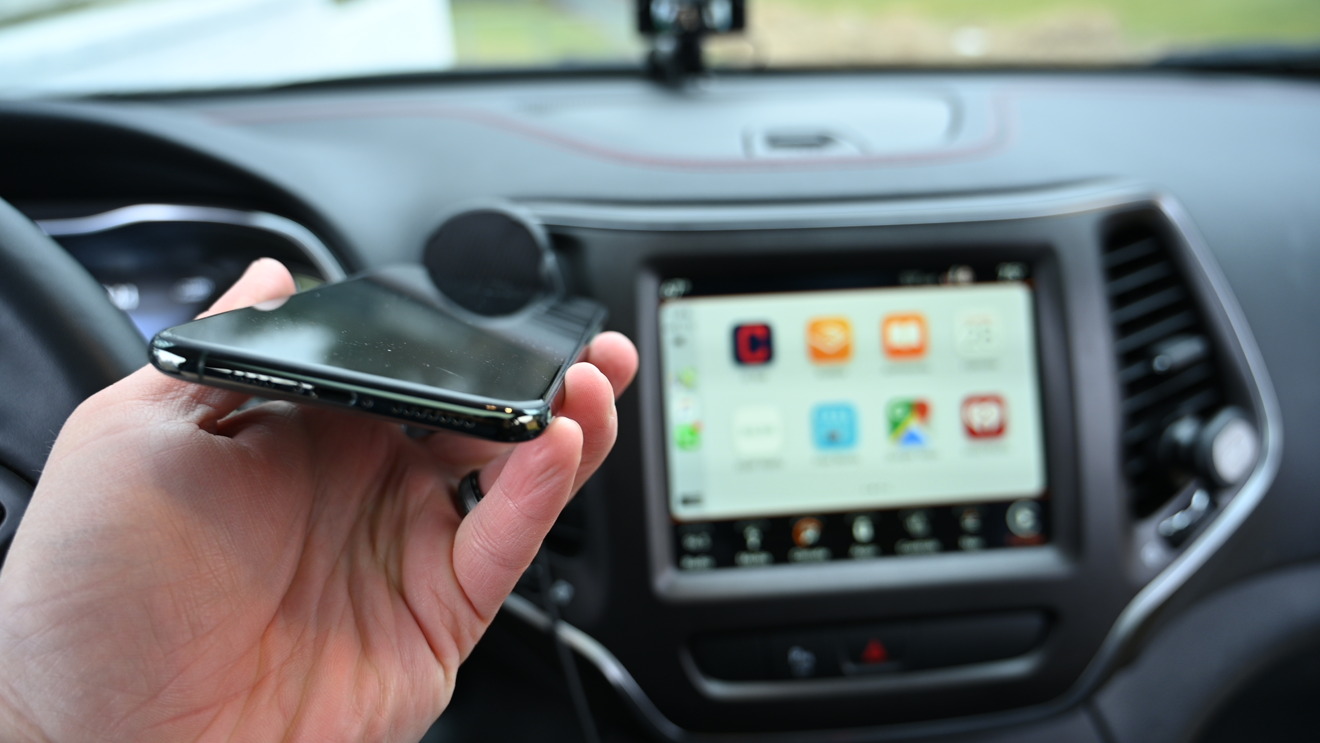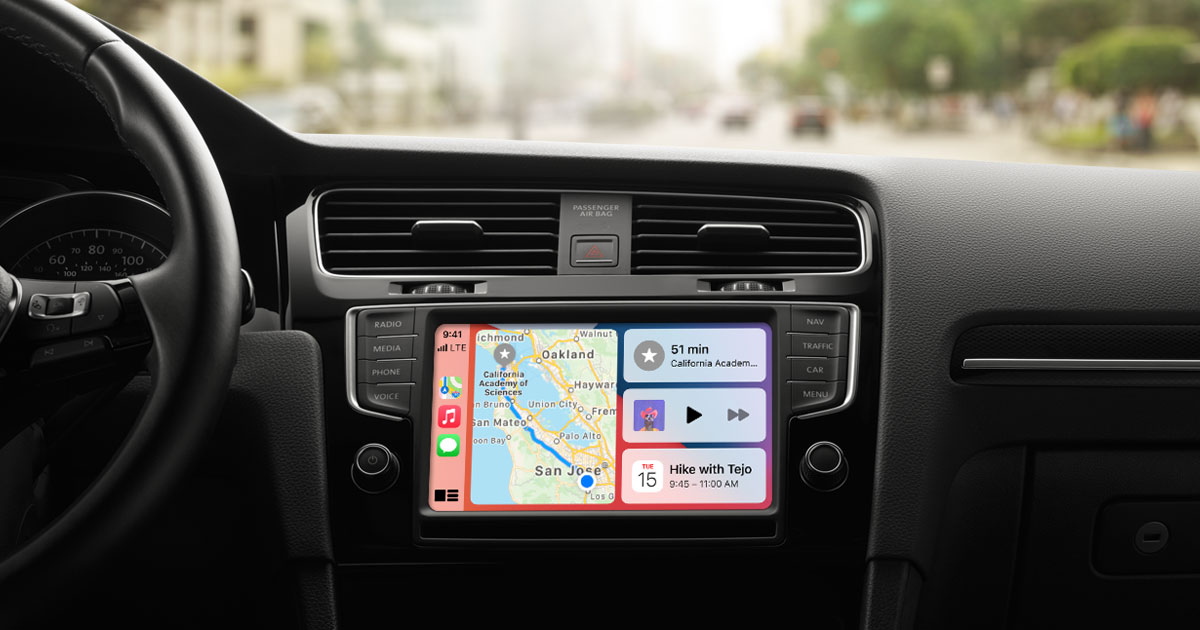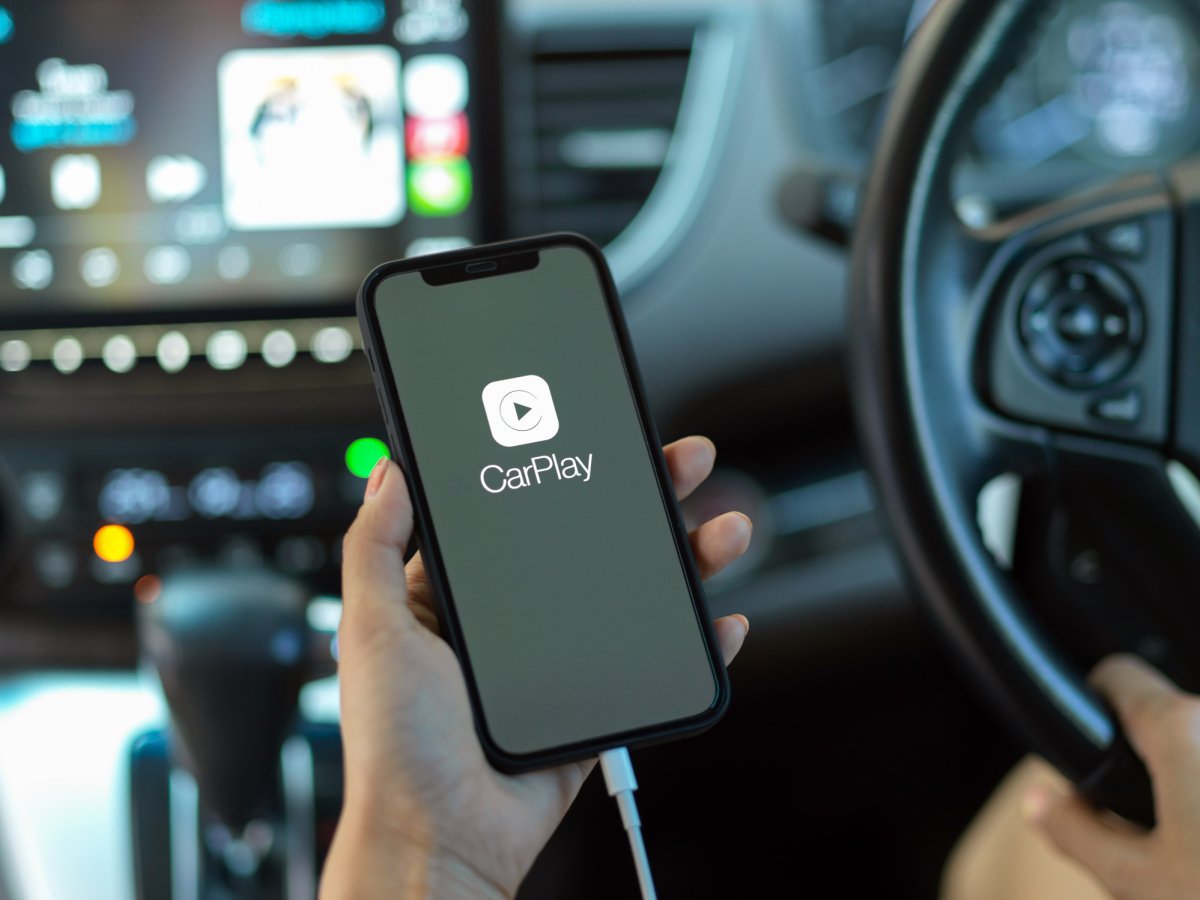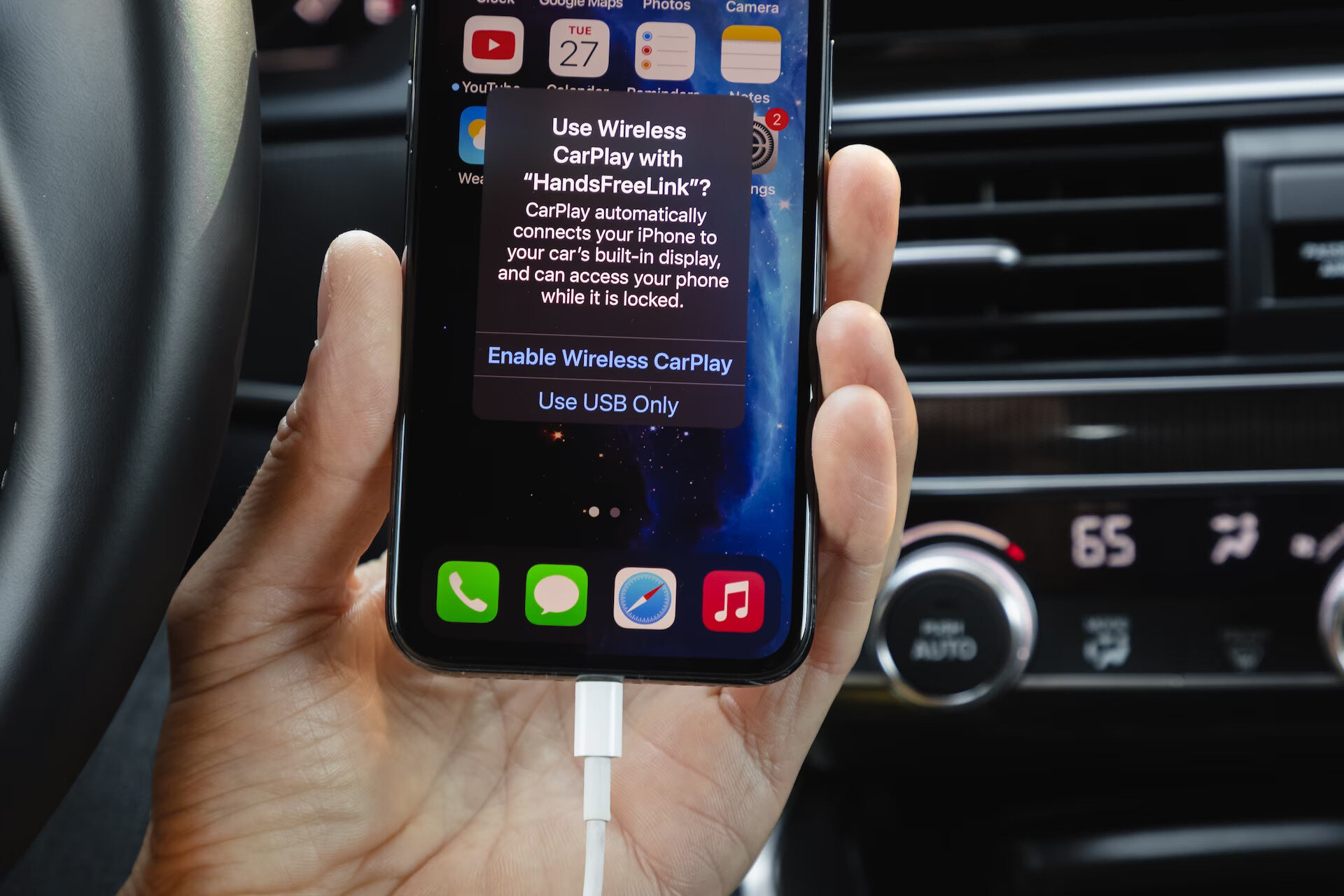
To use wireless CarPlay, start your car and set the stereo to wireless or Bluetooth mode, then press and hold the voice command button on the steering wheel if your car supports only wireless CarPlay. On your iPhone, go to Settings > Wi‑Fi, tap the CarPlay network, enable Auto-Join, then go to Settings > General > CarPlay and select your car.
What is wireless CarPlay?
Wireless CarPlay is Apple’s in-car system for using an iPhone over a wireless connection instead of a USB cable. Key benefits include hands-free calls, no cable clutter, and seamless access to navigation, music, messaging, and other apps through your car’s infotainment display. Wireless CarPlay allows multiple iPhones to connect simultaneously, letting both driver and passengers enjoy personalized experiences.
How to use wireless CarPlay
Apple’s documented setup steps are straightforward:
- Start the car and make sure the stereo is in wireless or Bluetooth mode.
- On iPhone, go to Settings > Wi‑Fi and turn Wi‑Fi on.
- Tap the CarPlay network and make sure Auto-Join is turned on.
- Go to Settings > General > CarPlay and select your car.
- If needed, on Settings > General > CarPlay > Available Cars, choose your car.
Once paired, your iPhone should connect automatically on future drives.
Which iPhones support wireless CarPlay?
Apple’s CarPlay page lists supported iPhone models: iPhone 16 family, iPhone 15 family, iPhone 14 family, iPhone 13 family, iPhone 12 family, iPhone 11 family, iPhone X, iPhone 8, iPhone 7, iPhone 6s, and iPhone SE (1st generation).
What if my car supports both USB and wireless CarPlay?
Apple says that if you first connect by USB in a car that supports wireless CarPlay, the iPhone may offer to connect wirelessly on future drives. This makes the initial USB pairing a convenient way to enable wireless connections later.
iPhone settings you need for wireless CarPlay
Apple documents these iPhone settings for wireless use:
- Settings > Wi‑Fi, Wi‑Fi must be on, and Auto-Join should be enabled for the CarPlay network.
- Settings > Bluetooth, Bluetooth must be turned on for the wireless connection to work.
- Settings > General > CarPlay, Select your car here after pairing.
- Settings > General > CarPlay > Available Cars, Choose your car if it doesn’t appear automatically.
For a wireless connection, both Wi‑Fi and Bluetooth must be active. No special app or carrier setup page is needed.
Frequently Asked Questions
How do I start the setup if my car only supports wireless CarPlay?
Apple’s setup flow uses the steering-wheel voice command button when the car supports only wireless CarPlay. Press and hold that button, then follow the steps in Settings > Wi‑Fi and Settings > General > CarPlay.
Does wireless CarPlay work with Android phones?
No. Apple documents iPhone support only for CarPlay. Android devices cannot use CarPlay, though some cars offer Android Auto as a separate system.
What is the price of wireless CarPlay?
The feature is included in supported iPhones and compatible cars.
Can I use Ford Sync and car Bluetooth pairing with wireless CarPlay?
Ford Sync and car Bluetooth pairing are separate systems. Wireless CarPlay uses its own Wi‑Fi and Bluetooth connection, so you would set it up through the iPhone’s CarPlay settings rather than through Ford Sync or standard Bluetooth pairing.
Why won’t my iPhone connect to wireless CarPlay?
Check that Wi‑Fi and Bluetooth are both on, that Auto-Join is enabled for the CarPlay network, and that your car’s stereo is in wireless or Bluetooth mode. If you previously connected by USB, the iPhone may need to be prompted to switch to wireless. Wireless CarPlay may consume more iPhone battery compared to using a USB cable connection. The wireless connection range can vary by car and iPhone model; staying within reasonable proximity to the car is recommended for a reliable connection. Not all CarPlay apps may be fully optimized for wireless CarPlay, so some features may be limited or unavailable.
Related reading: How To Make Carplay Wireless and Apple CarPlay Not Working? Here Are 13 Easy Ways to Fix It.