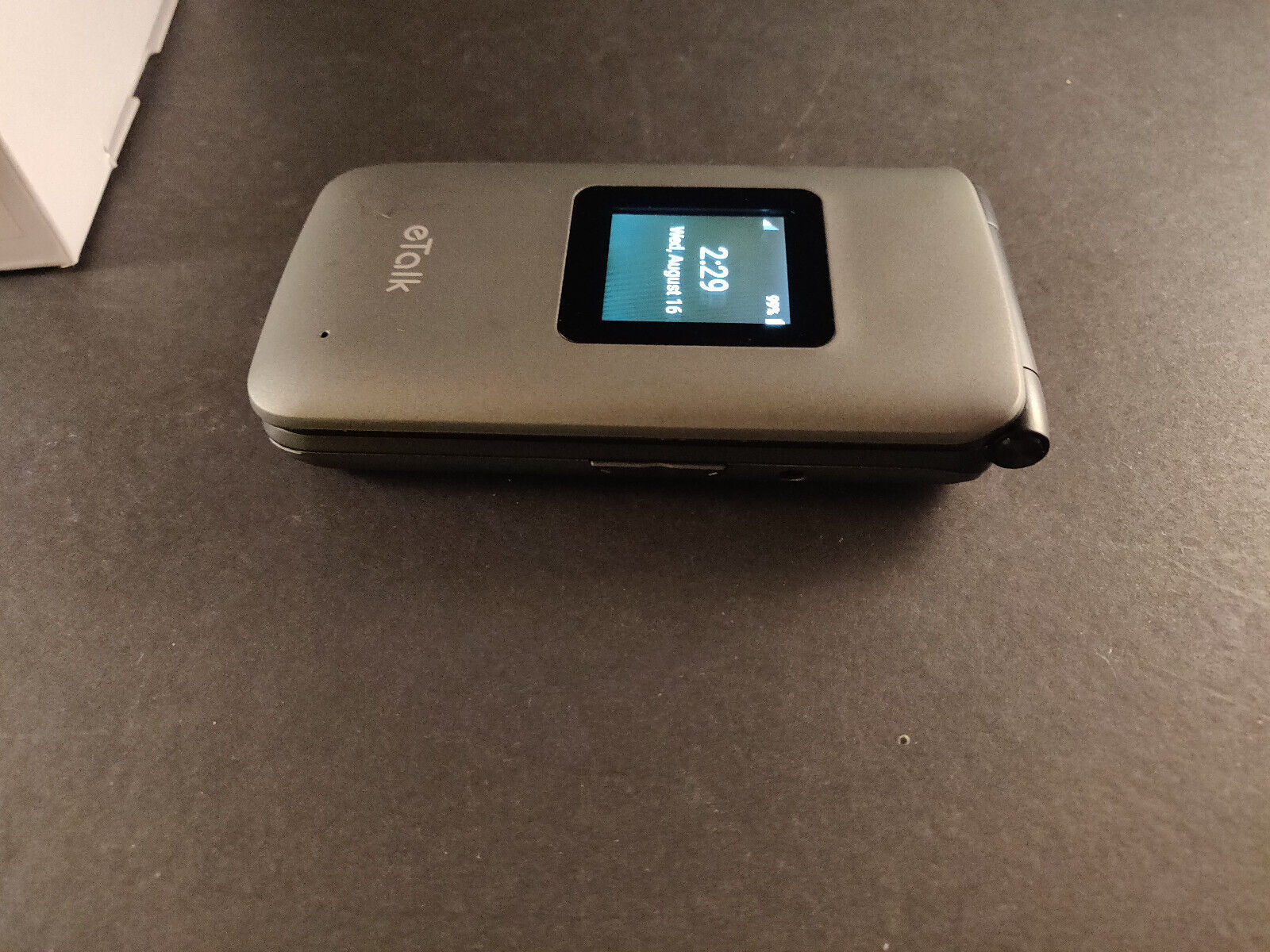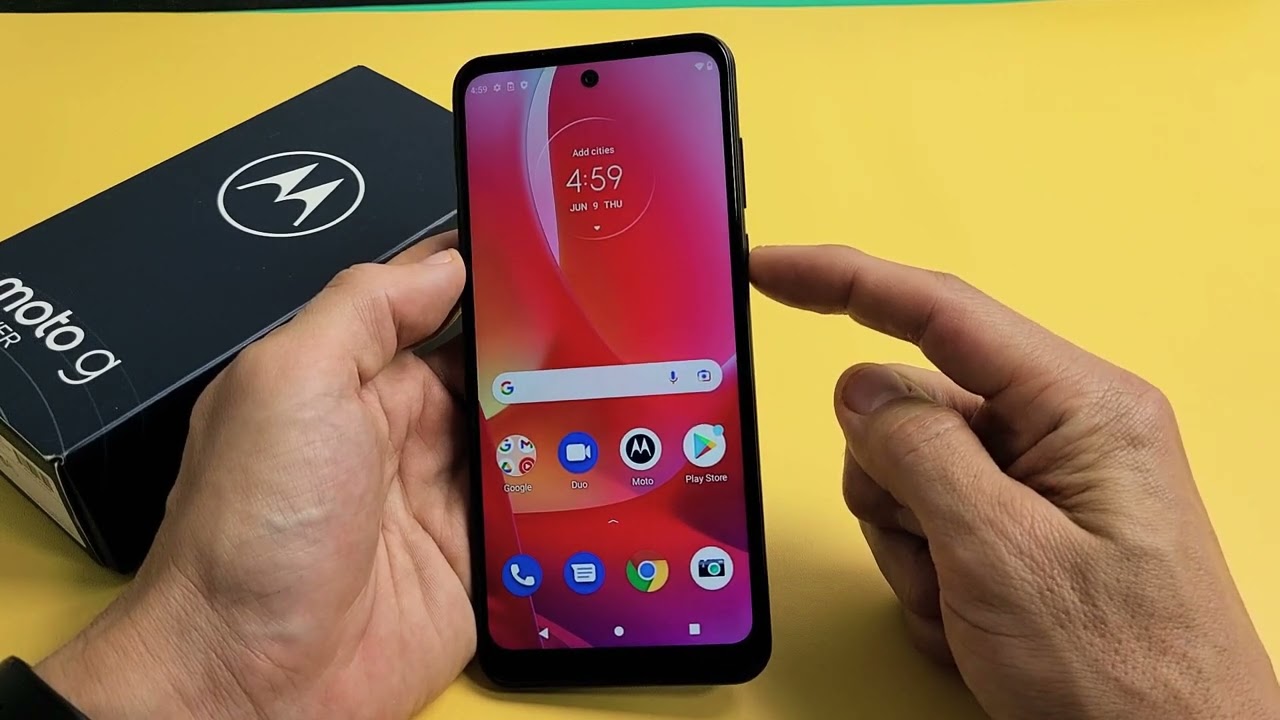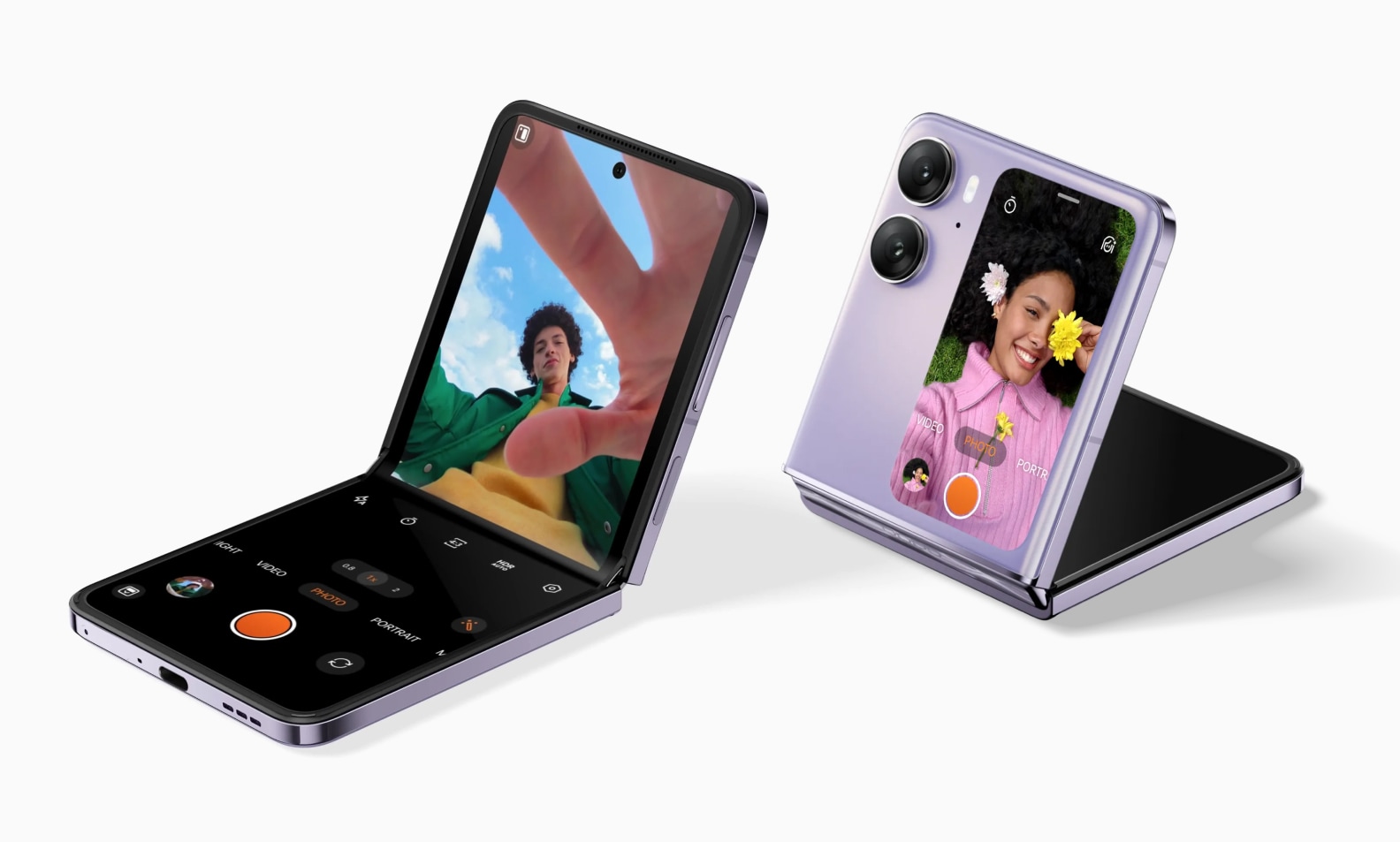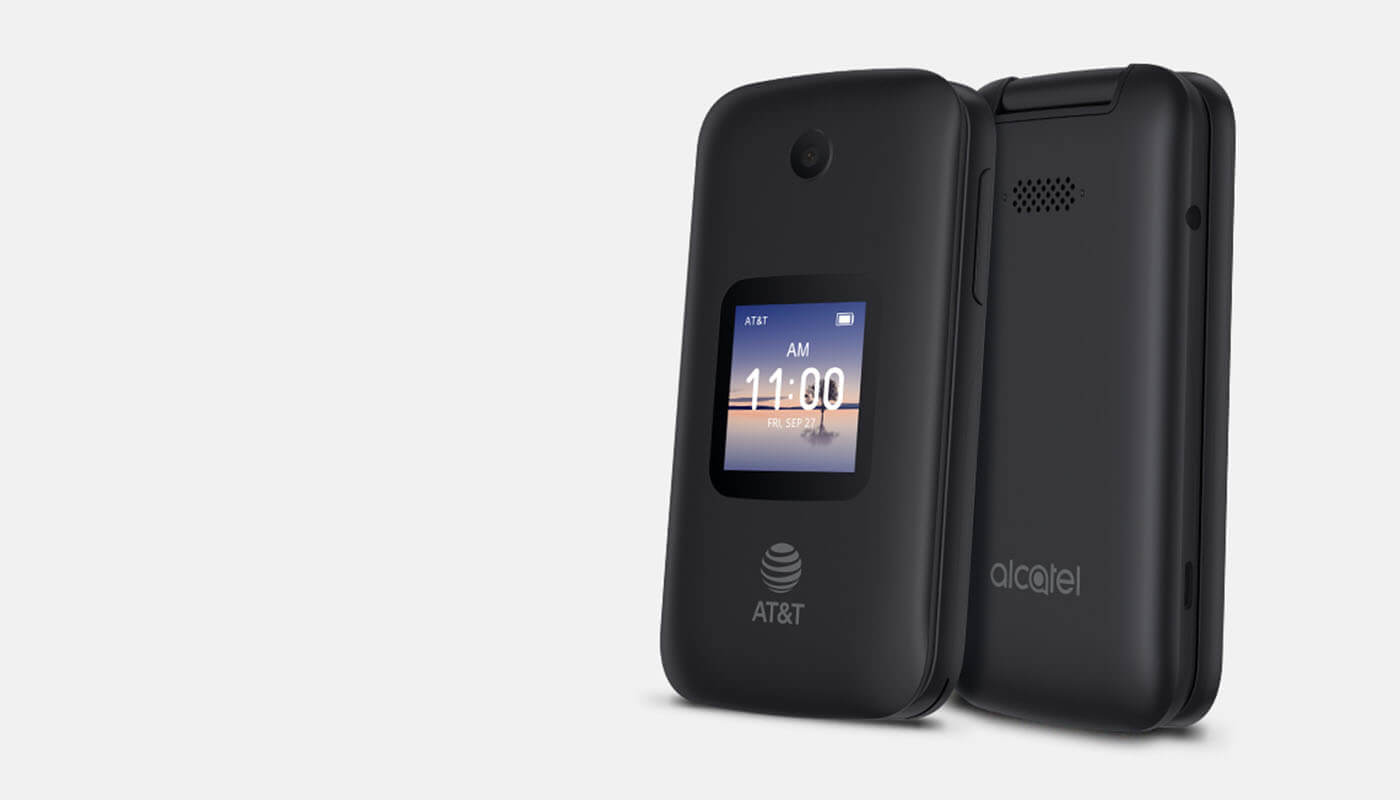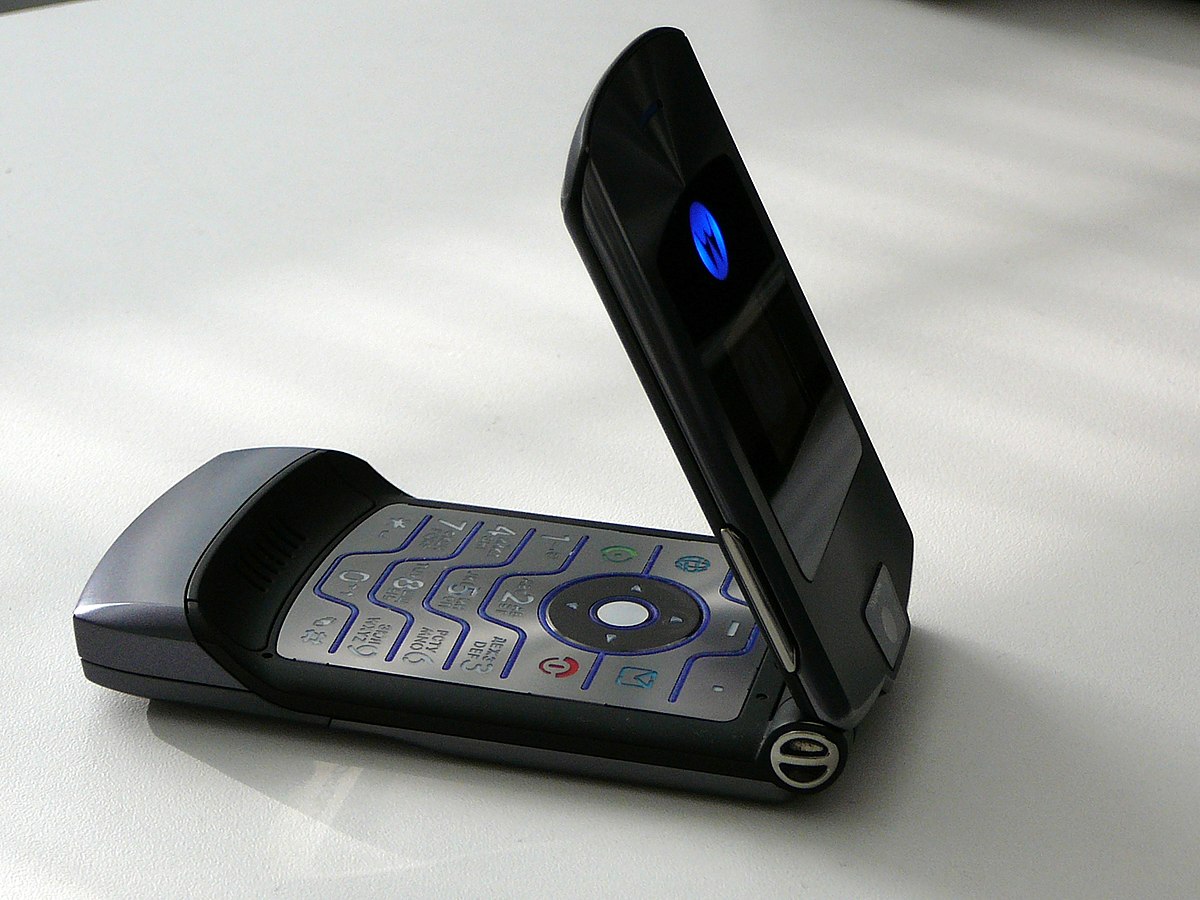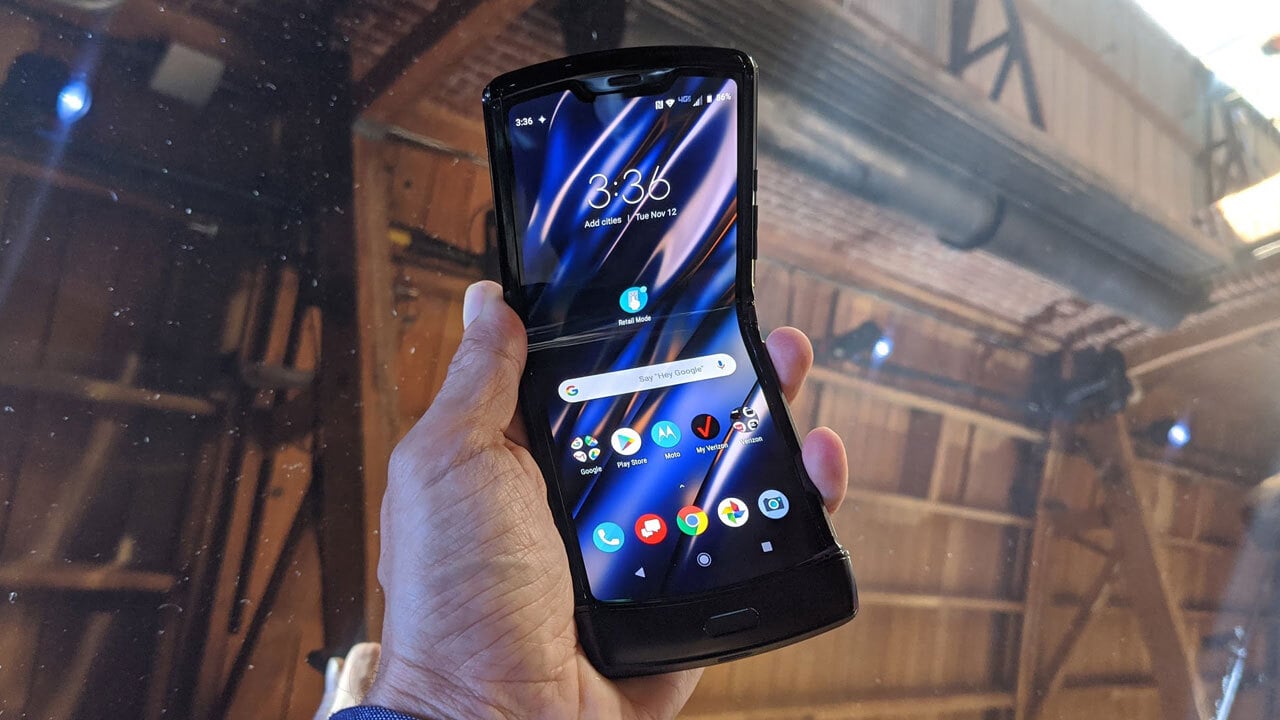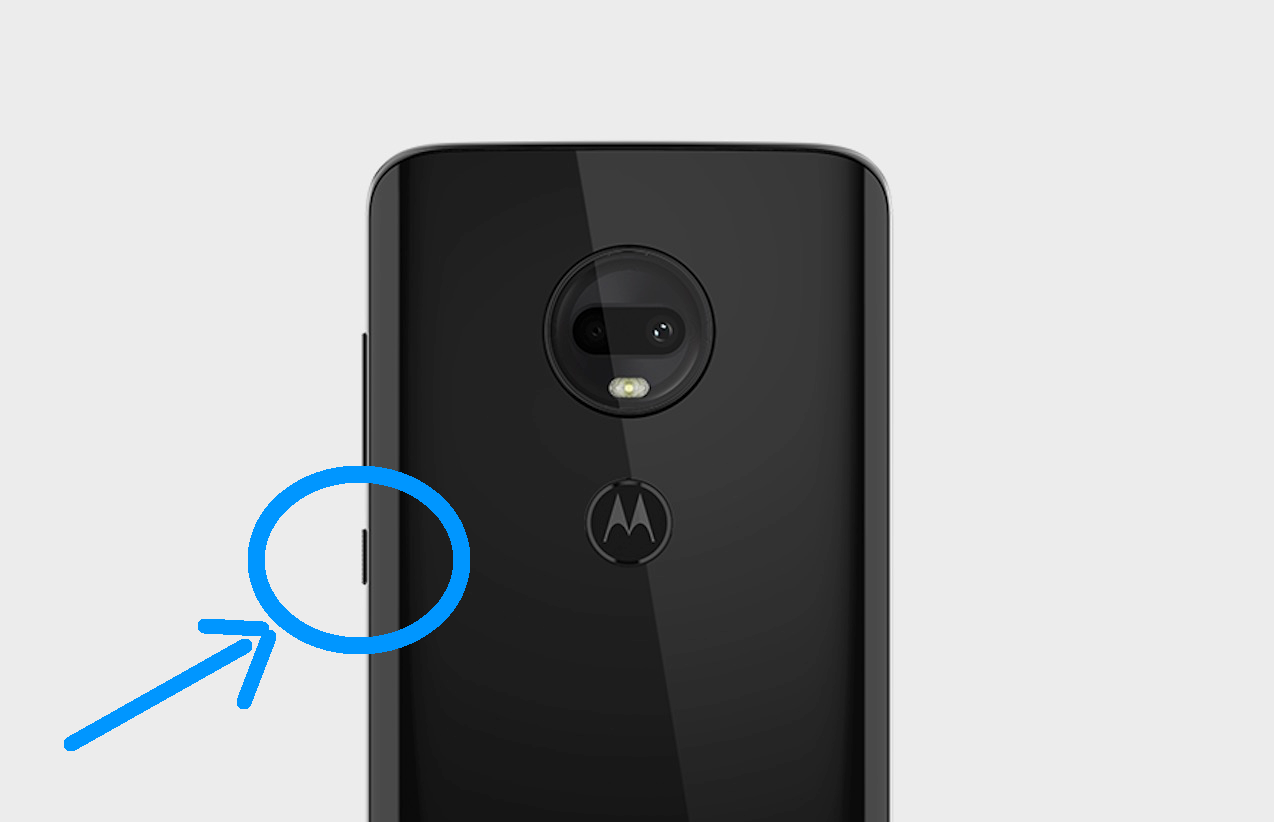
To turn on a Motorola phone, press and hold the Power button located on the side or top of the device for 5-7 seconds until the Motorola logo appears and the phone vibrates. This is the standard method for powering on any Motorola model, whether you need to turn on a Motorola Razr flip phone or a Moto G series device.
How to turn on your Motorola phone
- Locate the Power button on the side or top of your Motorola phone.
- Press and hold the Power button for 5-7 seconds.
- Release the button when the Motorola logo appears on the screen and the phone vibrates.
- Wait for the phone to complete its startup process before using it.
What to do if your Motorola phone won't turn on
If your Motorola phone does not respond when you press the Power button, follow these troubleshooting steps in order:
- Check for a white LED light near the top front of the phone. This indicates the phone is charging but the battery is too low to power the screen.
- Plug the phone into a manufacturer-approved wall charger. Using third-party chargers may not work to recover a device that is in a no-power state; always use the included wall charger for best results.
- Allow 1-2 minutes for the LED indicator to glow solid amber or red, which signifies the phone is charging.
- If the LED does not light up after 1-2 minutes, try a different power outlet or check the charger connection.
How to restart an unresponsive Motorola phone
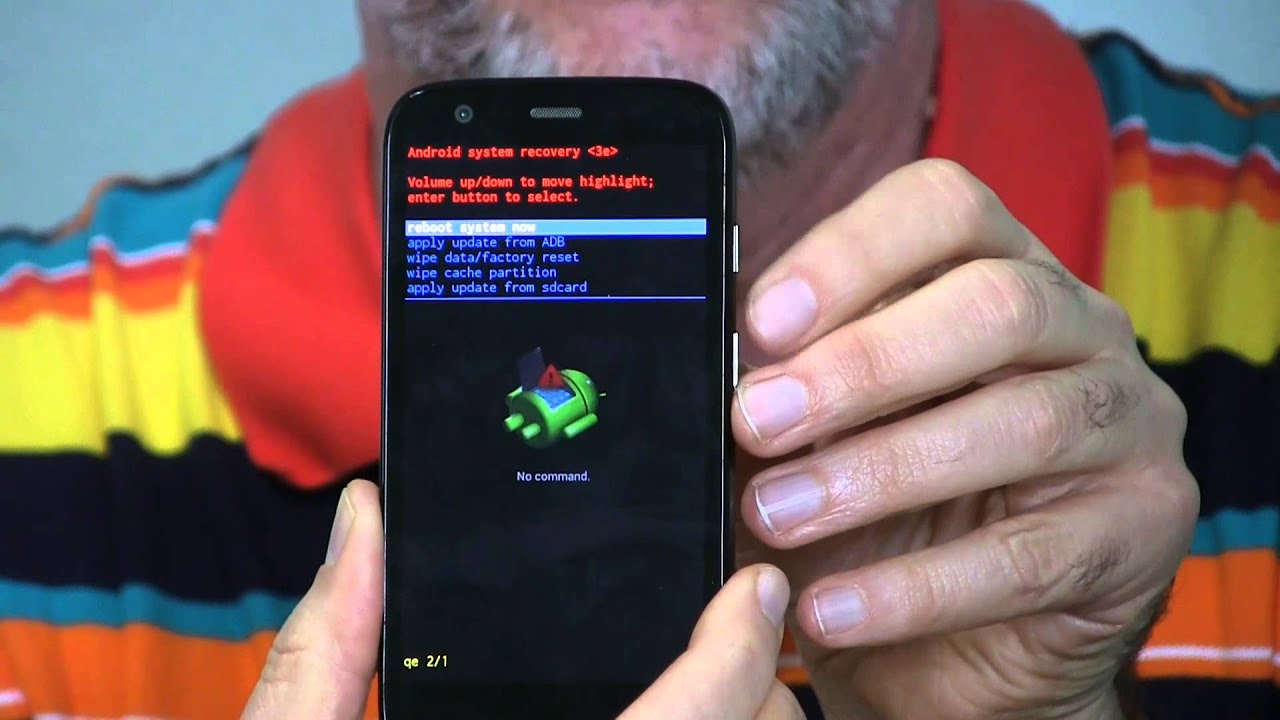
If your Motorola phone has a black or frozen screen and won't respond to normal button presses, you can force a restart. Press and hold the Power button for up to 30 seconds to restart the device. If the phone still does not respond while connected to the charger, press and hold the Power button and Volume Down button simultaneously for 1-2 minutes. This combination can help unfreeze a Motorola phone that is stuck on a black screen.
How to tell if the screen is the problem
If your Motorola phone rings when called from another device but the display stays black, the issue is likely with the screen, not the power system. In this case, the phone is receiving power and functioning, but the display has failed. Contact Motorola support for screen repair or replacement options.
Unlock your Motorola phone and get started
After powering on, you will need to unlock the device to access its features. Enter your passcode, pattern, PIN, or use fingerprint or facial recognition to unlock the phone. Once unlocked, you can navigate the home screen, app drawer, and settings. The home screen displays app icons, widgets, and wallpapers. Swipe left or right to access additional home screens. To open an app, tap its icon. To find all installed apps, swipe up or down to open the app drawer. Access settings by tapping the gear icon in the notification panel or app drawer, where you can customize Wi-Fi, display, sound, and other options.
Frequently Asked Questions
How do I turn on my Motorola phone without the power button?
Some Motorola models offer alternative methods such as double-tapping the screen or using gestures to wake the device. Check your phone's user manual or settings menu to see if this feature is available for your specific model.
Can I insert a SIM card before or after turning on the phone?
A SIM card can be inserted either before or after the initial phone setup. If you insert it after setup, the phone will detect the new SIM and prompt you to configure it.
How long should I charge a completely dead Motorola phone before it turns on?
The white LED indicates charging, and the solid amber or red LED confirms the battery has enough charge to boot.
What should I do if my Motorola phone turns on but the screen stays black?
If the phone vibrates or makes sounds but the screen remains black, the issue is likely with the display. Try pressing and holding the Power button for up to 30 seconds to force a restart. If the screen stays black after restarting, contact Motorola support for screen repair.
How do I restart my Motorola phone normally?
Press and hold the Power button until the power menu appears on the screen, then tap "Restart" or "Reboot." Wait for the phone to turn off and automatically restart.
Related reading: How To Turn On ETalk Flip Phone.