






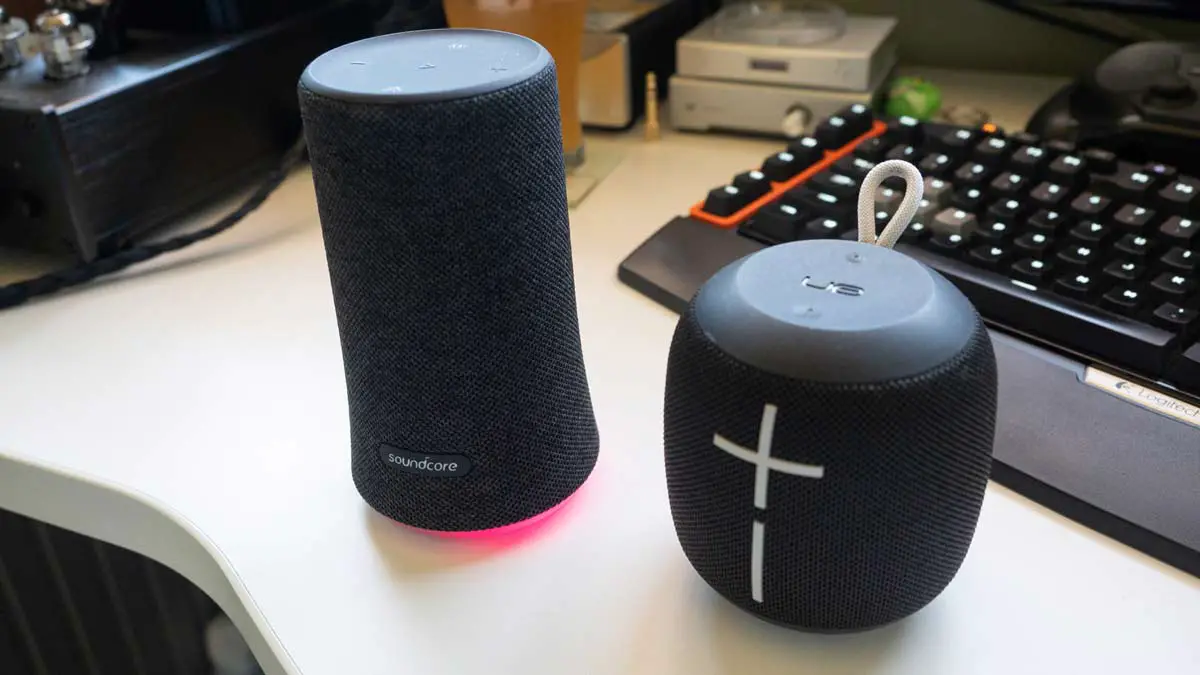
To link two Bluetooth speakers together, you need to use a brand-specific proprietary technology rather than standard Bluetooth pairing. This allows you to create a multi-speaker Bluetooth setup for louder sound, stereo separation, or synchronized audio across a room.
Why link two Bluetooth speakers together?
Linking two speakers transforms your listening experience. A stereo pair separates left and right channels for a more immersive soundstage. For parties, two speakers produce greater volume and fill a larger space than one alone. Some setups let you place speakers in different rooms for synchronized multi-room audio, so the music follows you throughout the house.
The key requirement: proprietary technology, not just Bluetooth
Standard Bluetooth only connects one speaker to a phone at a time. To link two speakers, both must support the same brand-specific protocol. JBL uses PartyBoost or Connect+, Sony uses Wireless Party Chain or Party Connect, Ultimate Ears uses PartyUp, and Bose uses SimpleSync or Party Mode. Phone-level features like Samsung Dual Audio or iPhone Bluetooth sharing are not the same, they send audio to two speakers but often lack synchronization and stereo control. Bluetooth 5.0 can theoretically connect more devices, but manufacturers limit active connections to maintain stability and battery life.
How to link JBL speakers with PartyBoost or Connect+
- Download the JBL Portable app on your phone.
- Turn on both JBL speakers and ensure they are within 30 feet of each other.
- On each speaker, press the PartyBoost or Connect+ button (the button with an infinity symbol or two overlapping arrows).
- Open the JBL Portable app and follow the on-screen prompts to link the speakers. The app lets you assign one as left and the other as right for stereo, or play both in mono for louder volume.
How to link Sony speakers with Party Connect or Wireless Party Chain
- Connect the first Sony speaker to your phone via Bluetooth.
- On that first speaker, press the WPC (Wireless Party Chain) button or the PARTY button (depending on the model).
- On each additional Sony speaker, press the same button. The speakers will automatically link and play the same audio.
- For more control, open the Sony Music Center app to adjust volume levels or create a stereo pair if the speakers support it.
How to link Bose speakers with SimpleSync or Party Mode
- Open the Bose Music app on your phone.
- Select a compatible Bose smart speaker or soundbar from the app.
- Tap the Group button.
- Add other available Bose Bluetooth products or smart speakers from the list. SimpleSync lets you pair a portable speaker with a soundbar for TV audio, while Party Mode synchronizes music across multiple speakers.
How to link Ultimate Ears speakers with PartyUp
- Download the Ultimate Ears app and turn on all compatible speakers. PartyUp works with Wonderboom, Boom, or Megaboom models.
- In the app, tap PartyUp and follow the prompts to add speakers.
- Choose between stereo mode (left/right channels) or party mode (all speakers play the same audio).
A special case: creating a stereo pair with Apple HomePod
Apple HomePod speakers do not use Bluetooth for pairing. Instead, they rely on AirPlay 2 over Wi-Fi. To create a stereo pair, you need two HomePods of the same model (both HomePod mini or both full-size HomePod). Open the Apple Home app, assign both speakers to the same room, then select Create Stereo Pair. This gives true left/right separation, but it only works with Apple devices and a stable Wi-Fi network.
Troubleshooting when your speakers won't link
- Check firmware updates: Open the brand's app (JBL Portable, Sony Music Center, Bose Music, or Ultimate Ears) and look for firmware updates. Outdated software can prevent linking.
- Verify the same protocol: Both speakers must use the same technology. For example, a JBL speaker with PartyBoost cannot link to one with Connect+ (the older standard). Check the product specifications or box for the correct label.
- Power cycle both speakers: Turn them off, wait 10 seconds, and turn them back on. This clears temporary connection errors and resets Bluetooth buffers.
- Keep speakers close: During the initial pairing, place them within 3 feet of each other. Once linked, they can be moved farther apart, but obstacles like walls can weaken the signal.
Frequently Asked Questions
Can I link two Bluetooth speakers from different brands?
No, because each brand uses its own proprietary protocol. JBL speakers cannot link with Sony speakers, and Bose speakers cannot link with Ultimate Ears speakers. You must use two speakers from the same brand that support the same technology.
Will linking two speakers drain battery faster?
Yes, because both speakers play audio simultaneously. However, the battery drain is the same as using each speaker independently, the total playback time does not change for each unit.
Can I link more than two speakers?
Yes, many brands allow linking multiple speakers. Check your speaker's manual for the exact limit.
Do I need a special app to link speakers?
For most brands, yes. JBL requires the JBL Portable app, Sony uses the Sony Music Center app, Bose uses the Bose Music app, and Ultimate Ears uses the Ultimate Ears app. The app provides controls for stereo mode, volume, and grouping.

















