Cellular data is the mobile internet connection your phone uses through your carrier’s network instead of Wi‑Fi. It works by connecting your device to nearby cell towers that transmit and receive radio signals, allowing you to browse the web, stream media, and use apps wherever you have coverage.
What is cellular data?
Cellular data is the technology that lets your smartphone access the internet over your mobile carrier’s network. It is distinct from Wi‑Fi, which covers a limited area through a local router. With cellular data, you stay connected as long as you are within range of your carrier’s cell towers. These towers, also called cells, each cover a specific geographical area and overlap to provide seamless connectivity as you move.
How to turn cellular data on or off on your iPhone
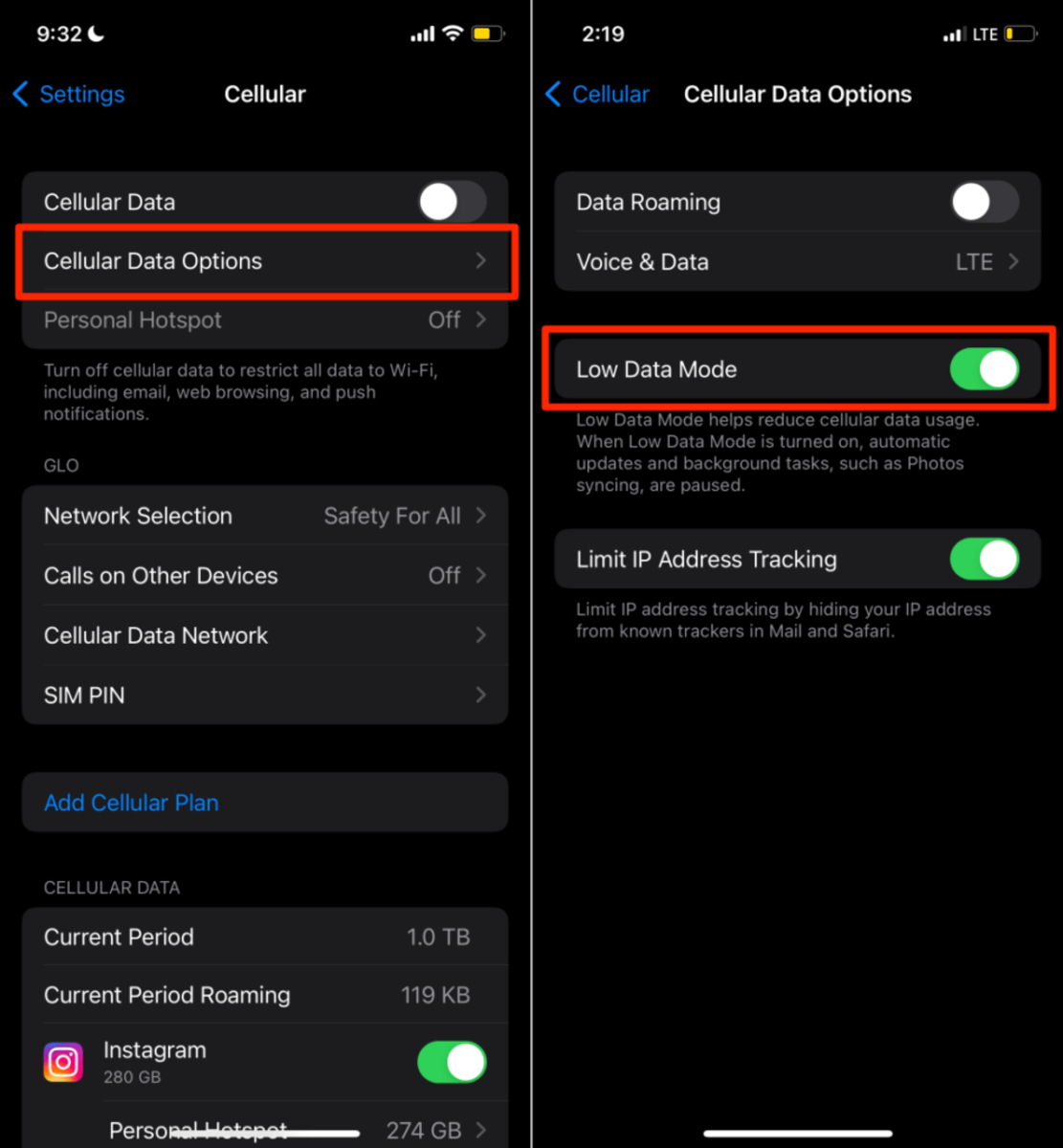
You can control your iPhone’s cellular data connection directly from the settings. To turn cellular data on or off, go to Settings > Cellular > Cellular Data. If your iPhone uses multiple SIMs, the same path applies: Settings > Cellular > Cellular Data. On an iPad, this setting may appear as Settings > Cellular Data instead. On iPhone, you can download third-party data-monitoring apps like DataMan and MobiStats from the App Store.
How to manage cellular data usage on Android
Android devices give you tools to monitor and limit your data consumption. To see which apps are using data and to set restrictions, open Settings > Data usage > Cellular data usage. From here, you can review app-by-app usage, set data limits, and restrict background data for individual apps to prevent them from using data when you aren’t actively using them. On Android, you can use third-party data-monitoring apps like Google's Datally and GlassWire by Secure Mix LLC from the Google Play Store.
Understanding data plans and roaming
Your data plan determines how much cellular data you can use each month. Limited plans cap your data at a set number of gigabytes, while unlimited plans remove that cap but may slow your speed after you reach a certain threshold, a practice called throttling. To check your plan status on Android, go to Settings > Google > Device plans; your plan status appears at the top. Some carriers let you check data consumption by dialing a code on your phone to receive usage stats via text message.
Data roaming lets you stay connected when you are outside your carrier’s coverage area, but it can lead to extra charges. On an iPhone, you can control roaming by going to Settings > Cellular > Cellular Data Options and toggling data roaming on or off. It is best to leave roaming off unless you are traveling and have a plan that includes it.
What uses cellular data in the background?
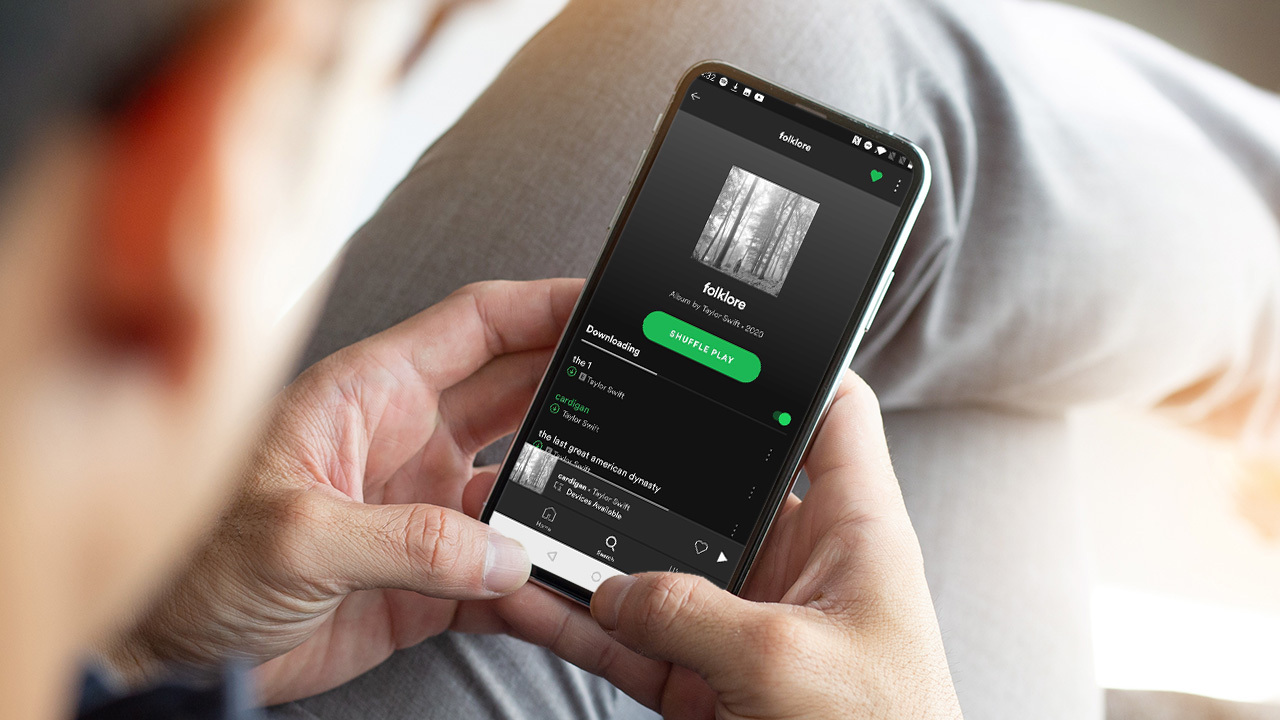
Many apps and system services continue to use cellular data even when you are not actively using them. Google Play services, for example, may use mobile data multiple times a day when your device is not connected to Wi‑Fi, and this background activity cannot be fully turned off. The amount used depends on how often you connect to Wi‑Fi, your device and account settings, and other factors. On an iPhone, you can control which apps and services use cellular data from the Cellular settings page, where you can disable background data for specific apps. On Android, you can restrict background data for individual apps under Settings > Data usage > Cellular data usage. Streaming or downloading a song typically uses around 3 to 5 MB of data. Streaming video or movies can use around 1.5 GB of data per hour. Using your phone for navigation consumes about 600 KB of data per minute on average. Sending an email can use between 20 KB to 2 MB of data depending on attachments. General web browsing for an hour may use around 10 to 25 MB of data if sites are not image-heavy. Browsing and refreshing a social media feed can use 0.2 to 1.5 MB of data per minute. Posting a text-only status or tweet uses only a few kilobytes of data.
Simple tips to minimize your data usage
If you want to stretch your data plan further, a few small changes make a big difference. Turn off video autoplay in social media apps like Facebook, Instagram, and Twitter to prevent videos from playing automatically and consuming data. Download music, videos, and other media while connected to Wi‑Fi at home so you can enjoy them offline later. You can also disable cellular access for specific apps in your phone’s settings, preventing them from using mobile data at all. Managing cellular data settings this way helps you stay in control of your usage and avoid unexpected overage charges.
Frequently Asked Questions
Does using Wi‑Fi use my cellular data?
No. Wi‑Fi and cellular data are independent connections. When you are connected to Wi‑Fi, your phone uses that network for internet access and does not consume your cellular data plan.
What happens when I run out of cellular data on a limited plan?
Once you reach your plan’s data cap, your carrier may stop your data access, charge overage fees, or slow your speed significantly. Check your carrier’s policy to know exactly what happens when you exceed your limit.
Can I see which apps use the most cellular data?
Yes. On iPhone, go to Settings > Cellular to see a list of apps and their data usage. On Android, go to Settings > Data usage > Cellular data usage to view the same information.
Does turning off cellular data stop all internet access?
Turning off cellular data only disconnects your phone from your carrier’s mobile network. You can still access the internet if you are connected to a Wi‑Fi network.
Why does my phone use data even when I am not using it?
Many apps and system services, such as Google Play services, run background tasks that require data. These include checking for updates, syncing emails, and refreshing content. You can reduce this by restricting background data for specific apps in your settings.
Is data roaming the same as cellular data?
No. Cellular data is your standard mobile internet connection. Data roaming is a feature that lets you use cellular data when you are outside your carrier’s home coverage area, often at additional cost.
Related reading: What Is Data Charging?.