To block a phone number on Xfinity Voice, you have three main options: dial *60 from your home phone, use the Xfinity Voice website, or manage blocked numbers through the Xfinity Call Guard app. For any number you block, you must include the area code to ensure the block works correctly for both local and long-distance calls.
Access your Xfinity Voice call blocking settings
You can sign in to the Xfinity Voice Call Blocking Settings page in two ways. If you have an Xfinity ID and password, use those credentials. If you do not have an Xfinity ID and password, sign in using your Xfinity Voice telephone number and voicemail password instead. After signing in, you can register your Xfinity ID to access your Voice account through the Xfinity Voice website. In the older navigation described in community guidance, the path is Voice > Settings > Call Blocking. Xfinity's iPhone and Android blocking instructions are for the phone's built-in block controls, not a separate Xfinity Voice block-setting path. The Xfinity Call Guard app help page documents use of the app but does not list supported device models or OS versions. The Xfinity Voice support page does not list specific phone models, operating-system versions, or carrier versions.
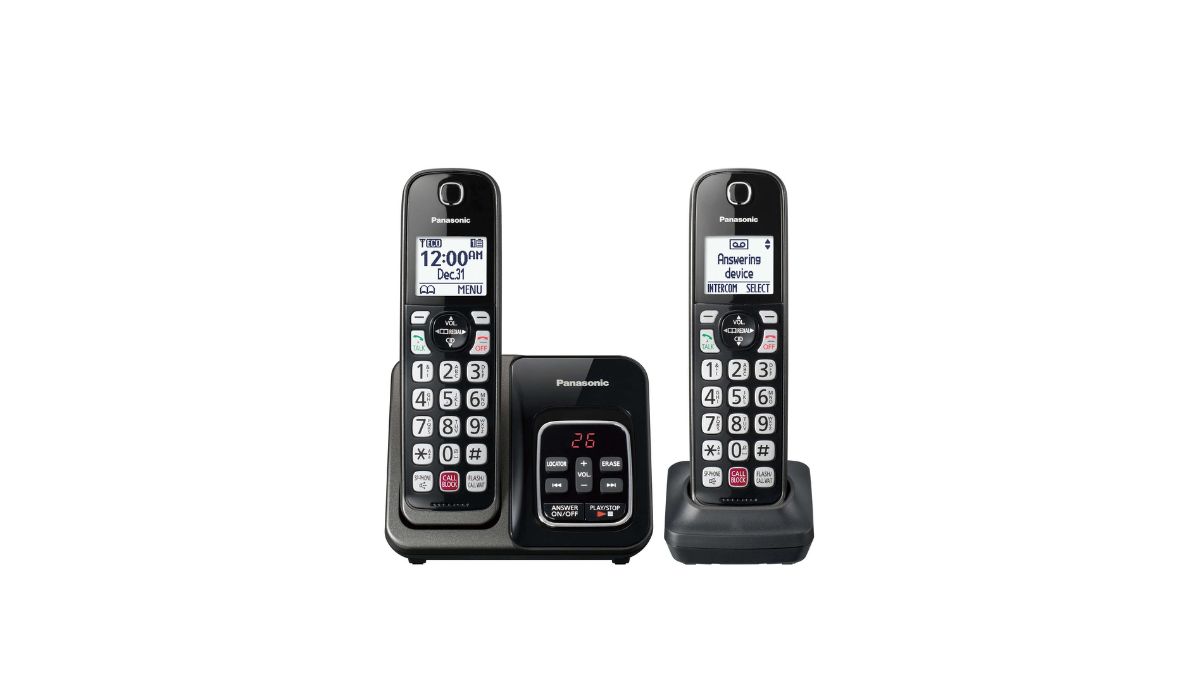
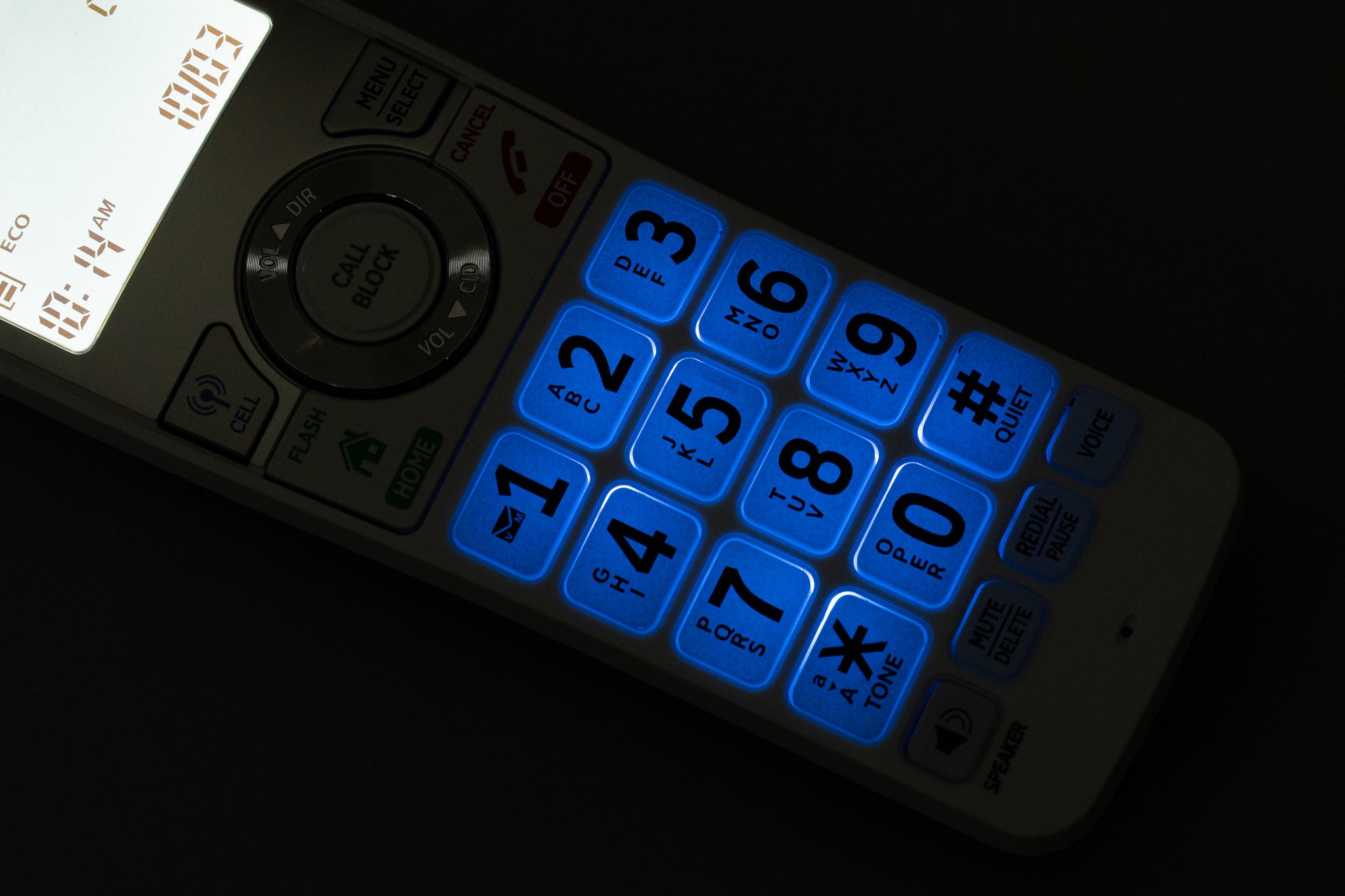
Block a number by phone using *60
- Lift the receiver and dial *60 to activate Call Screening.
- Follow the prompts to add, delete, or review numbers on the list.
- To block the last caller, press # when prompted.
This method is useful for blocking calls and numbers directly from your home phone without needing to log into a website or app.
Block a number on the Xfinity Voice website
- Navigate to the Call Blocking settings in your Xfinity Voice account.
- Enter a 10-digit telephone number and click Add.
- You can also block a caller directly from Call History or Voicemail by selecting Block Caller and then Confirm.
This approach is ideal when you want to know how to block a telephone number while already reviewing your call log or voicemail messages.
Manage your blocked numbers list
To remove a number from your blocked list on the Xfinity Voice website, click the trash icon next to the existing number. In Call Screening by phone, the prompts let you delete or review numbers on the list. In the Xfinity Call Guard app, find the number in Blocked numbers, tap the caller details arrow next to the call date, and follow the removal flow shown in the app help page. You can also turn on Block Anonymous Calls in the web settings page by checking that box. Xfinity says Anonymous Call Rejection is enabled by default as an opt-out feature for residential voice customers.
Important limits and facts about Xfinity Voice blocking
- 900 and 976 numbers are automatically blocked and cannot be removed from the block list.
- Blocking via *67 applies to the current call only, not to future calls from that number.
- Xfinity can provide only 28 days of blocked call records if you request them through support.
- When creating a Call Screening list, include the area code for local and long-distance numbers.
Frequently Asked Questions
Can I block anonymous or private numbers on Xfinity Voice?
Yes.
Will the blocked caller know they have been blocked?
When a caller is blocked, they typically hear a message stating that their call is not being accepted. This prevents the blocked caller from realizing they have been specifically blocked.
How do I unblock a phone number on landline?
To unblock phone number on landline, use the *60 prompts to delete the number from the Call Screening list, or remove it by clicking the trash icon on the Xfinity Voice website.
Is there a limit to the number of phone numbers I can block?
However, if you need to block more numbers than the system allows, you may consider alternative call blocking solutions or contact Xfinity customer support for assistance.
What happens if I block a number by mistake?
You can easily unblock the number by following the removal steps on the website, through the *60 prompts, or in the Xfinity Call Guard app. The number will then be able to call you again.