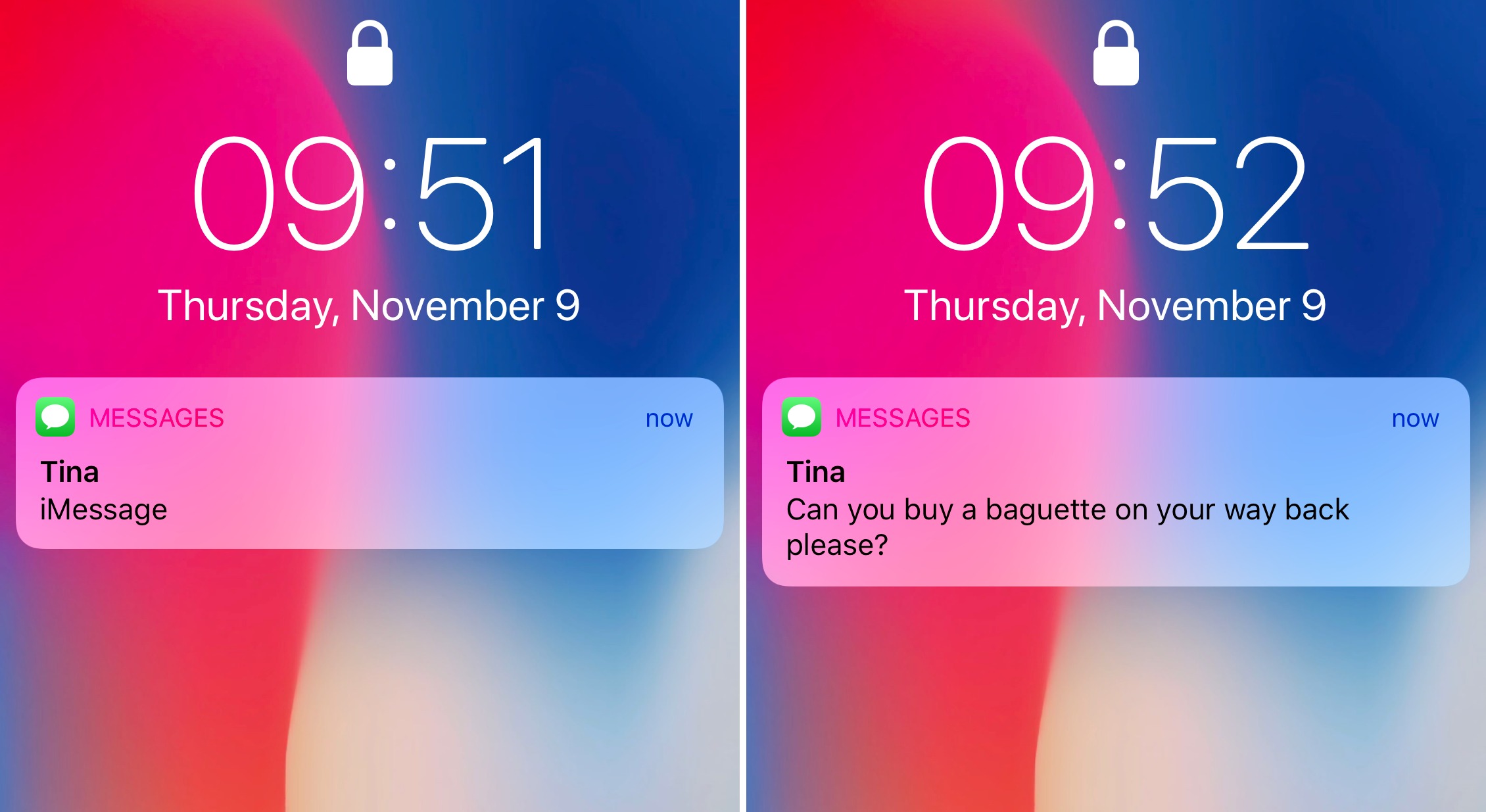
To turn off repeat alerts on iPhone, you need to change the Repeat Alerts setting for the Messages app to Never. This built-in feature, not a separate "2-minute text reminder" toggle, is what causes your iPhone 12 to send repeated notification alerts every two minutes for unread text messages.
How to turn off repeat alerts on iPhone 12
The 2-minute text reminder you are hearing is caused by the Repeat Alerts setting in the Messages app. When enabled, this feature sends a second notification alert exactly two minutes after the first one if you have not read the message. The fix is straightforward: open Settings, go to Notifications, select Messages, and change Repeat Alerts to Never. This stops all repeated alerts for unread texts without affecting your initial notification.
Navigate to Messages notifications
- Unlock your iPhone 12 and tap the Settings app (gear icon) on your home screen.
- Scroll down and tap Notifications.
- In the list of apps, find and tap Messages.
This brings you directly to the notification settings for the Messages app, where you can control how alerts behave.
Change the Repeat Alerts setting to Never
- Inside the Messages notification settings, tap Customize Notifications.
- Scroll down and tap Repeat Alerts.
- Select Never from the list of options.
Once you select Never, your iPhone 12 will no longer send the repeated two-minute reminder for unread text messages. You will still receive the initial notification for each new message, but no follow-up alert will occur.
Frequently Asked Questions
Does this setting apply to all text messages?
Yes, the Repeat Alerts setting applies to all incoming text messages in the Messages app. There is no option to enable or disable repeated alerts for individual contacts or conversations.
Is this the only way to stop the 2-minute reminder?
Yes, changing Repeat Alerts to Never is the only built-in method to stop the two-minute repeated notification for unread texts. Do Not Disturb and silent mode will silence the initial alert but will not prevent the repeated reminder from sounding every two minutes.
Will changing this affect notifications from other apps?
No, this setting only affects the Messages app. All other app notifications, including those from third-party messaging apps like WhatsApp or Facebook Messenger, will continue to behave according to their own notification settings.
Can I set a different repeat interval instead of turning it off completely?
No. The Repeat Alerts setting only offers options for Once, Twice, or three times before the two-minute interval kicks in, or Never to disable it entirely. You cannot customize the two-minute interval itself.
Can I customize the text reminder duration on my iPhone 12?
No, you cannot customize the duration. The Repeat Alerts setting only controls how many times the alert repeats, not the length of the two-minute interval between repeats.
Is there a way to disable the 2-minute text reminder for specific contacts on my iPhone 12?
No, there is no per-contact control. The Repeat Alerts setting applies universally to all incoming messages in the Messages app.
Can I set a different reminder duration for iMessages and regular text messages on my iPhone 12?
No, there is no distinction between message types. The Repeat Alerts setting applies equally to both iMessages and SMS text messages.
Does this work the same way on other iPhone models?
Yes, Apple’s support documentation does not list any model-specific differences. The same path, Settings > Notifications > Messages > Customize Notifications > Repeat Alerts, applies to all supported iPhones running the current iOS.
Related reading: Turn Off Sound When Sending Text IPhone 14.