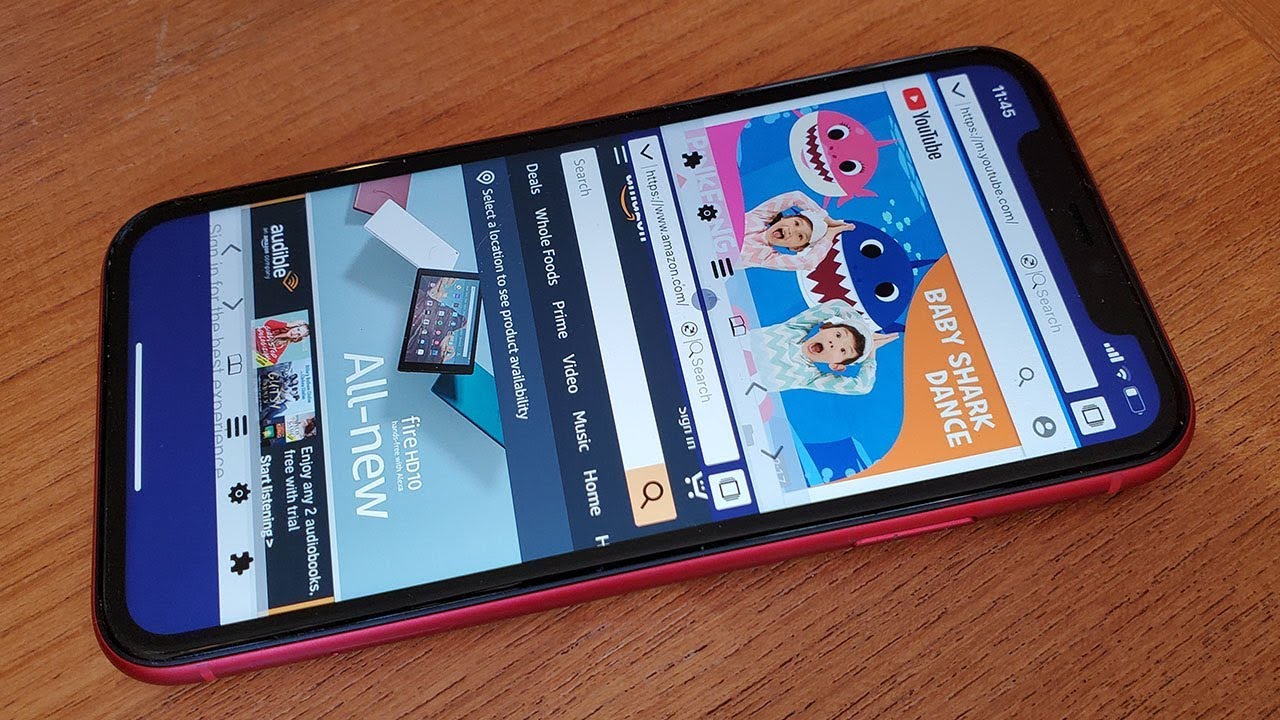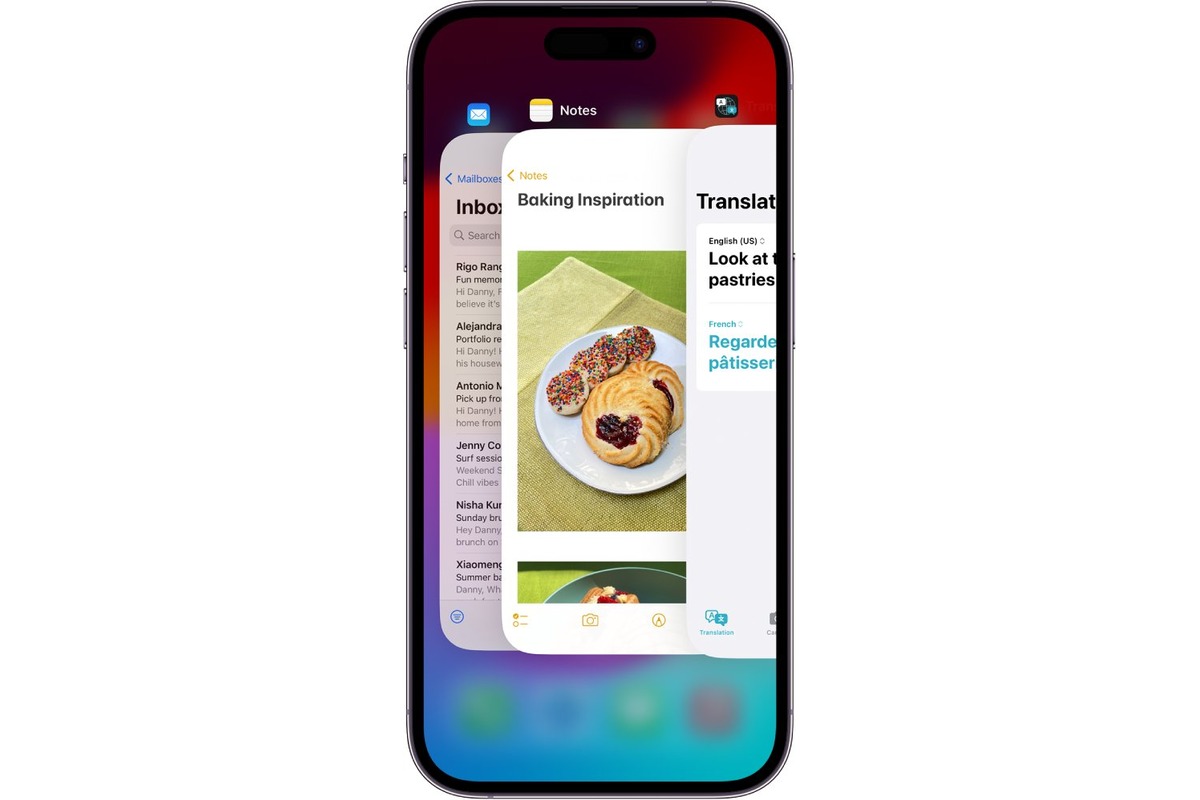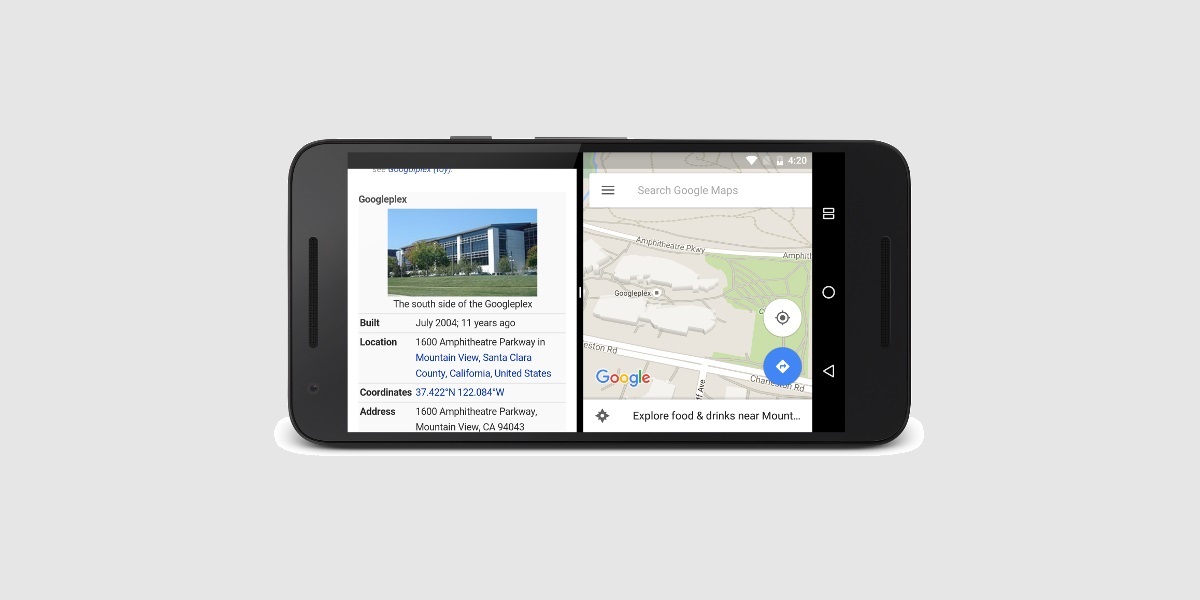
You cannot split screen on iPhone 13 in the traditional sense of viewing two apps side-by-side. iPhones do not support a split-screen multitasking mode, so the closest alternative is Picture-in-Picture (PiP), which lets you watch a video or continue a FaceTime call in a small, floating window while using another app.
Does iPhone 13 have split screen?
No, the iPhone 13 does not have a split-screen feature that allows you to display two apps side by side simultaneously. This is a common misconception because many Android devices and iPads offer this functionality. On the iPhone 13, you cannot divide the screen into two separate app windows. Instead, Apple provides Picture-in-Picture as the primary multitasking tool for watching content while using other apps.
The real multitasking feature: Picture-in-Picture
Picture-in-Picture (PiP) is the actual multitasking feature available on the iPhone 13. It allows a video or FaceTime call to float in a resizable, movable window over your other apps. This means you can keep watching a show, a tutorial, or a video call while replying to messages, browsing the web, or checking email. PiP is especially useful for navigating home screen and apps without interrupting your video playback, making it the closest thing to multitasking with two apps at once on your iPhone.
How to start Picture-in-Picture on iPhone 13
- Open a supported app and start playing a video (for example, in the Apple TV app or Safari) or begin a FaceTime call.
- While the video or call is active, swipe up from the bottom of the screen or press the Home button (if your iPhone 13 has one enabled).
- The video or FaceTime call will automatically shrink into a small, floating window that stays on top of whatever else you do.
How to move and resize the Picture-in-Picture window
Once the PiP window is active, you can move it by dragging it to any corner of the screen. To resize the window, use a pinch gesture: pinch open to make it larger or pinch closed to make it smaller. The Picture-in-Picture window can be resized by pinching open to make it larger or pinching closed to make it smaller. This flexibility lets you position the window where it least interferes with your main task.
How to hide or close the Picture-in-Picture window
If you need to temporarily hide the PiP window without stopping the audio, drag it off the left or right edge of the screen. To temporarily hide the Picture-in-Picture window, drag it off the left or right edge of the screen. The video will continue playing in the background, and you can tap the small arrow that appears to bring it back. To permanently close the window, tap it to reveal the controls, then tap the Close (X) button. To close the Picture-in-Picture window, tap it to show controls, then tap the Close (X) button.
Why some apps don't work with Picture-in-Picture
Picture-in-Picture requires app support. Not every video or calling app includes PiP functionality. Common compatible apps include Apple TV, Safari, and FaceTime. If you try to start PiP and the video or call does not shrink into a floating window, the app or specific video simply does not support the feature. Picture-in-Picture works with supported apps and videos; if the option is not available, the app or video may not support it. There is no way to force PiP on unsupported apps on the iPhone 13.
Frequently Asked Questions
Can I use two apps at the same time on iPhone 13 without Picture-in-Picture?
No. The only way to have two apps visible simultaneously is through Picture-in-Picture, which only works for video or FaceTime calls. You cannot run two full apps side by side.
Does Picture-in-Picture work with YouTube on iPhone 13?
YouTube on iPhone 13 supports Picture-in-Picture only if you have a YouTube Premium subscription. Free users will not see the PiP option unless they use Safari to watch YouTube videos.
Will closing the PiP window stop my video?
Yes. Tapping the Close (X) button ends the video or call. If you only drag the window off-screen, the audio continues and you can restore the window later.
Can I use Picture-in-Picture while on a phone call?
Picture-in-Picture is designed for FaceTime calls and video playback. Standard cellular phone calls do not use a video window, so PiP does not apply to them.
Why does my iPhone 13 not show the Picture-in-Picture option?
This usually means the app you are using does not support PiP, or the video you are playing is not compatible. Check for app updates or try a different app like Safari or Apple TV to confirm the feature works.
Related reading: How To Do Split Screen On IPhone 11 and How To See Open Apps IPhone 11.