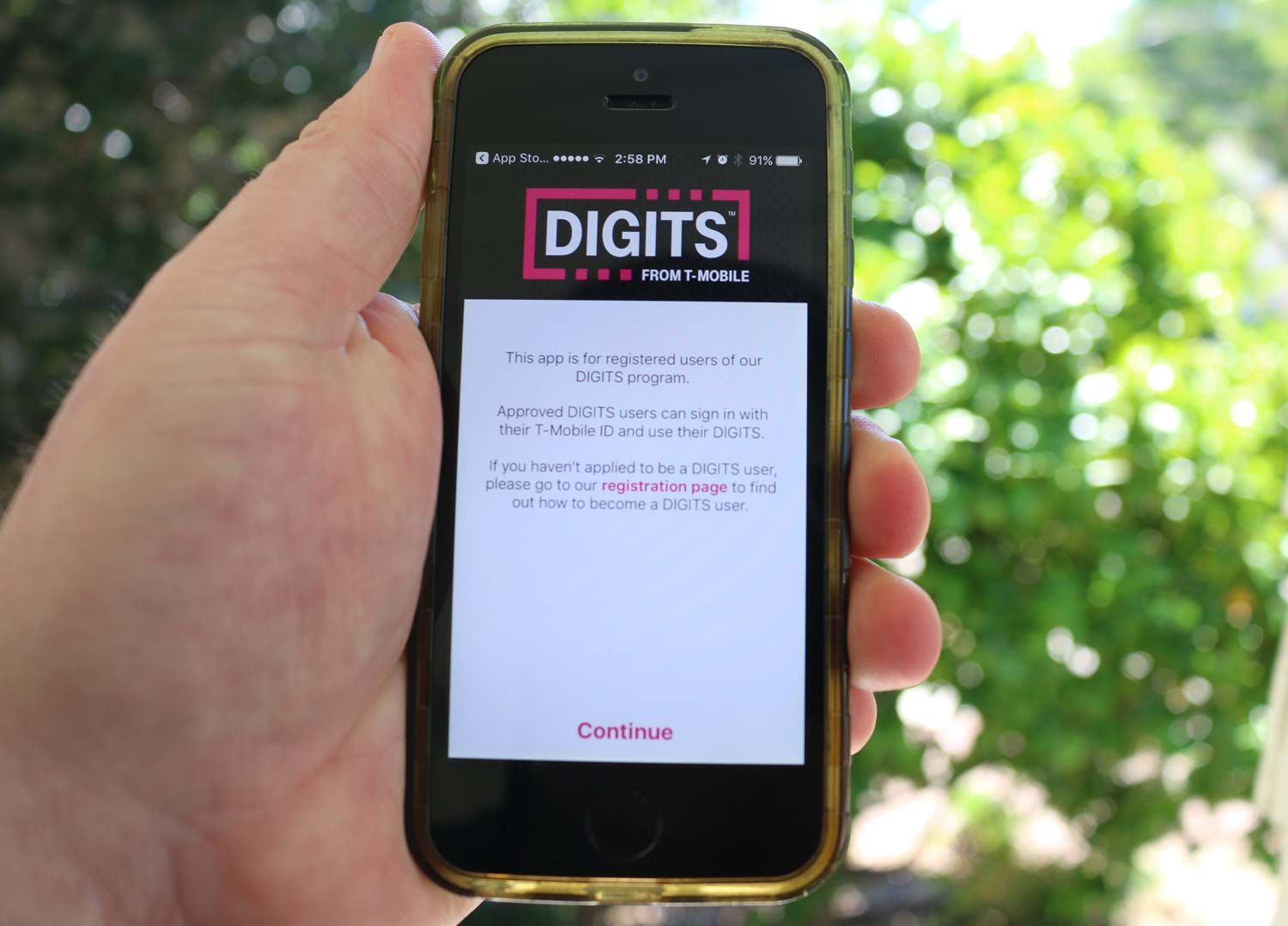
T-Mobile DIGITS is used for two core purposes: using one phone number across multiple devices, and using multiple phone numbers on a single device. Through the DIGITS app, a web browser, or a paired SIM/eSIM on another device, you can make calls, send texts, and access your primary number from up to 5 devices at once.
What is T-Mobile Digits used for
T-Mobile DIGITS lets you take your primary mobile number with you across smartphones, tablets, and computers. You can also add a second number to your phone, keeping work and personal lines separate without carrying two devices. The service supports up to 5 devices per primary number and up to 5 numbers per device. T-Mobile's launch material states up to 5 compatible devices per number.
How T-Mobile DIGITS works
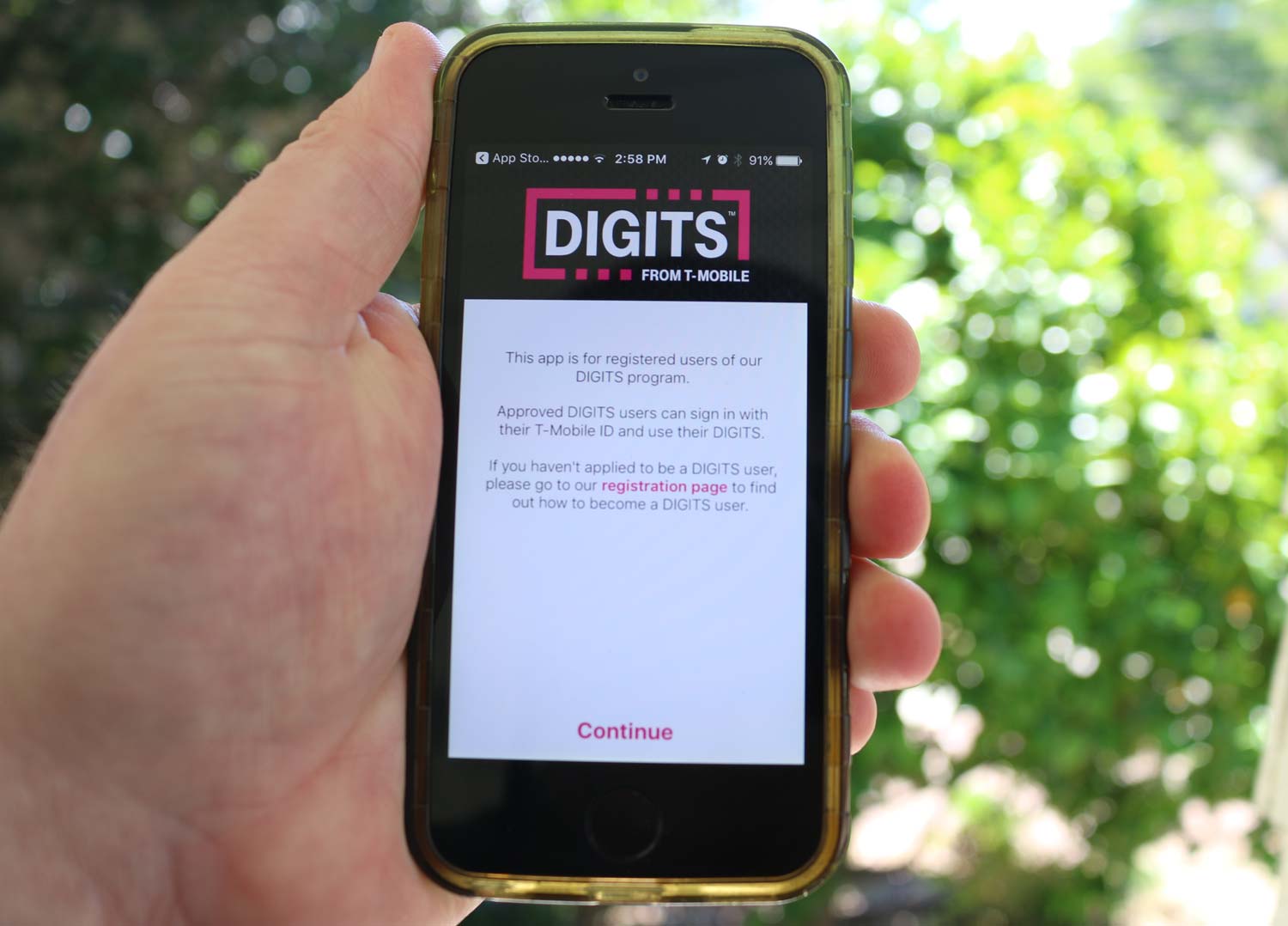
DIGITS connects your phone number to the DIGITS app on your phone or tablet, or to a web browser on your desktop. When you pair a device through the myDIGITS portal, calls and texts to your primary number appear on that device. For a second device that uses its own SIM or eSIM, DIGITS can pair that line so it acts like your primary phone on T-Mobile’s network.
Supported devices and requirements
To use the DIGITS app, your device needs Android 6.0 or later, or iOS 10 or later. T-Mobile’s troubleshooting guide also recommends updating to Apple iOS 13 or Android 8 or newer. For desktop access, open Chrome or Firefox, your computer must have a microphone and speakers for calls. You can pair up to 5 devices per primary number, and each device must be signed in with your T-Mobile ID.
How to set up T-Mobile DIGITS
Follow these steps to get started:
- Create a T-Mobile ID if you don’t have one. Use a voice line when setting it up. If you do not have a T-Mobile ID, the app can create one, but T-Mobile says to use a voice line when creating it.
- Download the DIGITS app from the App Store or Google Play. T-Mobile's business DIGITS page also says to download the app from the App Store or Google Play and log in with a T-Mobile ID.
- Open the app and sign in with your T-Mobile ID.
- To pair additional lines, go to the myDIGITS portal. Select the primary line under Paired DIGITS, then save your changes.
After setup, you can manage line permissions inside the app. On an iPhone, go to Settings > Advanced options > Network settings. On Android, tap the Menu icon (three lines) then Advanced options > Network settings. For business lines, use Settings > Advanced options > Line permissions.
Making calls and texts with DIGITS
Once paired, you can make and receive calls and texts from any device signed into DIGITS. Calls can be handed off between devices, start a call on your phone and switch to your tablet without hanging up. Manage which lines ring and which have access to your messages by adjusting line permissions in the app. The service works through the app on iOS and Android, or through Chrome or Firefox on a desktop with a microphone and speakers.
Frequently Asked Questions
Can I use my existing phone number with DIGITS?
Yes. DIGITS uses your current T-Mobile primary number. You do not need a new number to start using the service.
Is T-Mobile DIGITS secure?
DIGITS uses encryption and authentication to protect calls and texts across connected devices. Your data remains private while using the app or web access.
What is the difference between the DIGITS app and a paired SIM/eSIM?
The DIGITS app routes your number over Wi-Fi or mobile data, while a paired SIM or eSIM gives a second device its own connection to T-Mobile’s network for calling and texting. Both let you use your primary number on that device, but the SIM method does not require the app to be open.
Can I use DIGITS on a computer without installing software?
Yes. Open Chrome or Firefox on your desktop, sign in with your T-Mobile ID, and you can make calls and send texts directly from the browser. You will need a microphone and speakers for voice calls.
How do I understand phone number formats and digits when pairing lines?
When pairing a line in the myDIGITS portal, you select your primary number from a list. The portal shows your number in standard format, no special codes or extra digits are needed.
Readers comparing a separate eSIM can browse uPhone eSIM plans and verify destination coverage, data allowance, and validity before buying.
More eSIM resources: Browse our eSIM guides and troubleshooting resources for compatibility, setup, travel-data and account-safety advice.
Related reading: What Is T-Mobile Number.