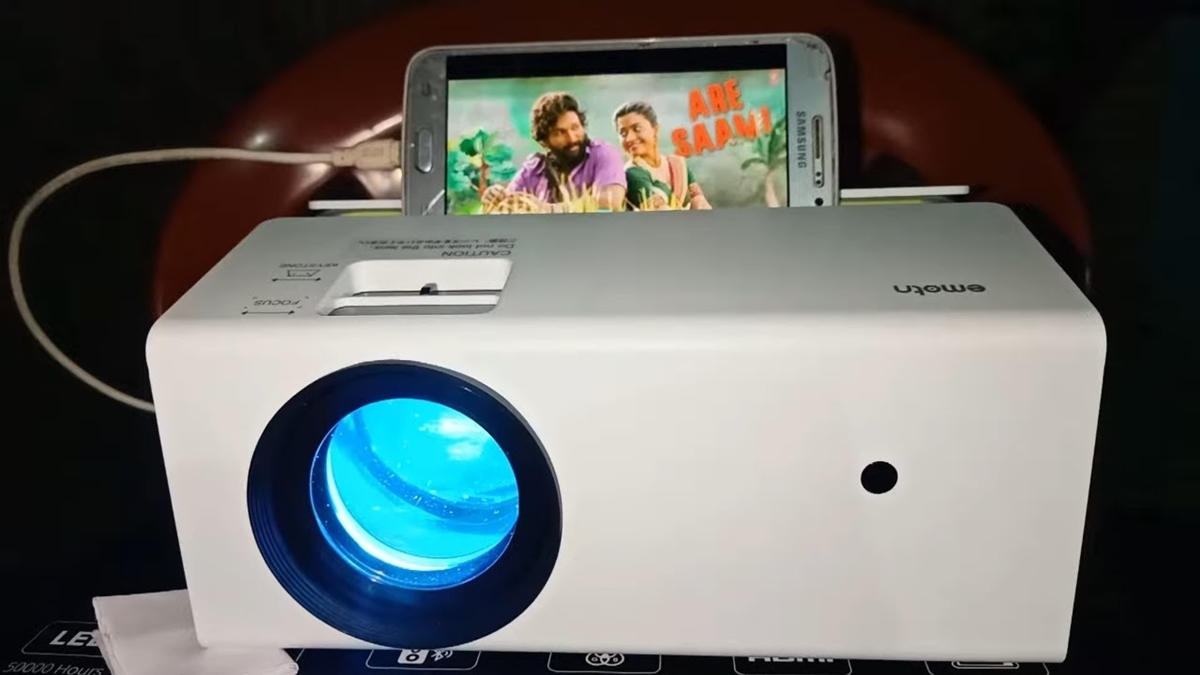
To mirror Android to a projector, use your phone's built-in screen mirroring feature found in Quick Settings. The feature may be labeled Screen Mirroring, Screen Cast, or Smart View depending on your device.
How to mirror Android to projector wirelessly
Wireless mirroring is the most straightforward method and works with most modern projectors. The key requirement is that both your Android device and the projector are connected to the same Wi-Fi network.
- Swipe down from the top of your Android screen to open Quick Settings.
- Look for the button labeled Screen Mirroring, Screen Cast, or Smart View.
- Tap that button to begin searching for available devices.
- Select your projector from the list of discovered devices.
- Follow any on-screen prompts that appear to complete the connection.
Your Android screen should now appear on the projector. This method works for presentations, watching movies, or gaming without needing any additional cables or adapters.
What to do if your projector needs an app
Some projector brands, such as Epson, require a companion app for wireless mirroring. If your projector does not appear in the Quick Settings list, check whether the manufacturer offers a dedicated mirroring app.
For Epson projectors, the official app is Epson iProjection. To use it:
- Switch the projector's input source to LAN before connecting.
- On your Android device, go to Settings > Wi-Fi and connect to the same network as the projector.
- Open the Epson iProjection app.
- Select the projector from the list shown in the app.
- Choose Mirror device screen as the content type. The app also lists Photos, PDF, Web Page, and Camera as selectable content types.
The app also supports projecting Photos, PDF, Web Page, and Camera content directly, so you do not always need to mirror your entire screen.
Can you use an HDMI cable to connect?
A direct HDMI connection is not universally supported on Android. Whether it works depends entirely on your phone's USB-C port supporting video output, which is not guaranteed across all models. If your phone does support video-out, you would need a USB-C to HDMI adapter or cable, then switch the projector to the correct HDMI input. The safest approach is to test wireless mirroring first, as it works on virtually all modern Android devices.
Quick tip for iPhone users
If you are using an iPhone instead of an Android device, the process is different. Open Control Center, tap Screen Mirroring, and select the projector from the list of AirPlay-compatible devices. If this is the first connection, the projector may display an on-screen code that you must enter on your iPhone. This method only works if the projector or an attached receiver supports AirPlay.
How to screen mirror Android when the projector is not on Wi-Fi
If your projector does not have built-in Wi-Fi or cannot connect to your network, you can use a wireless display adapter. Devices like Chromecast connect to the projector's HDMI port and create their own wireless connection. Plug the adapter into the projector, connect your Android device to the adapter's network, then open a supported app, tap the cast icon, and select the destination device. You can also use the Screen Mirroring, Screen Cast, or Smart View option in Quick Settings to select the adapter.
Supported devices and documented limits
Google's guidance applies to Android-powered devices generally, but the exact label for mirroring varies by manufacturer and Android version. Epson iProjection specifically requires a supported Epson projector. Apple's Screen Mirroring is limited to AirPlay-compatible receiving devices. No universal Android model list, minimum Android version, or universal HDMI adapter list is documented in official sources, so compatibility should be verified with your specific hardware.
Frequently Asked Questions
Why can't I find the screen mirroring option on my Android phone?
The feature name varies by device. Look for Screen Mirroring, Screen Cast, or Smart View in Quick Settings. Some manufacturers hide it under Settings > Connected devices or Settings > Display.
Does screen mirroring work without an internet connection?
Yes, as long as both devices are on the same local Wi-Fi network. An active internet connection is not required for the mirroring itself, only a shared network.
Can I mirror my Android to an older projector that only has VGA input?
Yes, but you will need a wireless adapter like Chromecast that connects to the projector's HDMI port, then use an HDMI-to-VGA converter if the projector lacks HDMI. Alternatively, use a dedicated wireless display adapter that outputs VGA.
Will screen mirroring drain my Android battery quickly?
Yes, wireless mirroring consumes more battery than normal use because it keeps the screen on and transmits video data. For longer sessions, keep your phone plugged into a charger.
What should I do if the projector appears in the list but the connection fails?
Restart both the Android device and the projector. Ensure both are on the same Wi-Fi network and that the projector is set to the correct mirroring or cast input mode. If the issue persists, check for software updates on both devices.