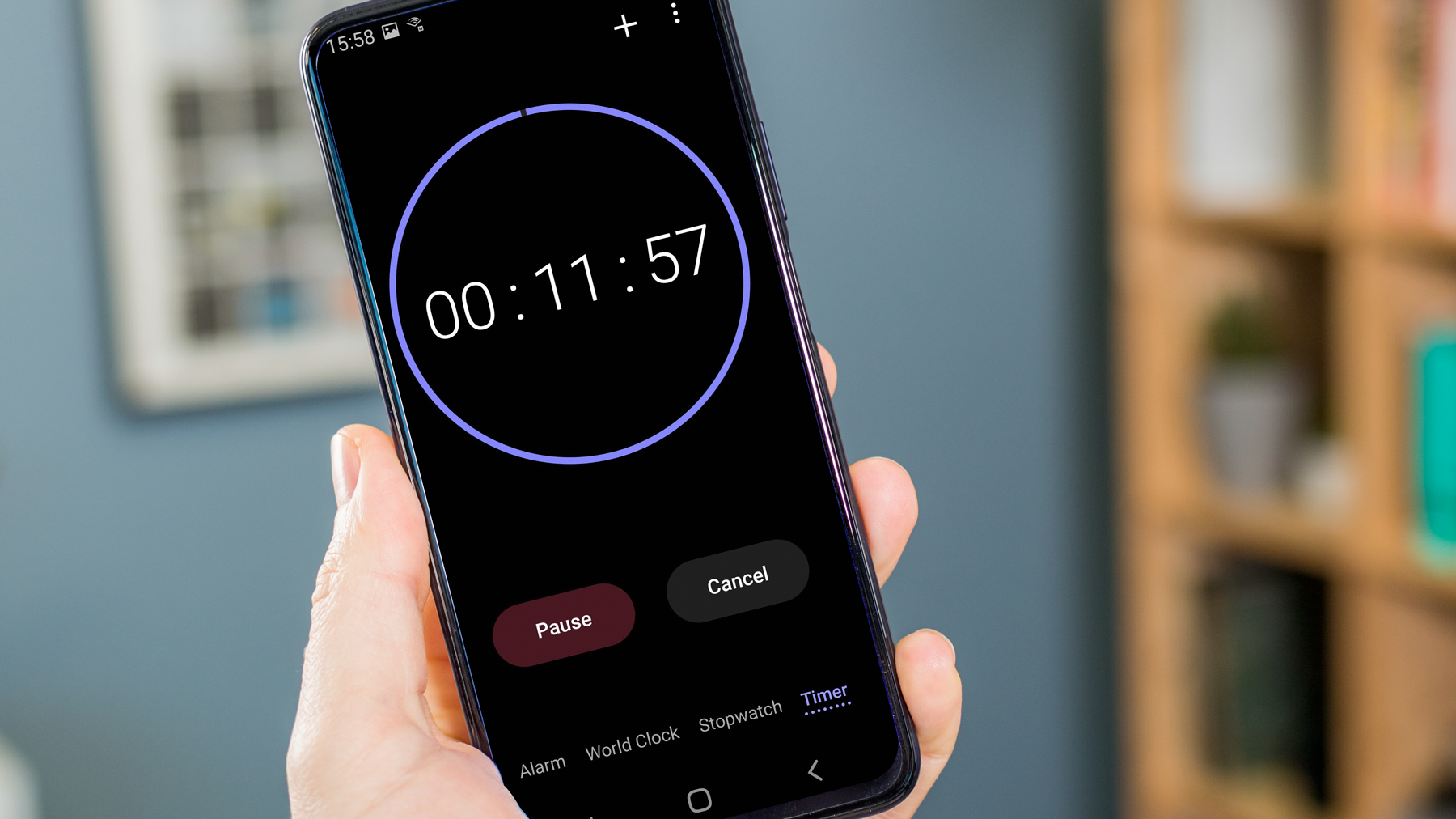
To set an alarm on Android, open the Clock app and tap the Alarms tab, then tap the Add button to create a new alarm. This is the primary, no-nonsense method for how to set an alarm on Android using the built-in Clock app.
How to set an alarm on Android
Google documents that you can make and change alarms in the Clock app on your Android device, Pixel phone, or Pixel Tablet. Samsung confirms the same flow is available in the Clock app on Galaxy phones and tablets, with a separate Bixby voice option on supported Samsung devices: press and hold the Bixby or Side button and tell Bixby the time.
- Open the Clock app on your Android device.
- Tap the Alarms tab.
- Tap Add alarm or the Add button.
Setting the alarm time
After tapping Add, you will see a clock interface. Tap the hour and minute values to adjust them, and ensure you set the correct AM or PM. Once the time is set, tap Save or Done to confirm the alarm.
Choosing the alarm sound
Tap the Sound option when creating or editing an alarm to pick a ringtone, a song from your music library, or a recorded sound. Google documents that if the alarm sound is silent, you should choose a different ringtone. This is a critical note to avoid a silent alarm sound.
Setting alarm repeat and label
Tap the Repeat option to select specific days for a recurring alarm. You can choose individual days or select every day of the week. Tap the Label option to name the alarm for easy identification, such as "Wake up" or "Meeting reminder." In Google's Bedtime schedule, you set the days to use the wake-up alarm when you set the wake-up time.
Customizing alarm settings and routines
Google documents that alarm changes can be made from the Clock app's settings screen by opening More > Settings. From there, you can adjust:
- Snooze length
- Alarm volume
- Gradually increase volume
- Volume buttons behavior
- Silence after duration
- Start week on setting
- Change alarm vibration setting
Google also documents the ability to add a Google Assistant Routine to an alarm. This allows you to trigger a sequence of actions, such as turning on smart lights or reading the news, when your alarm goes off.
Troubleshooting: why your Android alarm didn't sound
If your alarm did not sound, use this checklist of documented fixes:
- Review Do Not Disturb and Silent Mode settings, as these can silence alarms. Google documents that you should review Do Not Disturb settings if alarms were silenced.
- Turn on Clock notifications in Settings if alarms do not sound.
- Turn off Battery Saver or add Clock as an essential app, as Battery Saver can prevent alarms from sounding.
- Increase volume if alarm volume is too low.
- Turn on device vibration if you want vibration alerts.
- Avoid selecting a silent alarm sound.
Frequently Asked Questions
Can I set multiple alarms on my Android device?
Yes, you can set multiple alarms. Simply repeat the process of tapping the Add button to create additional alarms with different times, sounds, and repeat schedules.
How do I customize the snooze duration?
Open the Clock app, tap More > Settings, and then tap Snooze length. You can select from available durations, such as 5, 10, or 15 minutes.
How do I delete an alarm?
In the Clock app's Alarms tab, find the alarm you want to delete. Swipe left or right on the alarm, or tap and hold it to reveal the delete option. Tap Delete to remove the alarm.
Can I use a song from my music library as an alarm sound?
Yes. When editing an alarm, tap the Sound option and choose Media storage or a similar option to browse and select a song from your music library.
How do I turn off an alarm without deleting it?
In the Clock app's Alarms tab, locate the alarm you want to deactivate and toggle the switch next to it to the off position. The alarm will remain saved but will not sound.
For the wider topic, see Do Not Disturb and silent mode.