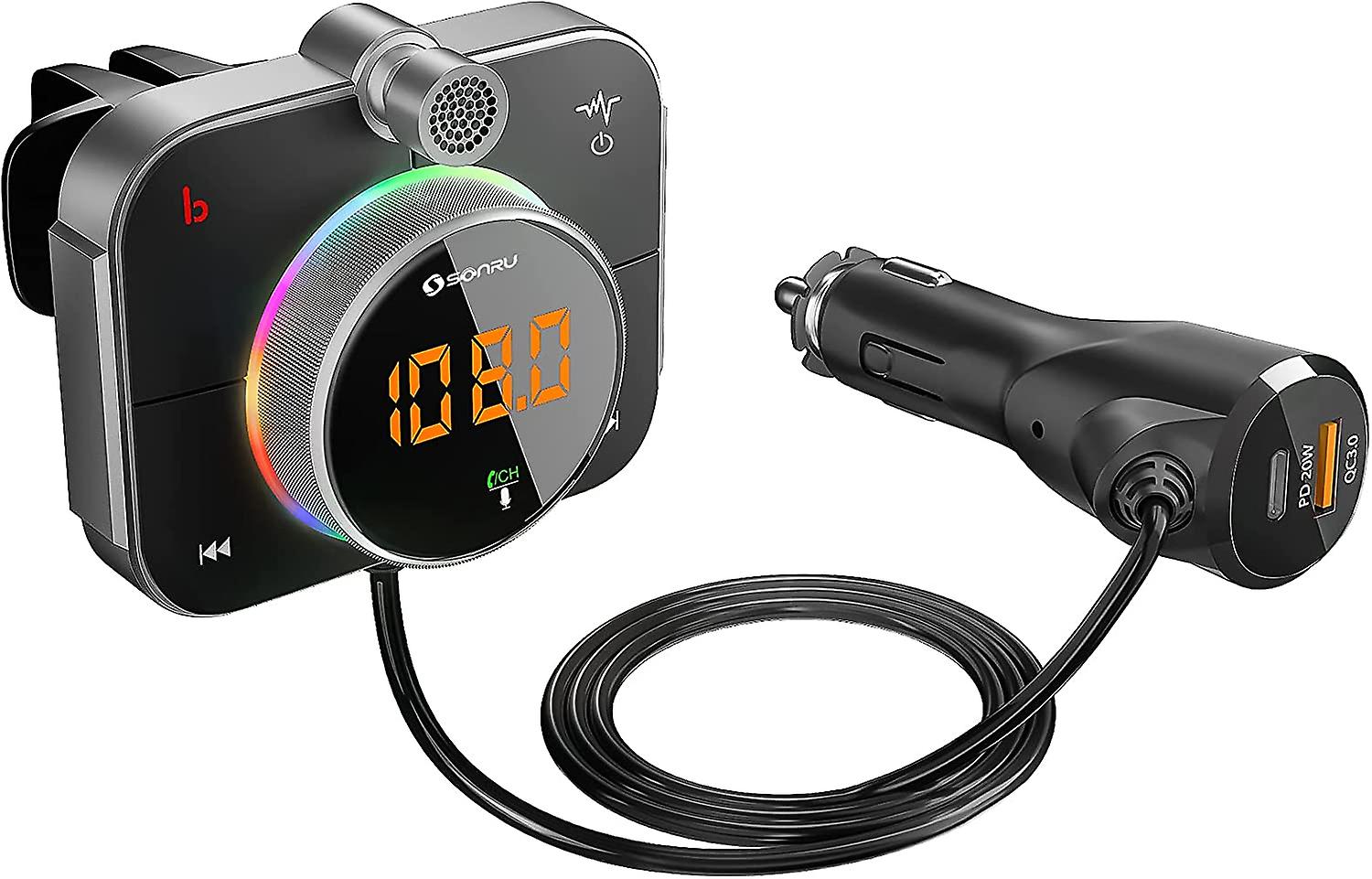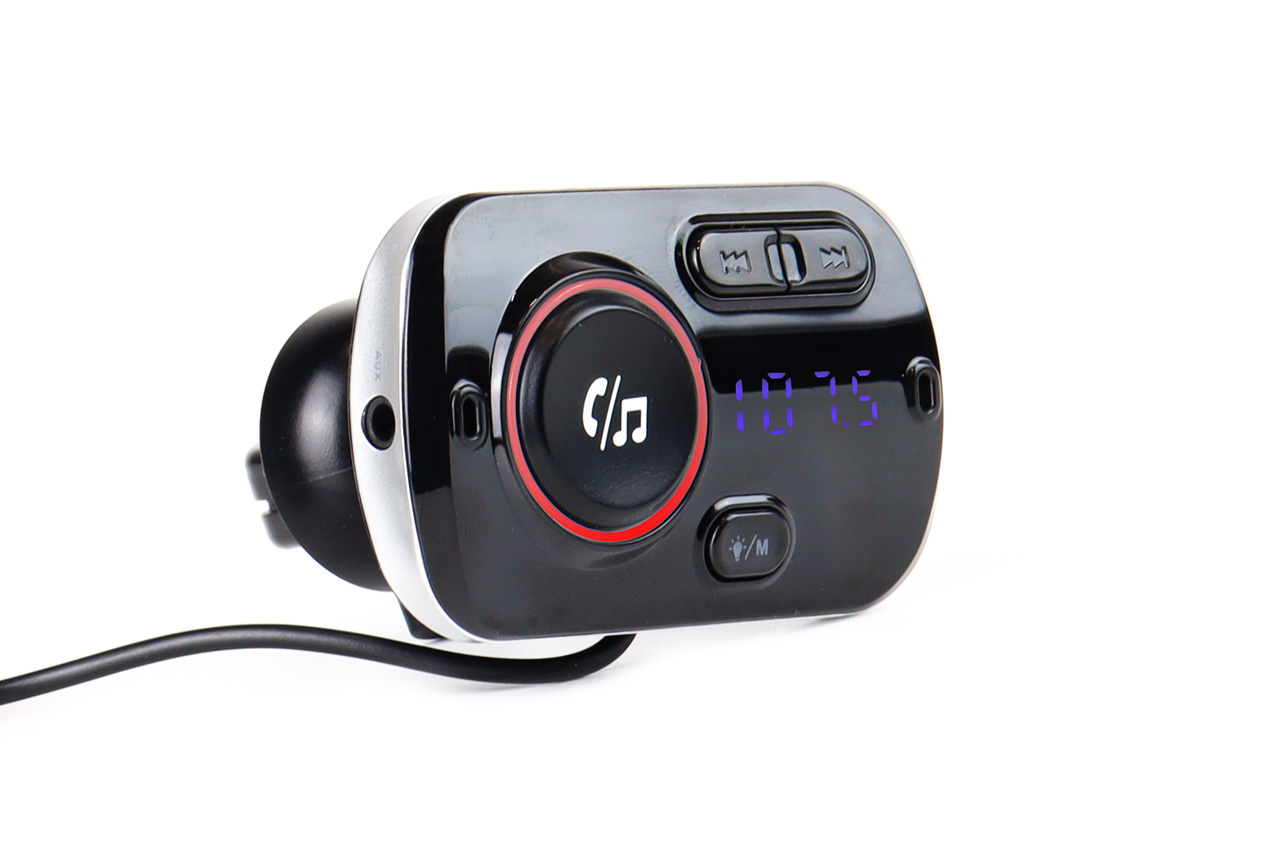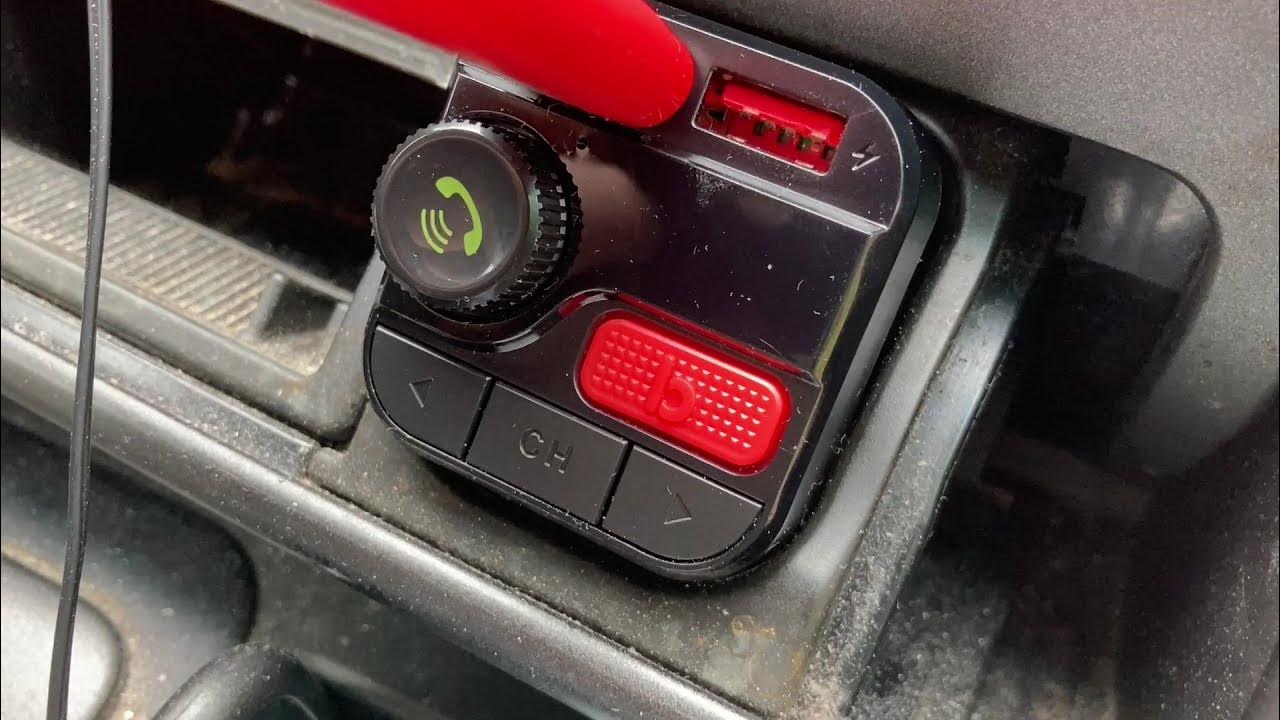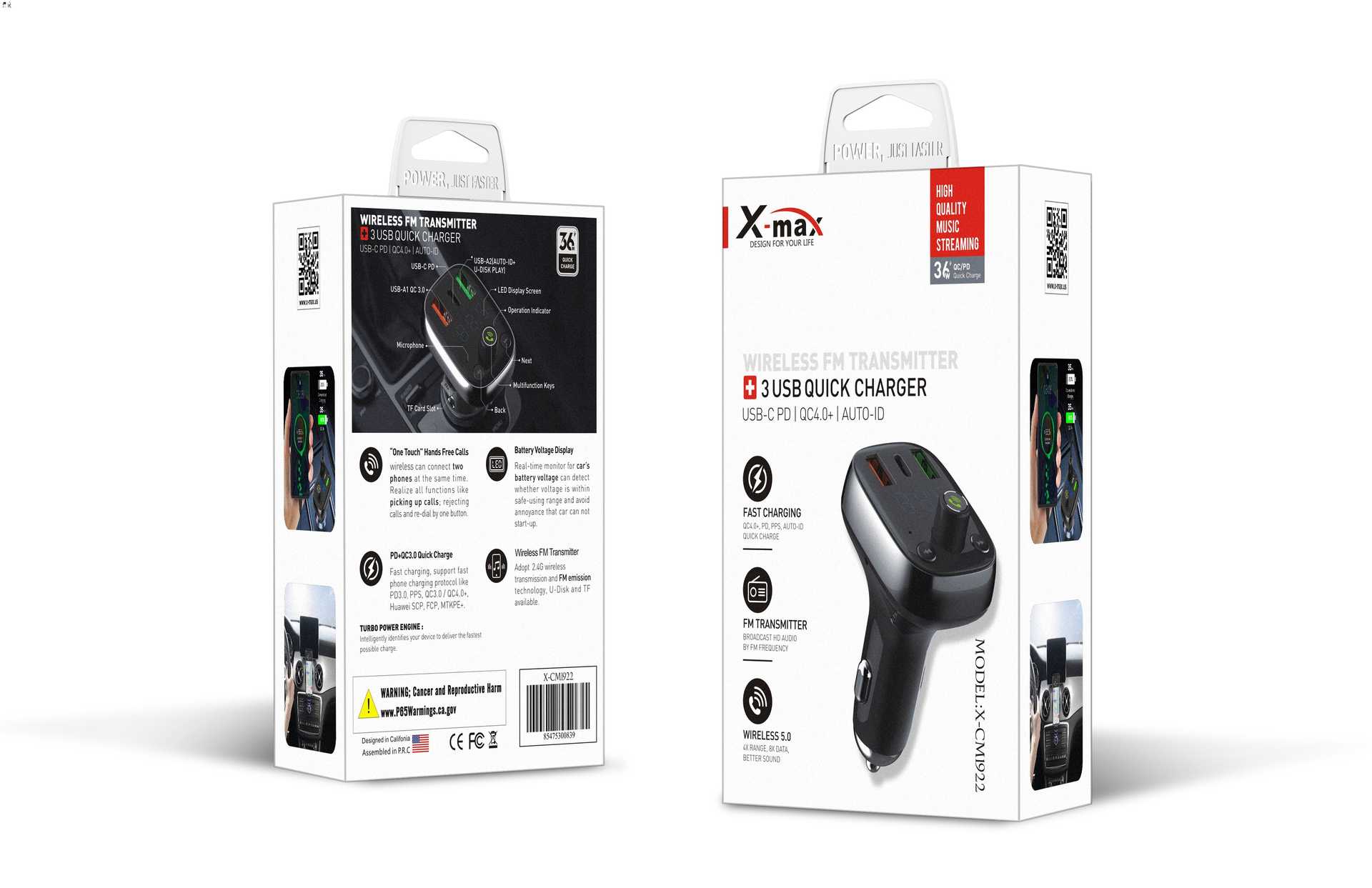
Before you buy or plug in your fm transmitter for car
Choosing the right FM transmitter for car use means understanding how an FM transmitter work turns your phone’s audio into a tiny radio signal that your car antenna can pick up. The device doesn’t physically connect to your stereo but broadcasts on a specific FM channel, and your car radio must be tuned to that exact same frequency to hear the music. When people struggle to stop static on FM transmitter devices, the culprit is almost never a faulty unit but rather that the chosen frequency isn’t truly empty where you are driving.
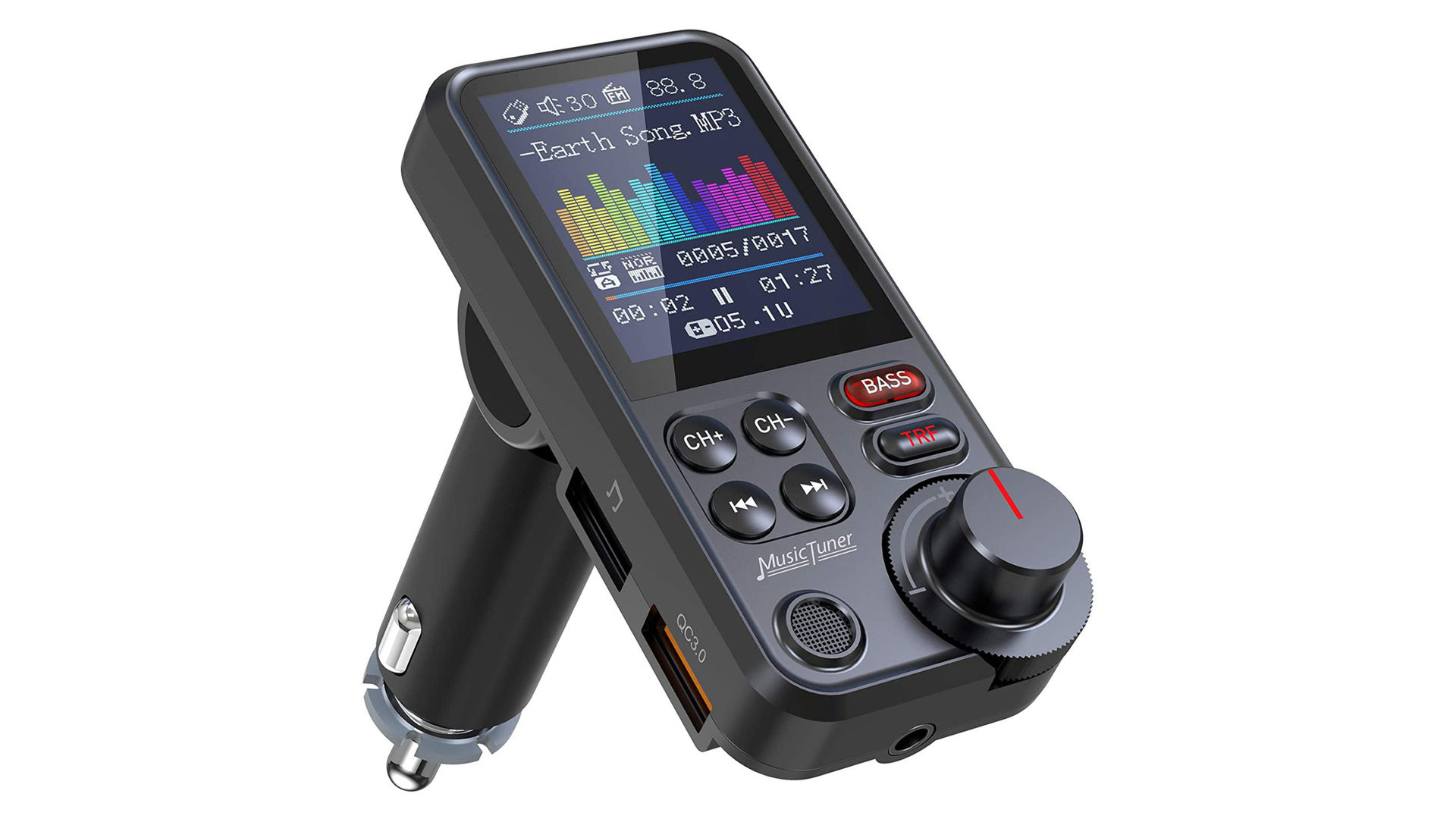
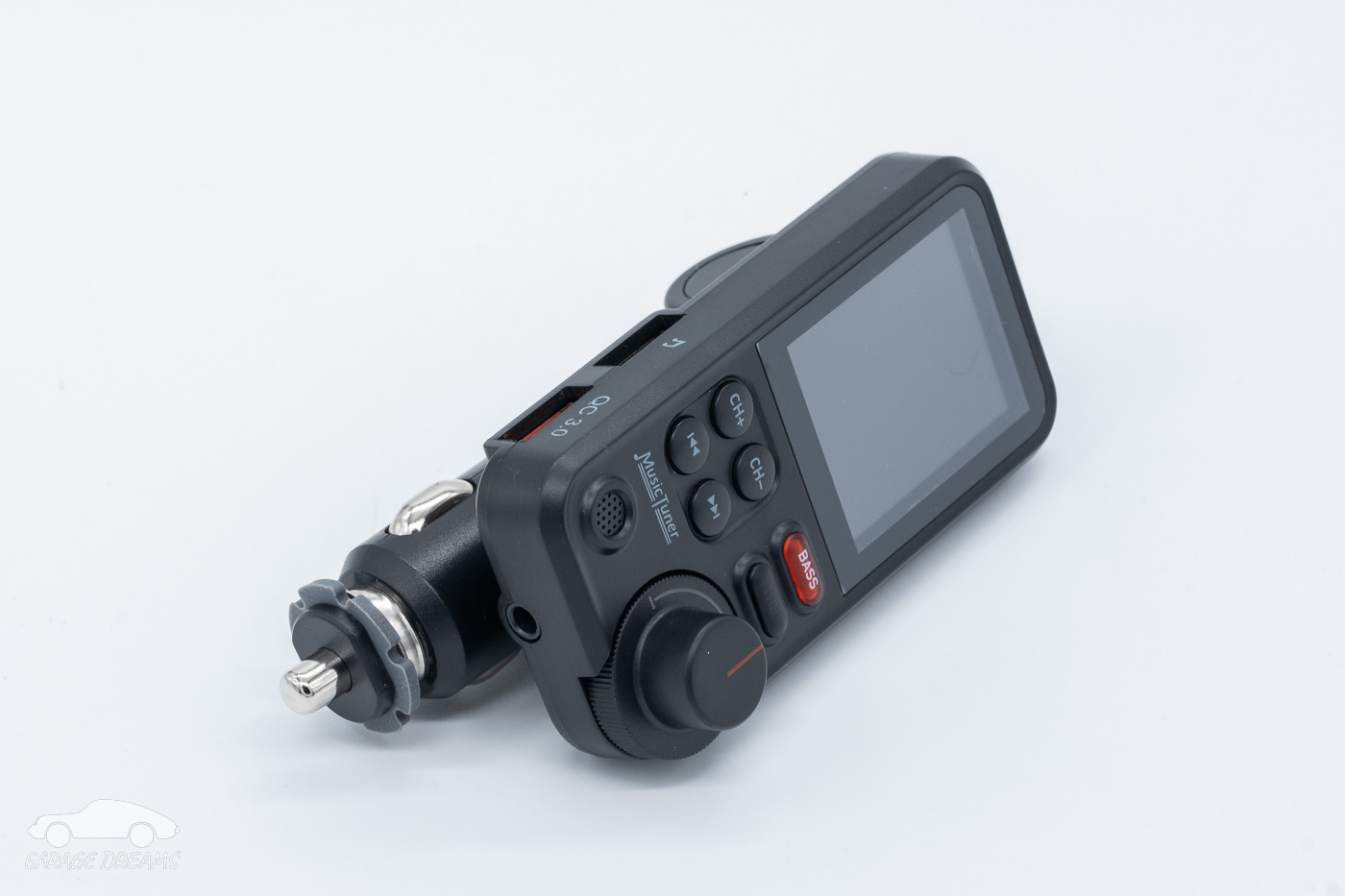
Finding the best radio frequency for FM transmitter performance means scanning your car radio for a channel that delivers pure silence, dead air, not just a faint whisper of a distant station. Open spots often live in the low end of the dial, such as 88.1 to 91.9 MHz, though the right number shifts depending on which towers are nearby. Once you land on a candidate, use the CH- or CH+ buttons on the gadget to match that number precisely, then lower your phone’s volume slightly to prevent distortion from overdriving the signal. If static creeps in mid-drive, a quick reposition of the unit or a wipe of the 12V socket can often clear it up without touching the dial.
Many drivers realize they can connect their phone to certain vehicle models through the built-in hands-free system, though the exact menu steps vary by vehicle. This method uses the car’s native wireless protocol, so you don’t need a separate adapter for calls or streaming. The process is generally similar across different phone platforms, though the on-screen prompts may look slightly different. If the vehicle asks for a code, consult your owner's manual for the correct pairing code.
On older vehicles without a touchscreen, the pairing menu is often accessed through the radio's physical controls, and you then initiate the search from your mobile device. Once linked, audio from your handset can play through the car's speakers, though some controls may not respond depending on the vehicle. For a more integrated experience in these vehicles, a small broadcasting tool plugged into the auxiliary power outlet remains the simplest path.
Interference is the main enemy of any short-range radio link. Tall buildings, overpasses, and even other electronics in your cabin can introduce noise. To stop static on FM transmitter hardware, first confirm your phone’s battery saver mode is off, since certain phone settings can sometimes affect audio output and create crackling. Next, try a different 12V port if your car has more than one, as some sockets deliver cleaner power than others. Finally, keep the broadcasting adapter away from metal objects and your phone’s charging cable, because physical separation often solves the problem instantly.
Choosing the best radio frequency for FM transmitter use on a road trip requires a little extra planning. Scan the dial in a quiet rural area before you enter a major city, since city centers are packed with signals and a frequency that sounds clear on the highway can become unusable downtown. Write down two or three backup channels so switching on the fly is much safer than fumbling through static while merging. Modern adapters with memory presets make this task effortless.
Not every solution requires a plug-in accessory. Many vehicles include a native wireless audio option, so check your stereo’s source menu for a phone or media option and you can bypass the FM dial entirely. This direct digital link delivers cleaner sound than any radio rebroadcast ever could, though the trade-off may be that you cannot use certain other audio sources at the same time. For road warriors who rely on downloaded playlists, the old-school broadcasting tool still earns its place in the glovebox.
Basic setup and connection
Getting audio started is almost always the same routine whether you are holding a generic unit or a familiar brand-name model. Plug the device into your vehicle’s 12V accessory power socket. Then switch on your car radio and hunt for an FM channel that delivers genuine silence rather than a whisper of a distant station. On the unit itself, press the frequency controls, often labeled '+' and '-' or a rotating knob, until the display matches that exact empty number. Now open your phone’s wireless settings. If you want to connect to Monster Bluetooth FM transmitter, you will look for its name in the list of nearby devices and tap to pair. Some models announce the link with a voice prompt like “Bluetooth connection success.” From that point any audio you play on the phone should come through the car speakers. If you are working with an iPhone and the sound still routes to the handset after pairing, one FCC quick-start guide for a specific model says iPhone users may need to press the Answer button on the iPhone and check the iPhone call menu to choose the audio source, then select the transmitter. This same FM-bridge approach is also how you connect phone to car radio without Bluetooth or aux, because the device handles the wireless link on one side and the radio handles it on the other. The small differences among popular options come down to the exact name you will see in your phone’s scan and the specific buttons you press to set the frequency. For instance, if you want to connect Auto drive Bluetooth FM transmitter, you will follow the same pairing steps but look for that specific device name. Similarly, if you want to connect Onn wireless FM transmitter, the procedure is nearly identical, though the frequency controls may be labeled slightly differently. And if you simply want to connect FM transmitter in general, the core routine of plugging in, tuning to a silent station, and pairing via Bluetooth remains the same across nearly all models.
Tuning and changing the station
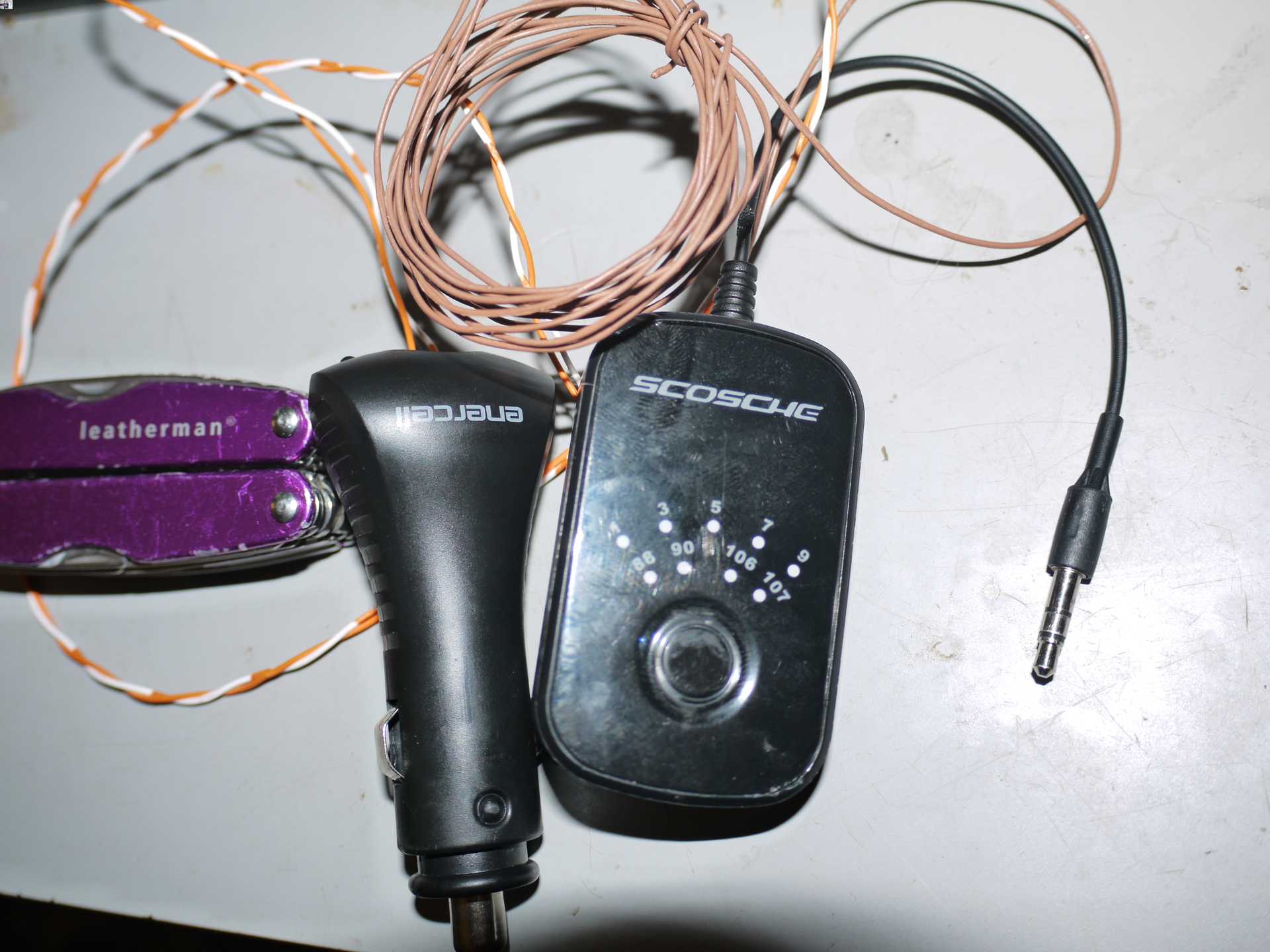
When a clear frequency turns noisy mid-drive, you can push past the static by re-scanning your car radio for a new pocket of silence and then matching the transmitter to it. Most units let you step through frequencies with dedicated buttons. The exact method varies. If you own an Auto Drive model, you will want to know how to change station on Auto drive FM transmitter so you can quickly find a clear channel without fumbling through the manual. On the Auto Drive FM Transmitter, consult your model's manual for the exact button sequence to enter the frequency setting interface and match the display to your radio. Check your model’s manual for the specific steps to adjust it, since knowing how to change station on Scosche FM transmitter is vital for drivers switching frequencies mid-drive. One Scosche model with the TUNEIT feature lets you store pre-set FM stations. It cycles through preset channels, which is handy if you drive the same routes daily. If you use a Monster unit, you will benefit from knowing how to change station on Monster Bluetooth FM transmitter to avoid interference when traveling through different regions. If the unit cuts out when you cross a county line, remember that a faint station you could not hear at all can still overpower your signal. The real fix is hunting for a genuinely empty spot. For any generic Bluetooth adapter, understanding how to change station on Bluetooth FM transmitter helps you maintain clear audio without distraction. The steps below cover the button sequences for several popular adapters. Pick the one that matches the name printed on your device or the model you see in your wireless scan.
Connecting through your car's built-in system
If your vehicle already has a factory screen or a dedicated aux port, you can skip the static-prone FM hunt entirely and send audio through a wired or wireless link the car was designed to recognize. Many drivers find they can connect phone to Honda CRV 2013 models and similar-era Hondas through the Bluetooth settings, which is why you would want the article on how to connect phone to Honda CRV 2013 for step-by-step menu instructions. Once paired, the system will typically request permission to import your phone book and call history automatically. For vehicles without wireless capability, you can still use aux in car with phone by locating the input and plugging directly into your handset, though some newer phones will need a USB-C or Lightning adapter to complete that physical link, so you would want the guide on how to use aux in car with phone to ensure compatibility. If you have upgraded your stereo to an aftermarket unit, you can connect phone to Pioneer touch screen radio by selecting the option for Apple CarPlay or Android Auto, choosing the Bluetooth option for a wireless connection, or pairing a device manually, which is why the article on how to connect phone to Pioneer touch screen radio is essential for navigating those options.
- connect phone to Pioneer touch screen radio
- connect phone to Honda CRV 2013
- connect phone to Honda Civic
- connect phone to Honda cr V
- use aux in car with phone
- connect phone to Acura
Using and managing android auto
Before you try anything wireless, make sure your car or aftermarket receiver actually supports it, because many FM adapters handle hands-free calling and music but cannot host the 5 GHz Wi‑Fi link that a phone needs to enable Android Auto without a cable. If your vehicle or adapter is not on the compatible list, the feature cannot be activated from the phone alone. The handset must be running Android 10.0 or later, with a few documented exceptions for certain Google and Samsung models on Android 9.0, and needs an active data plan. Once you have confirmed the hardware matches, you can connect wireless Android Auto by pairing the phone to the head unit over Bluetooth first, which then automatically negotiates the faster Wi‑Fi session for maps and media. When the system is working, the car display takes over. If you ever need to revert to a simple Bluetooth stream to save battery on a long drive, you can turn off Android Auto using the separate on/off setting in Android Auto's developer settings.
Frequently Asked Questions
How do I change the station on an Auto Drive FM transmitter?
Long press the voice button to enter the frequency setting interface, then use the previous track and next track buttons to adjust the transmit frequency. This sequence is documented for the ARTSUN VM-216 model and supports 199 frequencies between 88.1 MHz and 107.9 MHz.
What name does the Monster Bluetooth FM transmitter show during pairing?
One Monster manual says the device appears as MNCA0116, while another model uses MNCA016. Other Monster transmitters may show as Monster BT FM or Monster MCC9-1035, so the exact name depends on which model you own.
How many preset stations can a Scosche FM transmitter store?
The Scosche TUNEIT feature stores only three preset FM stations, cycling through them in the order CH1, CH2, CH3, then back to CH1. Press the CH or Channel button and turn the tuning knob to match the transmitter to your car radio.
What Bluetooth name does the onn wireless FM transmitter use?
The onn transmitter typically appears as onn. Car FM Transmitter in your phone's Bluetooth list. Depending on the specific onn model, it may also show as CMA3336, CMA3336A, Onn. Transmitter, or BTConnected on the display after pairing.
Can I control the FM transmitter frequency from my iPhone settings?
No, the transmitter frequency is controlled on the device itself using its CH- or CH+ buttons, not through any iPhone menu or setting. One FCC guide notes iPhone users may need to press the Answer button and check the call menu to select the transmitter as the audio source after pairing.