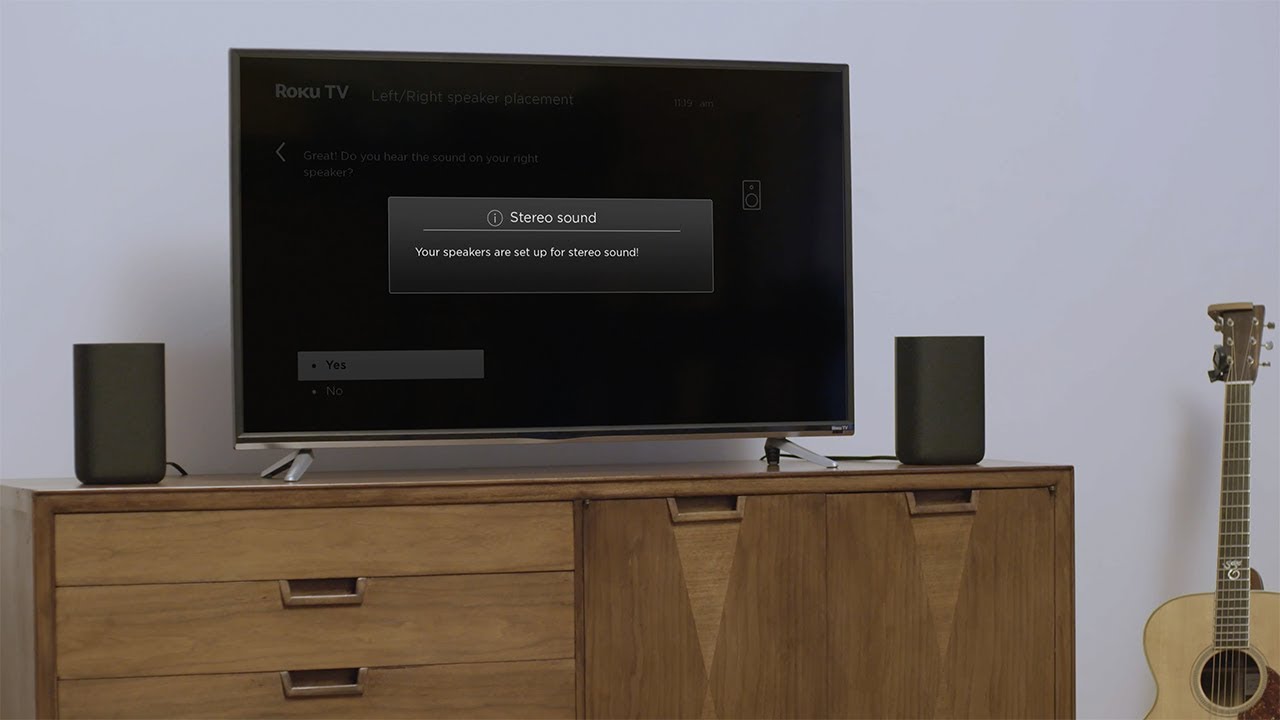
To connect Bluetooth speakers to your TV, first check if your TV supports the Bluetooth Advanced Audio Distribution Profile (A2DP), which is necessary for audio output. If your TV does not have this profile, you will need an external Bluetooth transmitter to achieve wireless audio for your TV.
Before you start: Does your TV support Bluetooth speakers?
Most modern smart TVs manufactured from 2016 or 2017 onwards include built-in Bluetooth for audio output. However, not all TVs support Bluetooth audio; some models, like certain Vizio TVs, only have Bluetooth Low Energy (LE), which does not support audio connections. Your TV must support the Bluetooth Advanced Audio Distribution Profile (A2DP) to connect Bluetooth audio devices like speakers. If your TV lacks built-in Bluetooth, you can use an external Bluetooth audio transmitter that connects to the TV's 3.5mm audio jack, optical port, or RCA outputs.
How to connect Bluetooth speakers to a Samsung TV
For Samsung TVs manufactured from 2016 to the present, follow these steps:
- Press the Home button on your remote and navigate to Settings.
- Select Sound, then Sound Output.
- Choose Bluetooth Speaker List.
- Put your Bluetooth speaker into pairing mode (refer to its user manual for specific instructions). Most Bluetooth speakers have a dedicated button or switch that puts them into pairing mode, usually indicated by a blinking LED light or a specific pairing symbol.
- Select your speaker from the list and choose Pair and connect.
How to connect Bluetooth speakers to an LG TV
For LG TVs running webOS 6.0 or later, use this menu path:
- Press the Settings button on your remote.
- Select All Settings > Sound > Sound Out.
- Choose Use Wireless Speaker > Bluetooth Devices.
- Select Connectable Devices and put your speaker into pairing mode.
- Select your speaker from the list.
How to connect Bluetooth speakers to a Sony TV
For Sony Google TV and Android TV models, follow these steps:
- Press the HOME button on your remote.
- Go to Settings > Remotes & accessories.
- Select Bluetooth settings and ensure it is set to On.
- Choose Pair accessory.
- Put your Bluetooth speaker into pairing mode, then select it from the list.
How to connect using a Bluetooth transmitter (for any TV)
If your TV does not have built-in Bluetooth, you can add it with an external transmitter:
- Identify an available audio output port on your TV: 3.5mm headphone jack, optical (TOSLINK) port, or RCA (red/white) audio outputs.
- Connect the Bluetooth transmitter to the chosen port using the appropriate cable (e.g., 3.5mm-to-3.5mm, optical cable, or RCA-to-3.5mm adapter).
- Power on the transmitter and put it into pairing mode.
- Put your Bluetooth speaker into pairing mode.
- Once the transmitter and speaker pair, the TV audio will play through the speaker. If you encounter issues, try a different Bluetooth adapter if your TV does not have built-in Bluetooth capabilities, as not all adapters are compatible with all TVs.
Troubleshooting common Bluetooth speaker and TV problems
Speaker not appearing in the TV's list
Ensure the speaker is in pairing mode, fully charged, and within close proximity to the TV. If a Bluetooth speaker is not appearing in the TV's list, ensure it is fully charged. Restart both the TV and the speaker. Check for interference from other devices that emit strong signals, such as Wi-Fi routers or cordless phones, and ensure there are no obstacles blocking the line of sight between the TV and the speakers. Bluetooth connections have a limited range, typically around 30 feet (10 meters), and can be affected by physical obstructions or interference from other wireless devices. Reset the Bluetooth settings on both devices to erase all previously paired devices and start the pairing process from scratch.
Audio delay or lip-sync issues
Audio delay can occur due to Bluetooth latency. Some TVs offer "lip sync" or A/V sync adjustments in their audio settings to help. For optimal sound quality and minimal delay, both the TV and the Bluetooth speaker should support the same advanced audio codec (e.g., aptX Low Latency); otherwise, they will default to a basic codec like SBC.
Audio quality concerns
Bluetooth audio is typically limited to stereo sound and does not directly transmit multi-channel surround sound formats like Dolby Digital or DTS; the TV will convert these to stereo. Bluetooth connections compress audio, meaning they do not transmit true lossless or high-resolution audio formats. For the best audio quality and stability, wired connections (HDMI ARC/eARC, Optical) or Wi-Fi audio systems are generally preferred over Bluetooth.
Single-device connection limit
Most TVs allow only one Bluetooth audio device to be connected at a time (e.g., Samsung, Sony). If you need to connect multiple speakers simultaneously, consider a dedicated multi-room audio system or a transmitter that supports multiple connections.
Frequently Asked Questions
Can I connect my Bluetooth speaker to a TV that doesn't have Bluetooth?
Yes, you can use an external Bluetooth transmitter that connects to your TV's audio output ports (3.5mm, optical, or RCA). This adds Bluetooth audio capability to any TV with those outputs.
Why is there a delay between the video and audio when using Bluetooth?
Bluetooth connections introduce latency due to audio compression and transmission. To reduce this, use a speaker and TV that both support low-latency codecs like aptX Low Latency, or adjust the TV's A/V sync settings.
Can I connect multiple Bluetooth speakers to my TV at the same time?
Most TVs only support one Bluetooth audio device at a time. Some external transmitters can pair with multiple speakers, but built-in TV Bluetooth typically does not allow this.
Will Bluetooth speakers work with all TV apps and streaming services?
Yes, once paired, the Bluetooth speaker will output audio from all sources, including streaming apps, cable boxes, and gaming consoles, as long as the TV routes audio through the Bluetooth connection.
Does using Bluetooth speakers affect the TV's built-in speakers?
When a Bluetooth speaker is connected, most TVs automatically mute or disable the built-in speakers. You can usually switch back to the TV speakers by disconnecting the Bluetooth device or changing the sound output setting.