To add friends on VRChat, you can either search for their username or send a request to someone you meet in the same virtual world. VRChat is available on PC, Meta Quest, iOS, Android, and other platforms, and does not require a VR headset to play.
How to add friends on VRChat: A brief introduction
Adding friends on VRChat is the primary way to socialize, explore worlds, play games, and create together. There are two main methods: searching for a specific username or sending a friend request to someone you encounter in-game. The platform is cross-platform, so you can connect with friends regardless of whether they are using a VR setup and TV casting or playing on a desktop.
Method 1: Add a friend by searching their username
If you know the exact VRChat username of the person you want to add, follow these steps:
- Open the Social Menu from the main menu.
- Select the "User Search" tab.
- Enter their VRChat username and locate their account in the search results.
- Click "Friend Request" on their profile to send the request.
This method works whether the user is online or offline. They will receive the request and can accept it the next time they log in.
Method 2: Send a friend request to someone you meet in-game
When you are in the same instance as another player, you can add them directly:
- The main menu is usually located on your wrist or in front of you, depending on the device you are using.
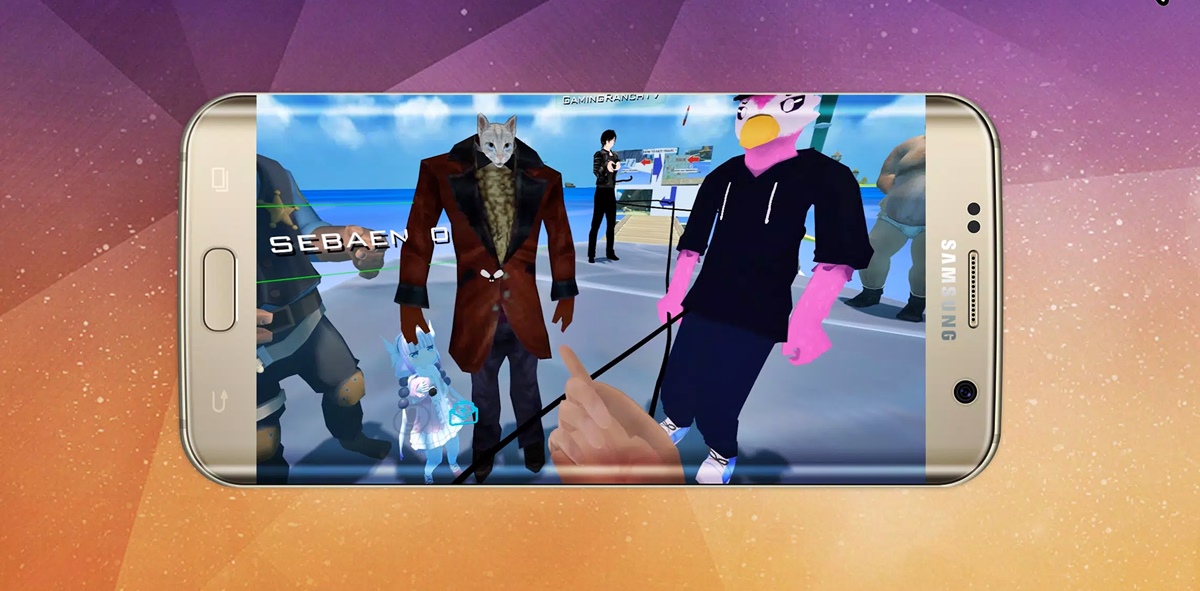
- Select the user in the game world using your Quick Menu. You can send a friend request by clicking on their avatar.
- Click "Friend Request" from the options that appear.
This is the fastest way to connect with someone you are actively interacting with in a virtual world.
How to accept a friend request
When someone sends you a friend request, you will receive a notification. To accept it:
- Open the Social Menu.
- Navigate to the "Friend Requests" tab.
- Locate the pending request and click "Accept" on the user's profile.
Once accepted, the person will be added to your friends list, and you can see when they are online. You can optionally send a message or start a conversation with your newly accepted friend by clicking or tapping on the chat icon next to their username in your friend list.
Important things to know about VRChat friends
Currently, any user can send you a friend request unless you have blocked them. However, there is community feedback requesting more restrictive settings, such as only allowing requests from friends of friends or users in the same instance. Additionally, the website's friends list may be limited to displaying 10 people per category, which can make it difficult to see who is online from a browser. You can categorize friends into different groups or tags for easier organization. If you want to display VR on TV while playing, you can use the platform's casting feature to share your view with others in the room.
Frequently Asked Questions
How do I add friends on VRChat?
You can add friends by searching their username in the Social Menu's User Search tab and sending a request, or by selecting a user in the same instance and clicking "Friend Request" in the Quick Menu. Both methods add them to your friends list once they accept.
Can I add friends who are not currently online on VRChat?
Yes, you can send a friend request to any user by searching their username, even if they are offline.
How do I manage my friends list on VRChat?
You can view, remove, or categorize friends from the Social Menu. The in-game friends list shows online status, while the website version may only display 10 people per category.
Are there any restrictions on adding friends on VRChat?
There are no restrictions beyond being blocked by the other user. Community feedback has requested options to limit requests to friends of friends or same-instance users, but these are not yet implemented.
Can I see if someone has added me as a friend on VRChat?
Yes, you receive a notification when someone sends you a friend request. You can view and accept or decline it from the "Friend Requests" tab in the Social Menu.
Related reading: How To Fullscreen VR Chat.