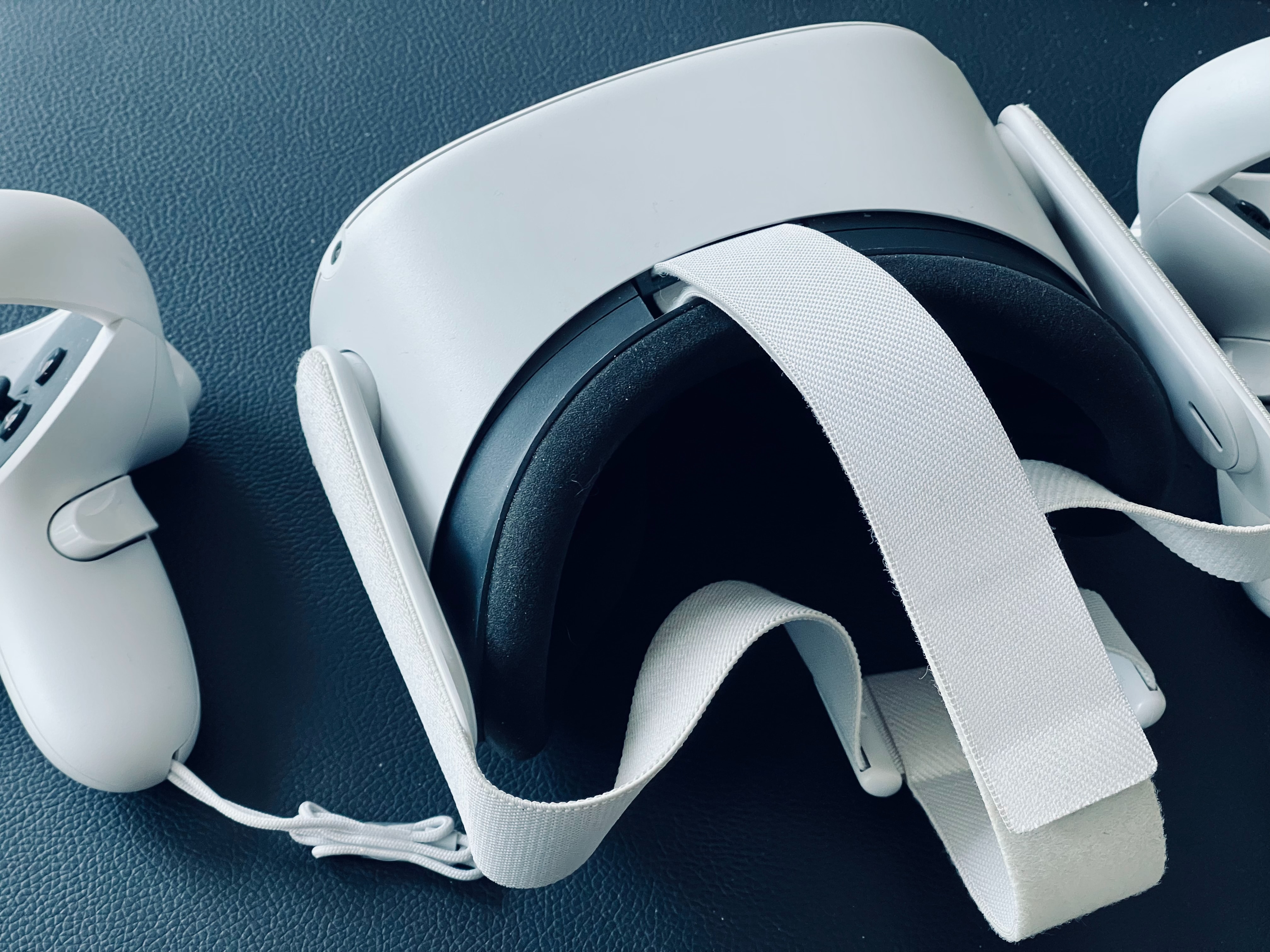
Understanding your Steam VR setup hardware
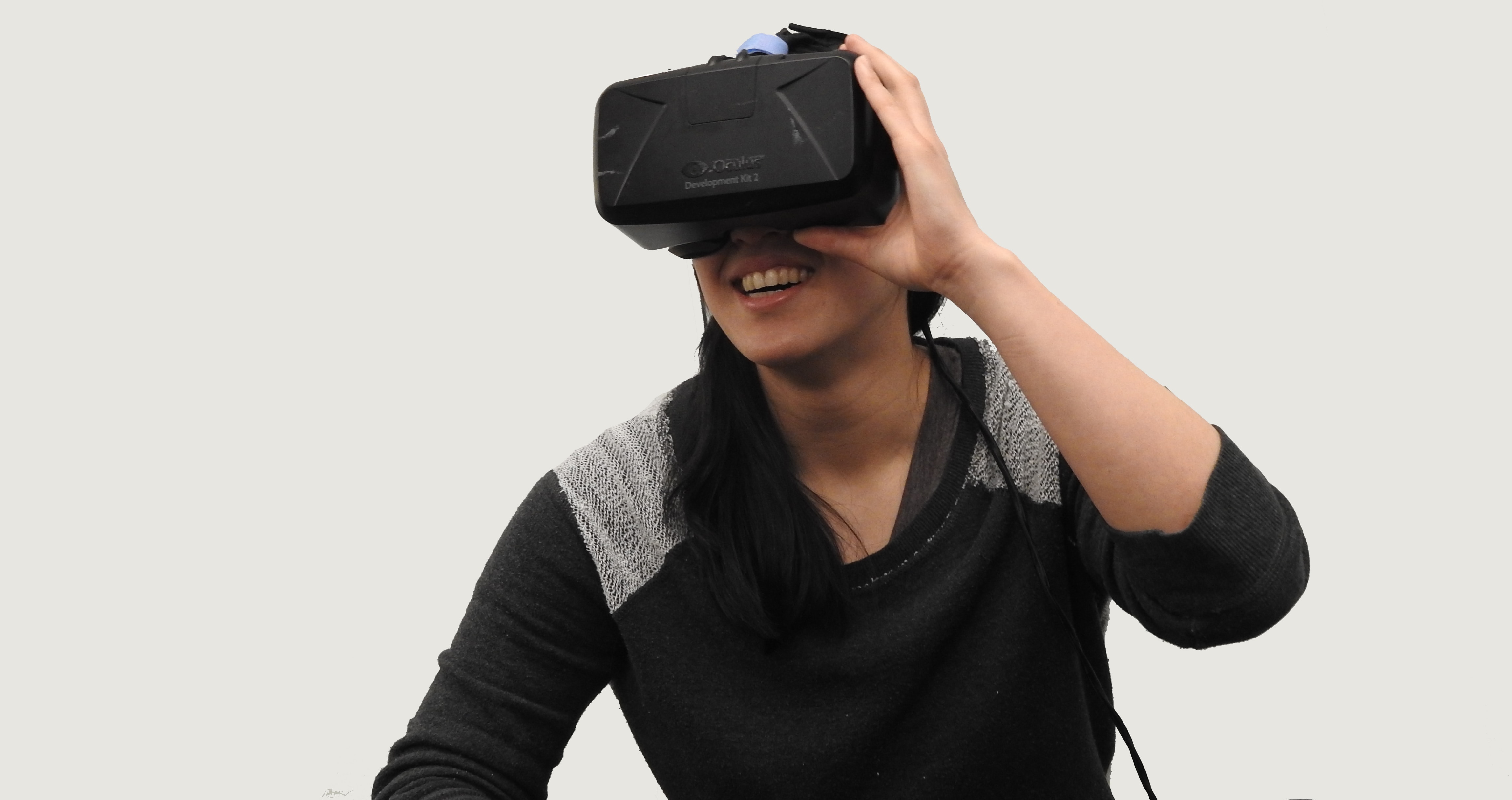
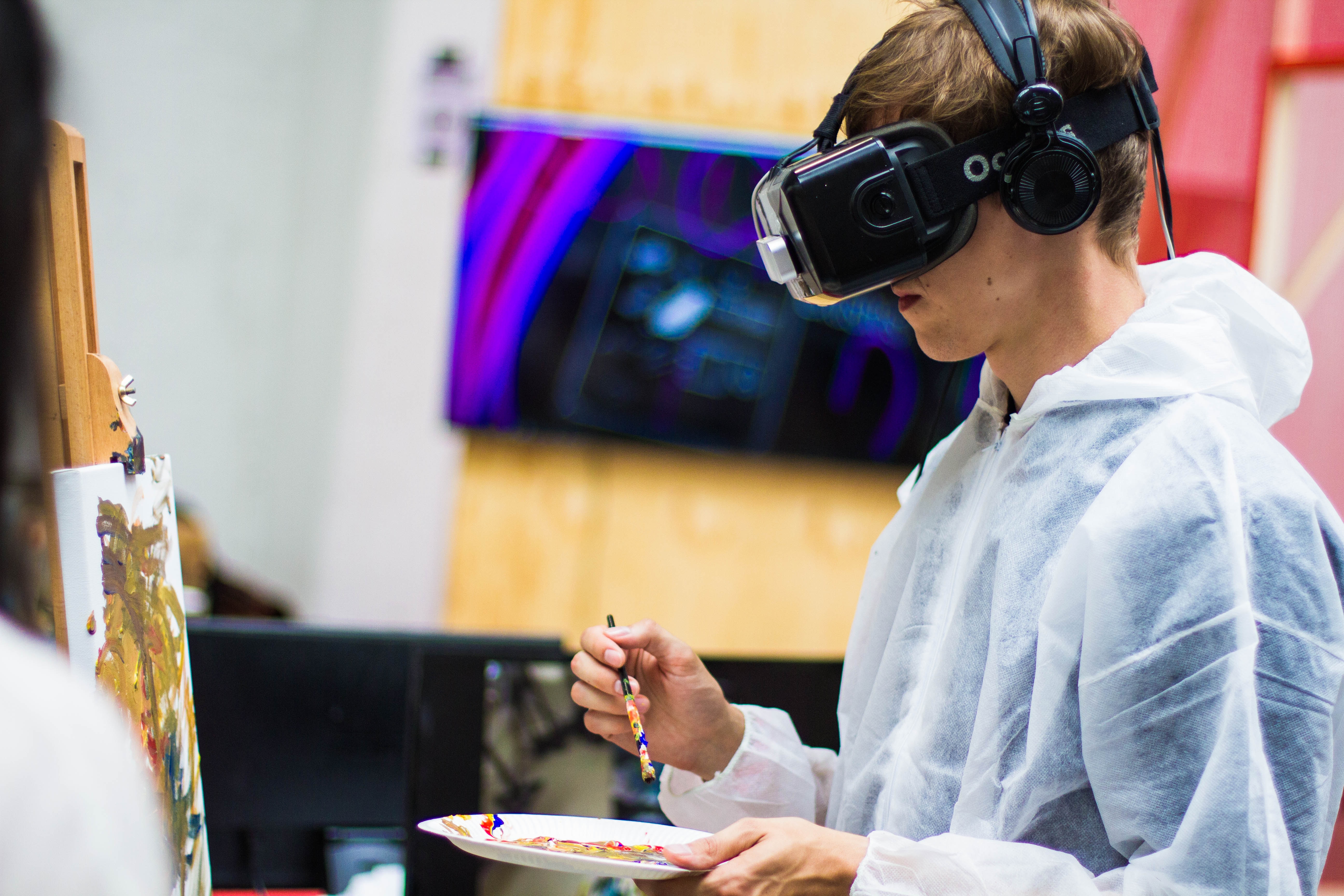
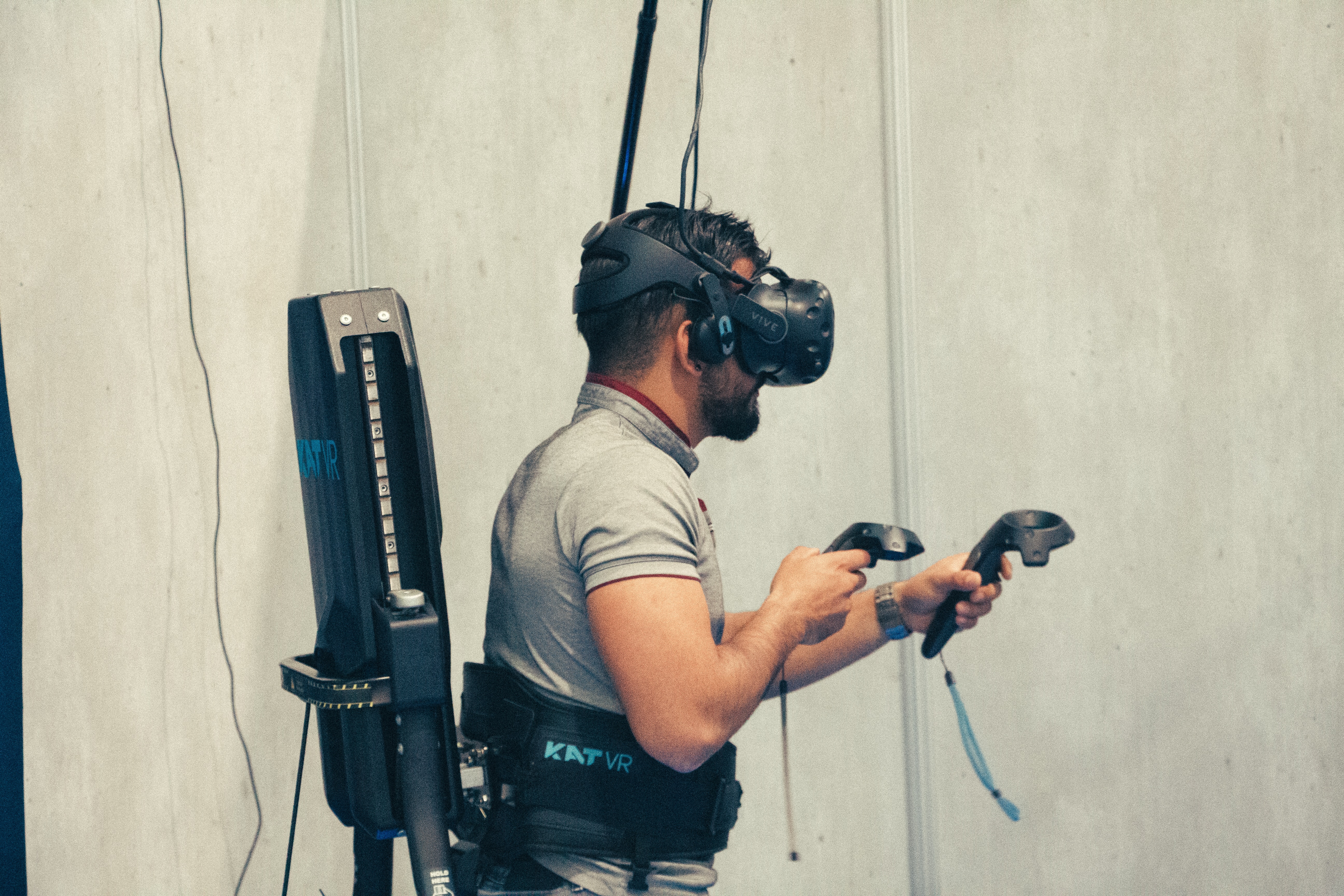
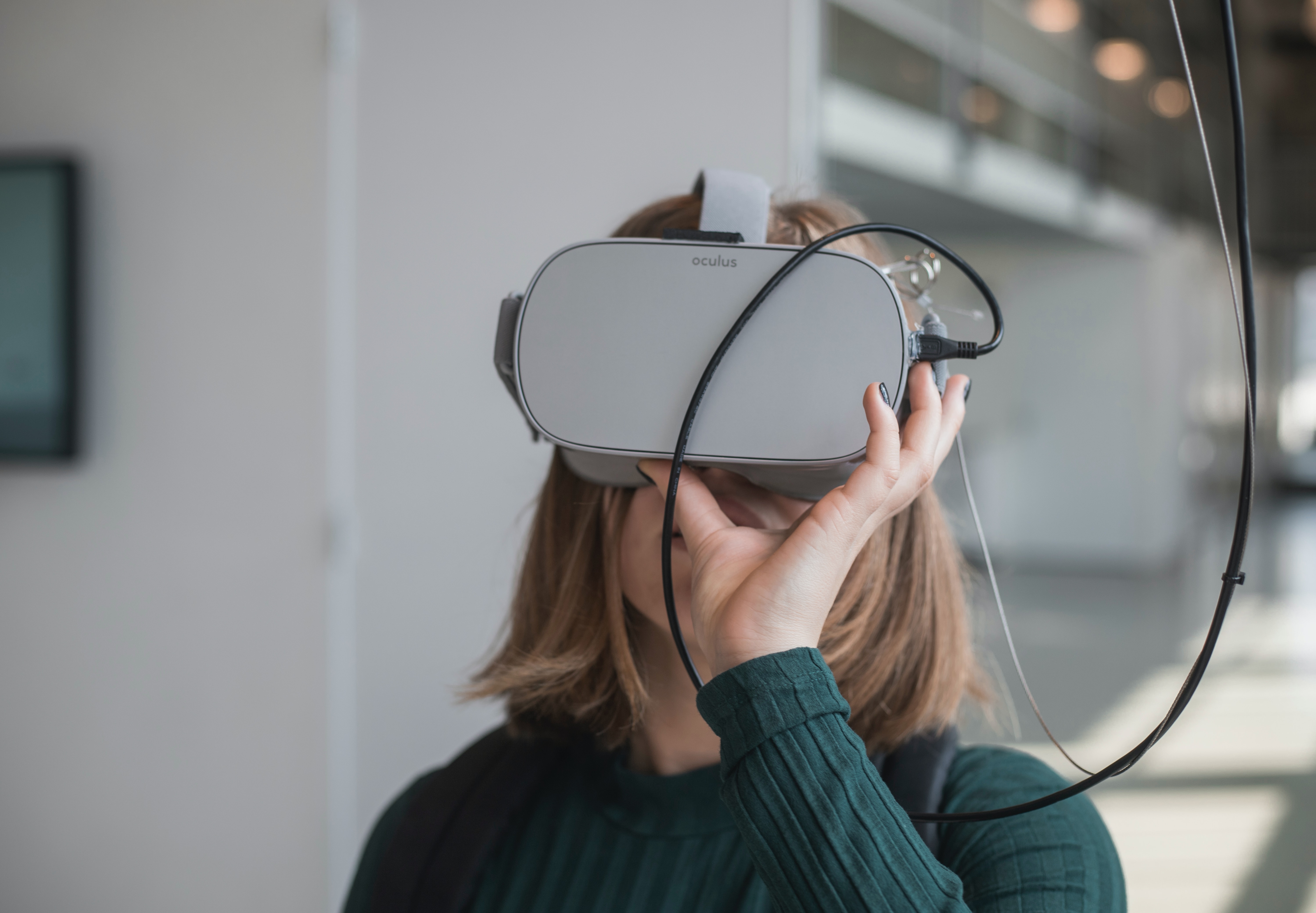
Before you buy or set anything up for your Steam VR setup, it helps to know that virtual reality headsets explained simply are displays you wear that show a stereoscopic 3D world, updating the view in real time as you turn your head. The technology behind virtual reality relies on rendering a slightly different image for each eye while sensors track your movement. This is why a stable, high-framerate connection matters more for the player than for someone watching on a TV. If you are wondering when was virtual reality headset invented. For PC-based setups, you can consult a Steam-compatible VR headsets list that includes families like HTC Vive and Vive Pro, Oculus Rift, and Windows Mixed Reality. Meanwhile, the Steam Link app wirelessly streams to standalone devices such as Meta Quest 2, Quest 3, and Quest Pro, among others. To use that wireless path, your device must meet a minimum OS version. For instance, Meta hardware needs a minimum OS version, and both the wearable unit and the host PC must be on the same network.
First-time setup and connecting to a PC
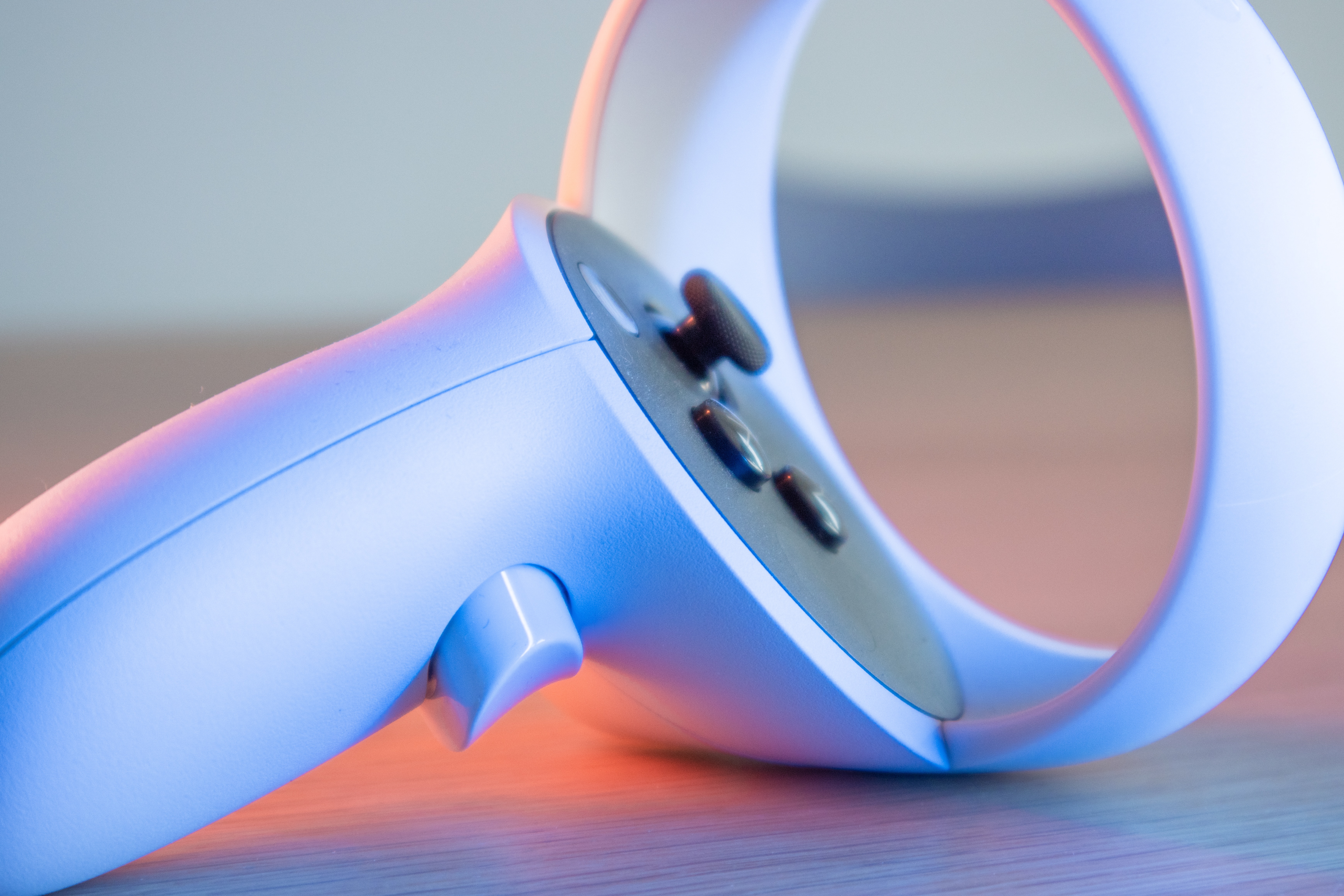
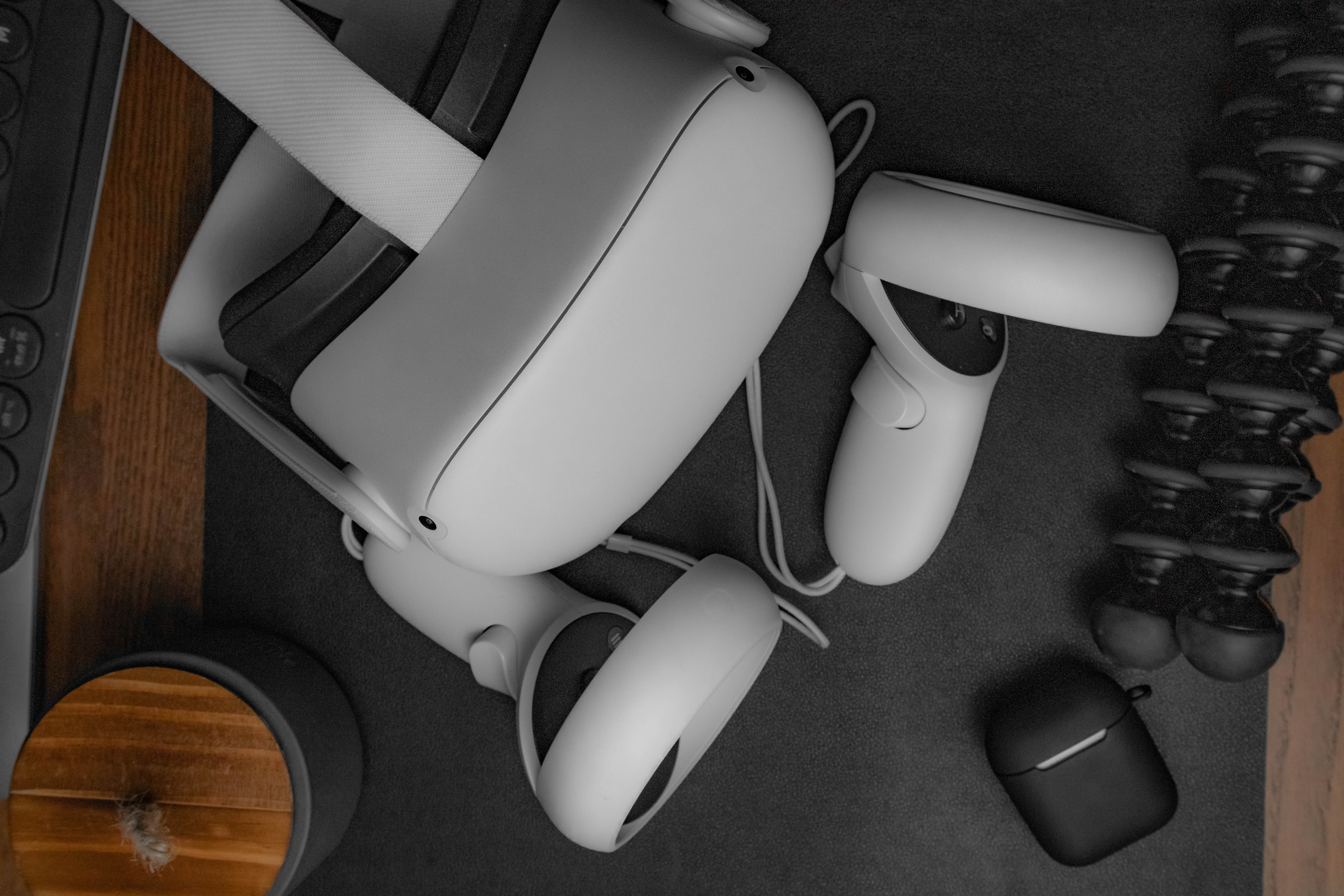
When you first take the device out of the packaging, the immediate goal is to charge the headset and use the Meta Horizon mobile app to pair the device before putting it on to set up VR headset boundaries directly via the lenses. Once the guardian is drawn, you can connect VR to PC with a high-speed USB-C cable, then in the headset open Quick controls and select Link so the desktop software can recognize the device. With the wired link established in the Meta Horizon Link app, you can launch Steam VR from your desktop or game library, and the visor will transition into the SteamVR home environment where your library lives. If the image stutters or the controllers feel heavy and slow, start fixing Steam VR lag issues by lowering the render resolution in SteamVR’s video settings and making sure no supersampling filters are stacking on top of each other from multiple tools. For those who want to explore experimental titles and early-access builds outside the official store, sidequest VR gives you a way to browse and install that content by installing the SideQuest app on your headset and computer. Because any cast you later send to a television will add a slight delay, keep the goggles on your face for anything that demands quick reactions, and treat the TV picture as a spectator window only.
Casting and streaming your VR view
When you want to share what you see with others in the room, the most direct way to display VR on TV is via your device's built-in casting feature, which sends a view of your VR experience to a nearby screen. Because the connection travels over Wi‑Fi, expect a short lag that makes the TV unusable for your own gameplay, though it works perfectly for friends watching you struggle through a boss fight. If you are trying to cast VR to Roku TV, you may be able to open the companion phone app, start casting to your phone, and then mirror the phone screen to the Roku. Among the various VR streaming methods for a wider online audience, going live with your device’s native broadcasting tool keeps things simple, while PC-connected players often prefer capturing the SteamVR viewport via OBS for more control over overlays and alerts. If your goal is to stream VR on Discord so a small group can follow along, join a voice channel first and choose the Screenshare option from the menu, which transmits whatever your device is displaying at that moment. When you are socializing in virtual spaces, you may want to use fullscreen VR chat to make the world fill your monitor for anyone looking over your shoulder, though the exact menu path varies by platform.
Playing social and multiplayer VR games
When you jump into a social platform, the first step is usually downloading and installing VRChat via your device’s own store. The Android version requires at least Android 10 and 6 GB of system RAM to run. Once you are inside, you can add friends on VR chat by opening the Quick Menu and selecting the person directly if they are in the same instance, or by using the Social tab’s User Search to find someone by name and send a Friend Request from their profile. Before you spend too long as a default grey robot, you will probably want to make a VR chat avatar by opening the Quick Menu, choosing the Avatars tab, and picking a new look from the available options. If you plan to upload a custom creation later, the full Build & Publish workflow happens via the creator documentation on a computer. Because mobile users join the same worlds as PC and VR hardware players using crossplay, you can hop into a friend’s session straight from the Social menu. The phone experience runs in flatscreen mode with lower graphical fidelity.
Playing specific games and apps in VR
When you want to jump into a rhythm game like Beat Saber or a driving simulator, the device’s own display is your most reliable reference because the TV feed may trail behind your movements. For titles that blend flat-screen and headset play, the experience shifts depending on the platform, and you might explore a wilderness in VR while a friend on a standard monitor joins the same server. A common scenario for younger players is figuring out how to play Roblox on VR without PC, which may involve installing the Roblox app directly onto a standalone unit and joining experiences that have enabled VR compatibility. Because the casting delay makes the television unusable for your own timing, treat the big screen purely as a window for anyone watching from the couch while you stay locked into the device’s audio and video. Installing, launching, and optionally casting a spectator view are common steps whether you want to play Minecraft on VR, play Fortnite on VR, play Roblox on VR, play assetto corsa in VR, play the forest in VR, or play Gorilla tag on PC without VR.
Watching videos and movies in VR
When you want to settle in for a show, your device becomes a private cinema that fills your field of view with a massive virtual screen. To watch YouTube in VR, open the YouTube app, find a VR-ready video, and choose Watch in Panel from the home screen in immersive mode. For VR180 and 360-degree videos, the YouTube VR app on Meta Quest supports these formats natively. The YouTube VR experience supports VR180 and 360-degree videos natively, while flat content plays on a simulated screen you can size to your liking.
If you want to watch movies in VR.
Exploring platform-specific VR games
If you want to explore VR on a console you already own, the path is surprisingly narrow and tied to one specific accessory. You can access Nintendo Switch games with VR support through the Nintendo Labo VR Kit and its included Toy-Con VR Goggles. The official roster includes a handful of major titles, each offering a distinct VR-style perspective once the cardboard viewer is assembled. Before you start building, check your hardware carefully. The Toy-Con VR Goggles are not compatible with Nintendo Switch Lite, leaving the original full-size Switch as your compatible option. Once you slot the console into the viewer, you are holding the entire display directly in front of your eyes with no wireless streaming involved. This physical connection sidesteps the casting latency that plagues wireless devices, but it also means anyone in the room will simply have to wait their turn.
Frequently Asked Questions
How do I cast Meta Quest to a TV without the phone app?
Open the Camera app inside your headset and select Cast from the Camera window, then choose your TV from the device list if it supports casting and is on the same Wi‑Fi network.
What Android version does VRChat mobile require?
VRChat on Android requires Android 10 or newer with at least 6 GB of system RAM, and it works over Wi‑Fi or 4G/5G cellular networks.
Which Nintendo Switch models work with the Labo VR Kit?
The Toy-Con VR Goggles are compatible with the original full-size Nintendo Switch only. Nintendo Switch Lite and Nintendo Switch 2 are not supported.
How do I watch YouTube VR180 videos on my phone?
Open the YouTube app on Android, search for a VR video, play it, and tap the Cardboard icon before inserting your phone into a Google Cardboard viewer or another VR headset.
What OS version does my Meta Quest need for Steam Link?
Meta headsets require OS version 74 or higher to use the Steam Link app for wireless streaming from a PC.