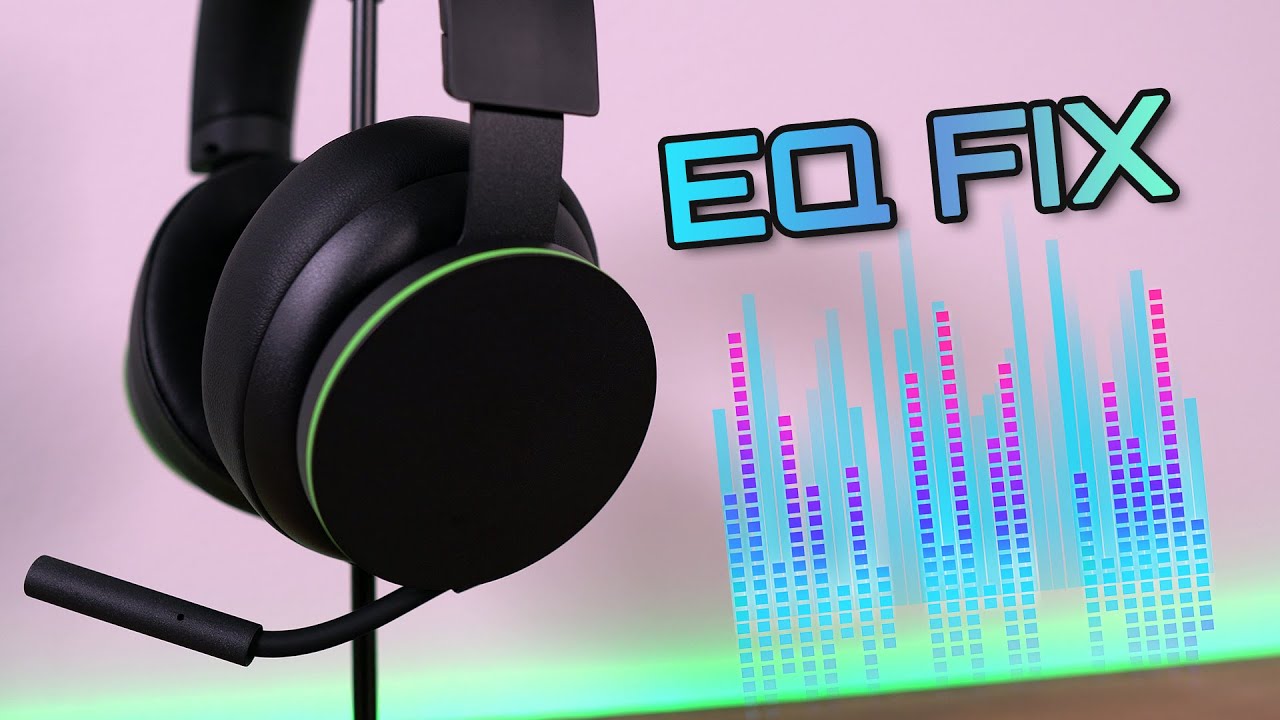
To adjust volume on an Xbox headset, you can use physical controls on the headset or adapter, or change settings directly from the Xbox dashboard. The method you choose depends on whether your headset uses a wired 3.5mm connection, a wireless setup, or the official Xbox Stereo Headset Adapter.
Before you start: check your Xbox headset connection
Before adjusting audio, ensure your headset is properly connected. Your Xbox wireless controller must have a 3.5mm AUX port for audio; if it does not, a separate Xbox headset adapter is required. For full steps on connecting gaming headsets, see the dedicated connection guide.
Method 1: adjust volume on your Xbox headset with the stereo headset adapter
The Xbox One Stereo Headset Adapter plugs into the bottom of the Xbox Wireless Controller and features physical buttons for quick volume control. The adapter also has a microphone mute button.
- Locate the two large buttons on the front face of the adapter: the top button raises volume, and the bottom button lowers it.
- Press the top button repeatedly to increase headset volume. Press the bottom button to decrease it.
- Use the two smaller buttons on the left side of the adapter to adjust the game/chat balance. The top button shifts audio toward game sound, and the bottom button shifts it toward chat.
Method 2: use your headset's on-ear audio controls
Some wired headsets, such as the PDP Gaming LVL50, feature convenient on-ear audio controls for volume adjustments. These controls are typically located on one of the ear cups.
- Look for a physical volume dial or a set of buttons on the side or bottom of the ear cup.
- Rotate the dial upward or press the “+” button to increase volume. Rotate downward or press the “, ” button to decrease volume.
- If your headset has a separate chat/game balance dial, use it to prioritize party chat or in-game audio.
Method 3: change headset volume through the Xbox dashboard
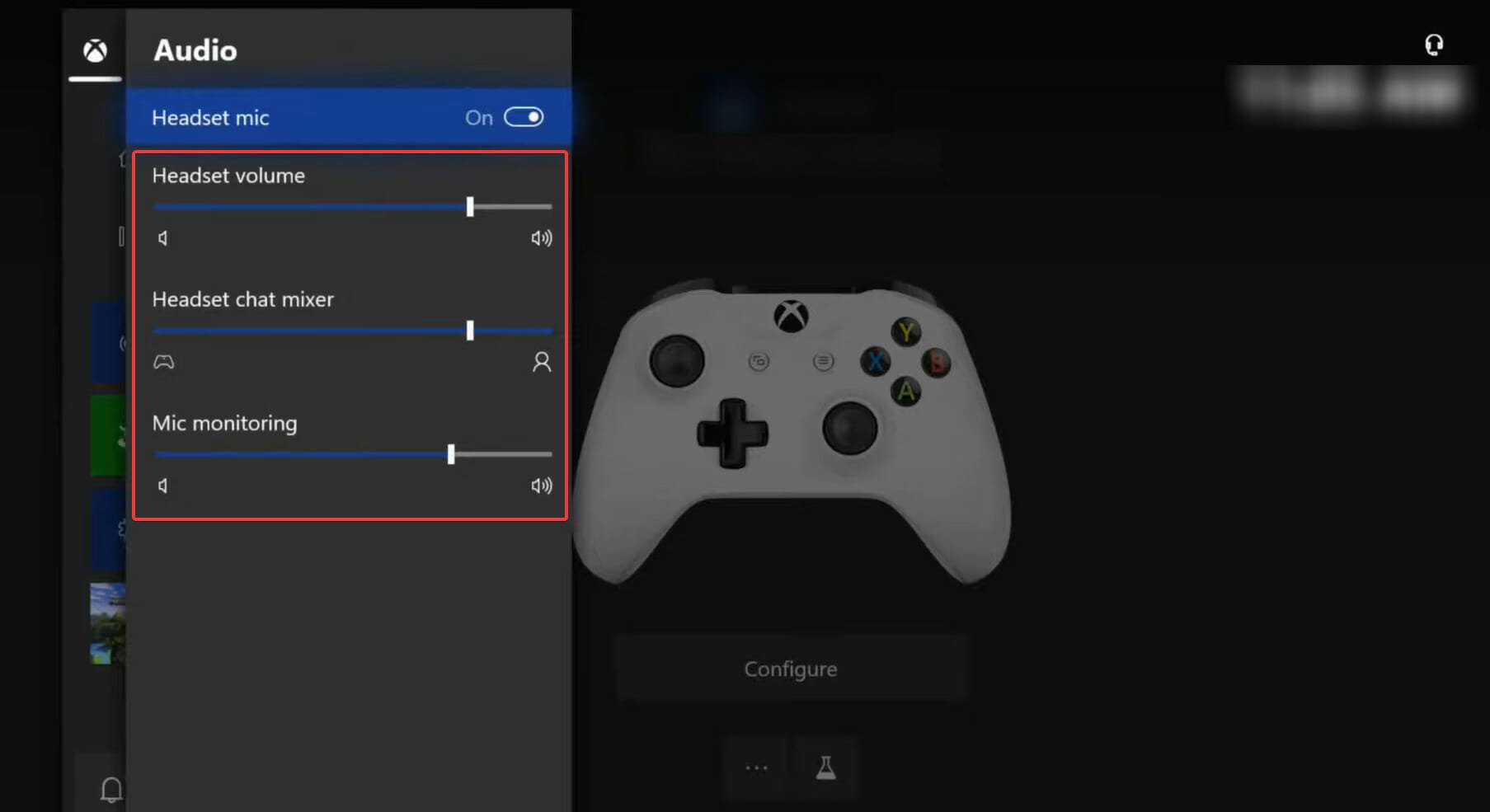
If your headset does not have in-line or on-ear controls, or in addition to them, the headset audio can be adjusted directly through the Xbox dashboard.
- Press the Xbox button on your controller to open the guide menu.
- Navigate to the Audio & Music tab (represented by a speaker icon).
How to balance game and chat audio on Xbox
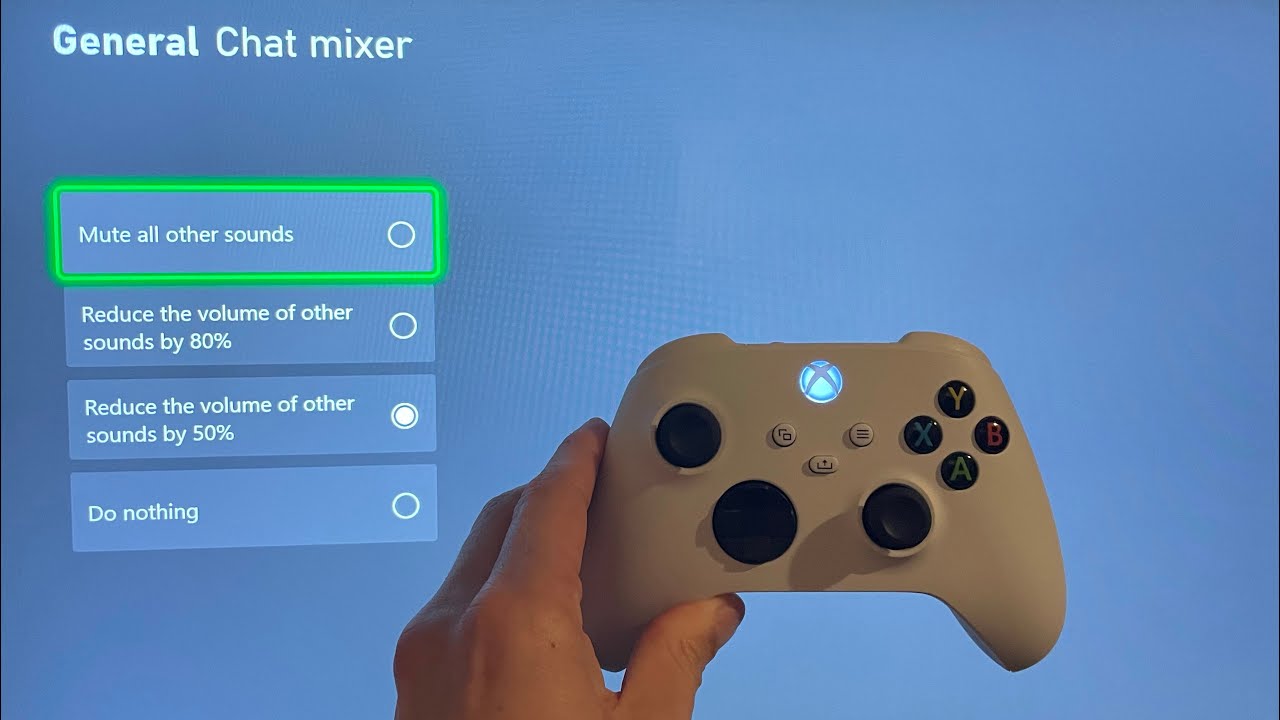
Balancing game and chat audio is a key related need for multiplayer sessions. From the Xbox guide menu, select the Audio & Music tab. Under “Chat mixer,” choose one of the following options:
- “Do nothing”, keeps game and chat at the same relative volume you set manually.
You can also use the dedicated game/chat balance buttons on the Stereo Headset Adapter for instant adjustments without leaving your game.
Troubleshooting common Xbox headset volume issues
If you experience low volume, no sound, or distorted audio, try these solutions:
- Low volume: Check the headset volume slider in the Xbox dashboard (Guide > Audio & Music). Also ensure the physical volume wheel or buttons on your headset or adapter are turned up.
- No sound: Verify the headset is firmly plugged into the controller’s 3.5mm port. Check that the mute button on the controller or adapter is not activated. Review in-game audio settings to confirm game volume is not muted.
- Distorted audio: Disconnect and reconnect the headset to ensure a clean connection. Try a different controller or headset to isolate the issue.
- Echo or feedback: This can be caused by volume settings or microphone position. Lower the volume or adjust the microphone so it is not too close to your mouth.
- Firmware updates: Ensure your Xbox console and controller have the latest firmware updates, which can resolve audio bugs and compatibility problems.
Frequently Asked Questions
How can I increase the volume on my Xbox headset?
You can increase the volume using the physical controls on your headset or adapter, or by going to the Xbox dashboard (Guide > Audio & Music) and adjusting the headset volume slider.
What should I do if the volume on my Xbox headset is too low?
First, check the headset connection. Then, check the volume settings on both the Xbox dashboard and the headset itself. Also, check for firmware updates for your controller and headset. If the issue persists, contact the headset manufacturer.
How do I adjust the microphone volume on my Xbox headset?
Most Xbox headsets have a separate microphone volume control on the headset itself. You can also adjust mic monitoring (the ability to hear your own voice) from the Xbox dashboard under Audio & Music > Headset audio > Mic monitoring.
How do you connect headset to Xbox one?
To connect a wired headset, plug the 3.5mm cable into the audio jack at the bottom of your Xbox Wireless Controller. If your controller lacks a 3.5mm port, you need the Xbox Stereo Headset Adapter to connect the headset.
Can I use spatial sound like Windows Sonic with my headset?
Yes. Under “Headset audio” in the advanced settings, you can select spatial sound formats such as “Stereo uncompressed,” “Windows Sonic for Headphones,” “Dolby Atmos for Headphones,” or “DTS Headphone:X.” These formats enhance directional audio in games.
Why is my Xbox headset volume still low after maxing out the settings?
Check if your headset has a separate inline volume control or dial that may be turned down. Also verify that the chat mixer is not set to mute game audio, which can make overall volume seem lower.
Can I adjust volume for game and chat separately without an adapter?
Yes. From the Xbox dashboard, go to Audio & Music and use the Chat mixer slider to balance game and chat audio. This works with any headset connected to the controller’s 3.5mm port.
Related reading: How To Increase PS4 Headset Volume and What Is Headset Chat Mixer On Xbox.