To connect to hotspot on hp laptop, first ensure the mobile hotspot feature is active on your smartphone or other source device and that it has an active internet connection. Then, on your HP laptop, click the Network icon in the bottom-right corner of the taskbar, find your hotspot’s network name (SSID) in the list, click Connect, and enter the security key when prompted.
Before you connect to a hotspot on your HP laptop
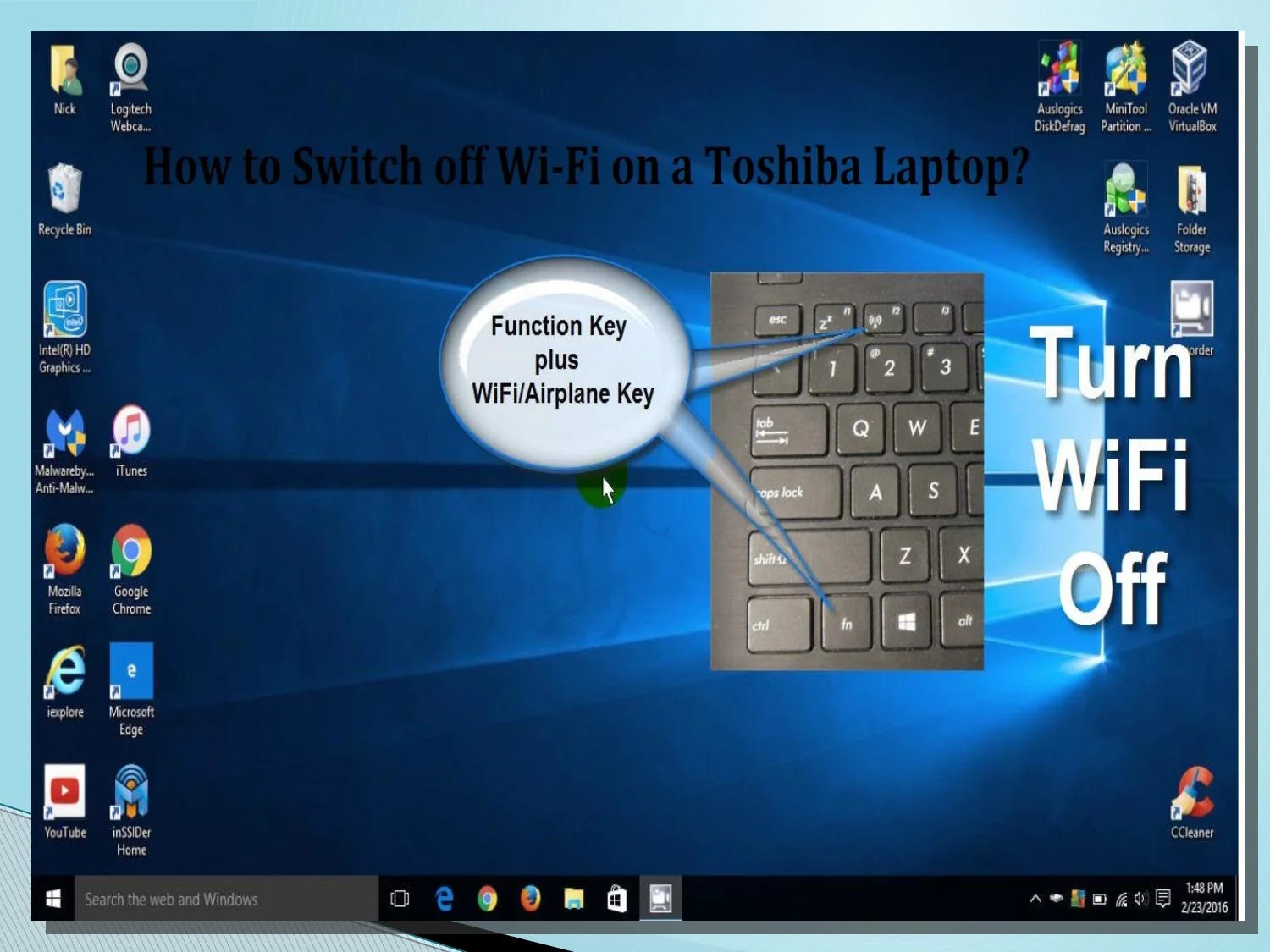
Before you begin, verify that the mobile hotspot feature is turned on and broadcasting from the source device, whether a smartphone, tablet, or another Windows PC. On your HP laptop, confirm that Wi-Fi is enabled. You can check this through Windows Settings or by looking for a physical Wi-Fi switch or function key on your laptop model. Some HP laptop models have a physical Wi-Fi switch or function key to enable Wi-Fi. Also, be aware that connecting devices to a hotspot uses data from the source device’s cellular data plan, which may be subject to hotspot data allowances or throttling. Check your plan’s limits to avoid unexpected charges. If you plan to use your phone as a hotspot, ensure you have an active mobile hotspot plan with your carrier, as some plans charge extra fees or have specific limitations.
How to connect to a hotspot on your HP laptop
Follow these steps to connect your HP laptop to a mobile hotspot:
- This icon may appear as Wi-Fi, Sound, or Battery.
- In the quick settings panel that appears, select the Wi-Fi icon or the arrow next to it to display a list of available wireless networks.
- Locate your mobile hotspot’s network name (SSID) in the list and select it.
- Click the Connect button.
- When prompted, enter the security key (password) for your mobile hotspot.
- Once connected, your HP laptop will use the source device’s cellular data plan for internet access.
Troubleshooting hotspot connection issues on your HP laptop
If you cannot connect, try these common fixes:
- Restart both your HP laptop and the hotspot source device to clear temporary software glitches.
- Verify that you entered the correct hotspot password. Check the password on the source device’s hotspot settings. Incorrect hotspot settings (network name/SSID and password) can lead to connection failures; double-check these on the source device.
- Update your network drivers. Visit the official HP support website to download and install the latest network drivers for your specific laptop model, then restart your laptop.
- Temporarily disable your laptop’s firewall or antivirus software, as these may block the connection. If the connection works after disabling, add an exception for the hotspot in your security software.
- Reset network settings by opening Command Prompt as an administrator, typing “netsh int IP reset”, pressing Enter, and restarting your laptop.
- Check device compatibility. Ensure the device you are connecting supports the same network type (2.4 GHz or 5 GHz) and security settings (WPA or WPA2) as your laptop’s hotspot.
- If your laptop is not connected to the internet, the hotspot connection will not work; try connecting to a Wi-Fi network or using an Ethernet cable first.
- Contact HP technical support if all troubleshooting steps fail, providing detailed information and any error messages.
Frequently Asked Questions
Can I connect my HP laptop to a mobile hotspot created by my phone?
Yes. As long as the phone’s mobile hotspot feature is turned on and broadcasting a Wi-Fi signal, your HP laptop can connect to it just like any other Wi-Fi network. Follow the standard connection steps: click the Network icon, select the hotspot’s SSID, and enter the password.
How do I create a hotspot on my HP laptop to share my internet connection?
To turn your HP laptop into a hotspot, go to Windows Settings, select Network & Internet, then choose Mobile hotspot. Toggle the switch to On, and customize the network name and password if desired. Other devices can then connect to your laptop’s hotspot using that name and password. Enabling the hotspot on your HP laptop may cause it to consume more power; keep an eye on battery level and consider connecting to a power source. When done using the hotspot, disable it on your HP laptop to save battery power and prevent unauthorized access.
Can I connect to a public Wi-Fi network on my HP laptop?
Yes. Go to the Network icon in the taskbar, select the public Wi-Fi network from the list, and click Connect. Some public networks may require you to agree to terms and conditions or enter a password before you can access the internet.
Why does my HP laptop keep disconnecting from the hotspot?
This can happen due to weak signal strength, outdated network drivers, or interference from other devices. Try moving closer to the hotspot source, updating your Wi-Fi drivers, or restarting both devices. Also, check if the source device’s hotspot settings have a connection limit or timeout feature.
Does connecting to a hotspot use my phone’s data?
Yes. When your HP laptop connects to a mobile hotspot, it uses the source device’s cellular data plan. Data usage may be subject to caps, throttling, or additional fees depending on your carrier and plan. Monitor your data usage to avoid overage charges.
Related reading: How To Connect Dell Laptop To Hotspot.