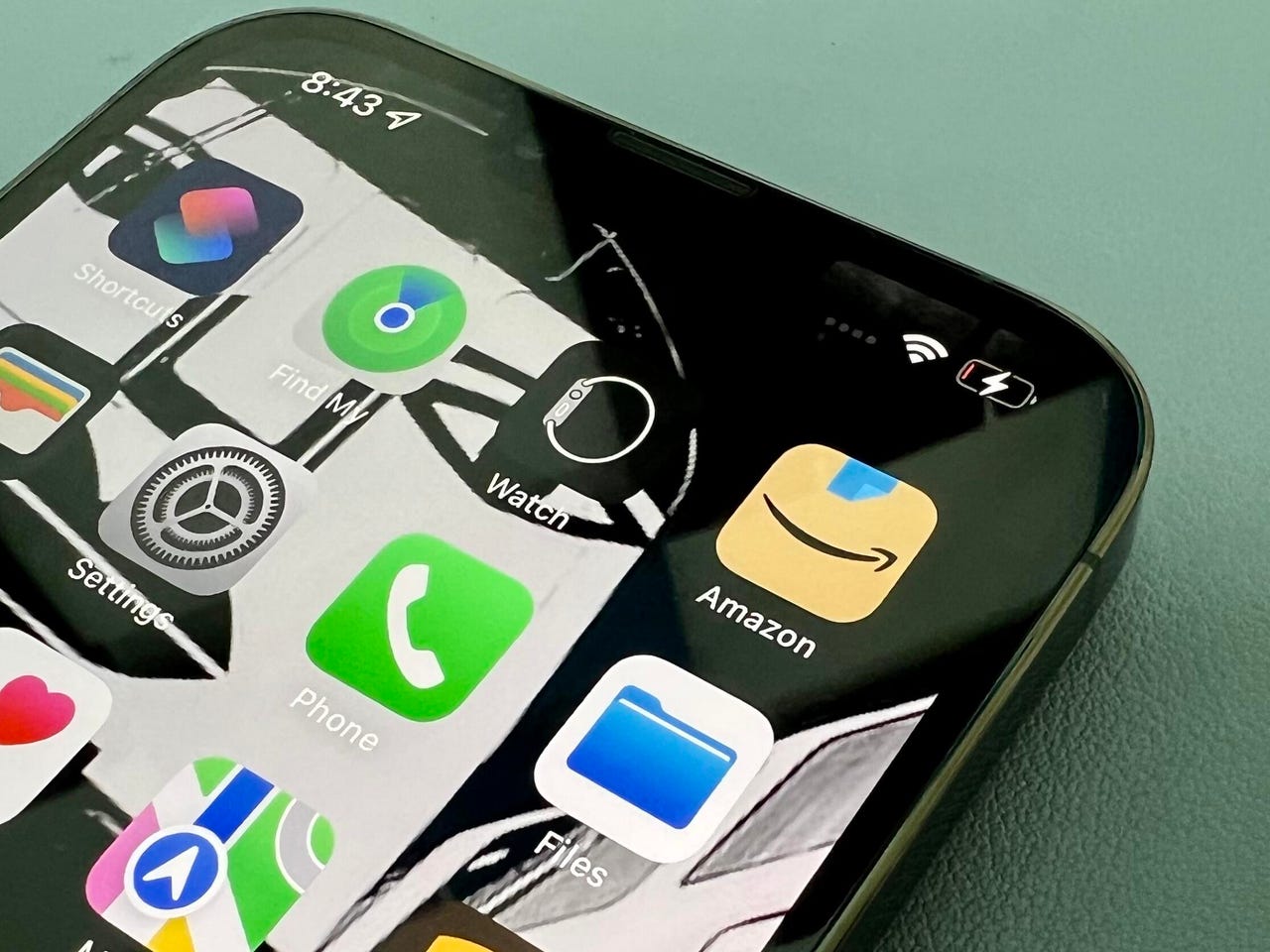
If your iPhone personal hotspot keeps turning off, the cause is usually Apple's power-saving behavior that disconnects the hotspot when it detects no active data traffic, or a limitation set by your carrier's plan. You can prevent most automatic shutdowns by keeping the Personal Hotspot screen open during the initial connection, turning off Low Power Mode, and ensuring your iOS is up to date; for persistent issues, resetting network settings is the final troubleshooting step.
Why your iPhone personal hotspot keeps turning off automatically
Apple documents that your iPhone may turn off Personal Hotspot when there is no active use, a deliberate measure to save battery life. The phone monitors data traffic; when no devices are actively using the connection, it can shut the hotspot down to conserve power. Additionally, Apple states that hotspot behavior depends on your wireless carrier plan and provisioning, meaning some disconnections are caused by carrier-side restrictions rather than a setting on your phone.
How to stop your iPhone personal hotspot from disconnecting
These are the verified methods Apple recommends to keep your Personal Hotspot active. They range from simple on-screen actions to deeper system resets, and you should try them in the order presented.
Keep the Personal Hotspot screen open while connecting
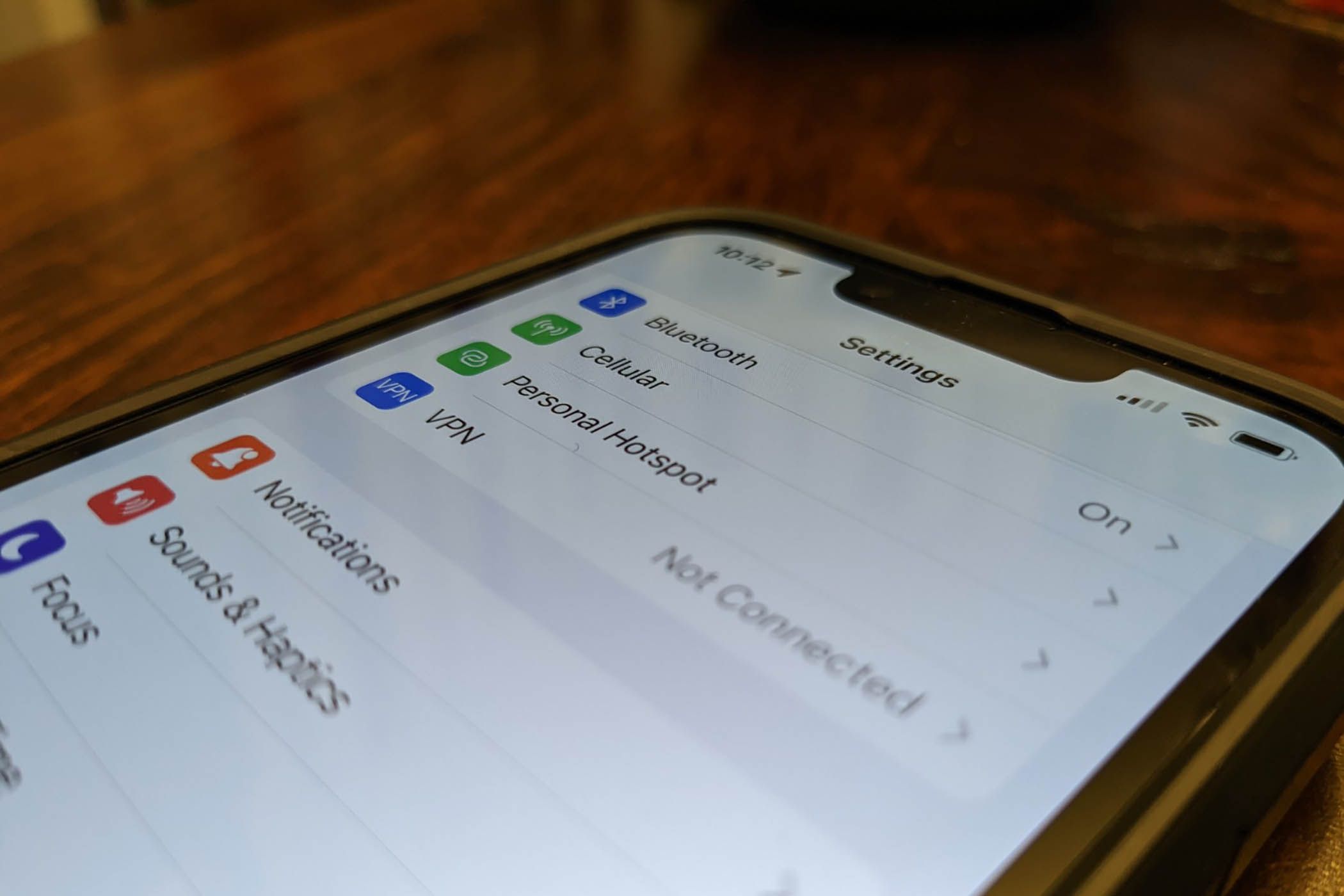
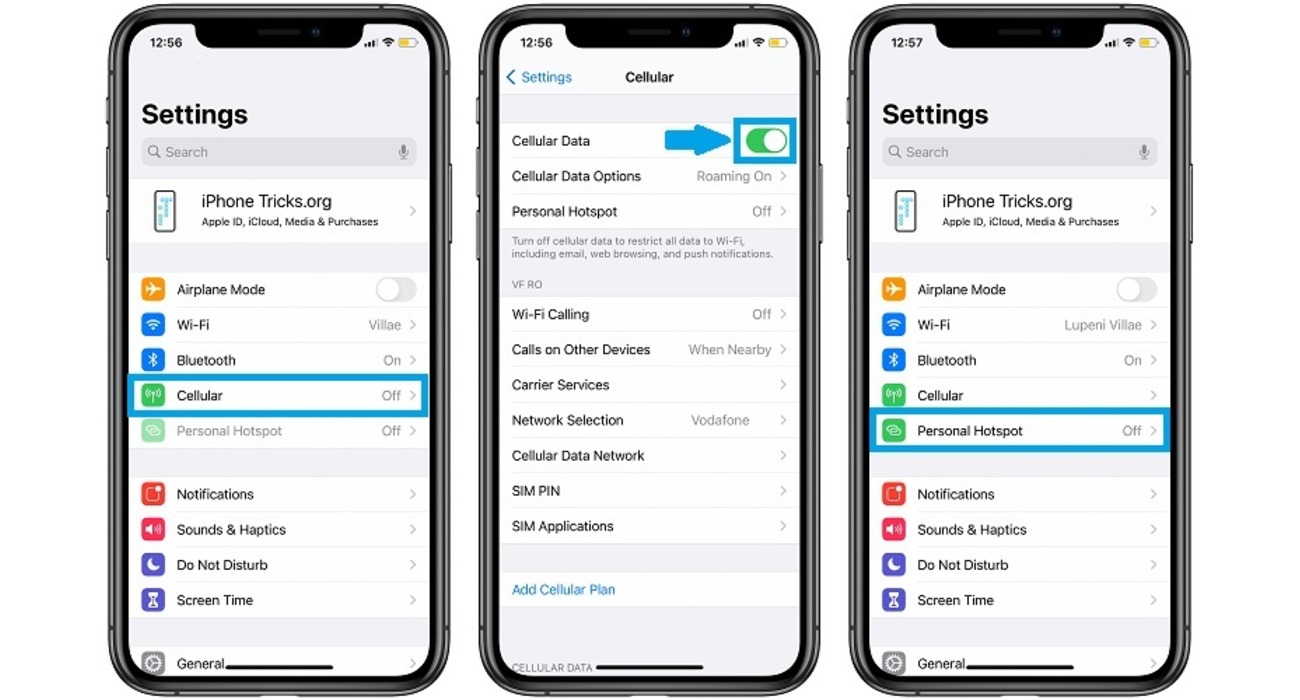
Apple's direct advice is to stay on the Personal Hotspot screen in Settings until the other device connects. To do this, open Settings, tap Personal Hotspot, and leave that screen open on your iPhone while you connect your other device. Once the device establishes a connection, the hotspot is less likely to drop immediately, though it may still turn off later during periods of inactivity.
Turn off Low Power Mode
Low Power Mode restricts certain features to save battery, and Apple documents that it can interfere with Personal Hotspot functionality. To disable it, go to Settings > Battery and toggle off Low Power Mode. On iPhone 15 and later models, this setting may appear as Settings > Battery > Power Mode. Keeping Low Power Mode off ensures your hotspot can run without the power-saving restrictions that cause it to disconnect.
Keep Allow Others to Join enabled
Go to Settings > Personal Hotspot and ensure Allow Others to Join is toggled on. This setting must remain enabled for devices to connect and stay connected. On models like iPhone 11 and iPhone 12, this is the primary switch that controls hotspot discoverability and prevents the connection from being dropped due to the setting being inadvertently turned off.
Update iOS to the latest version
Apple's troubleshooting guidance says to make sure your iPhone has the latest version of iOS, as software updates often fix bugs that cause connectivity issues. To check for an update, go to Settings > General > Software Update. If an update is available, install it. Apple does not list a minimum iOS version specifically for the automatic-shutdown issue, but keeping your system current is a documented step for resolving hotspot problems.
Reset your network settings
If the hotspot keeps dropping or not working, Apple lists resetting network settings as a troubleshooting step. On the device providing the hotspot, go to Settings > General > Transfer or Reset [device name] > Reset > Reset Network Settings. On older iOS versions, the path may be shorter: Settings > General > Reset > Reset Network Settings. Note that this removes saved Wi-Fi networks and passwords, so have those details ready. Apple does not guarantee this fixes the issue; it is a recommended step for persistent drops.
Troubleshooting: more ways to get a stable connection
If the above methods do not stop the disconnections, Apple suggests a few additional steps. First, restart both the iPhone that provides the Personal Hotspot and the other device that connects to it. Second, confirm with your carrier that Personal Hotspot is included in your plan; if the hotspot section is missing or grayed out, carrier provisioning is likely the cause, and no phone setting will override it. Third, if the Wi-Fi connection is unstable, try connecting via Bluetooth or USB instead, as both are documented alternatives for sharing your iPhone's internet connection. For supported devices, Apple mentions that the Maximize Compatibility setting can help older devices connect, but this setting addresses connection compatibility, not automatic shutoff. The official Apple support pages cover hotspot troubleshooting for both iPhone and iPad as devices that provide Personal Hotspot.
Frequently Asked Questions
Will keeping my personal hotspot on drain my iPhone battery?
Yes, running Personal Hotspot consumes battery power, and Apple's automatic shutdown is designed to conserve battery when no devices are actively using the connection. If you disable the automatic shutdown by keeping the hotspot active, expect faster battery drain.
Can I change the timeout duration for my iPhone personal hotspot?
No, Apple does not provide a user-facing setting to adjust how long the hotspot stays active before turning off. The behavior is tied to data traffic detection and carrier provisioning, not a timer you can modify.
Can I change the timeout settings for my iPhone personal hotspot?
No, there are no configurable timeout settings for the personal hotspot. The automatic shutdown is triggered by inactivity and cannot be adjusted through any iPhone setting.
Why is my Personal Hotspot option missing or grayed out?
This is typically a carrier provisioning issue. Apple community posts point to your wireless plan not including Personal Hotspot, or the carrier not enabling it on your line. Contact your carrier to confirm the feature is active on your plan.
Does Bluetooth or USB provide a more stable connection than Wi-Fi?
Apple documents Bluetooth and USB as alternatives when Wi-Fi hotspot is unstable. USB provides a wired connection that is generally more reliable, while Bluetooth uses less battery than Wi-Fi but offers slower speeds.
Are there any alternative methods to share my iPhone's internet connection?
Yes, besides the Personal Hotspot feature, you can share your iPhone's internet connection using Bluetooth tethering or a USB cable connected to a computer. Both methods are documented by Apple as alternatives when the Wi-Fi hotspot is unstable or unavailable.
What is Maximize Compatibility for?
Maximize Compatibility is a setting for supported devices that helps older devices connect to your Personal Hotspot. It may reduce connection speed to improve compatibility, but it does not prevent the hotspot from turning off automatically.
For the wider topic, see hotspot basics and troubleshooting.
Related reading: Why Does My Personal Hotspot Keep Turning On and How Do I Use My Personal Hotspot.