Maximize Compatibility is a toggle on your iPhone's Personal Hotspot that forces the hotspot to use the 2.4 GHz Wi‑Fi band and WPA2 Personal security, allowing older or incompatible devices to connect that cannot see or join a standard 5 GHz or 6 GHz hotspot.
What is maximize compatibility on iPhone hotspot?
Maximize Compatibility is a setting available in the Personal Hotspot menu on supported iPhone and iPad models. When turned on, it changes the hotspot's broadcast to a mode that older Wi‑Fi hardware can recognize and join, solving the common problem where a device simply will not appear in the list of available networks or fails to connect.
What does maximize compatibility do?
Enabling this toggle makes three specific technical changes to your hotspot:
- Turns off the 5 GHz band and, if your device supports it, the 6 GHz band.
- Restricts the hotspot to the 2.4 GHz band only.
- Enforces WPA2 Personal security mode instead of the newer, more secure protocol your device would normally use.
Apple's security guide explicitly documents that the setting turns off 5 GHz and, if applicable, 6 GHz, and enforces WPA2 Personal. Apple explicitly warns that internet performance and Wi‑Fi security might be reduced when this setting is enabled, because 2.4 GHz is generally slower and more prone to interference than higher-frequency bands, and WPA2 is an older security standard.
Which devices support maximize compatibility?
The feature is available on the following Apple devices:
- iPhone 12 or later
- iPad Pro 11‑inch (3rd generation or later)
- iPad Pro 12.9‑inch (5th generation or later)
- iPad mini (6th generation)
Supported devices include iPad Pro 11-inch (3rd generation or later), iPad Pro 12.9-inch (5th generation or later), and iPad mini (6th generation).
When should you enable maximize compatibility?
Use this setting as a troubleshooting step when a device cannot connect to your Personal Hotspot. Apple documents the setting as a troubleshooting step specifically for devices that cannot connect to Personal Hotspot, especially older or incompatible client devices. The most common scenario is an older client device, such as a laptop, tablet, gaming console, or smart TV, that does not support modern Wi‑Fi standards like 5 GHz or WPA3. By forcing the hotspot to use 2.4 GHz and WPA2, you give that older device a signal it can understand and join.
How to turn on maximize compatibility
The exact path to enable this setting on a supported iPhone or iPad is:
- Open Settings.
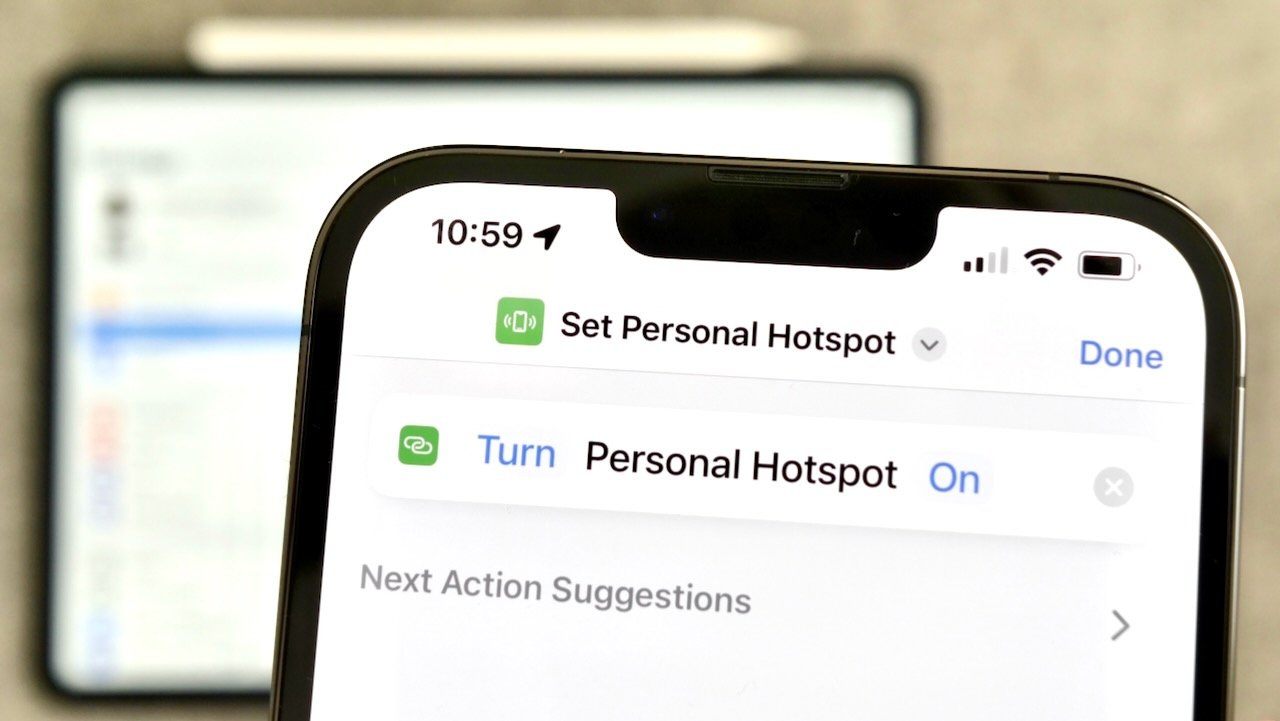
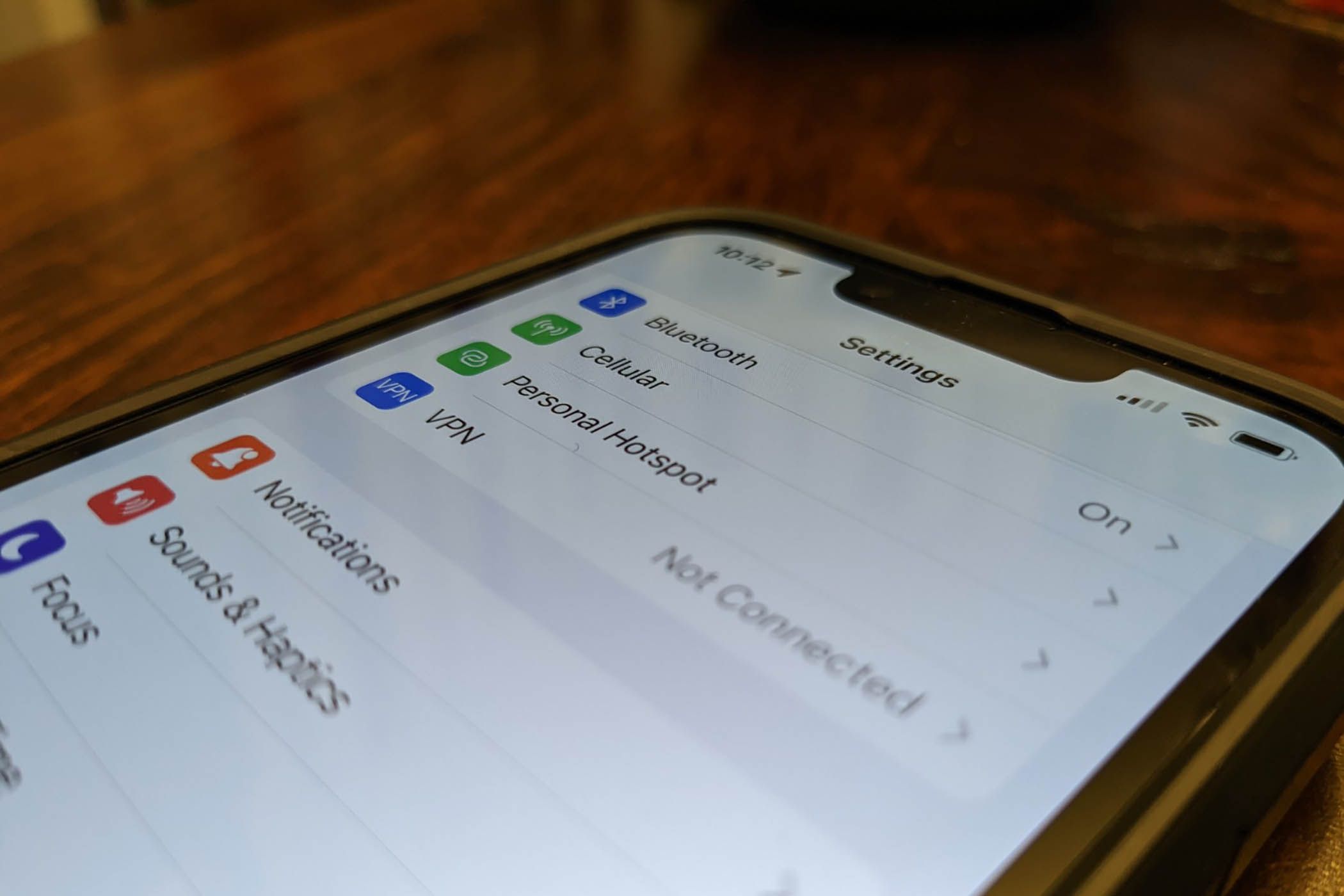
- Tap Personal Hotspot.
- Turn on Maximize Compatibility.
The exact path on iPhone is Settings > Personal Hotspot > Maximize Compatibility, as documented by Apple. Once enabled, try connecting the problematic device again. If it still fails, proceed to general troubleshooting.
Troubleshooting when maximize compatibility doesn't help
If turning on Maximize Compatibility does not resolve the connection issue, confirm that Personal Hotspot is turned on in Settings > Personal Hotspot. If the setting is available on the supported device, turn on Maximize Compatibility and try connecting again as a documented troubleshooting step. Then consult Apple's general Personal Hotspot troubleshooting guidance, which covers hotspot basics and troubleshooting steps such as checking cellular data, restarting devices, and resetting network settings. That hub page addresses issues that the compatibility toggle alone cannot fix.
Frequently Asked Questions
Will enabling maximize compatibility slow down my hotspot?
Yes, it can. The 2.4 GHz band is slower and more susceptible to interference from other devices and walls than 5 GHz or 6 GHz, so you may notice reduced internet speeds and higher latency.
Does maximize compatibility affect all devices connected to my hotspot?
Yes. When you turn on the toggle, every device that connects to your Personal Hotspot will use the 2.4 GHz band and WPA2 security, regardless of whether that device supports newer standards.
Can I use maximize compatibility with a VPN?
Yes. The setting changes only the Wi‑Fi band and security protocol of the hotspot itself; it does not interfere with VPN connections running on the client device or on your iPhone.
Should I leave maximize compatibility on all the time?
No. Apple recommends using it only as a troubleshooting tool for devices that cannot connect. If all your devices connect fine without it, leave it off to maintain better speed and security.
Does the setting affect how much cellular data I use?
No. Maximize Compatibility does not change your data plan, data usage, or carrier fees. It only alters the Wi‑Fi band and security mode of the hotspot signal.
Related reading: What Is Maximize Compatibility Hotspot and How To Make IPhone Hotspot 2.4Ghz.