To turn off magnifier on Samsung when you are stuck zoomed in, immediately use a two-finger pinch to zoom out and regain control of your screen. Then, disable the feature responsible for the accidental zoom by going to Settings, Accessibility, Vision enhancements, and turning off either Magnification or the separate Magnifier app.
How to turn off magnifier on Samsung when you're stuck
If the screen suddenly magnifies and you cannot navigate normally, the fastest emergency fix is to place two fingers on the display and pinch them together. This gesture reduces the zoom level instantly, letting you move around the phone. Once you can see the full screen, you need to disable the feature that caused the problem. Samsung Galaxy devices include two distinct tools that can produce this effect: the screen Magnification shortcut and the Magnifier camera app. Each is turned off through a different setting. If you cannot pinch to zoom out, swipe down from the top of the screen to open the Quick Settings panel and tap the magnifying glass icon to toggle the magnifier off.
Turn off the screen Magnification shortcut
The screen Magnification shortcut is the feature that responds to gestures like triple-tapping the screen or using a button. To disable it:
- Open the Settings app on your Samsung Galaxy device.
- Tap Accessibility, then tap Vision enhancements.
- Tap Magnification.
- Turn off the Magnification shortcut toggle.
This removes the ability to accidentally trigger the zoom with a triple-tap or an accessibility button. The screen will no longer magnify unexpectedly. As an alternative, you can press and hold both the Volume Up and Volume Down keys simultaneously for a moment to shrink and disable the magnifier.
Turn off the Magnifier camera app
The Magnifier is a separate app that uses the camera to enlarge objects in real time, often controlled by a widget or shortcut. To disable it:
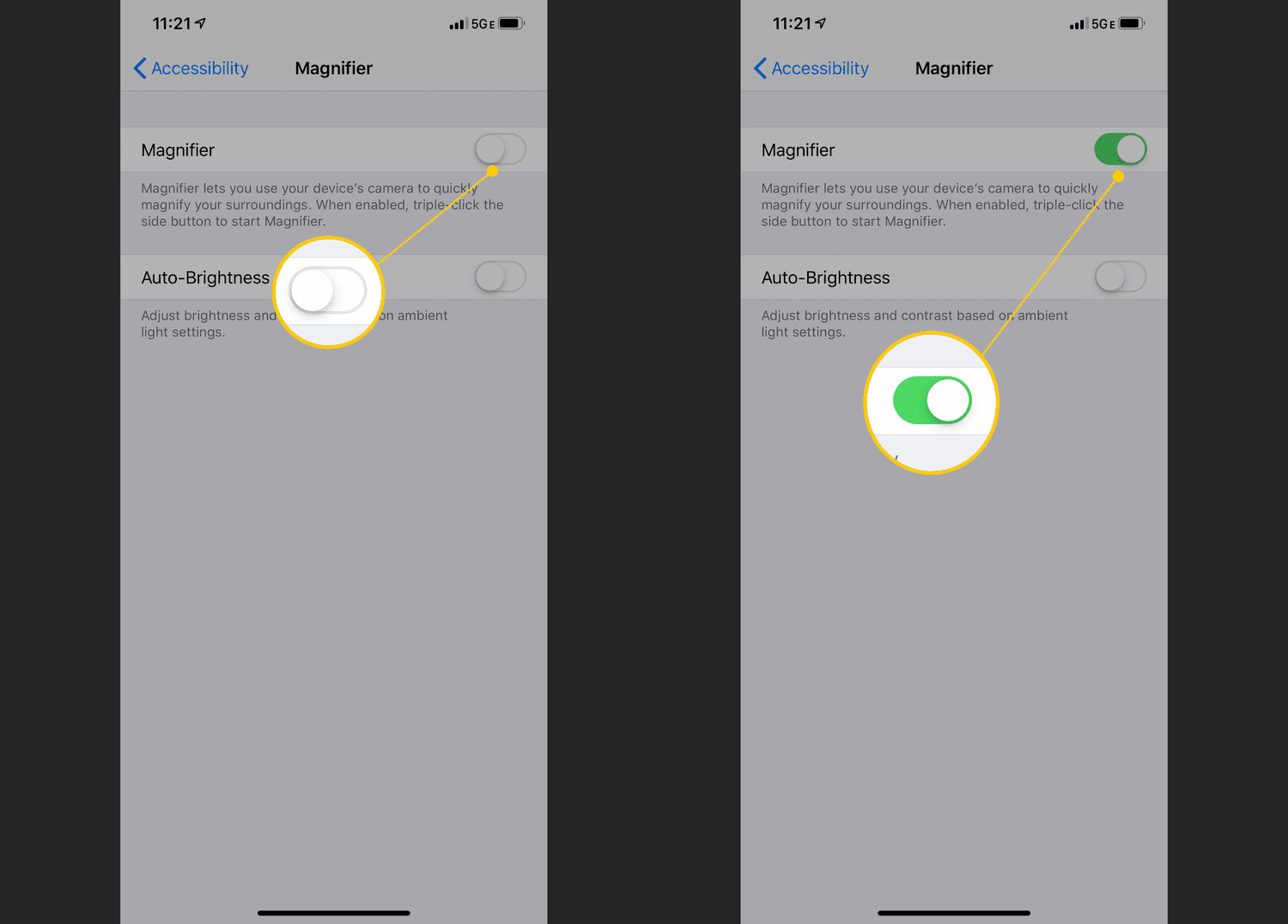
- Go to Settings, then tap Accessibility.
- Tap Vision enhancements.
- Tap Magnifier.
- Toggle the Magnifier switch to the off position.
Turning off the Magnifier removes its widget and prevents the camera-based zoom from activating.
Frequently Asked Questions
Can I adjust the zoom level without turning off the feature?
Yes. With Magnification enabled, you can adjust the zoom level by using a two-finger pinch on the screen. The magnification level setting is found inside the Magnification settings under Vision enhancements.
Why does my Samsung screen keep zooming in by itself?
The most common cause is that the Magnification shortcut is turned on and you are accidentally triple-tapping the screen. Disabling the shortcut in Settings > Accessibility > Vision enhancements > Magnification stops this behavior.
Which Samsung models have the Magnification and Magnifier features?
These features are available on most Samsung Galaxy devices. The exact labels, Magnification and Magnifier, are documented under Vision enhancements in the Accessibility settings. No carrier or model-specific limits are documented for the steps to turn them off.
What shortcut options are available for Magnification on Android?
Android documents three shortcut options: Accessibility button, Hold volume keys, and Triple-tap screen. These are set under Settings > Accessibility > Magnification > Magnification shortcut.
Is the Magnifier the same as screen Magnification?
No. Screen Magnification zooms the entire display and responds to gestures or a shortcut. The Magnifier is a separate camera-based app that magnifies objects in the real world. Both are found under Settings > Accessibility > Vision enhancements on Samsung devices.
Can I use the magnifier feature on third-party apps?
Yes, the screen Magnification feature works across the entire device, including third-party apps. The Magnifier camera app functions independently to magnify real-world objects through the camera and does not integrate directly with other apps.
Related reading: How To Turn Off Magnifier On Xbox and How To Turn Off Magnifier Android.