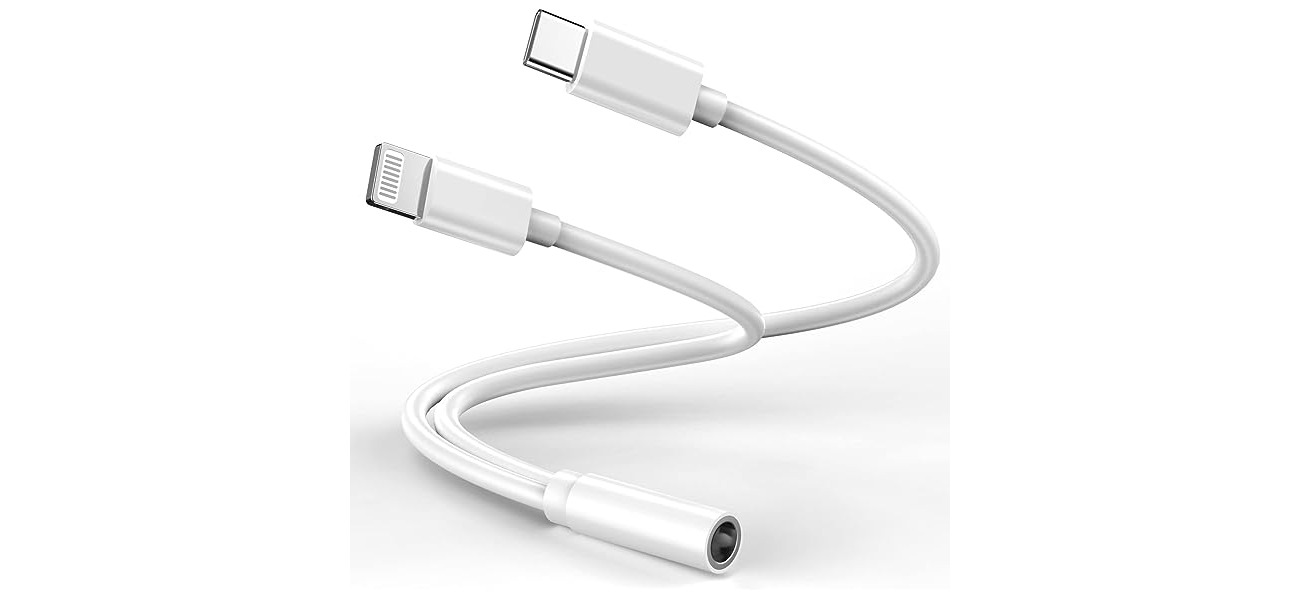
When your dongle is not working, the fix is usually a simple restart, a secure connection check, or a network settings reset on your phone. Most dongle failures stem from a temporary software glitch, a loose physical connection, or a conflict in your device's network settings, and following this exact sequence, restart, check the connection, then reset network settings, will resolve the vast majority of issues on both iPhone and Android phones.
Restart your device if dongle is not working
A full power-off and restart clears temporary software glitches that can stop a dongle from working. A restart alone often resolves the issue immediately. Apple’s reset guidance says the iPhone will disconnect from the current network when network settings are reset, and Bell’s iPhone support page says the iPhone will reboot after Reset Network Settings.
Check the dongle connection
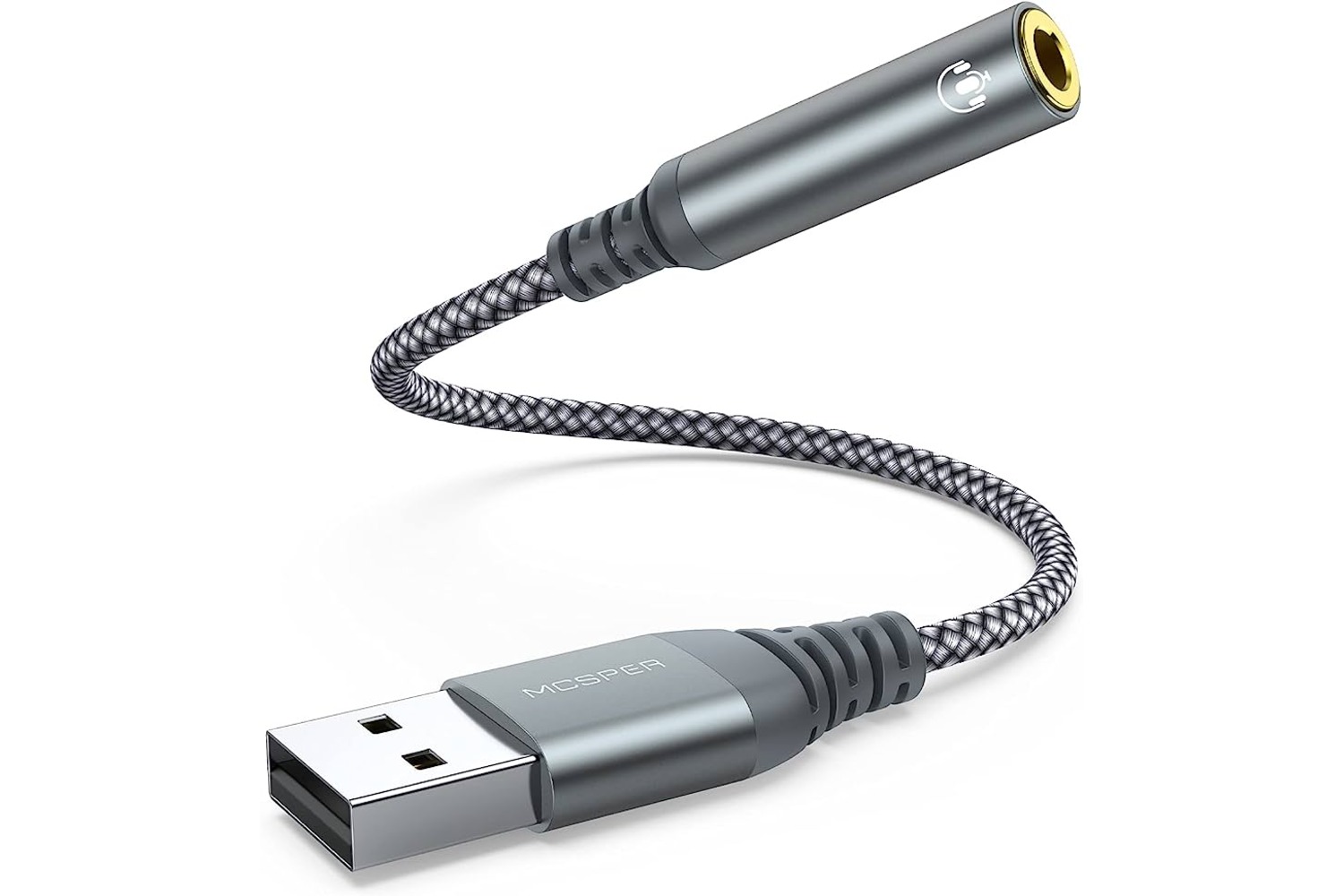
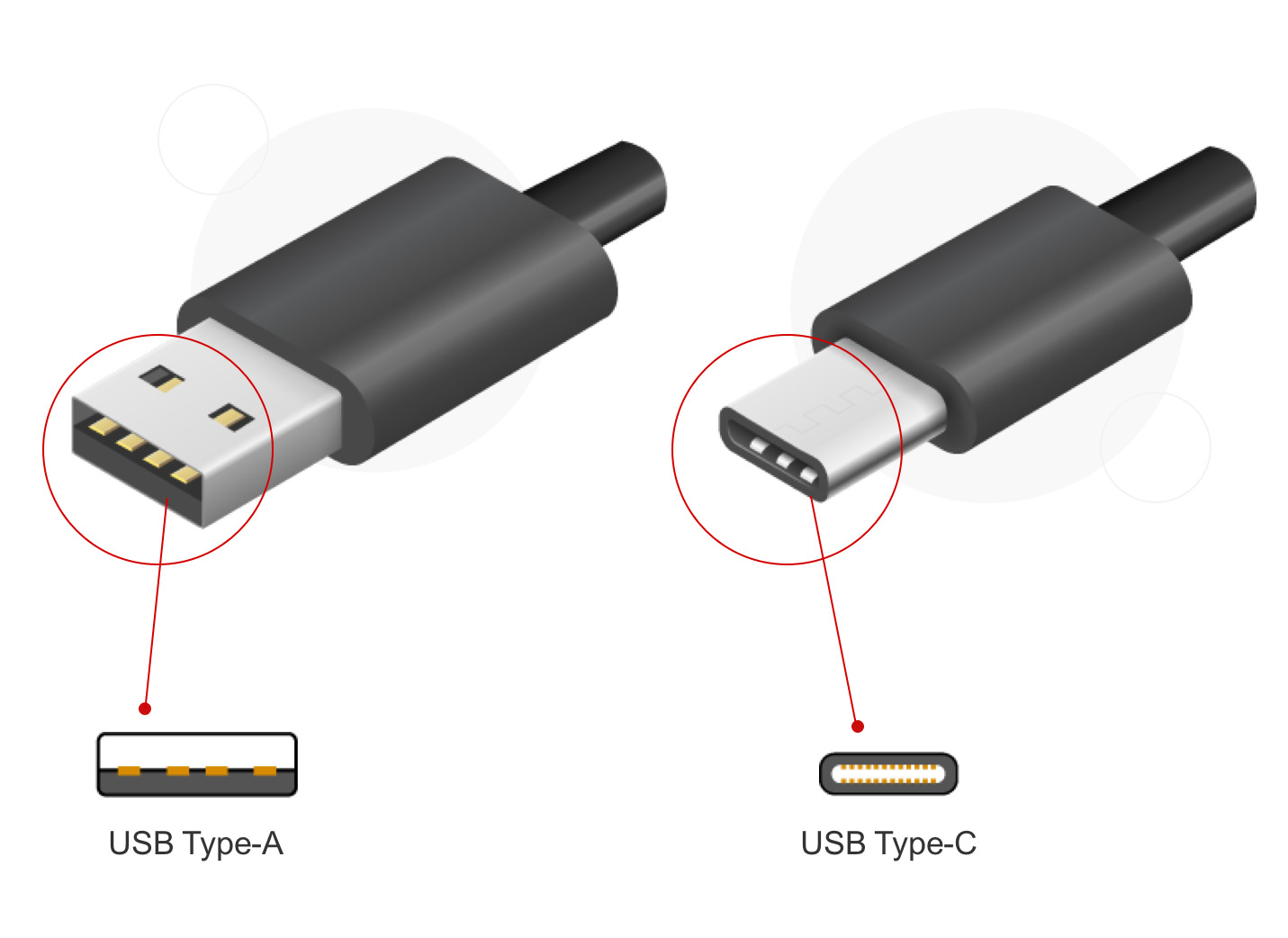
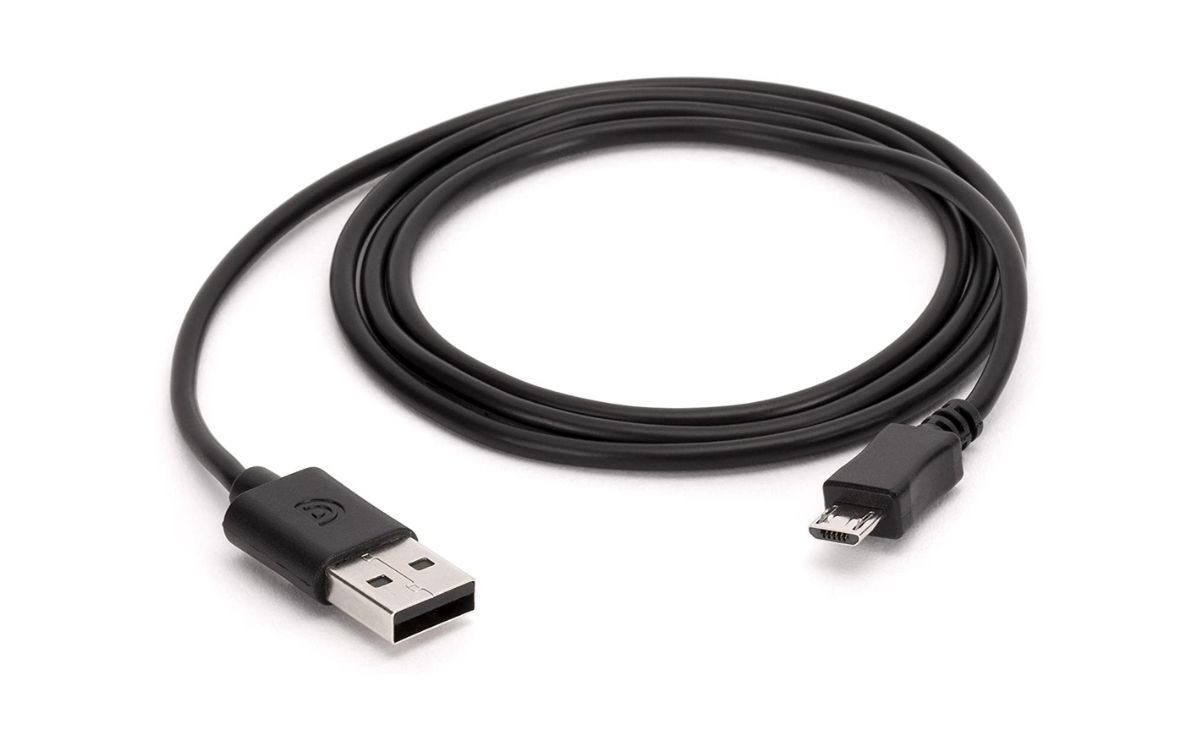
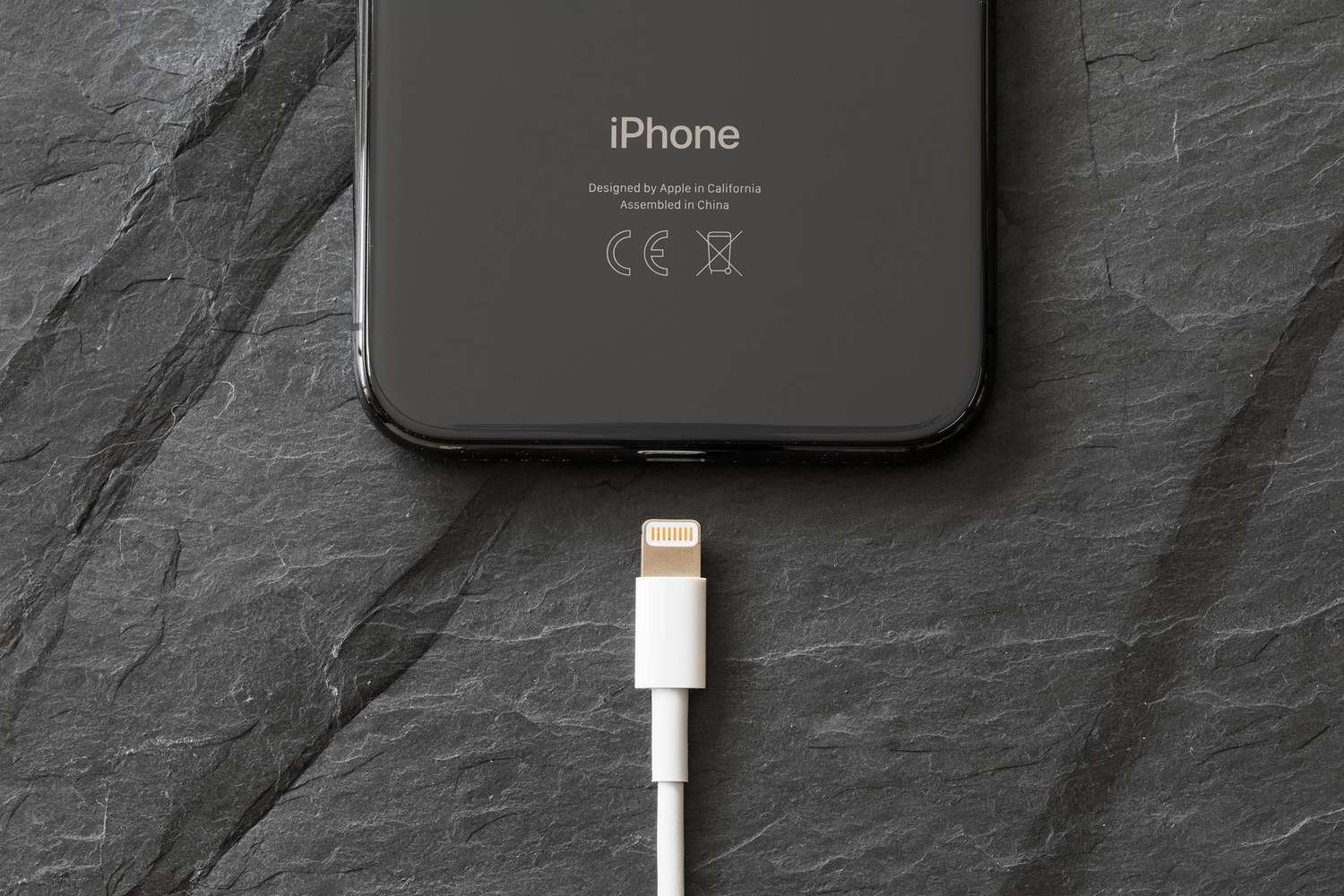
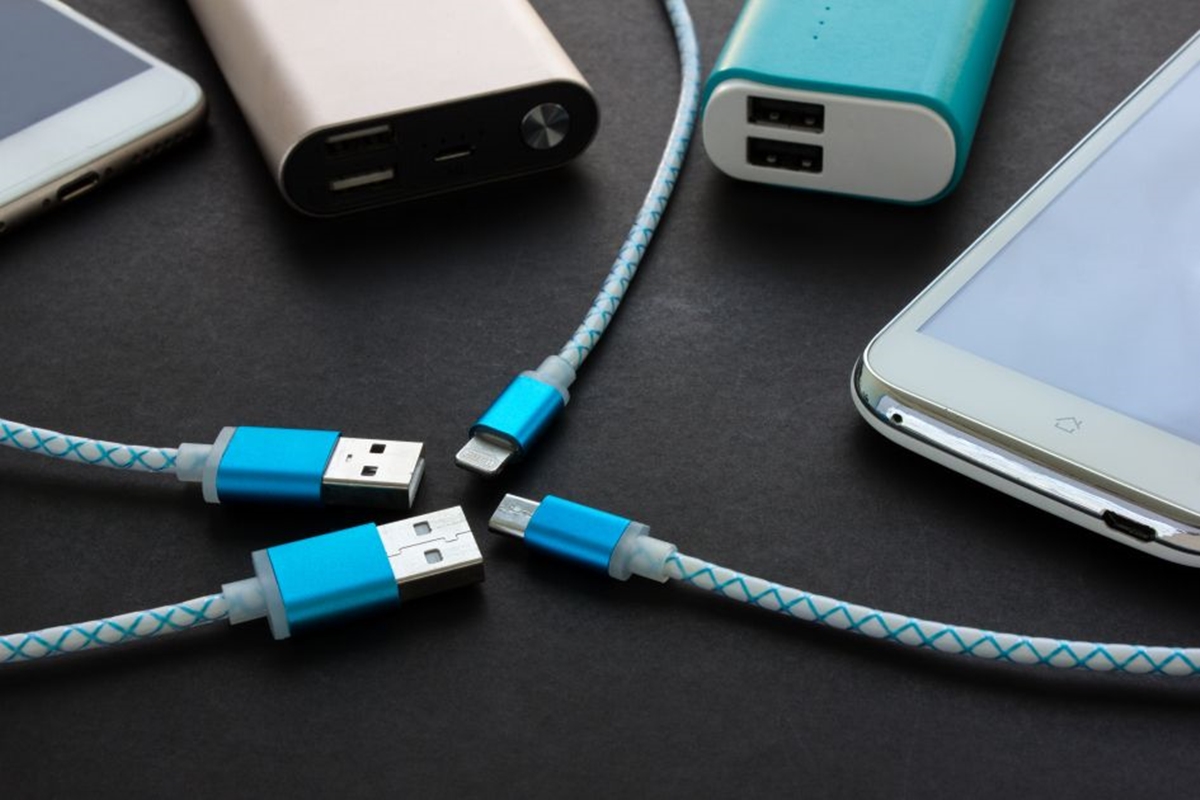
Verify the dongle is firmly inserted into the phone’s port. If using a USB‑C or Lightning adapter, try a different port or adapter if available. Inspect the dongle and the port for physical damage, bent pins, or debris such as lint or dust. A loose or dirty connection is a common cause of failure, and reseating the dongle or cleaning the port with a dry, soft brush can restore connectivity.
Reset network settings on iPhone
On iPhone, the documented path is Settings app > General > Transfer or Reset iPhone > Reset > Reset Network Settings.
- Open the Settings app.
- Tap General.
- Tap Transfer or Reset iPhone.
- Tap Reset.
- Tap Reset Network Settings.
Apple says Reset Network Settings removes all network settings, previously used networks, and VPN settings not installed by configuration profile or MDM, and turns Wi‑Fi off and back on. Apple says this removes all network settings; device name resets to iPhone; manually trusted certificates become untrusted; previously used networks and non-MDM VPN settings are removed; Wi‑Fi turns off and back on; Wi‑Fi and Ask to Join Networks remain on.
Reset network settings on Android
On Android, the reset path varies by device, but Samsung, Motorola, Sony, and Google-helped paths commonly use Settings > System > Reset options and then a network reset option such as Reset Mobile Network Settings or Reset Wi‑Fi, mobile & Bluetooth. The exact menu path varies by manufacturer, but the general location is Settings > System > Reset options. Choose the appropriate option for your device:
- Samsung and Google-style Android: Reset Mobile Network Settings.
- Motorola: Reset Bluetooth & Wi‑Fi.
- Sony (Android 9.0 or higher): Reset network settings.
On Android, documented reset paths include Settings > System > Reset options > Reset Mobile Network Settings > Reset settings and Settings > System > Reset options > Reset Bluetooth & Wi‑Fi on Motorola, or Settings > System > Reset options > Reset network settings on Sony Android 9.0 or higher. If the dongle depends on Bluetooth or Wi‑Fi pairing, Sony says the reset affects Wi‑Fi, mobile data and Bluetooth. After the reset, reconnect to Wi‑Fi, mobile data, and Bluetooth. Motorola says to reconnect to Wi‑Fi, cellular data, and Bluetooth, or try sharing the internet connection again after the reset. Restart the phone again once the reset is complete. For Android, Google community guidance says to restart the phone again after the reset is complete.
Contact technical support
If the dongle still fails after restarting, checking the connection, and resetting network settings, escalate to technical support. Provide the dongle model, your phone’s make and operating system version, and a list of all troubleshooting steps already taken. The correct support team depends on the dongle manufacturer, the phone maker, or your carrier.
Frequently Asked Questions
Why does a dongle stop working?
Common causes include compatibility issues with the phone’s operating system, outdated firmware on the dongle, physical damage such as a loose connection or water exposure, and exceeding a data usage limit or expiration of a prepaid plan.
What if the dongle is not recognized by a computer?
Try a different USB port, clean the port and dongle of debris, and update the computer’s USB drivers. If the dongle works on another computer, the issue is likely with the original computer’s USB port or drivers.
Why won’t the dongle connect to the internet?
Check that you have an active data plan or sufficient prepaid balance, that you are within your network provider’s coverage area, and that the APN settings are correct. Incorrect APN settings are a frequent cause of no internet access after a network reset.
What is a Bluetooth dongle?
A Bluetooth dongle is a small adapter that plugs into a device’s port to add Bluetooth connectivity, often used to connect wireless peripherals like headphones, keyboards, or mice to a phone or computer that lacks built-in Bluetooth.
Can I use a dongle with my smartphone?
Yes. Dongles designed for smartphones connect via the USB port or wirelessly through Bluetooth, providing internet connectivity when Wi‑Fi is unavailable or when you need a dedicated connection.
Related reading: What Is A Dongle For A Headset and What Type Of Connector Is This.