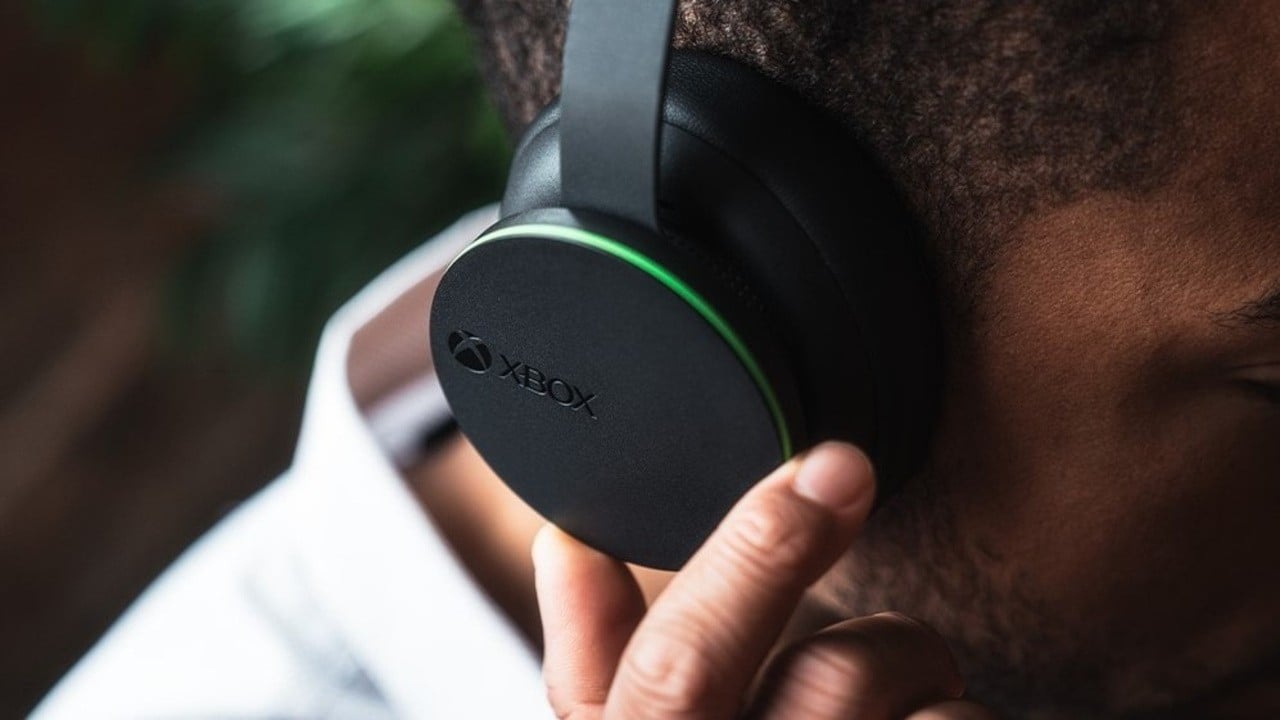
If you hear myself in headset Xbox, it's because of a feature called mic monitoring (on the Xbox console) or sidetone (on the headset itself). This feature intentionally plays your own microphone audio back into your ears, and if it is set too high, it creates the distracting echo effect you want to remove.
Why you can hear yourself in headset Xbox
Mic monitoring is a built-in Xbox system feature that feeds your microphone signal back into your headset so you can hear yourself while talking. It is not the same as game audio or party chat audio; it is specifically your mic being played back to your ears. If the effect is too strong, the usual cause is a high mic monitoring or sidetone level, or a headset app feature that has sidetone enabled. If the effect comes from sidetone rather than game chat, turning down the monitoring level usually reduces the echo-like self-hearing without affecting other players’ audio. Hearing yourself can help with voice level control, but if it is too loud it can be distracting.
How to turn off mic monitoring on your Xbox console
- Press the Xbox button on your controller to open the guide.
- Select the Audio icon (the speaker symbol) in the guide.
- Find the Mic monitoring slider and lower it to reduce or eliminate the self-hearing effect.
- If needed, open Settings on the console and go to Audio settings or Volume & audio output to change the same mic monitoring control, depending on your Xbox interface.
Check your headset's companion app for sidetone
Some headsets have their own sidetone setting in a companion app that must be toggled off or reduced separately from the Xbox setting. For example, the Audeze app can toggle side-tone on and off and adjust the level, and when connected to Xbox or another supported device it can also change the game/chat mix. If your headset supports its own app, check for a sidetone or side-tone control and turn it off or reduce it there.
Make sure your headset connection is supported
The Xbox mic monitoring slider works with most headsets connected through the controller’s 3.5 mm audio jack, USB, or the Xbox Wireless protocol. Xbox support documents compatible headsets for the controller’s 3.5 mm audio jack or the Xbox One Stereo Headset Adapter. However, standard Bluetooth-only headsets are not supported for Xbox game audio, so the system mic monitoring slider will not help if the headset uses Bluetooth only. When connecting gaming headsets to consoles, always verify the connection type to ensure the Xbox audio controls will function.
Frequently Asked Questions
Is hearing myself a defect?
No, it is not a defect. Hearing your own voice in an Xbox headset is a deliberate feature called mic monitoring or sidetone, designed to help you control your speaking volume and avoid shouting. It is not indicative of a faulty headset.
Can I adjust the volume of my own voice?
Yes, you can adjust the volume of your own voice using the Mic monitoring slider on the Xbox console or the sidetone control in your headset’s companion app. Lowering these settings reduces how loudly you hear yourself without affecting the game audio or other players.
Why is the sidetone volume too loud even after lowering the Xbox slider?
If the sidetone volume remains too loud after lowering the Xbox mic monitoring slider, your headset likely has its own sidetone setting in a companion app or on the headset itself. Check the headset’s app for a sidetone control and turn it down or off separately.
Does mic monitoring affect other players hearing me?
No, mic monitoring only affects what you hear in your own headset. It does not change how your voice sounds to other players in party chat or game chat. Lowering the monitoring slider only reduces the echo you hear, not your transmitted audio.
Will a wired headset fix the self-hearing issue?
Switching to a wired headset (connected via the controller’s 3.5 mm jack) can help if the issue is caused by wireless interference, but the primary fix is still adjusting the mic monitoring or sidetone settings. Wired headsets still use the Xbox mic monitoring slider if the feature is enabled.