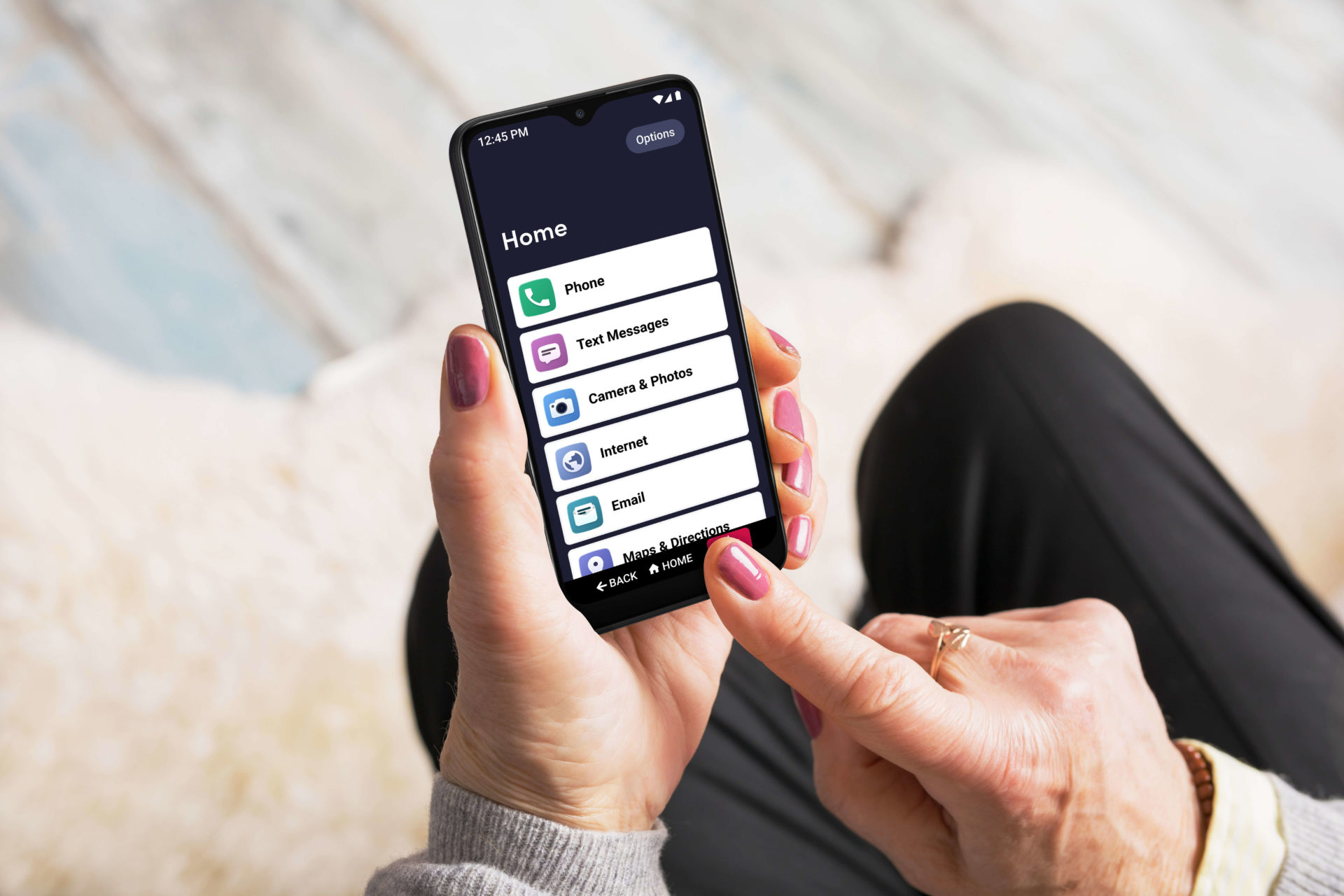
To block calls on Jitterbug smartphone, open the Phone app and go to your recent calls or call history. Tap the number you want to block, then select the block option to stop future calls from that number.
How to block calls on your Jitterbug smartphone
Blocking a specific number is the most direct way to stop unwanted calls. Follow these steps using the phone's built-in feature:
- Open the Phone app on your Jitterbug smartphone.
- Go to the call log or recent calls section.
- Find the number you want to block.
- Tap on the number to open its details.
- Look for the option to block or add to the block list.
- Select the option to block the number.
Once blocked, calls and voicemails from that number will not reach you. This is the primary method for blocking calls and numbers on any phone. Third-party call blocking apps from Google Play Store can provide advanced call blocking features. Carrier call blocking services (call screening, call labeling) can be activated by contacting your service provider.
How to block all unknown callers
To automatically block calls from numbers not saved in your contacts, you can enable a setting that stops spam and robocalls before they ring your phone:
- Open the Settings app on your Jitterbug smartphone.
- Navigate to the call settings or phone settings section.
- Find the option labeled "Block Unknown Numbers" or a similar setting.
- Toggle the switch to turn it on.
When this setting is active, any call from a number not in your contacts will be automatically blocked. This is an effective way to reduce unwanted interruptions without manually blocking each number. Do Not Disturb mode can silence calls and send them directly to voicemail during specified periods.
How to unblock a number
If you change your mind and want to allow calls from a previously blocked number, you can reverse the process:
- Go to the call blocking or blocked calls section.
- Find the number you want to unblock.
- Look for the option to unblock or remove from the block list.
- Select the option to unblock the number.
After unblocking, calls from that number will come through normally again.
Need extra help?
If you have trouble following these steps or your Jitterbug smartphone is not blocking calls as expected, you can contact Jitterbug Customer Service at 800-733-6632 for direct assistance. A representative can walk you through the process or help troubleshoot any issues. Jitterbug Smartphone has a dedicated emergency response button that connects to trained emergency personnel. Jitterbug Smartphone features a powerful speaker for those with hearing impairments. Jitterbug Smartphone has a long-lasting battery life minimizing the need for frequent charging.
Frequently Asked Questions
Can I block calls from private or unknown numbers that are not in my contacts?
Yes, by enabling the "Block Unknown Numbers" setting in your phone settings, calls from private or unrecognized numbers will be automatically blocked without needing to add each one individually.
Will blocked callers know they are blocked?
Blocked callers will typically hear a message that your number is not accepting calls or the call will go straight to voicemail without ringing your phone. They will not receive a notification that they have been blocked.
Can I block numbers from the contacts list directly?
Yes, you can block a contact by opening the Contacts app, selecting the contact, and choosing the block option from the menu. This works the same way as blocking from the call log.
Does blocking a number also block text messages from that number?
Yes, when you block a number on your Jitterbug smartphone, both calls and text messages from that number are blocked. The sender will not be notified that their messages are blocked.
How do I see a list of all blocked numbers?
Open the Settings app, go to the call blocking or blocked calls section, and you will see a list of all numbers you have blocked. From there, you can review or unblock any number.