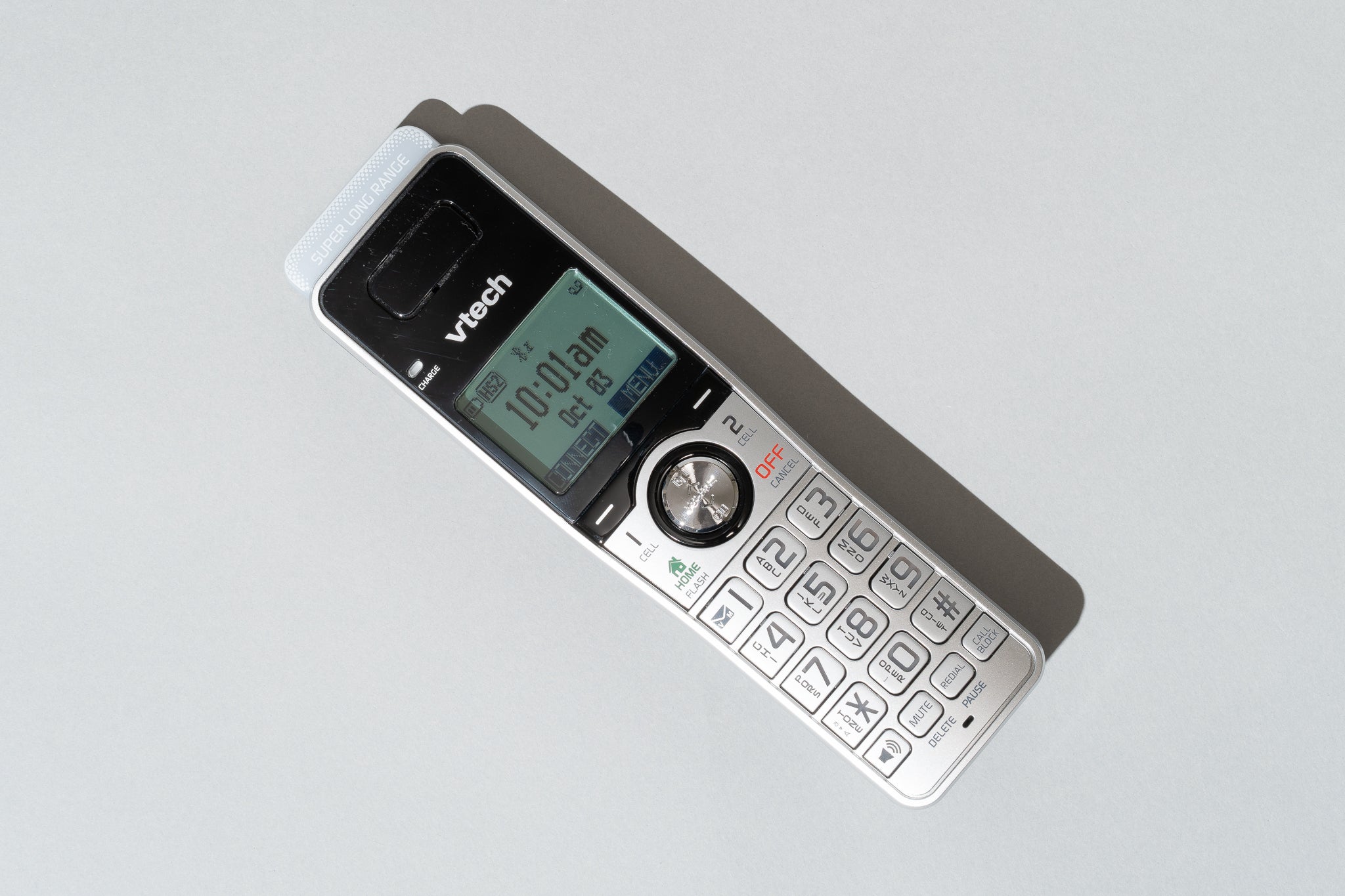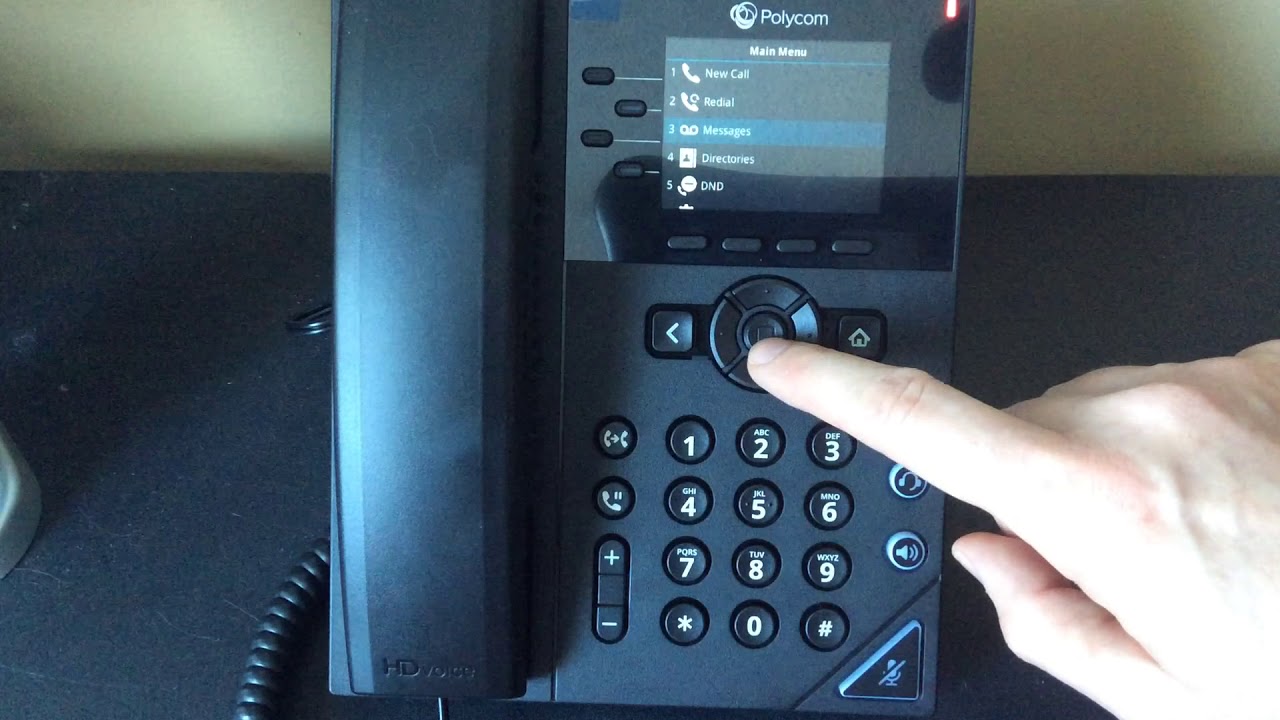
To check voicemail on Xfinity home phone, dial *99 from your home phone or call your own number and press # when your greeting starts. You can also sign in to Xfinity Voice online with your Xfinity ID and password to access messages remotely.
How to check voicemail on your Xfinity home phone
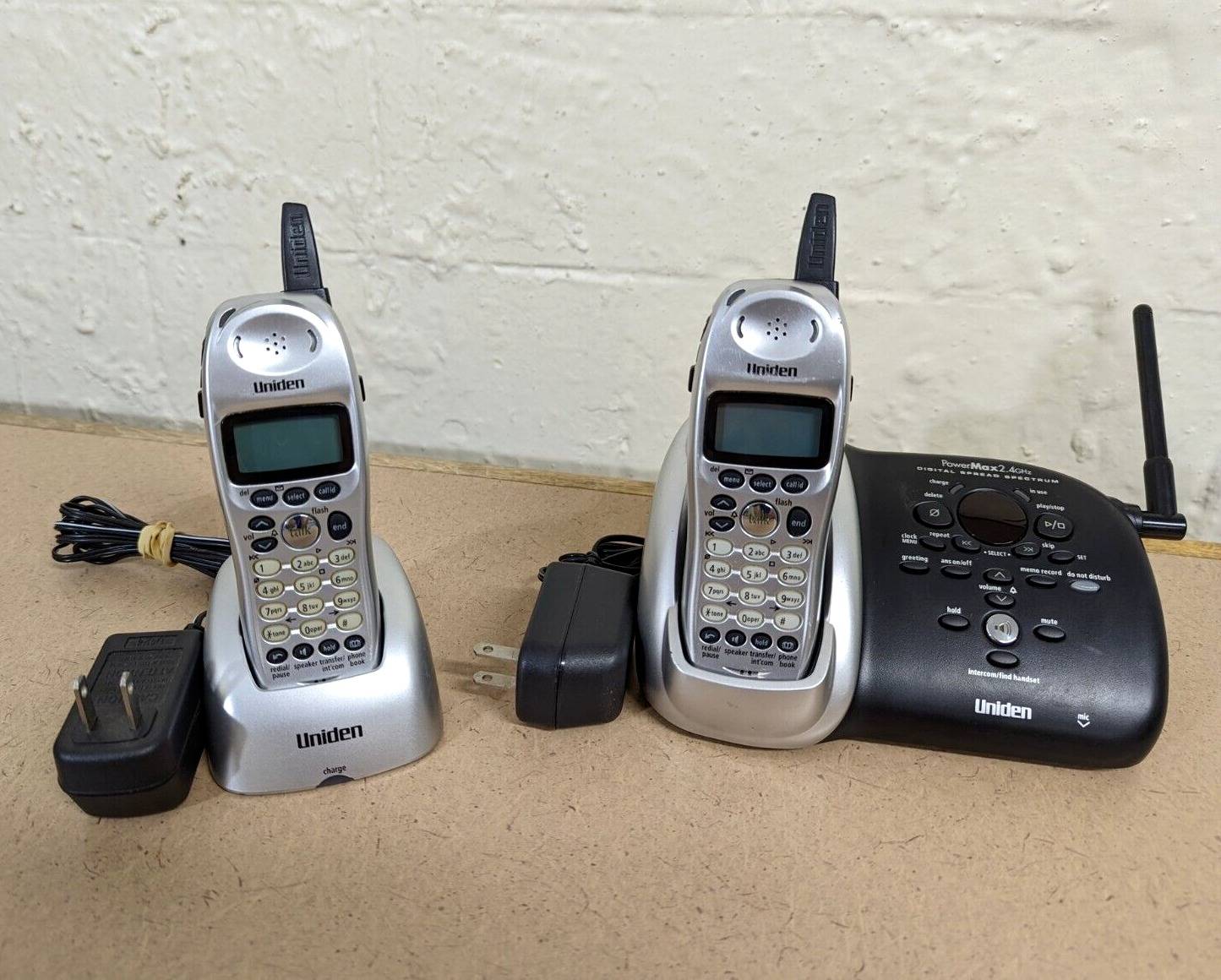
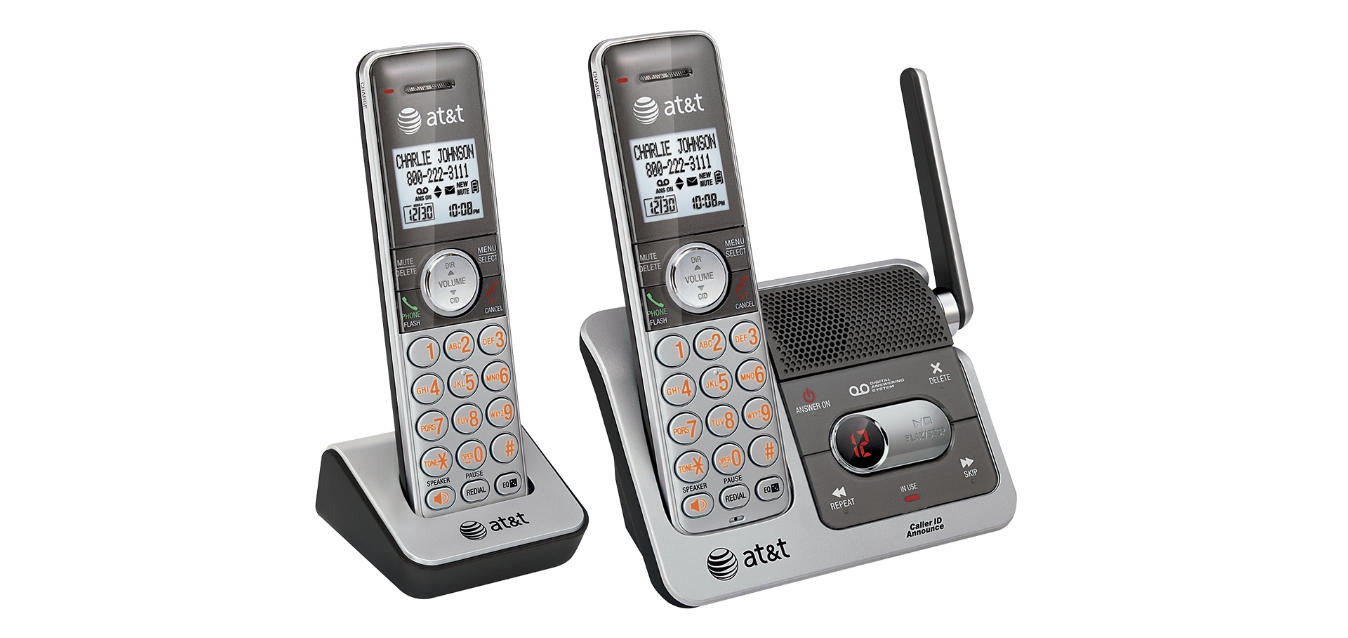
There are three primary ways to check voicemail on Xfinity home phone. From your home phone, dial *99 or your Xfinity Voice number. When your personal greeting starts, press #, then enter your password when prompted. From another phone, call your home phone number, press # during the greeting, then enter your password. For online access, sign in to Xfinity Voice with your Xfinity ID and password, you must be the Primary user or a Manager with Voice Features access to use this method.
Setting up your voicemail for the first time
To set up voicemail for the first time from your home phone, dial *99 or enter your Xfinity Voice number, then follow the recorded prompts to create a password and personalized greeting. If the system says initial setup must be done from your home phone and you are blocked, dial *82, then enter your 10-digit Xfinity Voice number, and set up voicemail again.
Creating and changing your voicemail password
Your voicemail PIN must be 4 to 8 digits. It cannot be the last four digits of your phone number, cannot be a single repeated digit, and cannot be in order like 1234 or 5678. To change the PIN, dial *99 or your Xfinity Voice number, enter your current PIN, then press:
- 4 for personal options
- 2 for administrative options
- 1 for password change
Follow the prompts to enter and confirm your new PIN.
Listening to and managing your messages
From a phone
From your home phone, dial *99 or your home phone number, press # when the greeting starts, and enter your passcode. You can then listen, save, or delete messages using the voice prompts.
From Xfinity Voice online
Sign in to Xfinity Voice, find the message you want, and click the Play button.
From an iPhone
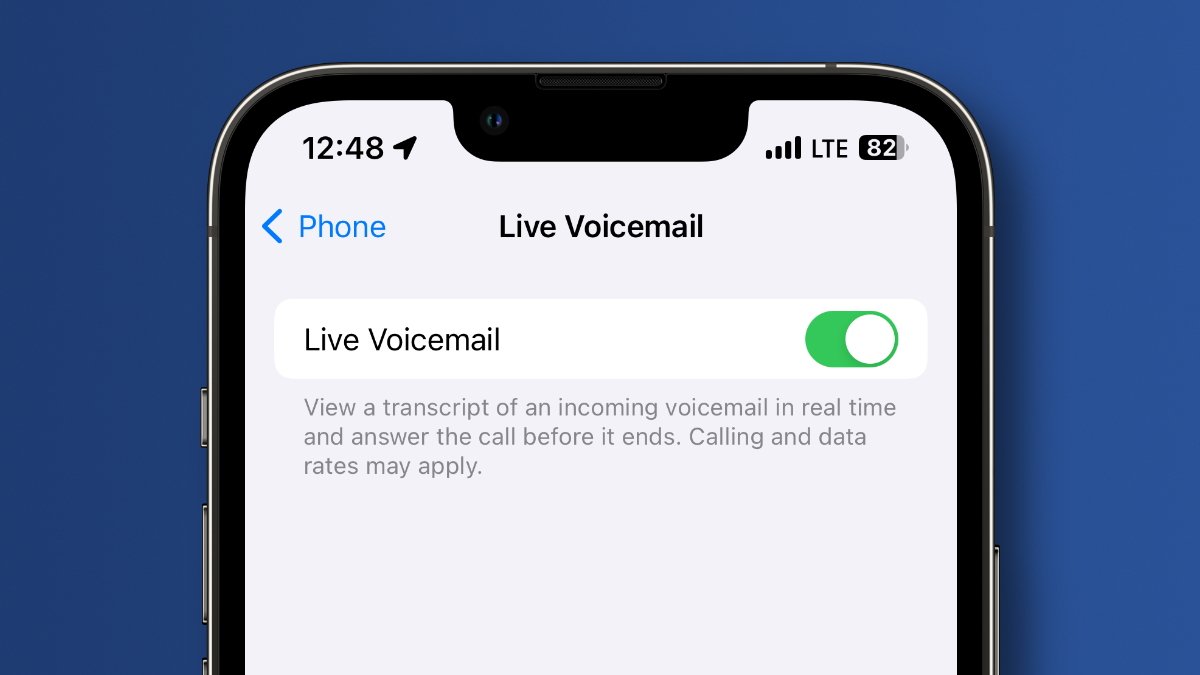
Open the Phone app, go to the Voicemail tab, and use Set Up Now if voicemail has not been configured yet. Blocked-caller messages can be found by selecting Blocked Messages at the bottom of the main voicemail screen. To save a voicemail, use the Share icon to add it to a note, save it as a voice memo, or send it in text or email. Xfinity says you can save up to 40 voicemail messages on iPhone.
From an Android phone
Open the phone app dial pad, tap the envelope icon at the bottom, and read or listen to messages there. From the voicemail app, select the message, then use Send to, with options such as text message or email. On some devices, saving to Google Drive may be available.
Skip PIN feature
To turn on Skip PIN by phone, access voicemail, press 4 for personal options, 2 for administrative options, 1 to open administrative options, 5 for Skip PIN, then press 1 to turn it on or 2 to turn it off. This feature lets you skip entering your PIN when checking voicemail from your home phone.
Frequently Asked Questions
How do I access my voicemail from another phone if I forgot my PIN?
If you forgot your voicemail PIN, you cannot access messages remotely. You must reset the PIN by signing in to your Xfinity account, going to the Voice section, selecting Settings or Preferences, and choosing the option to reset your voicemail PIN. Follow the prompts to create a new PIN.
Can I get voicemail notifications on my Xfinity home phone?
Yes. Sign in to your Xfinity account, go to the Voice section, select Settings or Preferences, enable voicemail notifications or alerts, and choose your preferred method, email, text message, or both.
What devices support Xfinity home phone voicemail access?
Voicemail access on mobile can be done with the iPhone Phone app, the Android Phone app, the Xfinity Mobile Voicemail app, the phone dial pad, or by calling from another phone.
How do I change my voicemail greeting?
Dial your Xfinity Voice number from your home phone, press * when you hear your greeting, enter your PIN, press 4 for voicemail settings, then press 3 to change your greeting. Follow the prompts to record and save a new greeting.
What is the difference between checking voicemail from my home phone and checking it online?
Checking from your home phone lets you listen, save, and delete messages using voice prompts without needing internet access. Checking online through Xfinity Voice lets you see a list of messages, click Play, and manage messages from any device with a browser, but requires you to be the Primary user or a Manager with Voice Features access.
For the wider topic, see setting up and managing voicemail.
Related reading: How To Check Voicemail On Spectrum Home Phone and How To Set Up Voicemail On AT&T Wireless Home Phone.