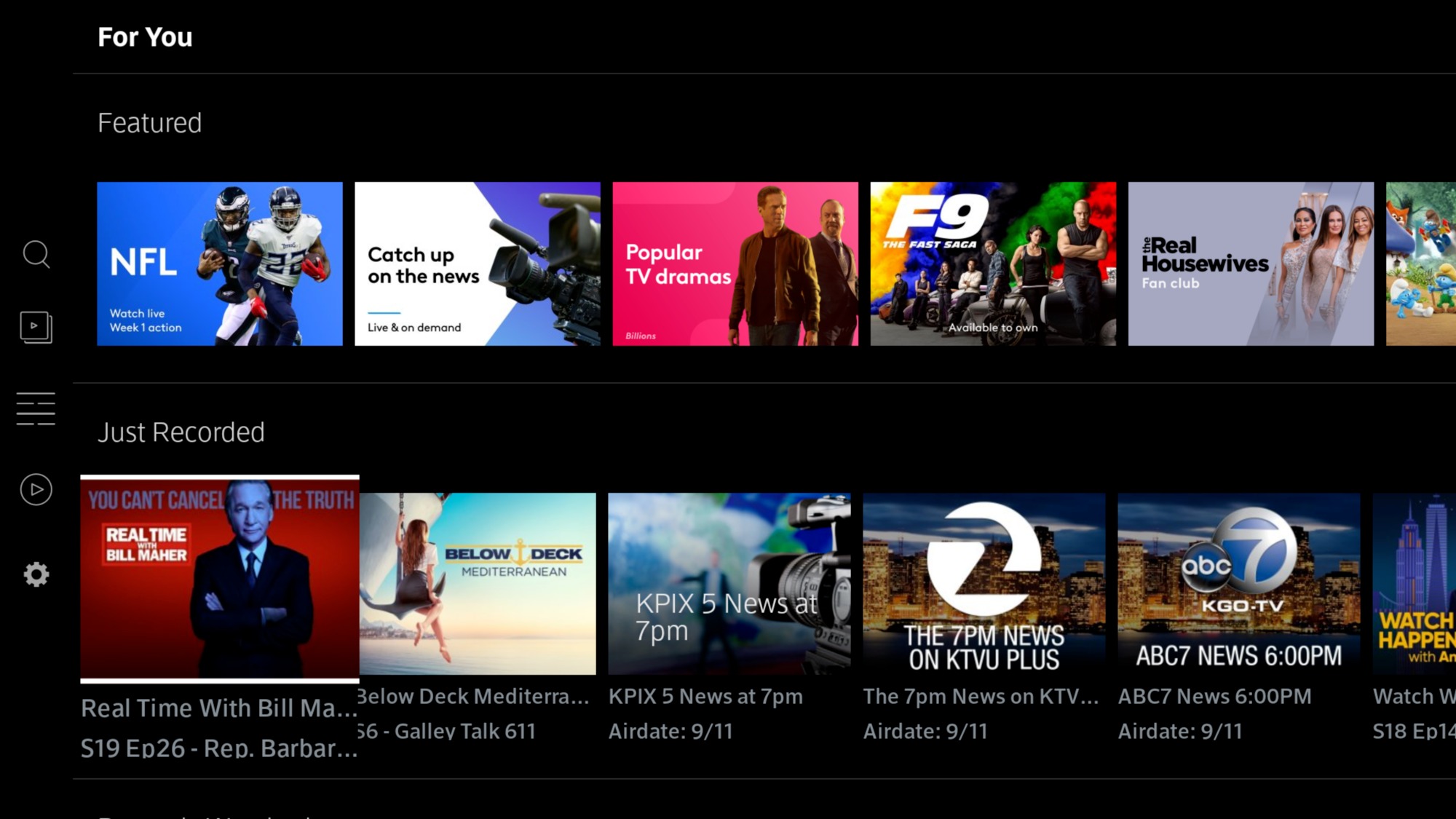
To stream Xfinity from a phone to TV, use the Xfinity Stream app with either Google Chromecast or Apple AirPlay. These two official methods let you watch live TV and on-demand content from your mobile device on a larger screen.
Before you start: requirements and compatibility
You must be an Xfinity customer with an Xfinity ID and password to use the Xfinity Stream app. For Chromecast, your mobile device (iOS or Android) and the Chromecast device must be on the same WiFi network. For AirPlay, your Apple device needs the Xfinity Stream app iOS version 7.8.0 or higher and iOS 17.0 or later. For Android devices, the Xfinity Stream app requires Android 7.0 or later and app version 7.4.1 or later. To access your full channel lineup and full Xfinity On Demand library, your device must be connected to your in-home Xfinity Internet network. When streaming outside your home network, you can access 250+ channels, but this content will count against your internet data usage. Xfinity TV customers can stream concurrently on up to five devices, with a maximum of three devices streaming outside the home network.
How to cast Xfinity Stream with Chromecast
Supported Chromecast devices include Chromecast 1st, 2nd, 3rd, and 4th generation (Chromecast with Google TV), and Chromecast Ultra. Casting to Smart TVs with embedded Chromecast is possible, but support and performance may vary by manufacturer, and some devices might show a "This device is not supported" error.
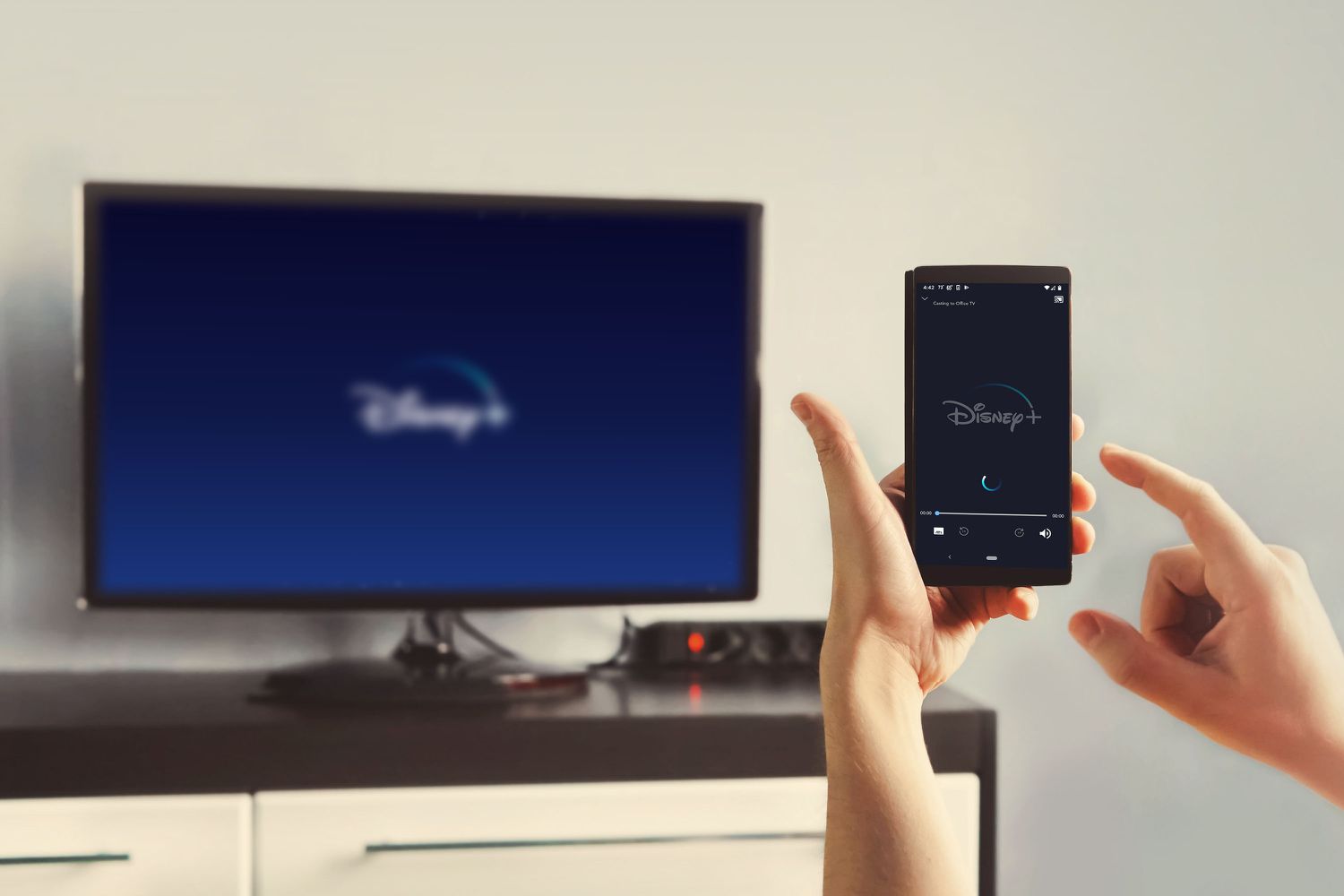
- Open the Xfinity Stream app on your mobile device and sign in.
- Select the Cast icon, usually located in the header.
- Choose your Chromecast device from the list.
- Select a program to cast to your TV.
How to stream Xfinity with Apple AirPlay
AirPlay is supported on compatible smart TVs and receiving devices, including Apple TV, HomePod, macOS, LG, and Roku devices. You can use either of these methods:
- Open the Xfinity Stream app on your iPhone or iPad, tap the cast icon, choose "AirPlay and Bluetooth Devices," then select your compatible TV or AirPlay device.
- Alternatively, while watching content in the Xfinity Stream app on an Apple device, tap the AirPlay Logo at the top of the screen and select a receiving target.
Troubleshooting Xfinity streaming problems
If you see a "device not supported" error on a smart TV with embedded Chromecast, this is a known limitation that varies by manufacturer, try using a standalone Chromecast device instead. Remember that to access your full channel lineup and On Demand library, you must be connected to your in-home WiFi network; away from home, you are limited to 250+ channels. Both your phone and the receiving device must be on the same WiFi network for casting or AirPlay to work. The Xfinity Stream app does not support certain Xfinity X1 features on partner devices, such as control via the Xfinity Voice Remote or Pay Per View (PPV) event rentals. Movie and TV show rentals through Xfinity On Demand are available on Roku and Amazon Fire TV via the Stream app, but not on LG or Samsung Smart TVs. If you need to adjust your Xfinity Mobile services and settings, access them through your Xfinity account online or the My Account app.
Frequently Asked Questions
Can I use screen mirroring instead of casting or AirPlay?
Screen mirroring is not officially supported by the Xfinity Stream app. Commonly claimed: The Xfinity Stream app previously blocked AirPlay, Casting, or Mirroring due to rights restrictions. This is outdated; AirPlay and Casting are now supported features.
Why does my content stop playing when I leave home?
When you leave your in-home WiFi network, you lose access to your full channel lineup and On Demand library. You can still stream 250+ channels, but those streams count against your mobile data.
Can I stream to multiple TVs at the same time?
Yes, you can stream on up to five devices simultaneously. However, no more than three of those devices can be streaming outside your home network at the same time.
Do I need a separate streaming device for each TV?
Each TV needs a compatible receiving device, either a Chromecast, an Apple TV, a smart TV with built-in Chromecast or AirPlay support, or a Roku device. You can use your phone to cast to any of these from the same Xfinity Stream app.
Will casting work with older Chromecast models?
Yes, all supported Chromecast devices include 1st, 2nd, 3rd, and 4th generation (Chromecast with Google TV), as well as Chromecast Ultra.
Related reading: How To Stream Crunchyroll From A Phone To TV.