To get Nvidia clips on phone, you must record your gameplay on a PC using NVIDIA's software and then transfer the file to your mobile device. There is no official NVIDIA app that captures clips directly on a phone, so the workflow is always PC-first, then file transfer.
The truth about how to get NVIDIA clips on phone
NVIDIA's capture tools, GeForce Experience, ShadowPlay, and the Share overlay, are designed exclusively for Windows PCs and SHIELD TV hardware. No official NVIDIA mobile app exists for recording or transferring clips. The only documented path to get NVIDIA clips on phone is to capture the gameplay on your PC and then move the resulting MP4 file to your phone using a separate method like USB or cloud storage. This clears up the common misconception that a phone app can do the recording itself.
Step 1: Record your gameplay with the NVIDIA overlay on PC
Open GeForce Experience on your Windows PC. Press Alt+Z or click the Share icon to open the in-game overlay. From here, you have two recording options:
- Instant Replay, This automatically keeps a rolling recording of the last 20 minutes of gameplay (on GeForce Experience; the clip length is 5 minutes on SHIELD TV hardware). On SHIELD TV, Instant Replay saves the last 5 minutes (clip length varies by device/product line). Enable it once, and it runs in the background.
- Record, Use this for manual capture. Start and stop recording whenever you want.
The overlay can record gameplay at up to 4K resolution at 60 FPS, in both full screen and windowed modes. Clips are saved as MP4 files.
Step 2: Find the saved clip on your computer
By default, GeForce Experience saves recorded clips to the Videos folder on your PC, inside a subfolder named for the game or "GeForce Experience." Look for the MP4 file you just created. The file name typically includes the game title and a timestamp.
Step 3: Transfer the clip to your phone
Once you have the MP4 file on your PC, use one of these methods to move it to your phone:
- USB cable, Connect your phone to the PC with a USB cable, set the phone to file transfer mode, then copy and paste the clip into your phone's storage (e.g., the DCIM or Movies folder).
- Cloud service, Upload the clip to a service like Google Drive, Dropbox, or OneDrive from your PC, then download it on your phone using the corresponding app.
No official NVIDIA documentation covers iPhone or Android menu paths for this transfer; the phone-side steps depend entirely on your device and chosen transfer method.
Why you can't record NVIDIA clips directly on your phone
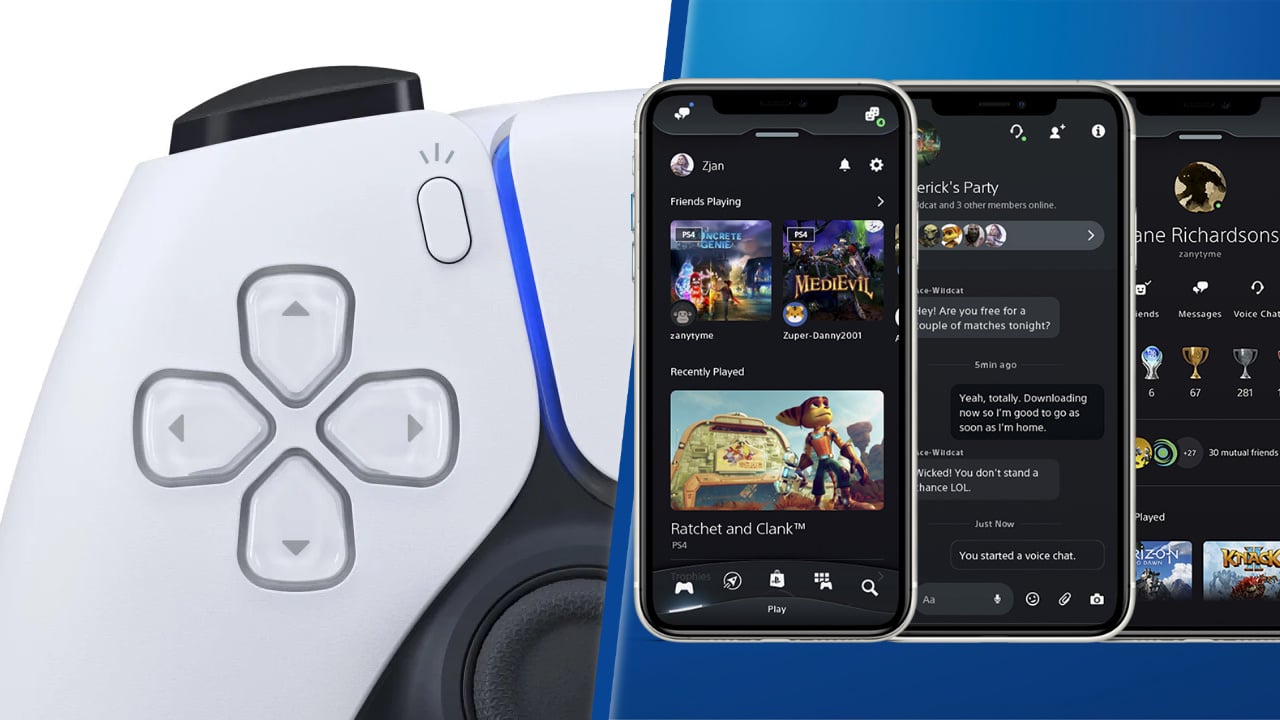
NVIDIA's ShadowPlay was renamed to the Share overlay and remains a PC-only feature. ShadowPlay was renamed to the Share overlay; Instant Replay replaced Shadowmode. Instant Replaced replaced Shadowmode, and neither has a mobile equivalent. This means you cannot record NVIDIA clips natively on a phone; the workflow always requires a PC to capture and a manual transfer step. For comparison, if you want to get PlayStation clips on phone, you would use Sony's PS App or a similar console-to-mobile workflow, but NVIDIA's ecosystem does not offer that kind of direct mobile capture.
Frequently Asked Questions
Can I use the NVIDIA app on my phone to record clips?
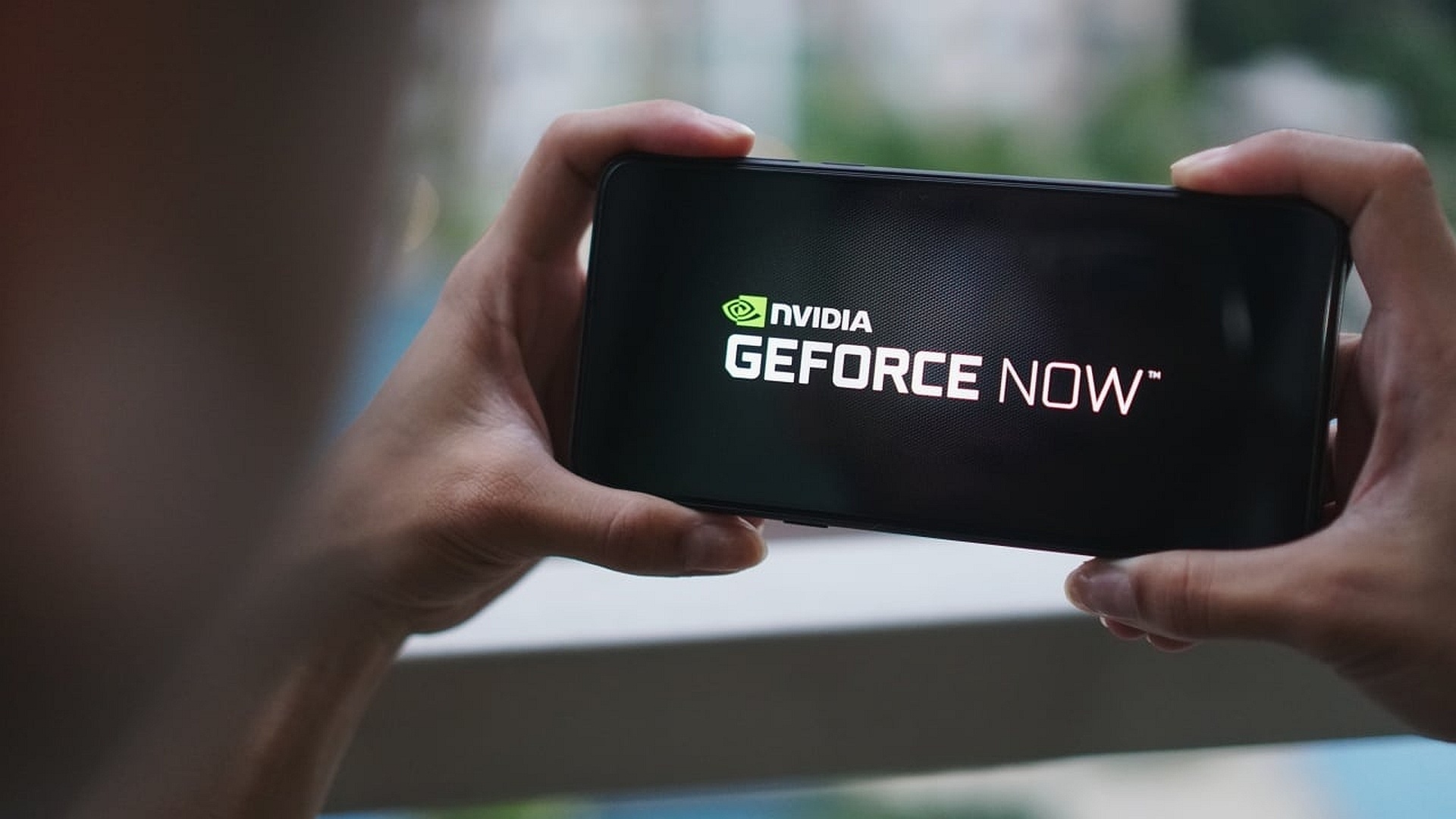
No. The NVIDIA app available on phones (such as NVIDIA GeForce NOW or NVIDIA Broadcast) does not include a clip recording or transfer feature. The only way to get NVIDIA clips on a phone is to record on a PC and transfer the file.
Does NVIDIA offer a cloud sync for clips like some console services?
No. NVIDIA does not provide a built-in cloud sync service that automatically sends PC-recorded clips to your phone. You must manually transfer the file using USB or a third-party cloud service.
What if my clip is too long to transfer easily?
You can trim the clip on your PC using a free video editor or the built-in editing tools in the Photos app (Windows) before transferring. This reduces file size and makes the transfer faster, especially over cloud services.
Will the clip quality drop when I move it to my phone?
No. The MP4 file retains its original quality (up to 4K 60 FPS) when transferred. Your phone's display and playback app determine the final viewing quality, but the file itself is unchanged.
Can I record clips directly on my phone using NVIDIA's GeForce NOW?
GeForce NOW is a cloud gaming service that streams games to your phone, but it does not include a built-in clip recording feature. You would need to use your phone's native screen recorder to capture gameplay from GeForce NOW, not NVIDIA's own tools.
Related reading: How To Transfer PS4 Clips To Phone.