Set up your phone and console for PlayStation clips
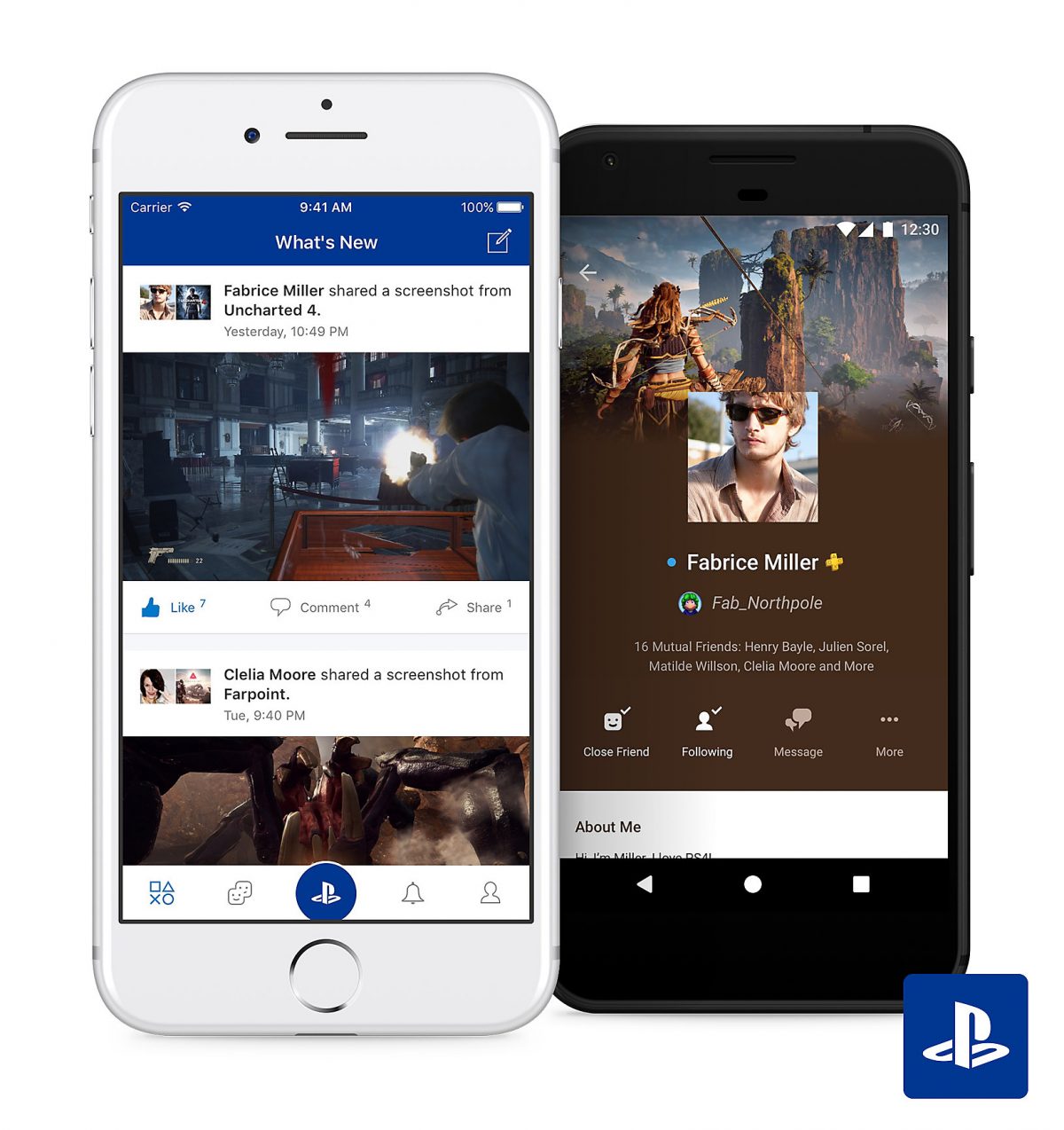
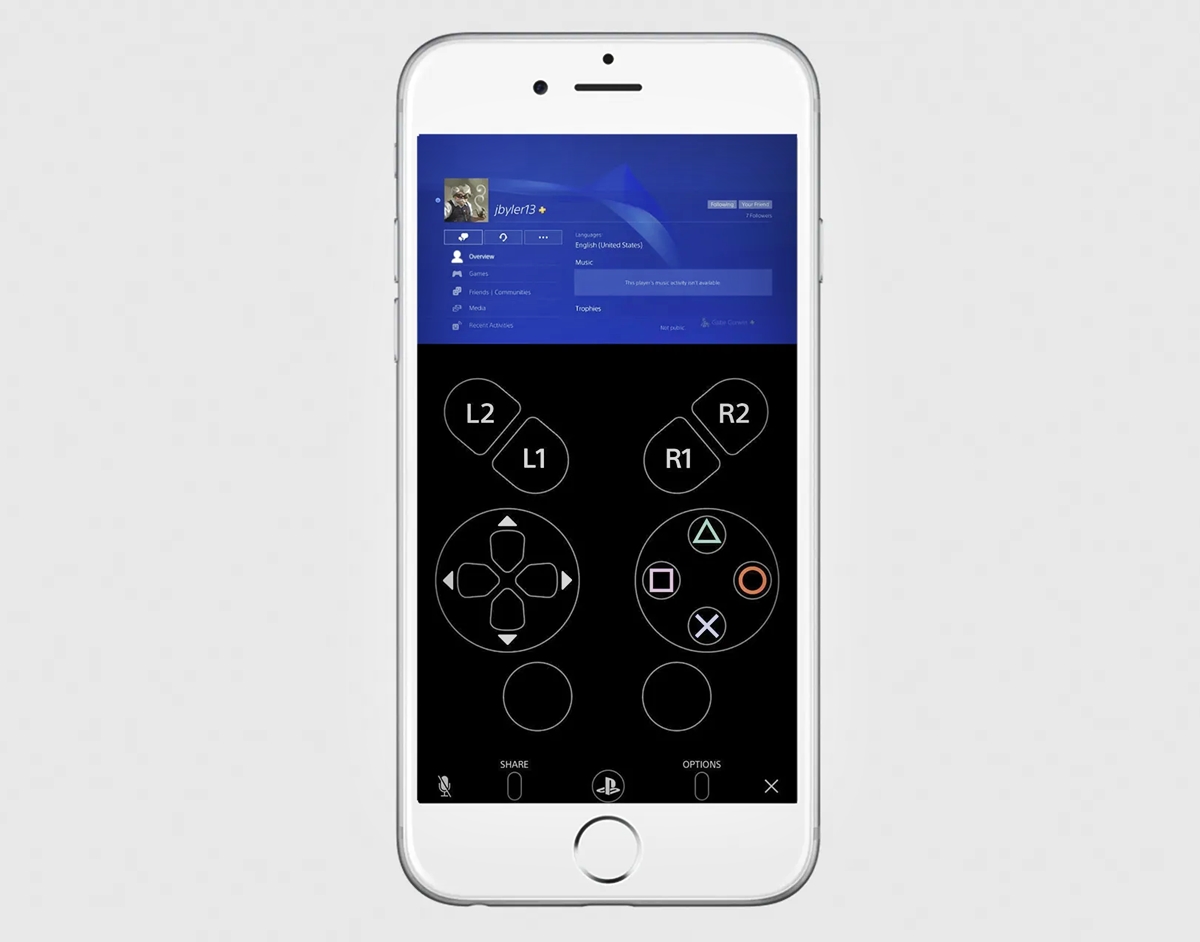
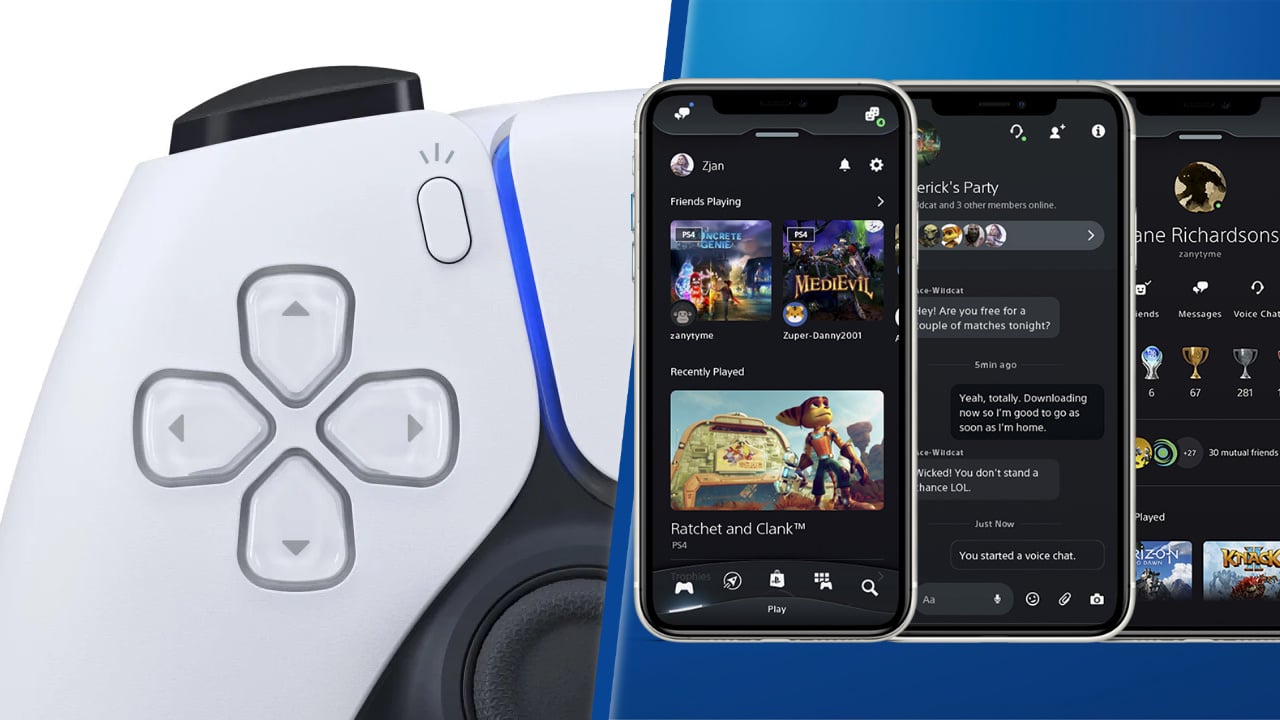
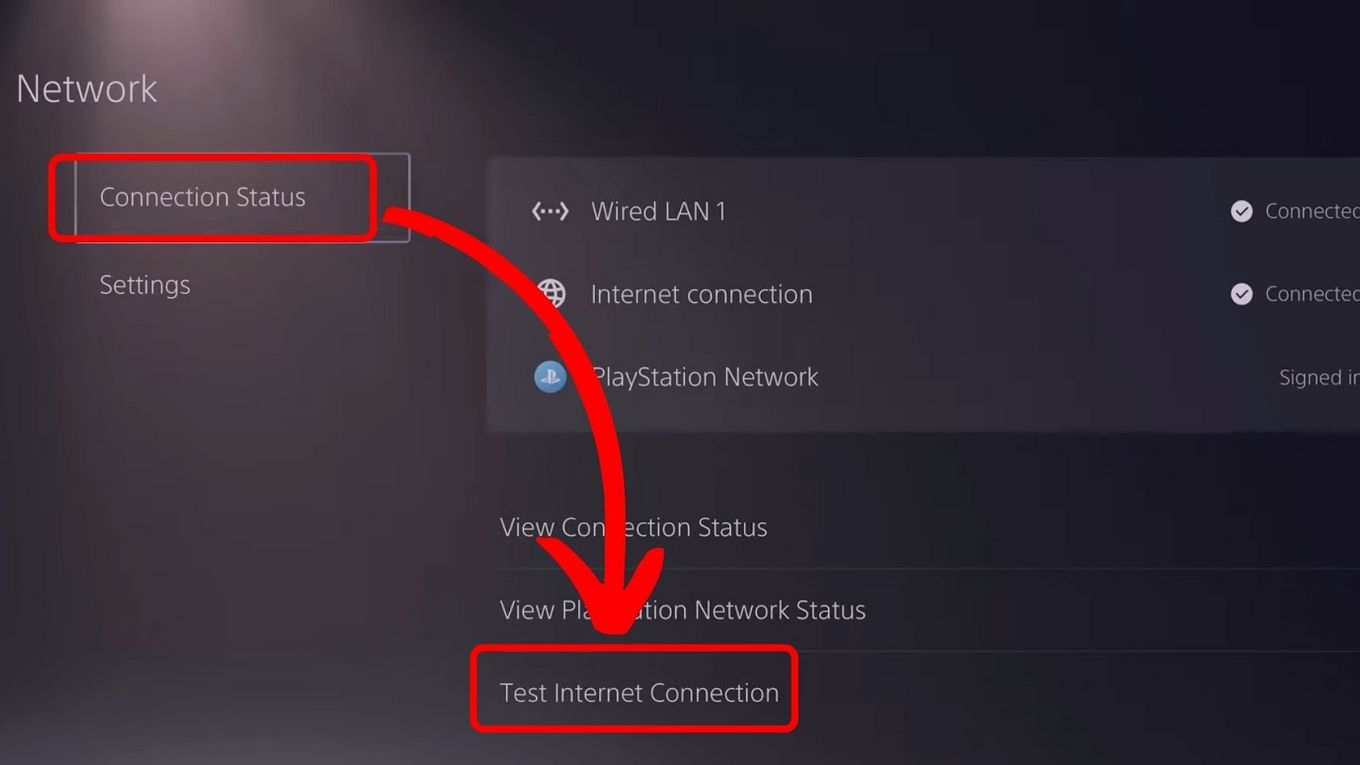
Getting your PlayStation clips on phone starts with pairing the PlayStation App to your PS5, and once connected, you can manage storage and launch games. To actually see your screen, you can use the PS Remote Play app installed on the same device, which lets you turn on PS5 from phone provided the machine is left in rest mode. If you are still on a PS4, you can use your console through your phone with the same Remote Play app over Wi‑Fi or mobile data with at least a 5 Mbps connection. For creators, the idea of a phone camera for PS4 streaming is popular, but there is no official method to use phone as facecam for PS4 stream. Once the link is live, you can use the app to your advantage by kicking off downloads remotely, though a stable network is essential because mobile data performance will vary by carrier.
Get clips and screenshots onto your phone
Getting your gameplay onto a phone screen works differently depending on which system you own. If you play on PS5 and want to share PS5 clips to phone, the process is built directly into the official PlayStation App. You must first enable the auto-upload for game captures setting on the machine while it is linked to the app, and the hardware needs to stay in rest mode with an internet connection. Once that is active, your recent highlights appear under Library > Captures, where you can save clips from PS5 to phone by downloading them straight to your internal storage. Just remember that only videos under three minutes and not in 4K will upload, and they disappear after 14 days.
The situation is different for older hardware. There is no way to look at clips on PS4 app on phone through a direct cloud sync like the PS5 offers, nor a direct method to access PS4 screenshots on phone or transfer PS4 clips to phone. As for PC players, there is no supported workflow to get NVIDIA clips on phone.
Save and customize content on your phone
Once your captures have made it to the PlayStation App, you can hold onto them permanently by using the share sheet on your device to save a reel to my phone, which places the video file directly into your local gallery for editing or sharing outside the app. That same principle works for still images you want to repurpose beyond your system. While the PS5 interface does not support custom backgrounds, you can still put a picture on your PS4 background from your phone by sending the image through a PlayStation message, opening it on the machine to take a screenshot, and then selecting it as an option in the Themes menu under Custom. The PS4 treats any image captured on the device as eligible wallpaper, making this roundabout method a way to bring a phone photo into the background selector without a USB drive. Captures stored only in the app’s library will expire if they were auto-uploaded from a PS5, so pulling them down to your camera roll is the safest way to keep a clip or screenshot for good.
Frequently Asked Questions
Can I use PS Remote Play over 5G instead of Wi‑Fi?
Yes, PS Remote Play works over mobile data with at least a 5 Mbps connection. Actual performance depends on your carrier and network conditions, so a stable connection is essential for a smooth experience.
How do I save a PlayStation clip to my iPhone camera roll?
In the PlayStation App, go to Library then Captures, open the clip, and use the share sheet to download it directly to your internal storage. This places the video file in your local gallery for permanent keeping.
What Android version does the PS Remote Play app need?
PS Remote Play requires a mobile device with Android 11 or later and a PS5 or PS4 console running the latest system software version. Older Android versions are not supported by the current app.